1. Overview
The System Calendar is a read-only calendar view that aggregates key dates from across all modules in Contract intELIEgence. It provides a consolidated, at-a-glance view of important deadlines and milestones spanning contracts, services, suppliers, customers, SLAs, and governance.
Key characteristics:
- Aggregated view — pulls dates from Contracts, Service Manager, Suppliers, Customers, SLAs, and Governance modules into one calendar
- Color-coded categories — 12 distinct event categories, each with its own colour for quick visual identification
- Flexible views — switch between Month, Week, and Day views to see the level of detail you need
- Filter panel — toggle categories on/off to focus on the dates that matter to you
- Auto-populated — no manual entry required; events appear as soon as dates are saved in source modules
2. Calendar Views
The System Calendar offers three views, toggled using the Month, Week, and Day buttons at the top of the calendar. Use the < and > arrow buttons to navigate forward and backward in time.
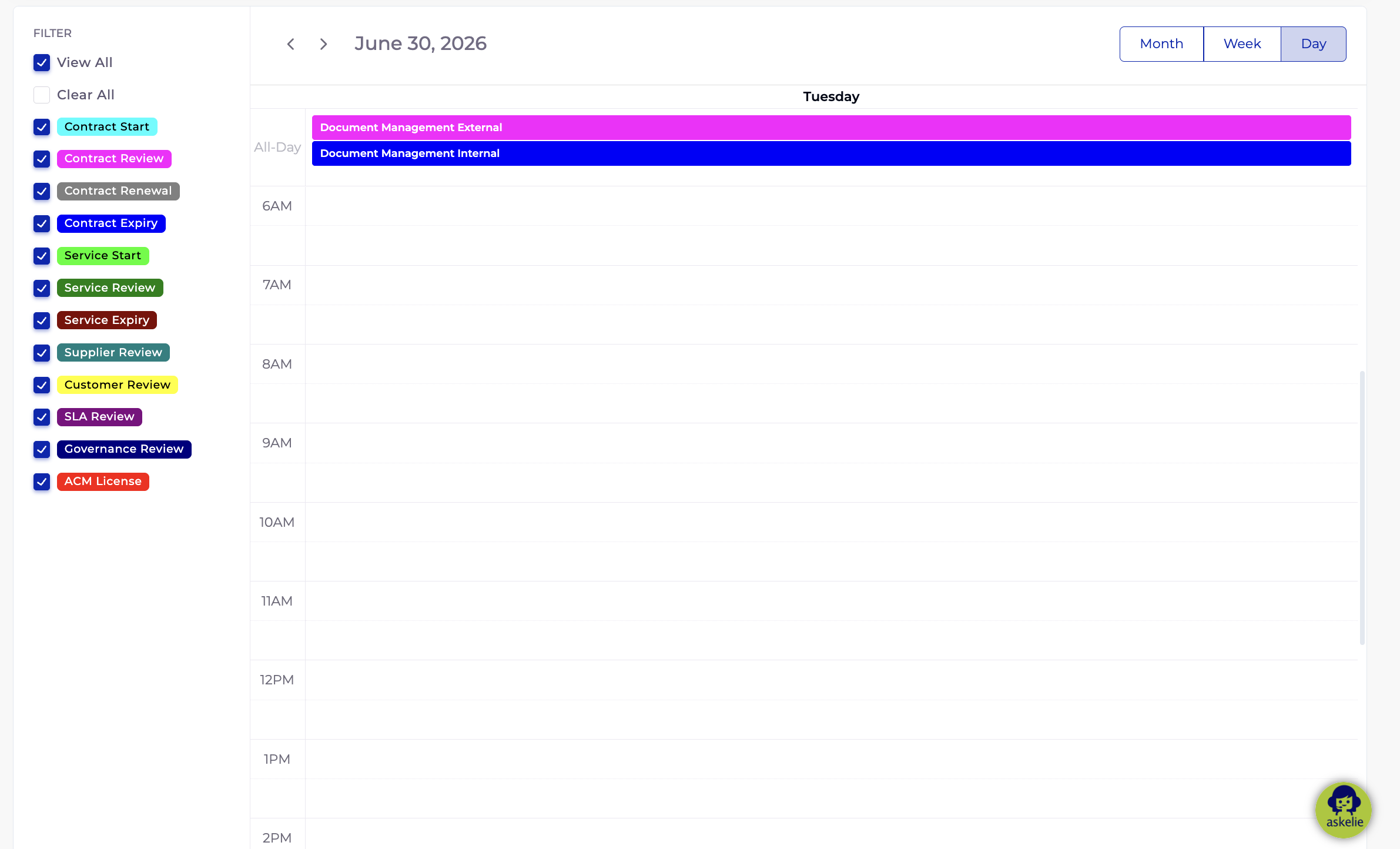
2.1 Day View
Displays a single day with hourly time slots running vertically. All-day events (dates without specific times) appear in the All-Day section at the top. Use this view when you need to see exactly what falls on a particular date.
2.2 Week View
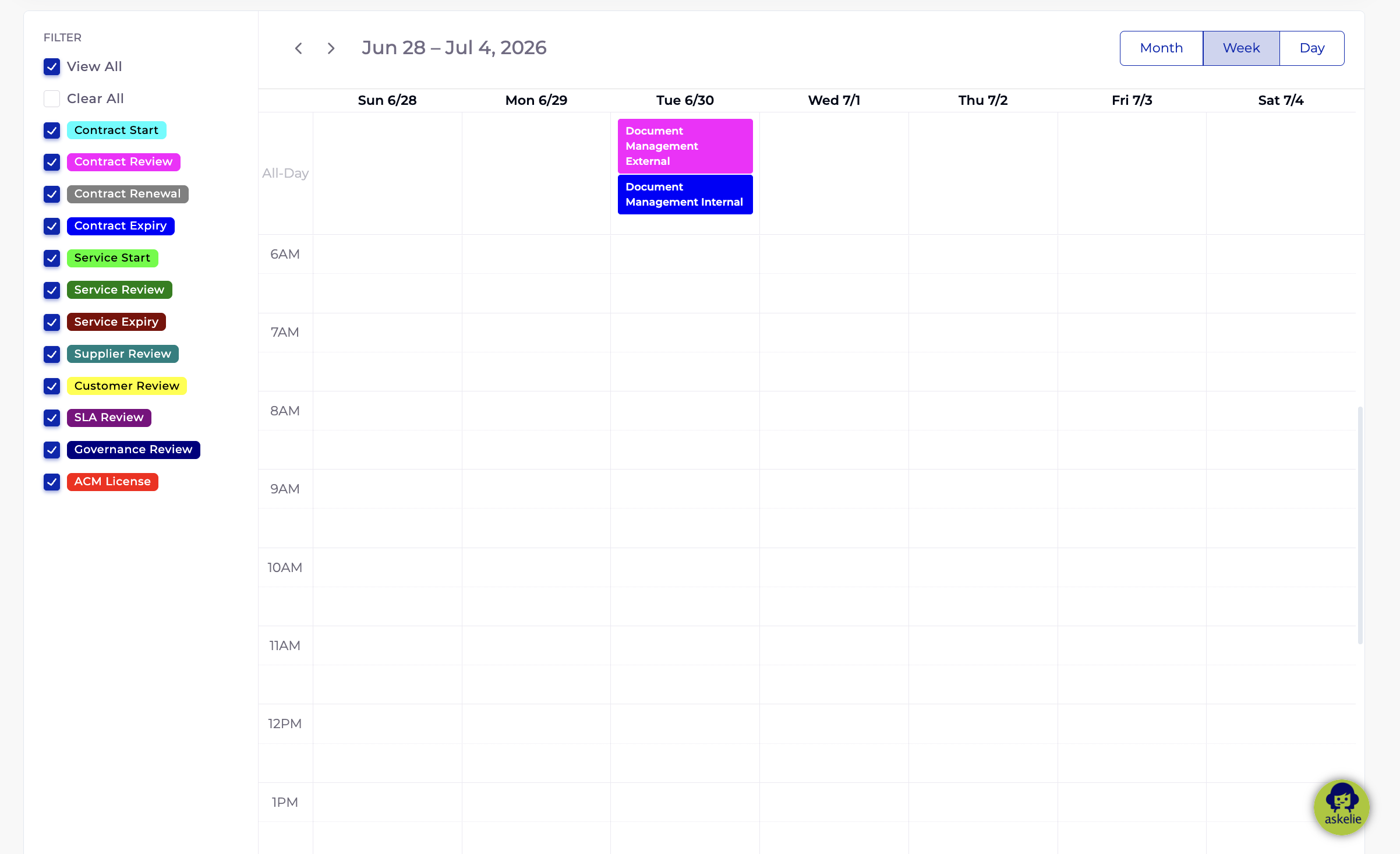
Displays seven columns (Sunday through Saturday) with hourly rows. All-day events are shown in a consolidated section across the top of the columns. This view is useful for seeing what is coming up in the current or upcoming week.
2.3 Month View
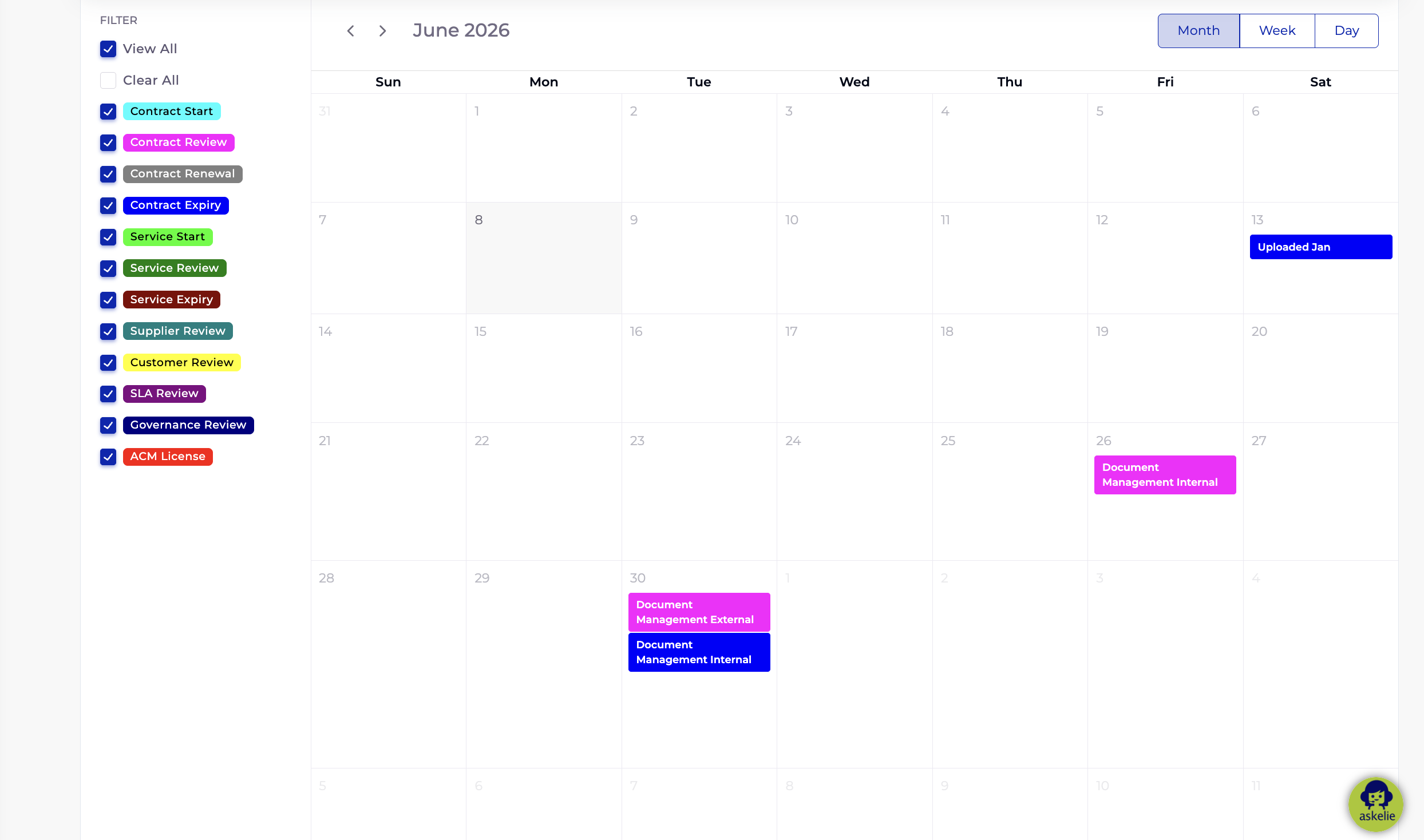
Displays the traditional monthly grid with events shown directly on their dates. Events are colour-coded by category so you can quickly identify the type of event at a glance. This is the best view for getting a high-level overview of an entire month’s key dates.
2.4 Navigation
| Control | Action |
|---|---|
| Month / Week / Day buttons | Switch between the three calendar views |
| < (left arrow) | Navigate to the previous month, week, or day (depending on current view) |
| > (right arrow) | Navigate to the next month, week, or day |
| Today button | Jump back to the current date |
3. Filter Panel
The left side of the calendar displays a Filter Panel listing all 12 event categories. Each category has a checkbox and a colour indicator. Use the filters to show or hide specific types of events.
3.1 Quick Controls
- View All — checks all category checkboxes, displaying every event type on the calendar
- Clear All — unchecks all category checkboxes, hiding all events from the calendar
3.2 Event Categories
The 12 colour-coded event categories and their meanings:
- Contract Start — the start date of a contract
- Contract Review — scheduled contract review dates
- Contract Renewal — contract renewal dates
- Contract Expiry — contract expiry/end dates
- Service Start — service manager start dates
- Service Review — service manager review dates
- Service Expiry — service manager expiry dates
- Supplier Review — supplier review dates
- Customer Review — customer review dates
- SLA Review — SLA review dates
- Governance Review — governance scheme review dates
- ACM License — license expiry dates
4. Event Sources
Each event category is automatically populated from a specific source module. The table below shows where each category’s dates originate:
| Event Category | Source Module | Date Field |
|---|---|---|
| Contract Start | Contract | Contract Start Date |
| Contract Review | Contract | Review Date |
| Contract Renewal | Contract | Renewal Date |
| Contract Expiry | Contract | Expiry / End Date |
| Service Start | Service Manager | Service Start Date |
| Service Review | Service Manager | Review Date |
| Service Expiry | Service Manager | Expiry Date |
| Supplier Review | Supplier | Review Date |
| Customer Review | Customer | Review Date |
| SLA Review | SLA | Review Date |
| Governance Review | Governance | Review Date |
| ACM License | Platform Configuration | License Expiry Date |
5. Tips & Best Practices
- Use filters to focus — if you are only interested in contract renewals and expiries, clear all filters and enable just those two categories. This removes visual clutter and helps you concentrate on what matters.
- Month view for big-picture planning — use the Month view to scan an entire month for upcoming deadlines and identify busy periods.
- Week and Day views for detail — switch to Week or Day view when you need to see exactly what falls on specific dates, especially when multiple events overlap.
- Navigate ahead — use the forward arrow to look weeks or months ahead and prepare for upcoming reviews, renewals, and expiries before they arrive.
- Colour-coding is consistent — the colours used in the calendar are the same everywhere in the system, so you will quickly learn to recognise each event type at a glance.
- Cross-module visibility — the System Calendar is the only place where dates from all modules appear together. Use it as your single source of truth for upcoming deadlines.
- No duplicates — each date appears once per source record. If a contract has a review date, it shows as one “Contract Review” event on that date.