1. Overview
The Reports module provides two distinct approaches to generating reports from your Contract intELIEgence data. It is organised into two tabs:
- Predefined Report — run standard, pre-built reports for specific entity types (contracts, customers, departments, organisations, services, suppliers)
- Report Builder — create custom ad-hoc reports by selecting fields, criteria, and sorting from across all modules on the platform
Reports pull data from all modules across the platform, giving you a consolidated view of your contract management information in a single, exportable format.
2. Predefined Report Tab
The Predefined Report tab allows you to quickly run standard reports without any configuration. Select a report type, choose an entity, and generate the report instantly.
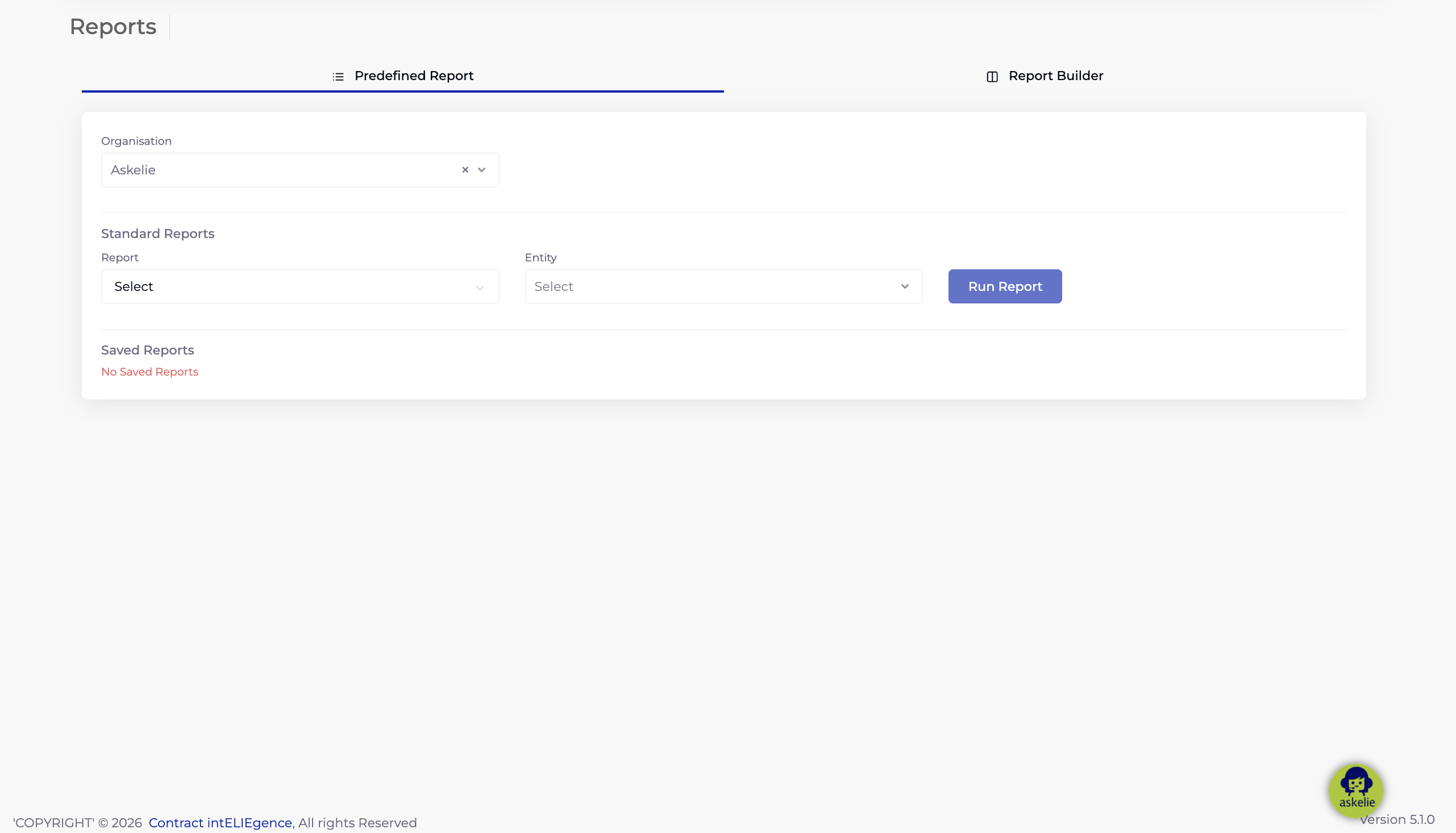
2.1 Organisation
Select the Organisation from the dropdown at the top to scope the report to a specific organisation. All reports will be generated based on data within the selected organisation.
2.2 Standard Reports
The Standard Reports section contains three controls:
- Report dropdown — select one of the six standard report types
- Entity dropdown — select the specific entity to report on (populated based on the report type selected)
- Run Report button — generate and display the report
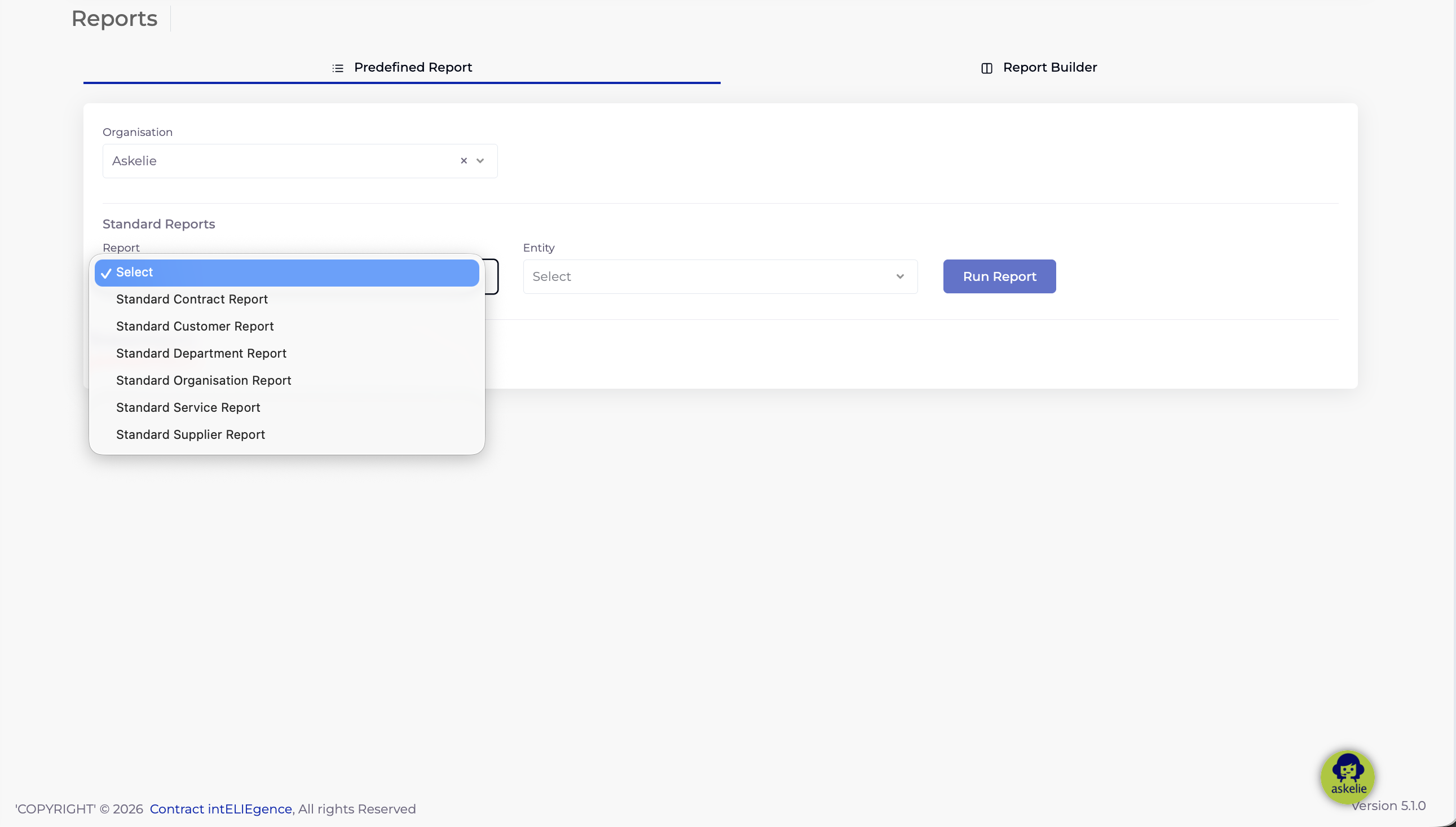
The six standard reports available are:
| Report | Description |
|---|---|
| Standard Contract Report | Report on a specific contract’s details |
| Standard Customer Report | Report on a specific customer’s details |
| Standard Department Report | Report on a specific department’s details |
| Standard Organisation Report | Report on a specific organisation’s details |
| Standard Service Report | Report on a specific service’s details |
| Standard Supplier Report | Report on a specific supplier’s details |
2.3 Entity Selection
Once you select a report type from the Report dropdown, the Entity dropdown is populated with the relevant entities. For example, selecting Standard Contract Report populates the Entity dropdown with all contract names in the selected organisation.
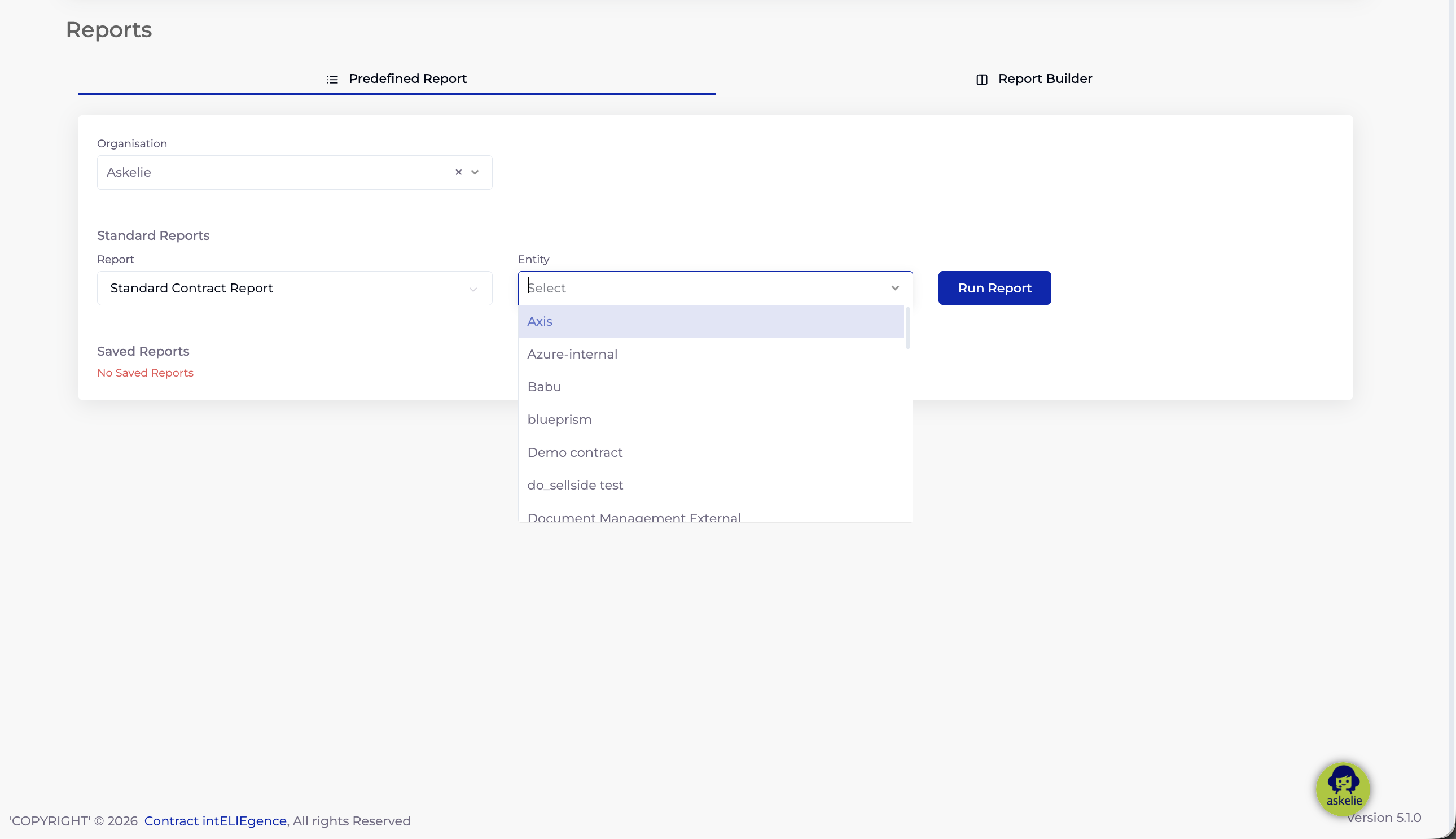
Click Run Report to generate and display the selected report.
2.4 Saved Reports
Below the Standard Reports section is the Saved Reports section. This displays any custom ad-hoc reports that you have previously saved using the Report Builder. You can re-run saved reports directly from this section without needing to reconfigure them.
3. Report Builder Tab (Ad-hoc Reports)
The Report Builder tab allows you to create fully customised reports by selecting specific fields, applying filtering criteria, and configuring sort order and summaries. This is the most flexible reporting option in the platform.
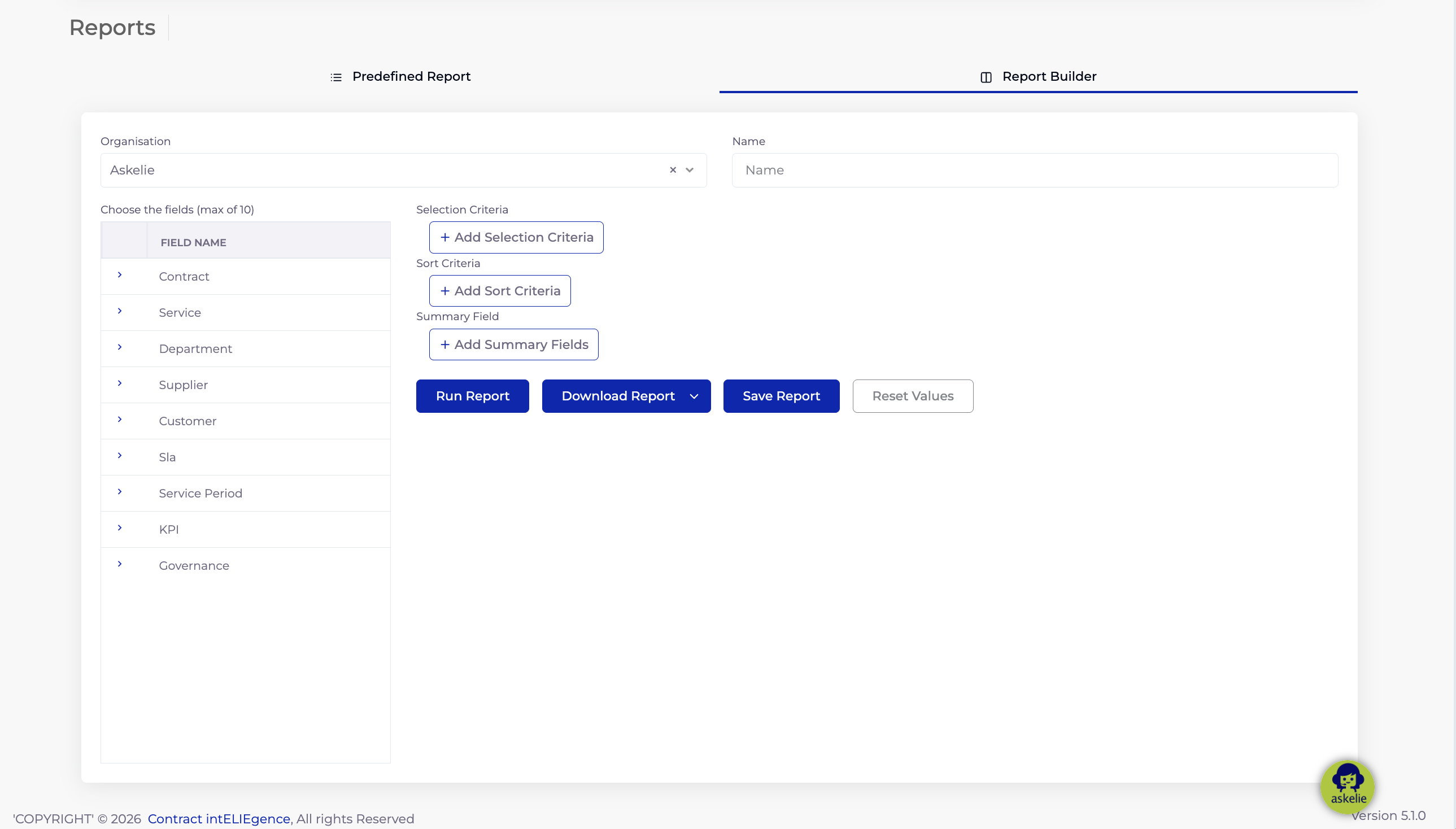
3.1 Organisation & Report Name
At the top of the Report Builder, configure:
- Organisation — select the organisation to report on
- Name (required) — enter a name for your custom report. This name is used when saving the report for later use.
3.2 Field Selection
The Field Selection panel on the left allows you to choose which data fields appear as columns in your report. You can select a maximum of 10 fields.
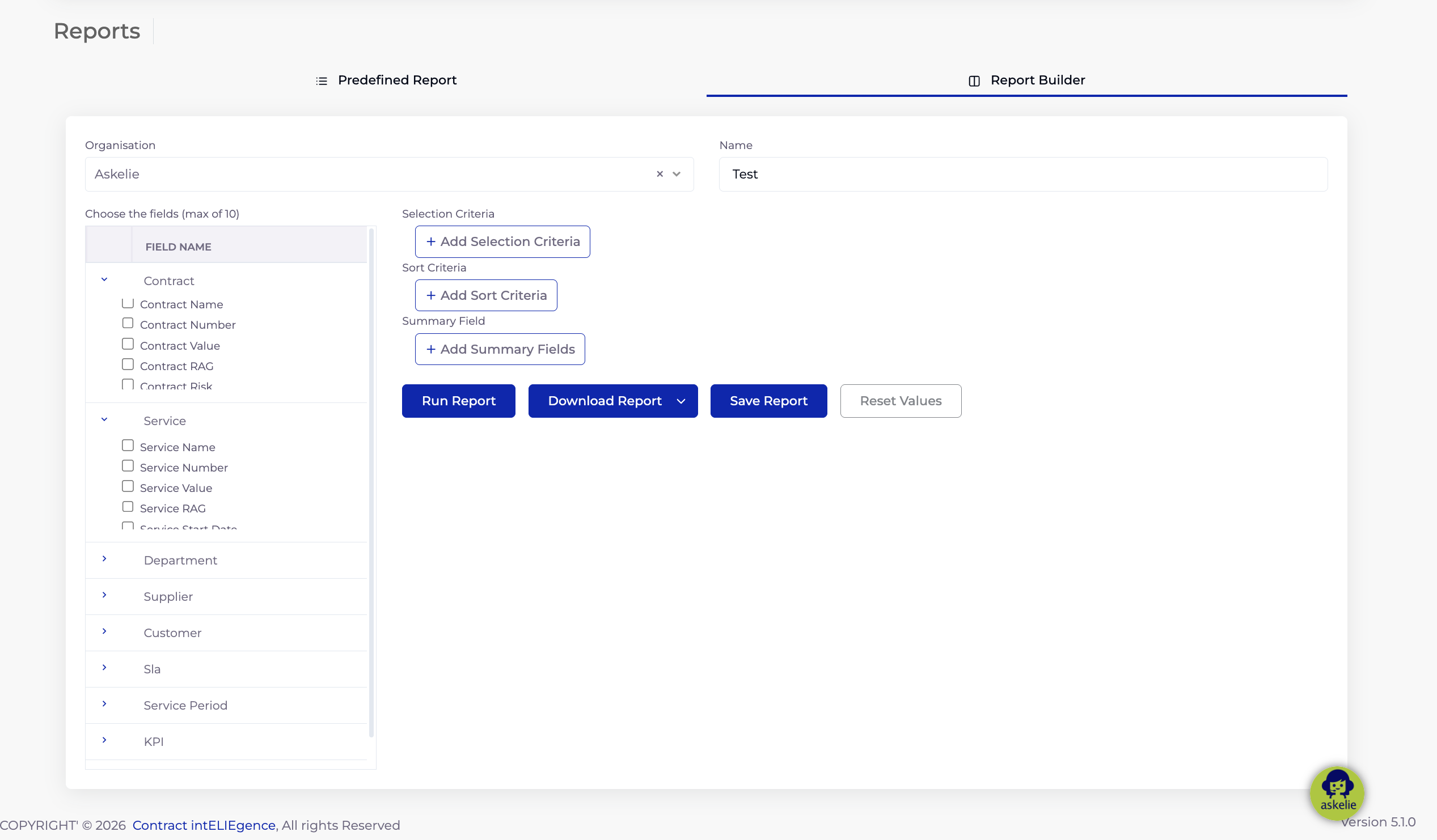
Fields are organised into expandable categories. Click a category name to expand it, then tick the checkbox next to each field you want to include. The available categories and their fields are:
Contract
- Contract Name
- Contract Number
- Contract Value
- Contract RAG
- Contract Risk
- Contract End Date
- Contract Start Date
- Contract Review Date
- Contract Status
Service
- Service Name
- Service Number
- Service Value
- Service RAG
- Service Start Date
Department
- Department
- Department Contact
- Department Email
- Department Region
Supplier
- Supplier
- Supplier Ref
- Supplier Contact Number
- Supplier Year End Date
- Supplier Region
Customer
Similar fields to other entity categories (customer name, contact details, region, etc.).
Additional Categories
Further expandable categories include SLA, Service Period, KPI, and Governance, each containing fields specific to those modules.
3.3 Selection Criteria
Selection Criteria let you filter the data that appears in your report. Each criterion consists of three parts:
- Field — the data field to filter on (selected from a dropdown of available fields)
- Criteria — the comparison operator
- Value — the value to compare against
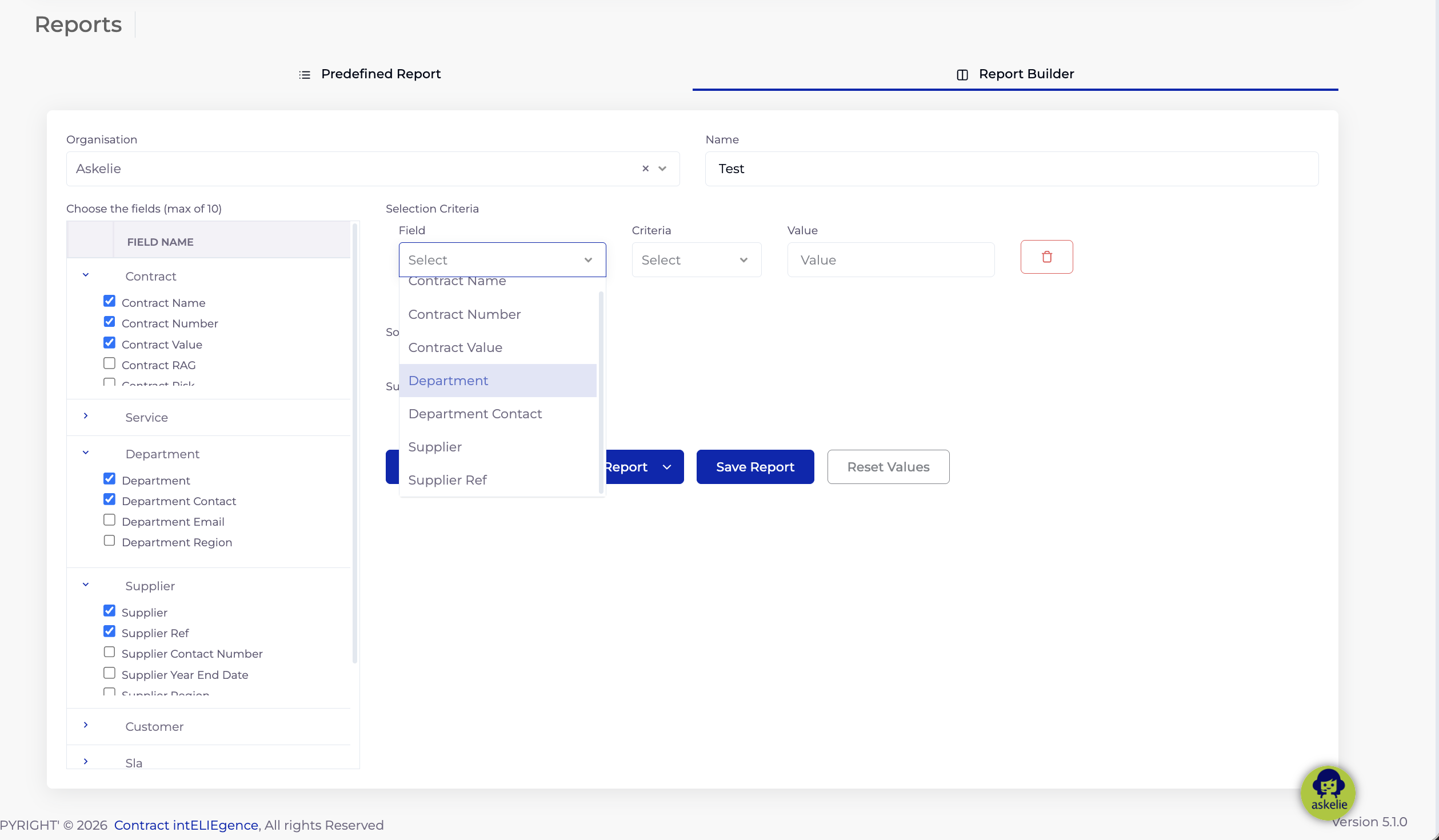
The available criteria operators are:
| Operator | Description |
|---|---|
| Equals | Exact match |
| Not Equals | Excludes exact match |
| Contains | Partial text match |
| Greater Than | Value is greater than the specified value |
| Less Than | Value is less than the specified value |
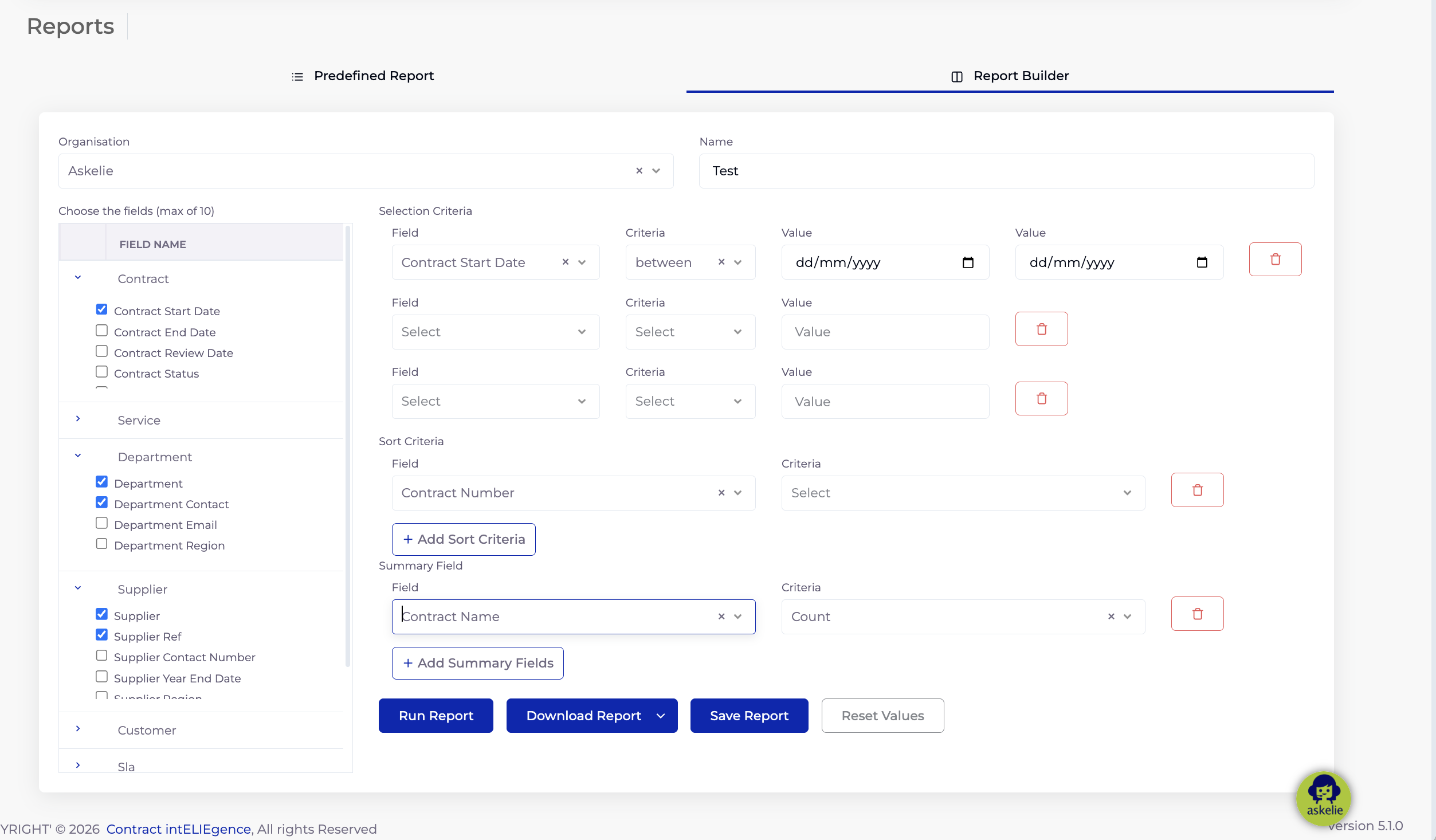
| Between | Value falls within a range (displays two value fields, e.g. a start date and end date) |
You can add multiple selection criteria rows to narrow your results further. Click the add button to add additional criteria rows.
3.4 Sort Criteria
Sort Criteria control the order in which rows appear in the report. Each sort criterion consists of:
- Field — the field to sort by
- Criteria — either Ascending or Descending
You can add multiple sort criteria to create multi-level sorting (e.g. sort by Department ascending, then by Contract Value descending).
3.5 Summary Field
Summary Fields allow you to add aggregate calculations to your report. Each summary field consists of:
- Field — the field to summarise
- Criteria — Count (returns the total number of records for that field)
You can add multiple summary fields. These appear at the bottom of the generated report as summary totals.
3.6 Full Example
The screenshot below shows a fully configured ad-hoc report with selection criteria using the “Between” operator for a date range, sort criteria, and a summary field:
3.7 Action Buttons
At the bottom of the Report Builder, four action buttons are available:
| Button | Action |
|---|---|
| Run Report | Generate and display the report based on the current configuration |
| Download Report | Download the generated report as a PDF or CSV file |
| Save Report | Save the report configuration for future use (appears in Saved Reports on the Predefined tab) |
| Reset Values | Clear all fields, criteria, and selections back to their defaults |
4. Tips & Best Practices
- Use Predefined Reports for quick standard views — when you need a straightforward report on a specific entity (e.g. a single contract or supplier), the Predefined Report tab is the fastest option.
- Use Report Builder for cross-module custom reports — when you need to combine fields from multiple categories (e.g. Contract fields alongside Department and Supplier fields), the Report Builder is the right tool.
- Max 10 fields — choose the most relevant fields for your report. Having fewer, more targeted fields produces cleaner, more readable reports.
- Use Selection Criteria to narrow results — apply filters such as date ranges (using the “Between” operator), specific RAG statuses, or particular contract values to focus on exactly the data you need.
- Save frequently-used ad-hoc reports — once you have configured a report you run regularly, click Save Report. It will then appear in the Saved Reports section on the Predefined tab for quick access.
- Download as PDF for formal reporting — use the PDF download for polished, presentation-ready reports. Use CSV downloads when you need to perform further data analysis in a spreadsheet application.
5. Troubleshooting
| Issue | Possible Cause | Resolution |
|---|---|---|
| Entity dropdown is empty | No entities exist for the selected report type in the chosen organisation | Verify that the correct organisation is selected and that entities of the relevant type have been created in the system |
| Report returns no results | Selection criteria are too restrictive | Broaden your selection criteria or remove some filters. Check that date ranges and values are correct. |
| Cannot select more fields | Maximum of 10 fields already selected | Deselect fields you do not need before adding new ones |
| Saved report not appearing | Report was not saved or was saved under a different organisation | Ensure you clicked Save Report after configuring the report. Check that the same organisation is selected on the Predefined tab. |
| Download button not working | Report has not been run yet | Click Run Report first to generate the report, then click Download Report |
| “Between” criteria not filtering correctly | Date format or value order may be incorrect | Ensure the first value is the start of the range and the second value is the end. Use the correct date format. |