1. Overview
The Contract Template module is an admin-facing tool for creating reusable contract templates. Each template combines a Word document (containing standard terms and tag placeholders) with a structured form definition (sections and components). When a user creates a contract via the Contract Builder, the system generates a dynamic form from the template and produces a completed Word document with all tags replaced by the entered values.
Templates ensure consistent contract language, structured data capture, and faster contract creation across the organisation.
How It Works
- Admin prepares a Word document containing standard terms and
${tagName}placeholders where dynamic content should appear. - Admin uploads the Word document and defines Sections (logical groupings) and Components (form fields) that map to the tags.
- The template becomes available in the Contract Builder module.
- When a user creates a contract from this template, the system generates a form from the sections/components, and on save, produces a Word document with all tags replaced by the entered values.
Prerequisites
- Organisation must be set up (templates belong to an organisation).
- A Word document (.docx) must be prepared with standard terms and tag placeholders in the format
${tagName}.
2. Preparing the Word Template Document
Before creating a template in Contract intELIEgence, you need to prepare a Word document (.docx) that will serve as the contract document. This document contains two types of content:
- Standard Terms — Fixed legal clauses, headings, and boilerplate text that remain the same in every contract generated from this template.
- Tag Placeholders — Dynamic fields written as
${tagName}that get replaced with actual values when a contract is created.
2.1 Writing Standard Terms
Standard terms are the fixed portions of your contract document — legal clauses, definitions, obligations, terms and conditions, and any other text that should appear identically in every contract generated from this template. Write these directly in the Word document using normal formatting (headings, paragraphs, bold, bullet points, etc.).
Examples of standard terms include:
- Definitions and interpretation clauses
- Confidentiality obligations
- Termination conditions
- Governing law and jurisdiction
- Liability limitations
- Dispute resolution procedures
2.2 Inserting Tag Placeholders
Wherever the contract document needs to include dynamic, contract-specific information (such as party names, dates, values, or custom terms), insert a tag placeholder using the format ${tagName}.
Tag Syntax Rules:
- Tags must use the exact format:
${tagName}— a dollar sign, opening brace, the tag name, and closing brace. - Tag names are case-sensitive —
${StartDate}and${startDate}are different tags. - Tag names should use camelCase (e.g.
${customerName},${contractValue},${startDate}). - Do not include spaces inside the tag —
${customer Name}will not work. - Each tag in the Word document must have a corresponding Component defined in the template configuration (unless it is a predefined system tag).
${tagName} is typed as continuous text. Word sometimes auto-formats characters (e.g. curly quotes, special characters) which can break tag recognition. If tags are not being replaced correctly, try retyping them with formatting marks visible (¶ button) to ensure no hidden characters are present.2.3 Example — Non-Disclosure Agreement (NDA)
Below is a simplified example showing how a Word template for a Non-Disclosure Agreement uses both standard terms and tag placeholders:
                    NON-DISCLOSURE AGREEMENT
                    Contract No: ${contractNumber}

This Non-Disclosure Agreement ("Agreement") is entered into on
${startDate} ("Effective Date") by and between:

Party A: ${customerName}, with its principal office at
${customerAddress} ("Disclosing Party")

Party B: ${recipientName}, with its principal office at
${recipientAddress} ("Receiving Party")

1. DEFINITIONS

"Confidential Information" means any and all non-public information,
including but not limited to trade secrets, technical data, business
plans, financial information, and customer lists, disclosed by either
party to the other party, whether orally, in writing, or by any
other means.

2. OBLIGATIONS

The Receiving Party agrees to:
(a) Hold all Confidential Information in strict confidence.
(b) Not disclose Confidential Information to any third party without
    the prior written consent of the Disclosing Party.
(c) Use the Confidential Information solely for the purpose of
    ${purposeOfDisclosure}.

3. TERM

This Agreement shall commence on ${startDate} and shall remain in
effect until ${endDate}, unless terminated earlier by either party
with ${noticePeriod} days written notice.

4. GOVERNING LAW

This Agreement shall be governed by and construed in accordance
with the laws of ${governingLaw}.

5. SIGNATURES

Disclosing Party: ____________________
Name: ${customerName}
Date: ${startDate}

Receiving Party: ____________________
Name: ${recipientName}
Date: ${startDate}
In this example:
- Standard terms — Clause headings, definitions section, obligation text, and legal language remain the same for every NDA.
- Tag placeholders —
${contractNumber},${startDate},${customerName},${customerAddress},${recipientName},${recipientAddress},${purposeOfDisclosure},${endDate},${noticePeriod},${governingLaw}are replaced with actual values when the contract is created. - Some tags are predefined system tags (e.g.
${contractNumber},${startDate},${endDate},${customerName},${customerAddress}) — these do not need custom components. - Custom tags (e.g.
${recipientName},${recipientAddress},${purposeOfDisclosure},${noticePeriod},${governingLaw}) require Components to be created in the template configuration.
2.4 Handling Tables in the Word Template
If your contract requires a dynamic table (e.g. an asset list, deliverables schedule, or pricing breakdown), special handling is required:
- Insert a table with a single cell in the Word document at the position where the dynamic table should appear.
- Place the table tag inside that single cell (e.g.
${assetTable}). - When configuring the template in Contract intELIEgence, create a Component with the Table data type and define the table columns.
When a user creates a contract from this template, the single-cell placeholder is replaced with a fully structured table containing the defined columns and the data entered by the user.
2.5 Word Template Best Practices
- Plan before writing — List all dynamic fields your contract needs before starting. Decide which will use predefined system tags and which need custom components.
- Use meaningful tag names — Choose descriptive names like
${clientContactEmail}rather than generic names like${field1}. This makes the template easier to maintain. - Keep formatting simple — Use standard Word formatting (headings, bold, tables). Avoid complex formatting that may not render correctly in the generated document.
- Type tags as continuous text — Do not copy-paste tags from other applications, as hidden characters may be introduced. Type each tag directly in Word.
- Test with a sample contract — After configuring the template, create a test contract in Contract Builder and preview the generated document to verify all tags are replaced correctly and the formatting is intact.
- Version control — Keep a master copy of each Word template outside the system for reference. When updating a template, compare against the master to ensure no tags are accidentally removed.
- Use predefined system tags — For standard contract fields (name, dates, value, customer details), always use the predefined tags rather than creating custom components. This ensures consistency across templates.
3. Creating a Contract Template
Once the Word document is prepared, create the template in Contract intELIEgence:
- In the left navigation, under Contract Toolkit → Contract Studio, click Contract Template.
- Click Add to create a new template.
- Select the Organisation the template belongs to (required).
- Enter the Contract Name (required) — a descriptive name for this template (e.g. "Staff NDA", "Service Agreement", "Supplier Contract").
- Click Choose File to upload the Word template document (required).
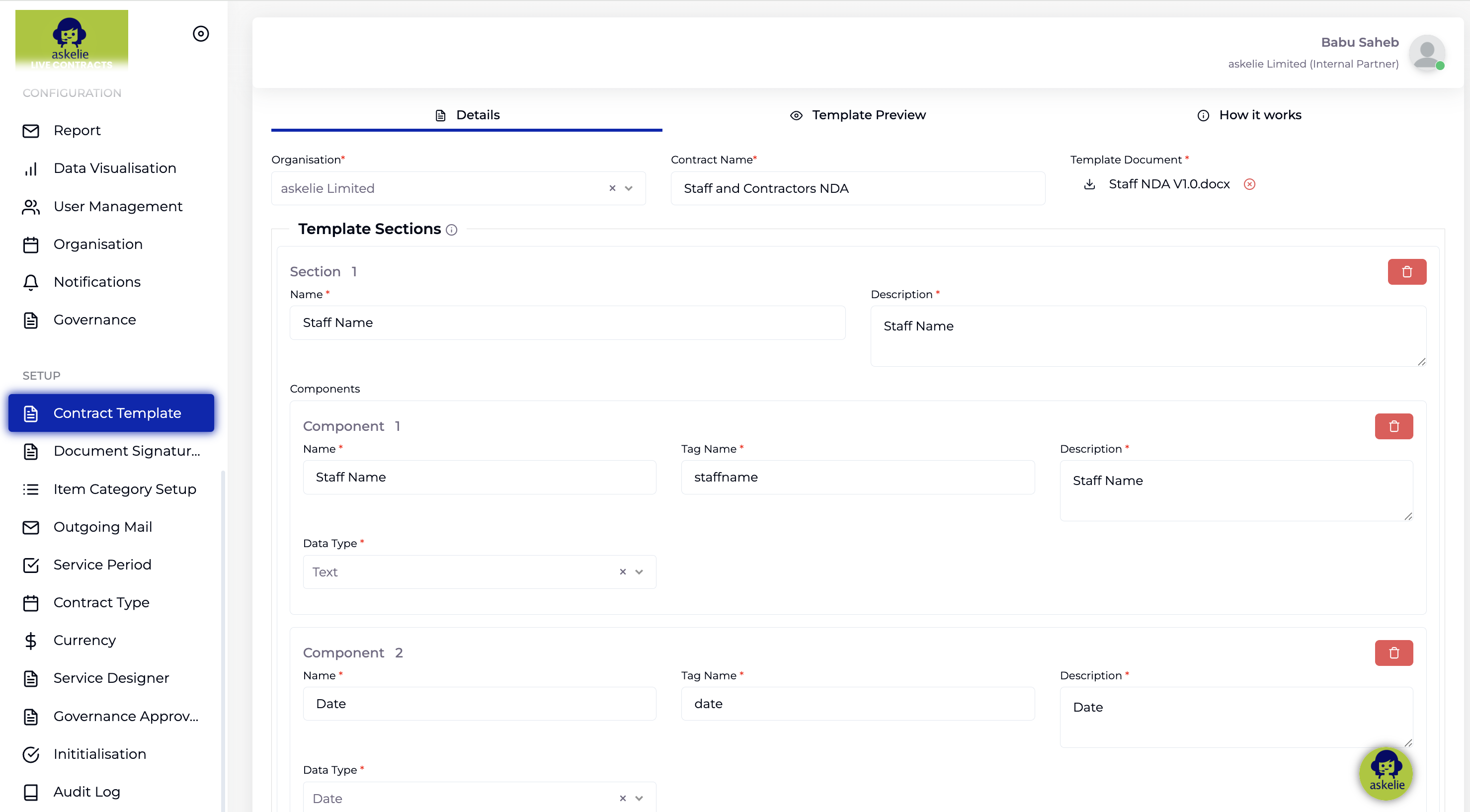
${startDate} and ${customerName} where dynamic content should be inserted. See Section 2 for detailed guidance on preparing the Word template.4. Defining Template Sections
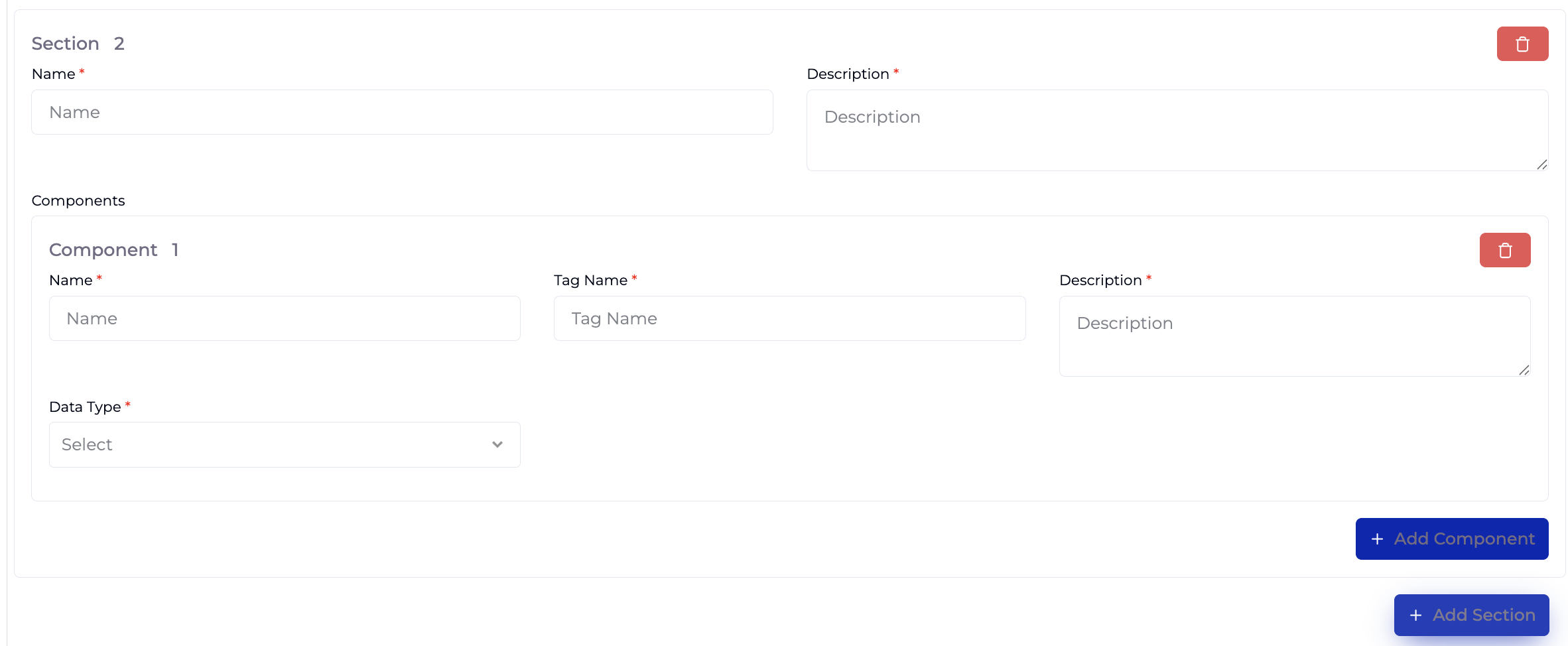
The template form is structured using Sections. Each section represents a logical grouping of fields that the user will complete when creating a contract from this template. Sections appear as separate groups in the Contract Builder form.
- For each section, enter a Section Name (required) — the heading shown to the user in the Contract Builder form.
- Enter a Section Description (required) — help text explaining what information this section captures.
Example sections for an NDA template might include:
- Receiving Party Details — Name, address, and contact information of the receiving party.
- Agreement Terms — Purpose of disclosure, notice period, governing law.
5. Adding Components to Sections
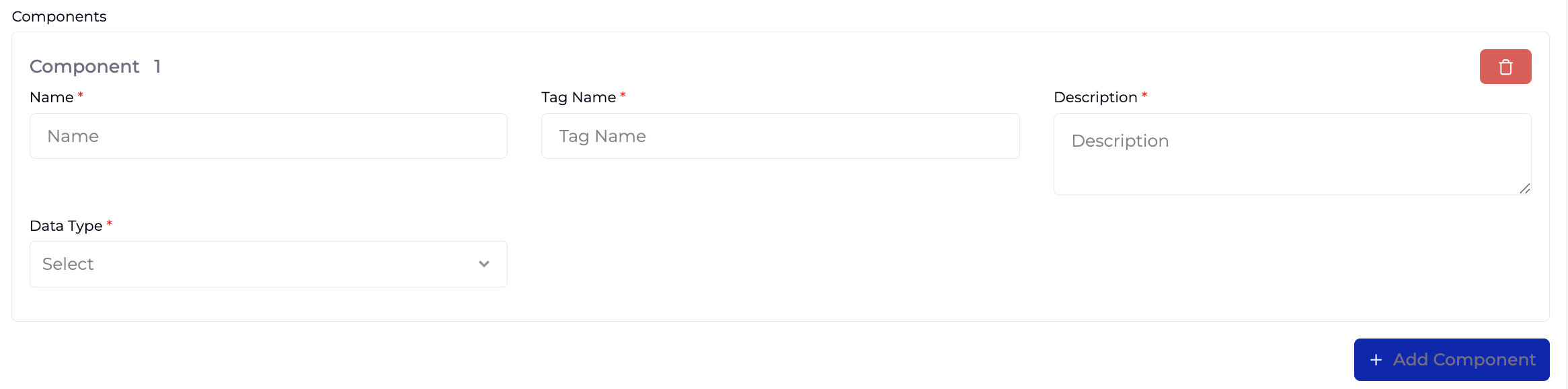
Each section contains one or more Components. Components are the individual form fields that users fill in when creating a contract. Each component maps to a tag placeholder in the Word template — the value entered by the user replaces the corresponding ${tagName} in the generated document.
- For each component, enter a Component Name (required) — the field label shown to the user (e.g. "Recipient Name", "Notice Period").
- Enter a Tag Name (required) — this must exactly match the placeholder in the Word document, without the
${}wrapper (e.g. enterrecipientNameto match${recipientName}in the document). - Enter a Component Description (required) — help text for the user explaining what value to enter.
- Select a Data Type (required) — determines the type of input the user sees in the Contract Builder form.
5.1 Supported Data Types
| Data Type | Description | Use For |
|---|---|---|
| Text | Plain text input field. | Names, addresses, descriptions, free-text clauses. |
| Number | Numeric input field. | Values, quantities, percentages, notice periods. |
| Image | Upload an image. | Logos, signatures, stamps, diagrams. |
| Boolean | True/false toggle option. | Yes/No flags (e.g. "Includes indemnity clause"). |
| Radio | Select one option from a predefined set. | Single-choice fields (e.g. governing law jurisdiction). |
| Checkbox | Select multiple options from a predefined set. | Multi-choice fields (e.g. applicable services, included clauses). |
| Dropdown | Choose from a dropdown list. | Categorised selections (e.g. contract category, payment terms). |
| Date | Date picker. | Custom dates beyond the predefined start/end dates. |
| Table | Generate a table using predefined columns. | Asset lists, deliverables schedules, pricing breakdowns. Requires special Word template setup (see Section 2.4). |
6. Predefined System Tags
Contract intELIEgence includes predefined tags for common contract fields. These tags can be placed directly into the Word template without creating custom components — the system automatically populates them from the contract record:
| Tag | Value | Source |
|---|---|---|
${name} | Contract Name | Contract Builder form header. |
${contractNumber} | Contract Number | Auto-generated by the system. |
${startDate} | Start Date | Contract Builder form header. |
${endDate} | End Date | Contract Builder form header. |
${ownerEmail} | Owner Email | Contract Builder form header. |
${value} | Contract Value | Contract Builder form header. |
${isSellType} | Is Sell Type | Organisation profile setting. |
${customerName} | Customer Name | Selected customer in Contract Builder. |
${customerReference} | Customer Reference | Customer record. |
${customerAddress} | Customer Address | Customer record. |
7. End-to-End Example — Staff and Contractors NDA
This walkthrough shows how to create a complete NDA template from start to finish.
Step 1: Prepare the Word Document
Create a Word document named Staff_NDA_Template.docx containing:
- Standard NDA clauses (definitions, obligations, term, governing law, signatures).
- Predefined system tags:
${contractNumber},${startDate},${endDate},${customerName},${customerAddress}. - Custom tags:
${recipientName},${recipientAddress},${purposeOfDisclosure},${noticePeriod},${governingLaw}.
Step 2: Create the Template in Contract intELIEgence
- Navigate to Contract Toolkit → Contract Studio → Contract Template.
- Click Add.
- Select your Organisation.
- Enter Contract Name:
Staff and Contractors NDA. - Upload
Staff_NDA_Template.docx.
Step 3: Define Sections
| Section Name | Section Description |
|---|---|
| Receiving Party Details | Name and address of the receiving party (individual or company). |
| Agreement Terms | Purpose of disclosure, notice period, and governing law for the NDA. |
Step 4: Add Components
| Section | Component Name | Tag Name | Data Type | Description |
|---|---|---|---|---|
| Receiving Party Details | Recipient Name | recipientName | Text | Full legal name of the receiving party. |
| Receiving Party Details | Recipient Address | recipientAddress | Text | Registered address of the receiving party. |
| Agreement Terms | Purpose of Disclosure | purposeOfDisclosure | Text | Business purpose for sharing confidential information. |
| Agreement Terms | Notice Period (Days) | noticePeriod | Number | Number of days written notice required for early termination. |
| Agreement Terms | Governing Law | governingLaw | Dropdown | Legal jurisdiction governing this agreement. |
Step 5: Save and Test
- Click Save to save the template.
- Go to Contract Builder, select the "Staff and Contractors NDA" template.
- The form displays two sections: "Receiving Party Details" and "Agreement Terms" with the five custom fields.
- Fill in the fields, click Save, and preview the generated document.
- Verify that all
${tagName}placeholders have been replaced with the entered values.
8. Saving the Template
- Once the Word template is uploaded and all Sections/Components have been configured, click Save.
- Click Cancel to discard changes.
Once saved, the contract template becomes available in the Contract Builder module for users to create contracts from.
9. Tips
- Plan your sections and components before uploading the Word template — ensure every
${tagName}in the document has a matching component or is a predefined system tag. - Use predefined system tags for standard fields like name, dates, and value — no need to create custom components for these.
- For Table components, always set up the single-cell table in the Word document first, then define the columns in the template configuration.
- Use meaningful Tag Names that are easy to identify in the Word document (e.g.
${clientContactEmail}rather than${field1}). - Test the template by creating a contract in Contract Builder and previewing the generated document before rolling it out to users.
- Tag names are case-sensitive —
${StartDate}in the document will not match a component with tag namestartDate. - Keep a list of all tags used in each Word template. Cross-check this list against your components to ensure nothing is missed.
- When updating an existing template's Word document, ensure all previously defined tags are still present in the new version.
10. Troubleshooting
| Issue | Resolution |
|---|---|
| Tag not replaced in generated document | Ensure the Tag Name in the component exactly matches the placeholder in the Word document (case-sensitive). Check for extra spaces or hidden characters. Retype the tag directly in Word if needed. |
| Table not generating correctly | Ensure the Word template has a single-cell table with the tag inside, and that table columns are defined in the template configuration. Do not create a multi-column table in the Word document. |
| Template not appearing in Contract Builder | Ensure the template is saved. Check that the Organisation matches the user's organisation in Contract Builder. |
| Component not showing in the generated form | Ensure the component is added to a Section. Components without a parent section will not appear in the Contract Builder form. |
| Word auto-formatting breaks tags | Turn on formatting marks (¶) in Word. Look for curly quotes, special characters, or line breaks inside the tag. Delete the tag and retype it as continuous text. |
| Predefined tag not populating | Ensure the tag name exactly matches the predefined tag list (e.g. ${customerName} not ${CustomerName}). Predefined tags are case-sensitive. |
| Uploaded document rejected | Ensure the file is a valid Word document (.docx format). Older .doc files are not supported. |