1. Overview
The Audit Logs module provides a read-only view of all changes made across the platform. Every create, update, and delete operation is recorded with details of who made the change, what was changed, and when. This enables administrators to track activity, investigate issues, and maintain compliance records.
Audit logs can be filtered by organisation, date range, component, specific entity, and operation type. The results can be exported as a CSV report for offline analysis.
2. Filters and Report
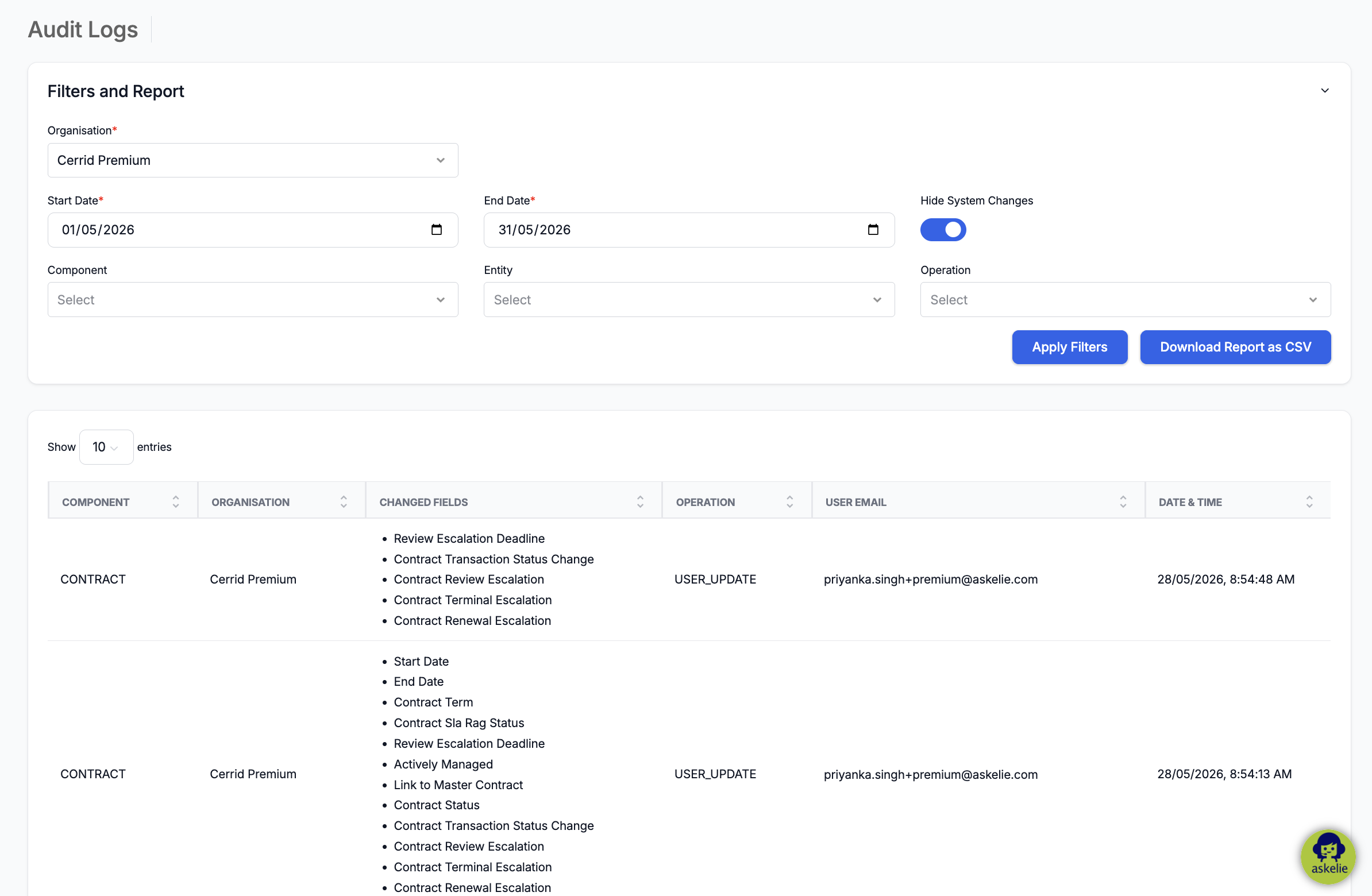
The top section provides filters to narrow down the audit log results. Select the desired filters and click Apply Filters to view the matching log entries.
2.1 Filter Fields
| Filter | Required | Description |
|---|---|---|
| Organisation | Yes | Select the organisation to view audit logs for. |
| Start Date | Yes | The start of the date range to search. |
| End Date | Yes | The end of the date range to search. |
| Hide System Changes | — | Toggle (default: on). When enabled, hides automated system changes and shows only user-initiated changes. Turn off to include system-generated updates. |
| Component | No | Filter by module/component (see below). |
| Entity | No | Filter by a specific record within the selected component (e.g. a specific contract name). The dropdown is populated based on the selected Component. |
| Operation | No | Filter by operation type (see below). |
2.2 Component Filter
The Component dropdown lists the platform modules whose changes are tracked:
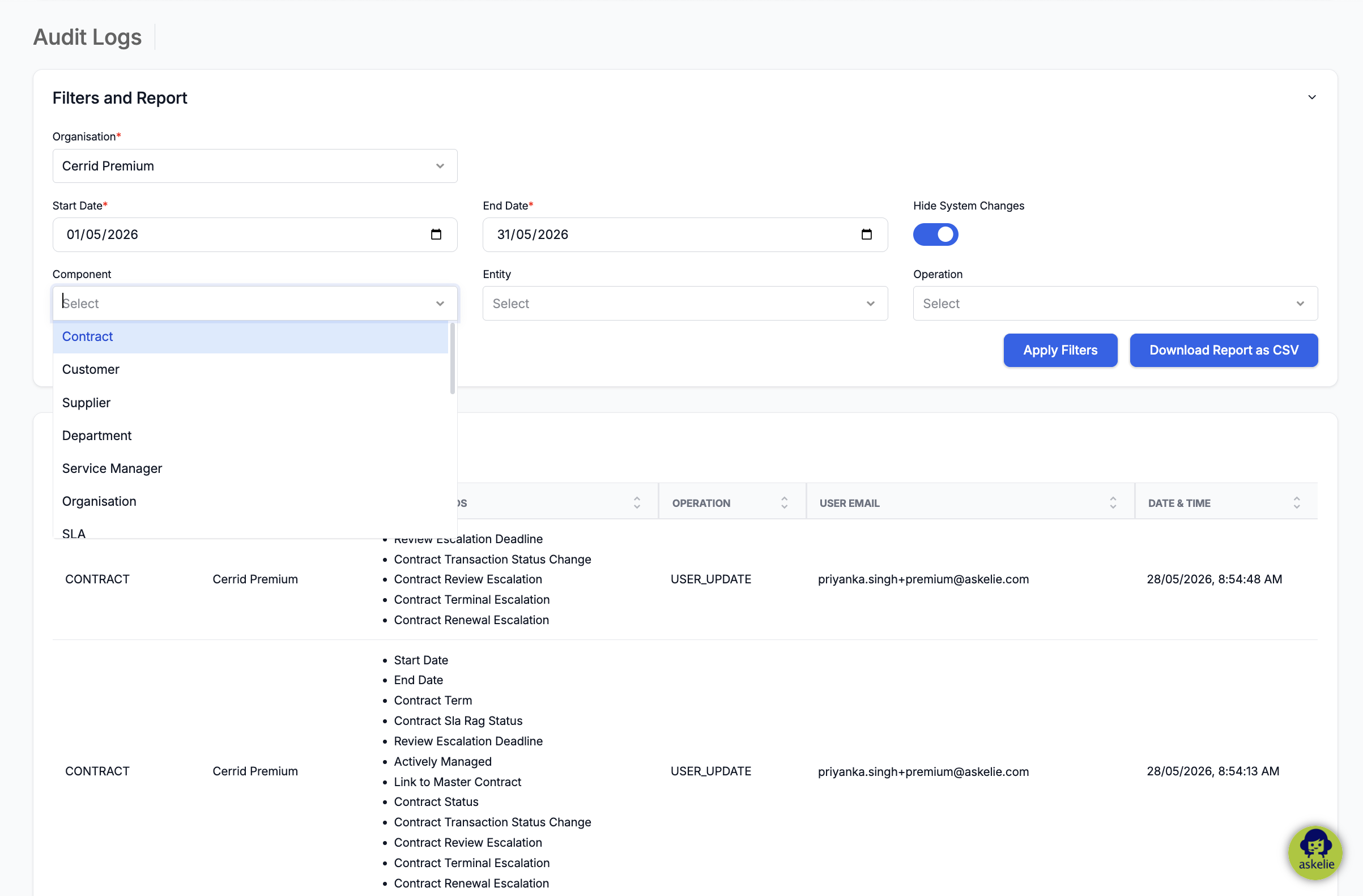
- Contract — changes to contract records.
- Customer — changes to customer records.
- Supplier — changes to supplier records.
- Department — changes to department records.
- Service Manager — changes to service manager records.
- Organisation — changes to organisation settings and configuration.
- SLA — changes to SLA records.
2.3 Entity Filter
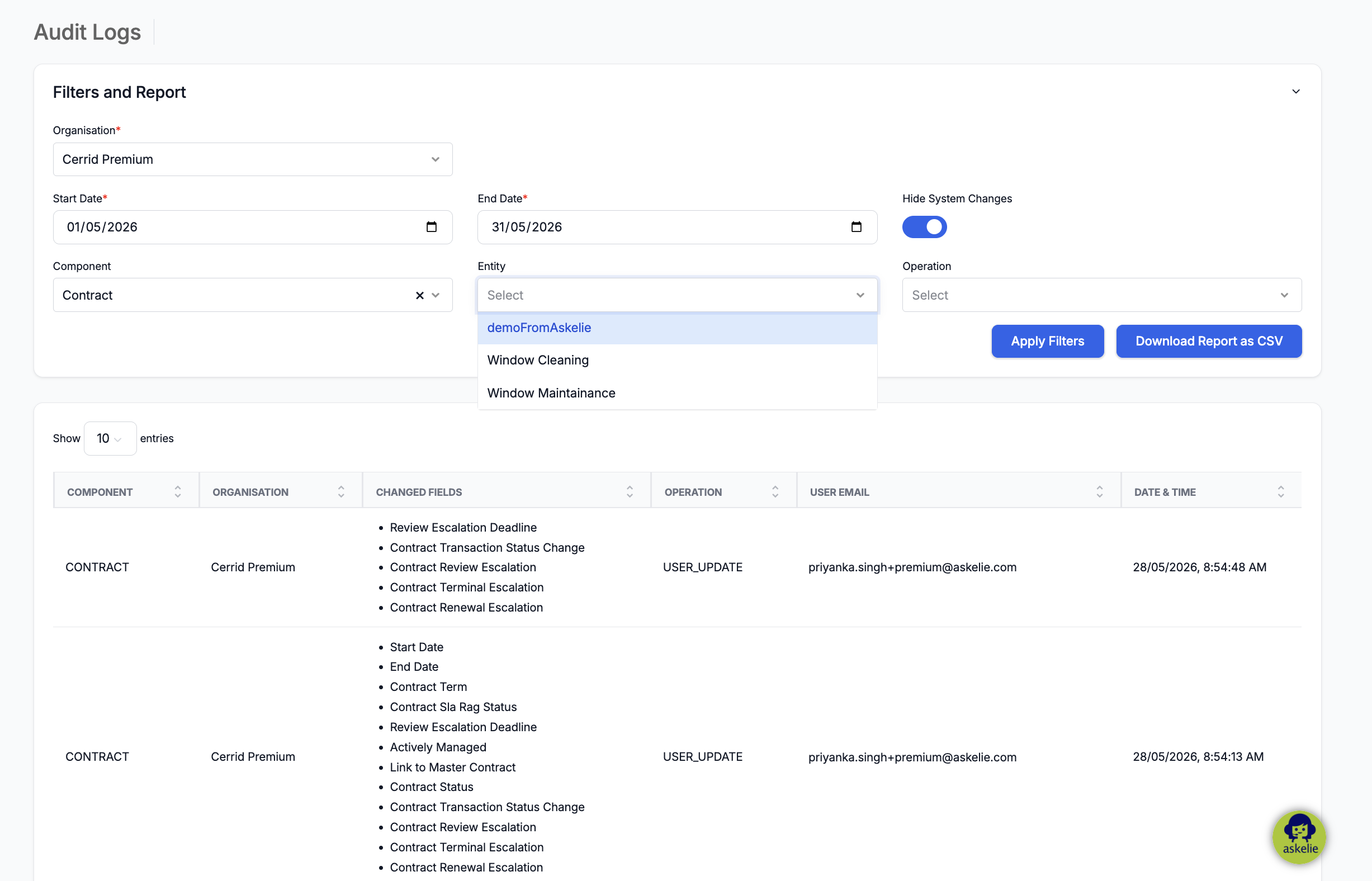
After selecting a Component, the Entity dropdown is populated with the specific records within that component. For example, selecting "Contract" as the Component shows all contract names in the Entity dropdown, allowing you to filter audit logs for a single contract.
2.4 Operation Filter
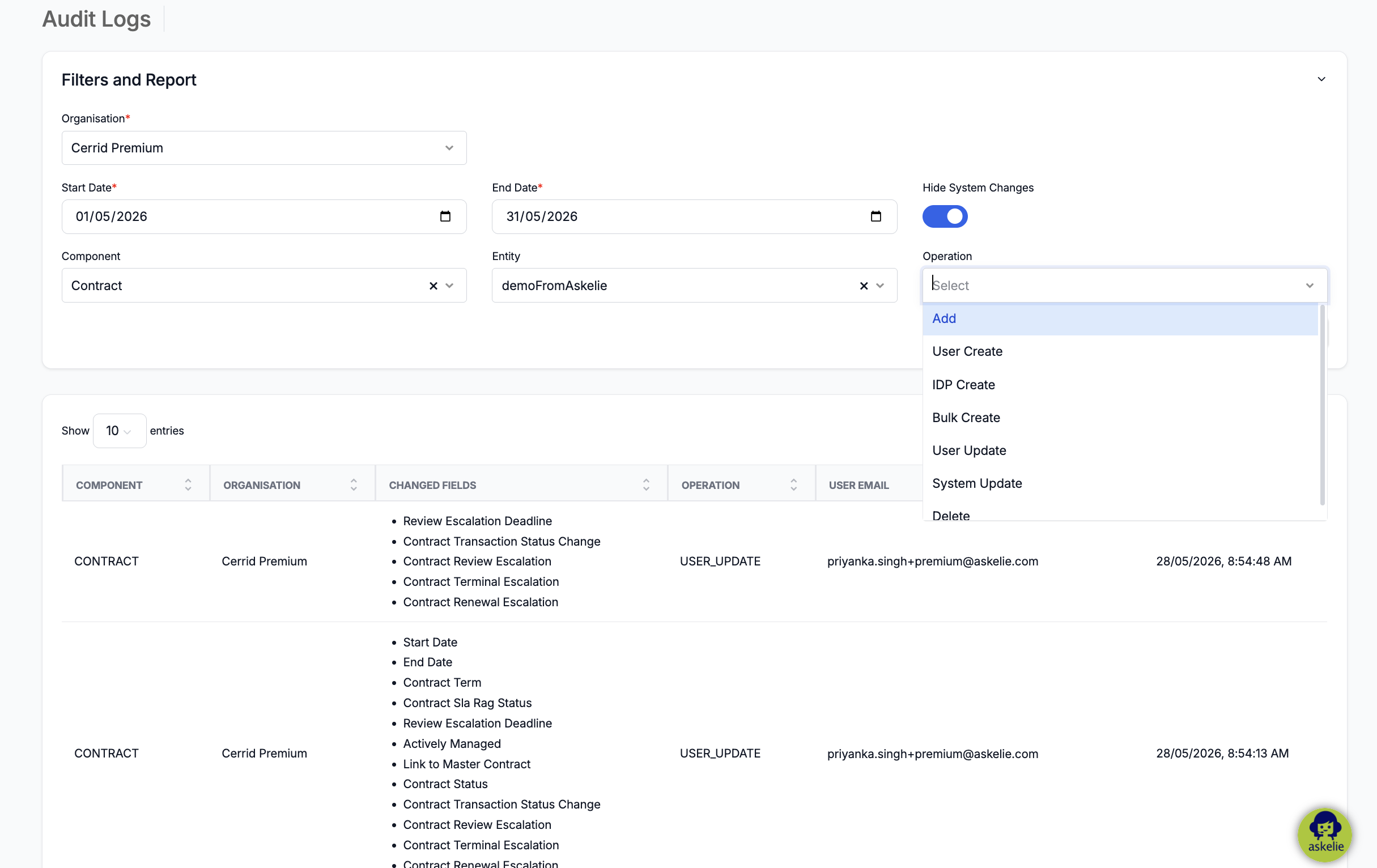
The Operation dropdown filters by the type of change:
| Operation | Description |
|---|---|
| Add | A new record was created. |
| User Create | A record was created by a user action. |
| IDP Create | A record was created via Identity Provider (SSO/external authentication). |
| Bulk Create | Multiple records were created in a bulk operation (e.g. import). |
| User Update | A record was modified by a user. |
| System Update | A record was modified by the system automatically (e.g. scheduled SLA evaluation, status recalculation). |
| Delete | A record was deleted. |
2.5 Export
Click Download Report as CSV to export the filtered audit log results as a CSV file for offline analysis, compliance reporting, or archiving.
3. Audit Log Results
The results table shows all matching log entries with the following columns:
| Column | Description |
|---|---|
| Component | The module where the change occurred (e.g. CONTRACT, CUSTOMER, SLA). |
| Organisation | The organisation the record belongs to. |
| Changed Fields | A bullet-point list of all fields that were modified in this operation (e.g. Start Date, End Date, Contract Status, Contract Review Escalation). |
| Operation | The type of change (e.g. USER_UPDATE, ADD, DELETE). |
| User Email | The email address of the user who performed the action. For system changes, this shows the system account. |
| Date & Time | The exact date and time the change was recorded. |
4. Tips
- Use the Hide System Changes toggle to focus on user-initiated changes — system changes can be numerous (e.g. scheduled SLA evaluations, automatic status updates) and may clutter the view.
- Use the three-level filter drill-down (Component → Entity → Operation) to quickly isolate changes to a specific record. For example: Component = Contract, Entity = "Demo contract", Operation = User Update.
- Export to CSV regularly for compliance and archiving — audit logs provide an evidence trail for governance and regulatory requirements.
- When investigating an issue (e.g. "who changed this contract's status?"), filter by the specific contract entity and look at the Changed Fields and User Email columns.
- Set the date range to match your investigation period — wider date ranges produce more results and may take longer to load.
5. Troubleshooting
| Issue | Resolution |
|---|---|
| No results after applying filters | Widen the date range. Check that the selected Component and Entity have had changes during the selected period. Try removing optional filters (Entity, Operation) to see all changes for the Component. |
| Too many results | Narrow the filters — select a specific Component, Entity, and Operation. Enable Hide System Changes to remove automated updates. Reduce the date range. |
| Entity dropdown is empty | Select a Component first — the Entity dropdown is populated based on the selected Component. |
| System changes showing despite toggle | Ensure the Hide System Changes toggle is turned on (blue). Click Apply Filters to refresh the results. |
| CSV download is empty | Apply Filters first to load results, then click Download Report as CSV. The export only includes the currently displayed filtered results. |