1. Overview
The Data Visualisation module provides interactive, graphical views of your organisation's contract ecosystem. It transforms the relationships between organisations, suppliers, customers, contracts, services, SLAs, and KPIs into visual network graphs that can be explored, compared, and exported.
The module has three tabs, each offering a different analytical perspective:
| Tab | Purpose | Best For |
|---|---|---|
| Hierarchical View | Interactive tree/network graph showing the full hierarchy from Organisation down to individual contracts, services, SLAs, and KPIs. | Exploring the complete structure of your contract portfolio — understanding how suppliers, contracts, and services relate to each other. |
| Comparison View | Side-by-side comparison of up to 3 items (services, contracts, or suppliers) with their individual graphs and key metrics. | Comparing contract values, RAG statuses, and cost impacts across similar contracts or suppliers. |
| Service Performance View | Compare up to 3 contracts with their full service hierarchy and aggregated SLA totals. | Reviewing overall contract performance — total alerts, service credits, business impact costs, and combined portfolio value. |
2. Shared Filter Controls
Every tab displays a filter panel at the top with the following controls:
| Control | Description |
|---|---|
| Organisation | Select the organisation to visualise. Required — all views are scoped to a single organisation. |
| Module | Choose which entity types to include in the graph. Options vary by tab: Hierarchical View: Checkboxes — Organisation, Supplier, Contract, Service, SLA, KPI (multi-select). Comparison & Service Performance View: Radio buttons — Service, Contract, or Supplier (single-select). |
| Show SLA total by | Controls which SLA metric is displayed on nodes and in summaries: • Alerts — number of SLA breach alerts • Cost to Rectify — total cost to fix SLA breaches • Service Credits — service credit penalties incurred • Business Impact Cost — estimated business impact of breaches |
| Open View | Button — renders the graph based on current filter selections. |
| Download as PDF | Button — exports the current graph view as a PDF document. |
| Reset Values | Button (Comparison & Service Performance tabs) — clears all selections and resets filters to defaults. |
3. Hierarchical View
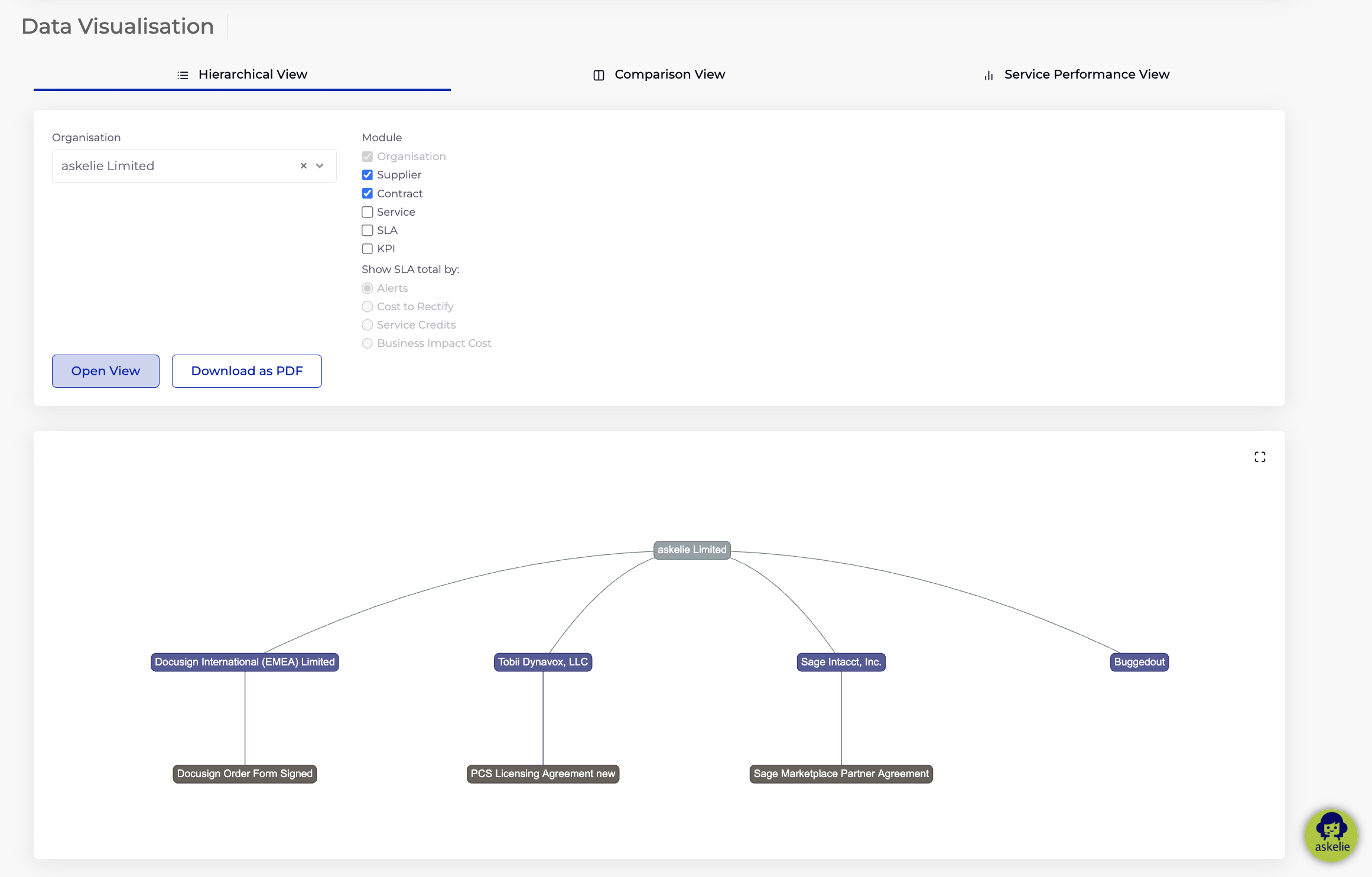
The Hierarchical View displays an interactive network graph that maps the full structure of your contract portfolio. The graph starts from your Organisation at the top and branches down through the levels you select in the Module checkboxes.
3.1 Using the Hierarchical View
- Click the Hierarchical View tab.
- Select your Organisation from the dropdown.
- Tick the Module checkboxes for the levels you want to see:
- Supplier + Contract — shows Organisation → Suppliers → their Contracts.
- Add SLA + KPI — extends the tree down to SLA and KPI nodes linked to each contract.
- Service — includes Service Manager groupings in the hierarchy.
- Select a Show SLA total by option to control which metric appears on nodes.
- Click Open View to render the graph.
3.2 Navigating the Graph
The graph is fully interactive:
- Pan — click and drag on empty space to move the view.
- Zoom — scroll to zoom in/out. Use the fullscreen icon (top-right corner) to expand the graph.
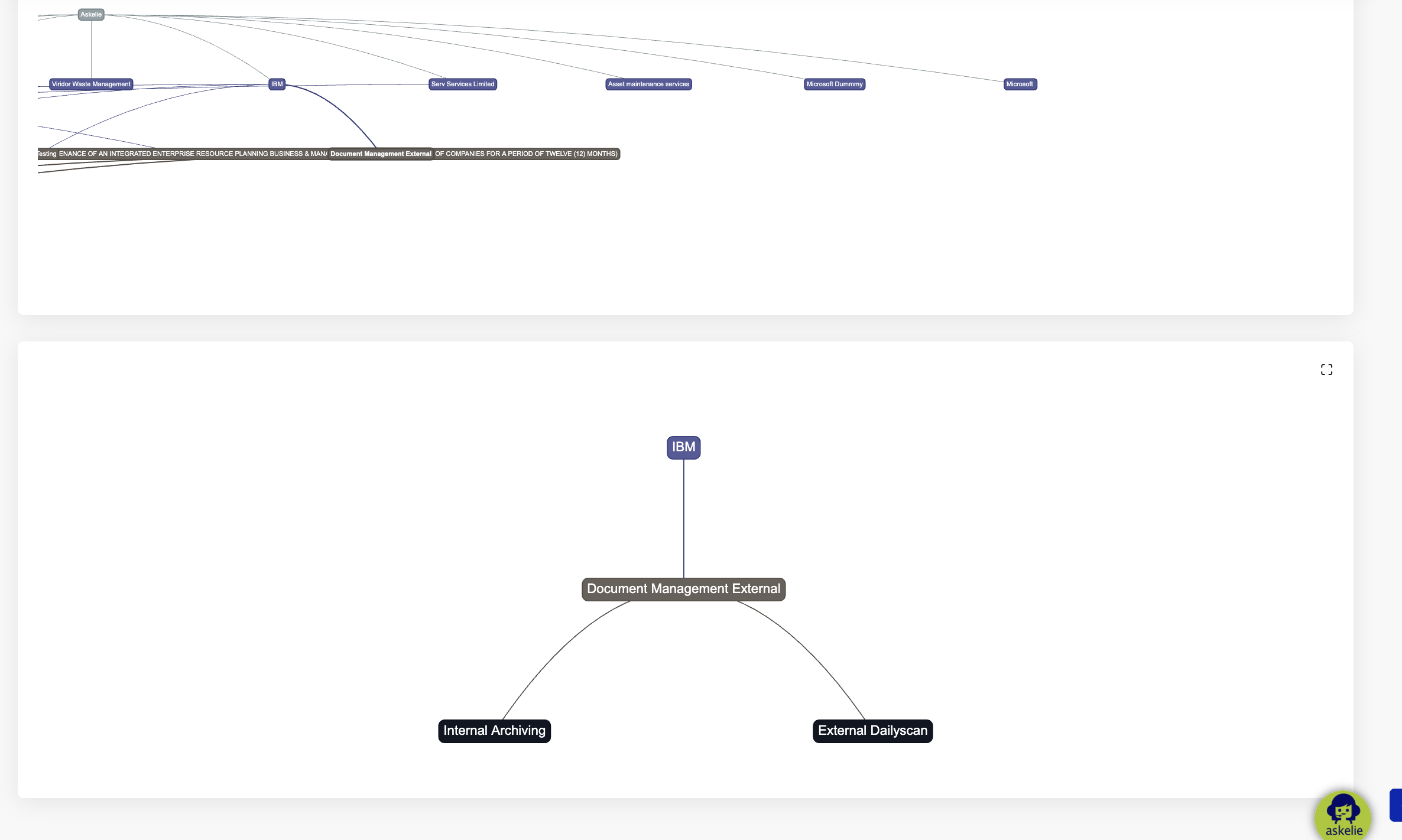
- Click a node — drills down to show only that node's branch in a focused sub-graph below the main view.
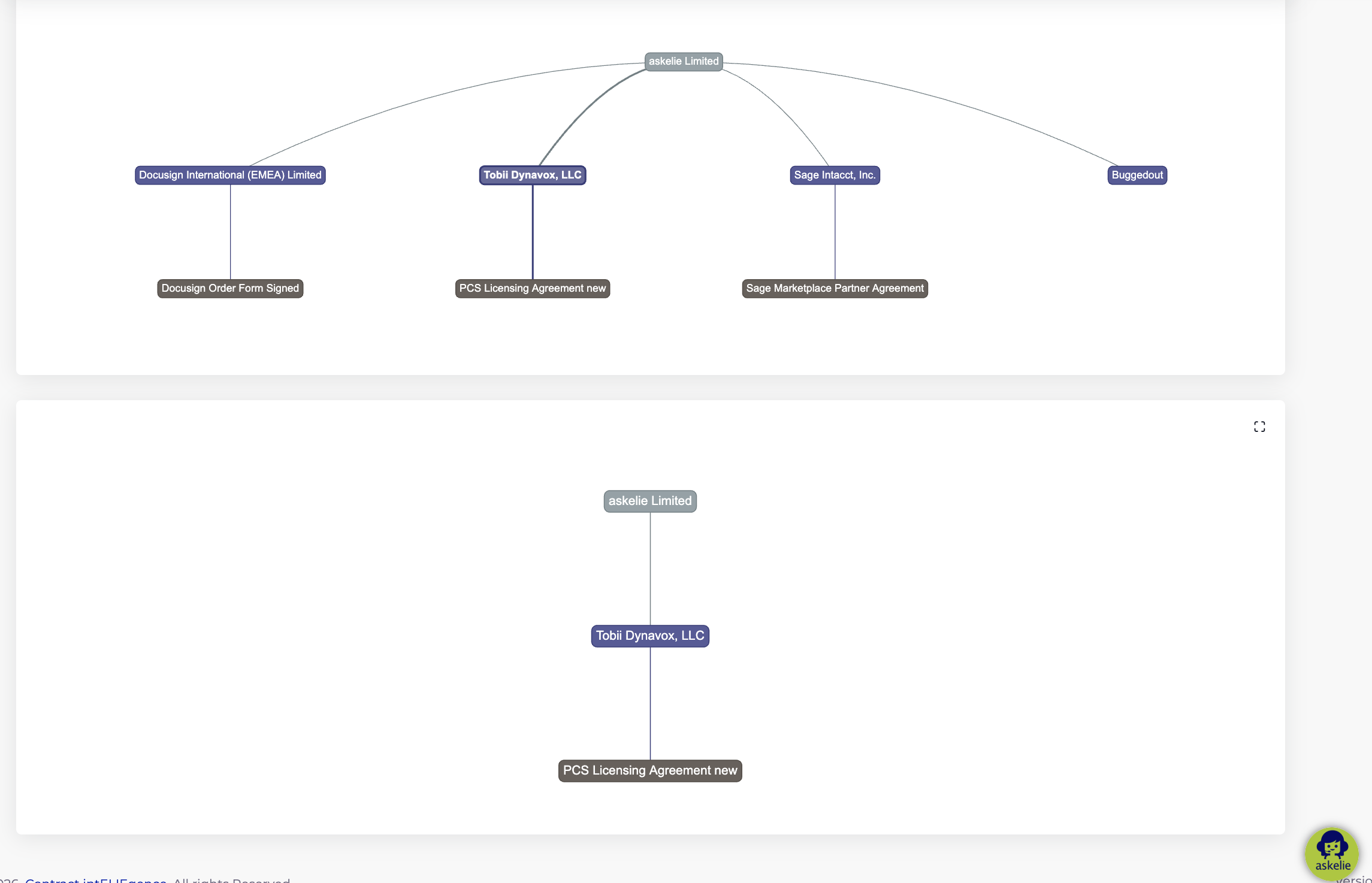
In the example above, clicking a Supplier node (e.g. "Tobii Dynavox, LLC") isolates its branch — showing Organisation → Supplier → Contract in a focused view below the full graph.
3.3 Full Hierarchy with All Modules
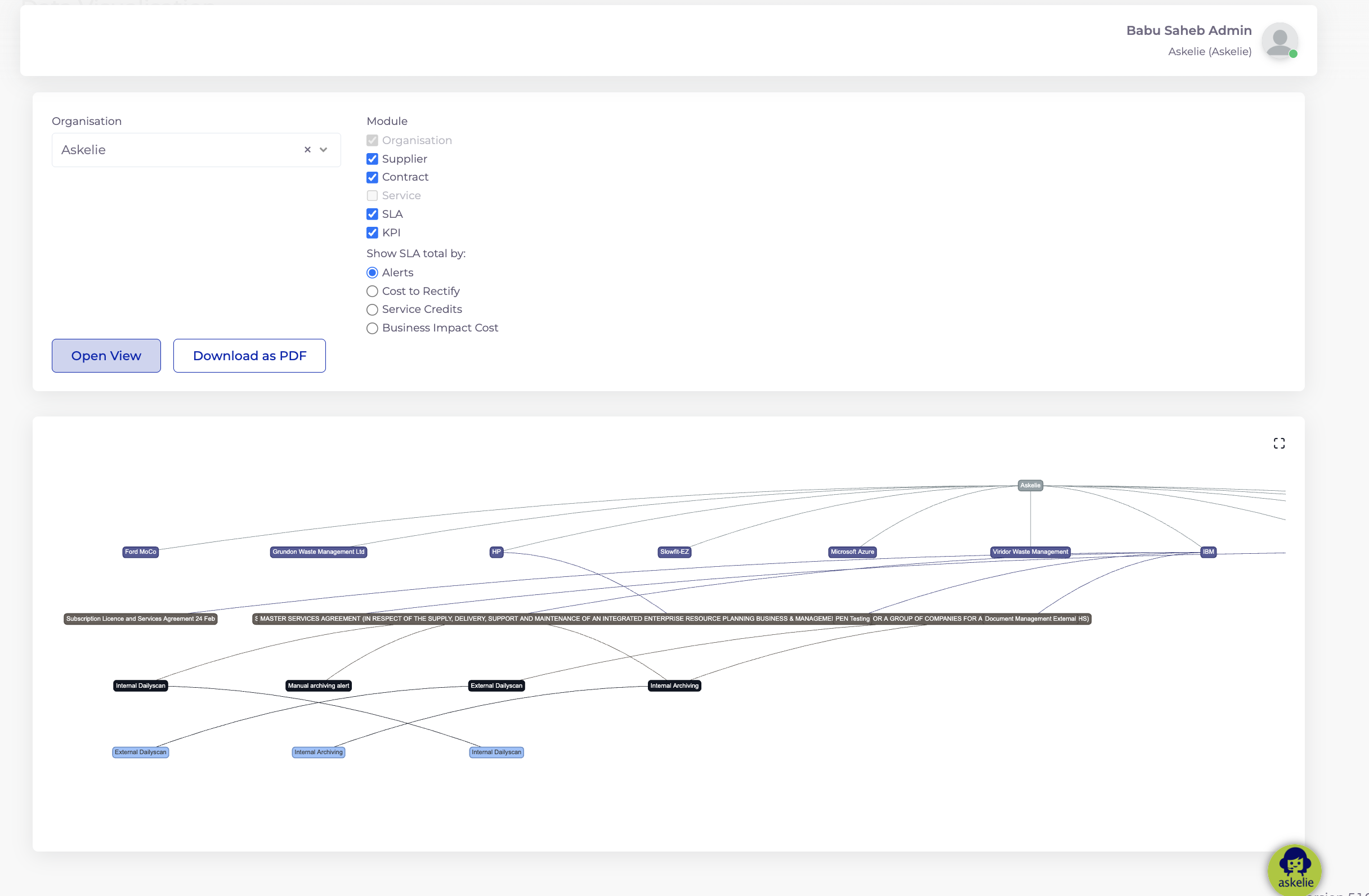
When all Module checkboxes are ticked (Organisation, Supplier, Contract, Service, SLA, KPI), the graph expands to show the complete hierarchy — from organisation through suppliers and their contracts, down to individual SLAs and KPIs.
3.4 Drill-Down to Contract Level
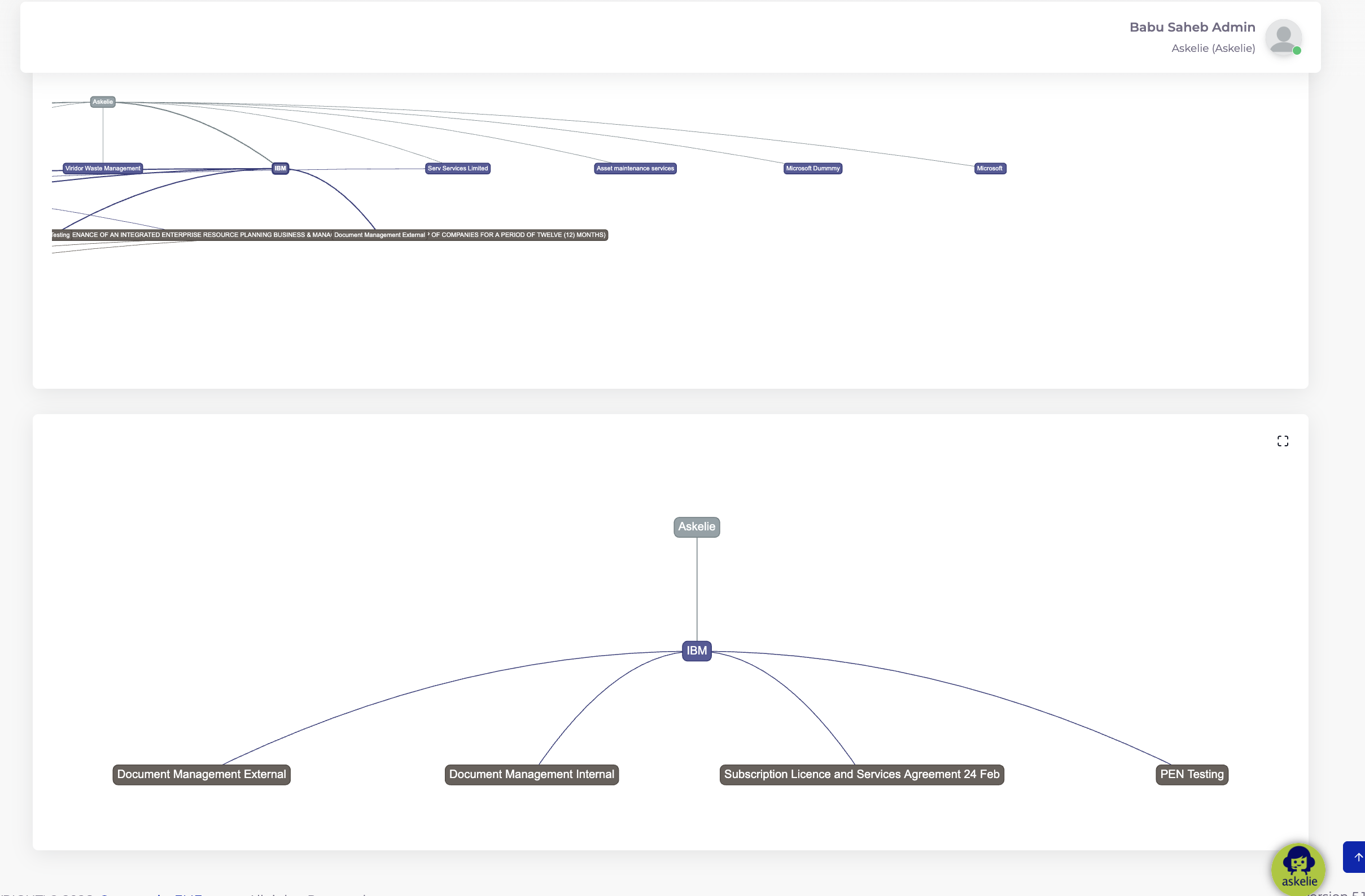
Clicking a specific supplier in the full view drills down to show that supplier's contracts, and clicking a contract reveals its SLAs and KPIs in a focused sub-tree.
4. Comparison View
The Comparison View allows you to select up to 3 items and view them side by side — each with its own hierarchical graph and key contract metrics. This is useful for benchmarking contracts, comparing supplier performance, or evaluating service delivery across similar arrangements.
4.1 Using the Comparison View
- Click the Comparison View tab.
- Select your Organisation.
- Choose a Module — this determines what type of items you compare:
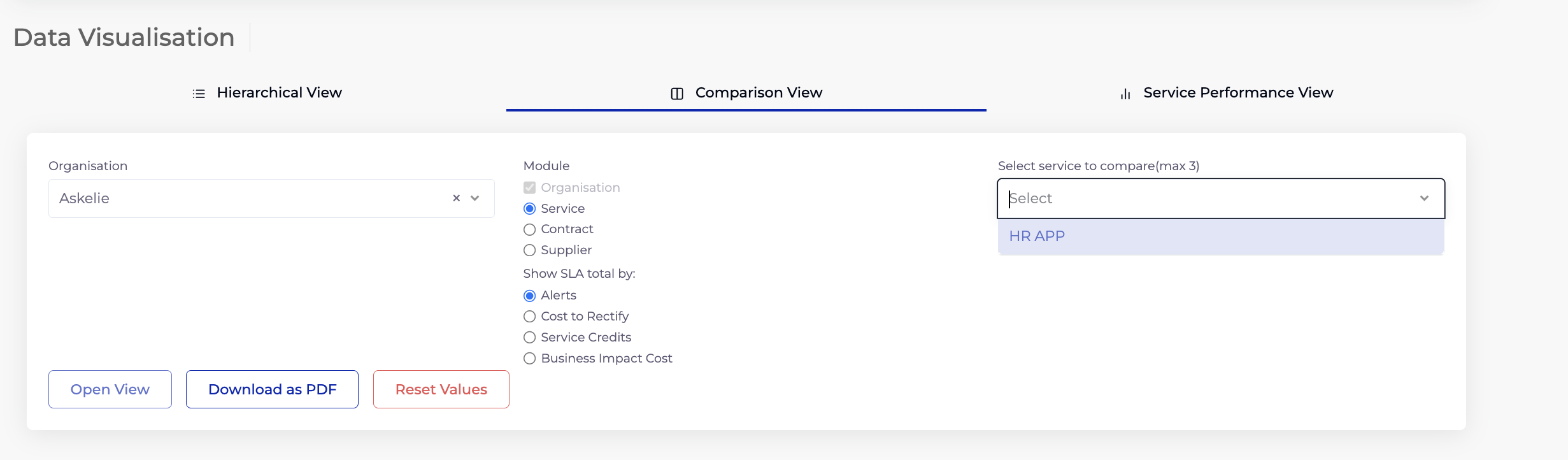
- Service — compare up to 3 services (from Service Manager).
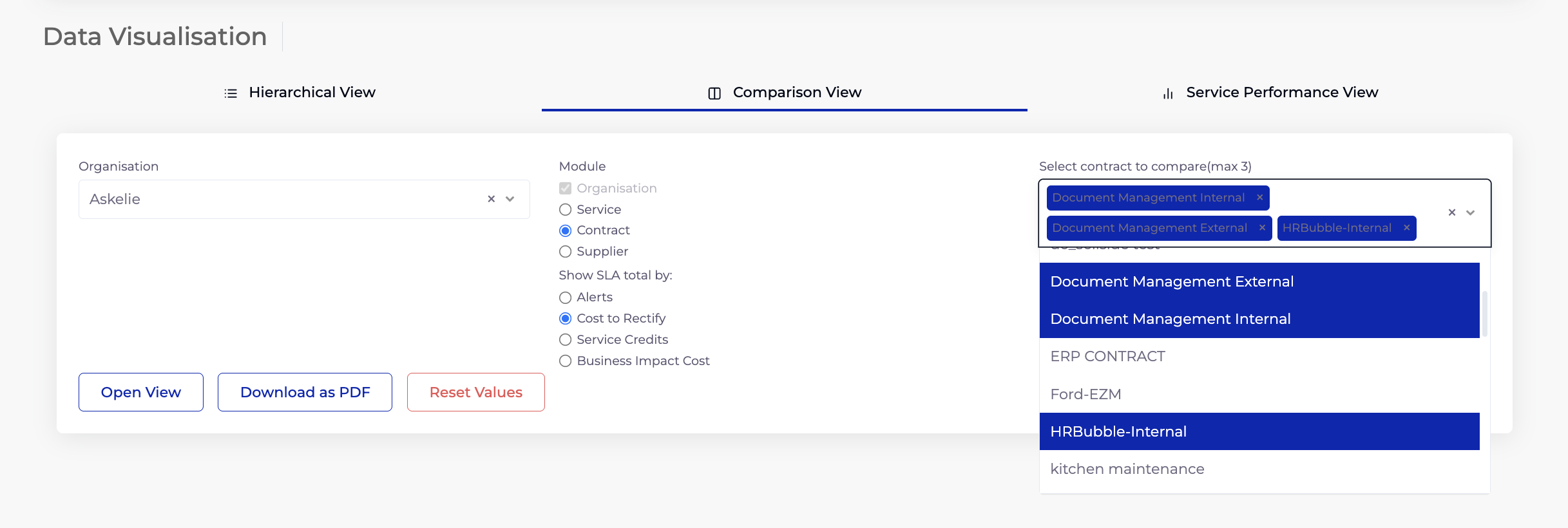
- Contract — compare up to 3 contracts.
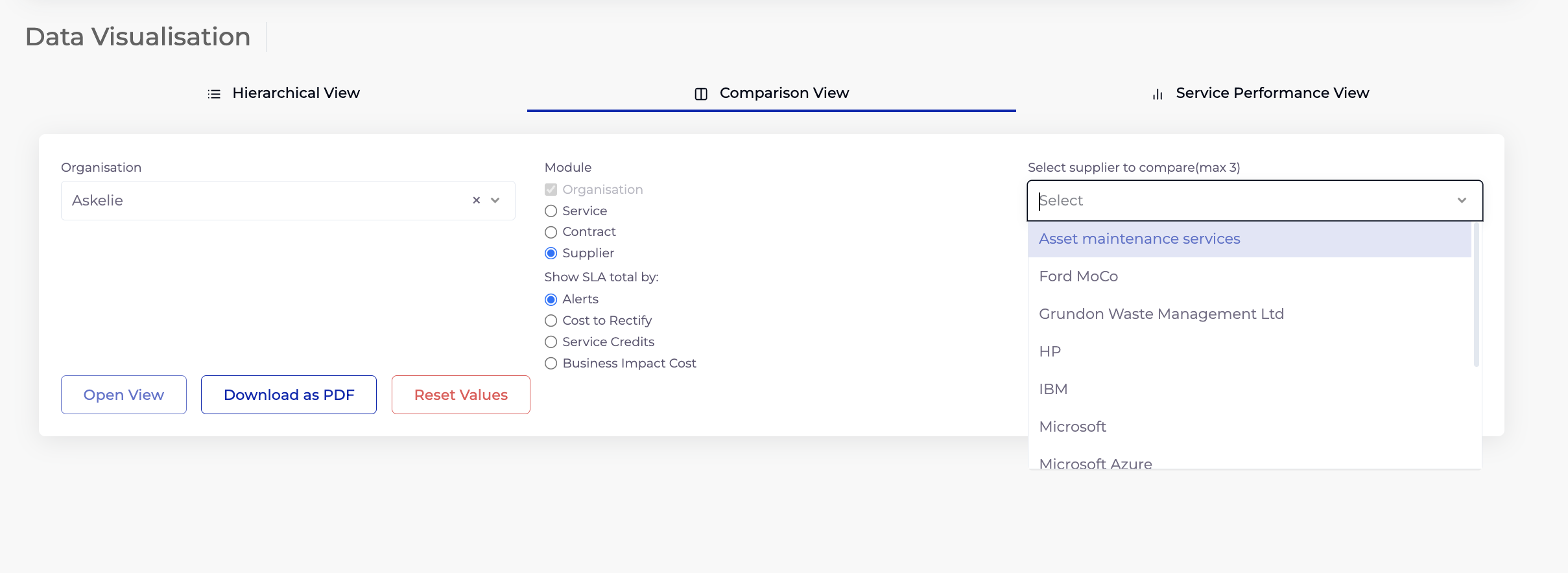
- Supplier — compare up to 3 suppliers.
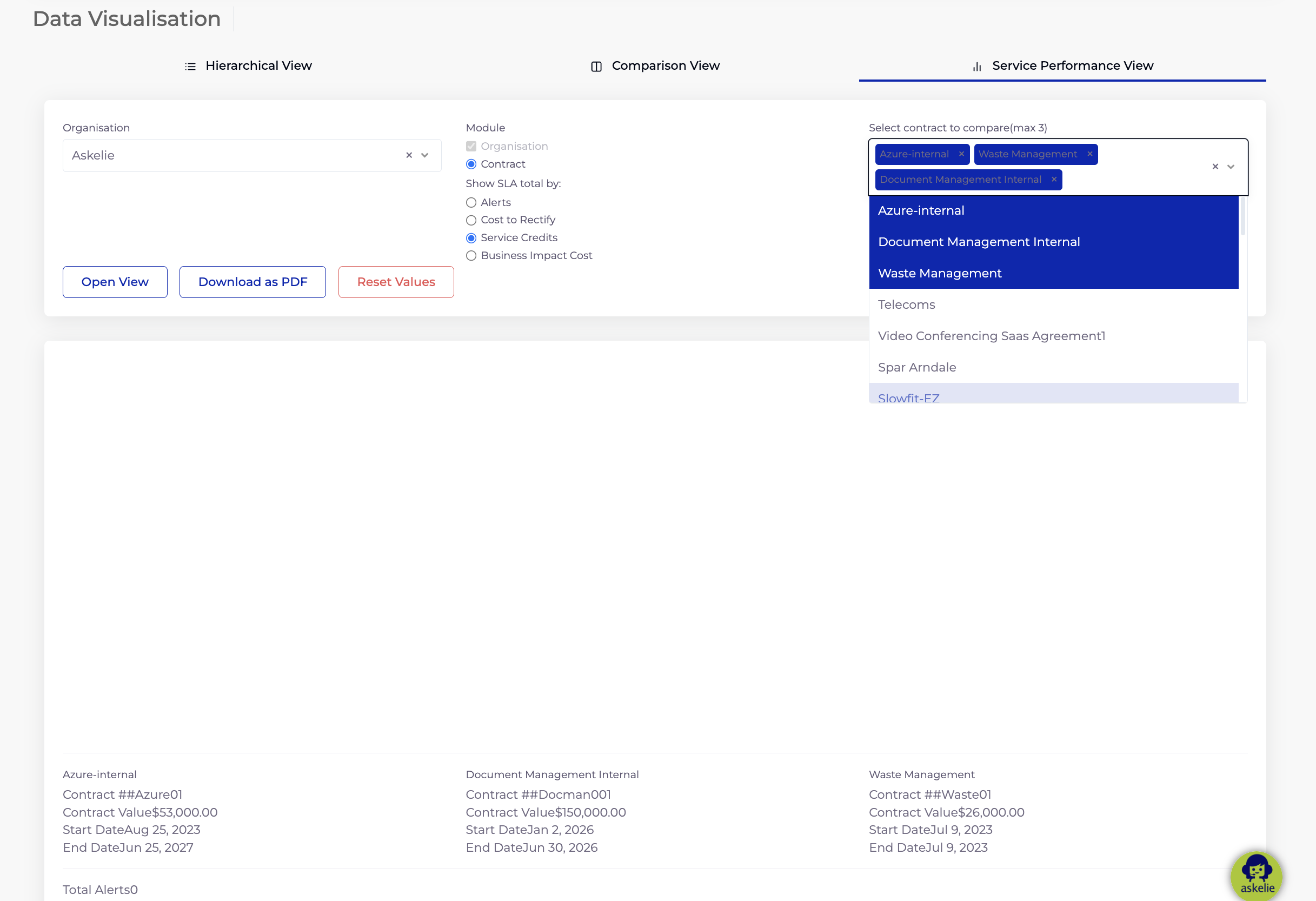
- In the item selector (right side), pick up to 3 items from the dropdown. Selected items appear as tags with an × to remove.
- Select a Show SLA total by metric.
- Click Open View.
When comparing by Supplier, the selector lists all suppliers for the organisation:
When comparing by Contract, you can select up to 3 contracts. Selected items appear as tags:
4.2 Comparison Results
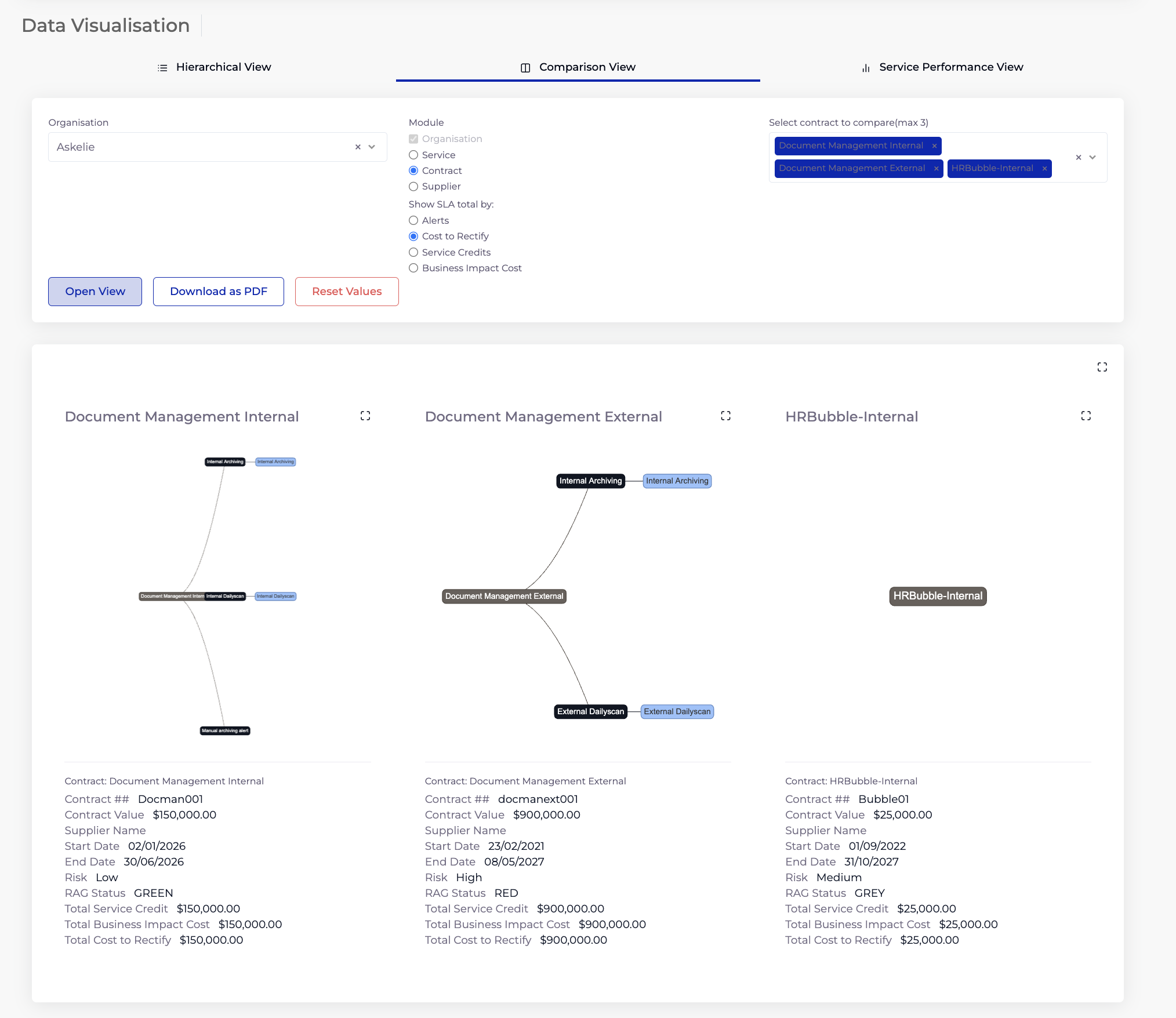
After clicking Open View, each selected item is displayed in its own column with:
- Individual hierarchical graph — showing the item's branch from the organisation tree.
- Contract summary card — displaying key metrics below the graph.
4.3 Comparison Metrics
Each item's summary card displays:
| Metric | Description |
|---|---|
| Contract # | The contract reference number (e.g. "Docman001", "Bubble07"). |
| Contract Value | The total contract value (e.g. £50,000.00, £900,000.00). |
| Supplier Name | The supplier associated with the contract. |
| Start Date / End Date | The contract validity period. |
| Type | Contract type (e.g. "Medium"). |
| RAG Status | Current health indicator — GREEN, AMBER, or RED — based on SLA evaluation. |
| Total Business Impact Cost | The aggregate business impact cost from SLA breaches. |
| Total Cost to Rectify | The aggregate cost to fix SLA breaches. |
5. Service Performance View
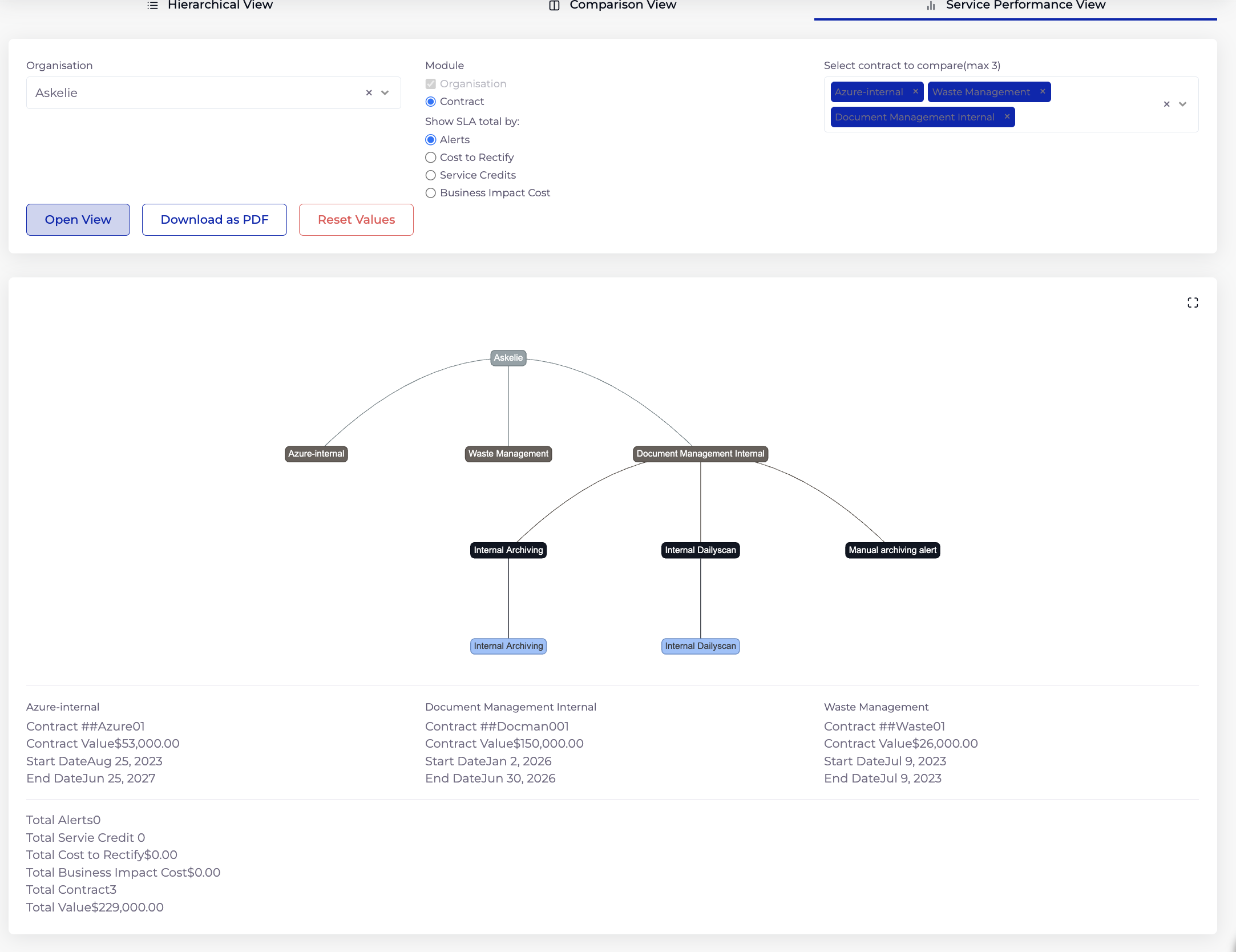
The Service Performance View provides a combined performance summary for up to 3 contracts, showing both their visual hierarchy and aggregated SLA totals. Unlike the Comparison View (which shows items in separate columns), this view renders a combined graph connecting all selected contracts through their shared hierarchy.
5.1 Using the Service Performance View
- Click the Service Performance View tab.
- Select your Organisation.
- The Module defaults to Contract.
- Select a Show SLA total by metric (Alerts, Cost to Rectify, Service Credits, or Business Impact Cost).
- In the item selector, pick up to 3 contracts.
- Click Open View.
5.2 Performance Results
The view displays:
- Combined hierarchy graph — a single graph showing all selected contracts and their service/SLA branches, connected through their shared supplier or organisation nodes.
- Individual contract cards — each contract's summary (Contract #, Value, Supplier, Dates) shown below the graph.
- Aggregated SLA totals — portfolio-level metrics across all selected contracts.
5.3 Aggregated Metrics
Below the individual contract cards, the view shows combined totals:
| Metric | Description |
|---|---|
| Total Alerts | Sum of SLA breach alerts across all selected contracts. |
| Total Service Credits | Total service credit penalties across all selected contracts. |
| Total Cost to Rectify | Combined cost to fix SLA breaches. |
| Total Business Impact Cost | Combined estimated business impact. |
| Total Contracts | Number of contracts selected (up to 3). |
| Total Value | Sum of all selected contracts' values (e.g. £229,000.00). |
6. How Data Visualisation Connects to Other Modules
| Data Source | Module | What It Provides |
|---|---|---|
| Organisation | Organisation | The root node of every hierarchy graph. |
| Suppliers | Supplier | Supplier nodes in the hierarchy, listed in Comparison View's supplier selector. |
| Contracts | Contract | Contract nodes, contract summary metrics (value, dates, type, RAG status). |
| Services | Service Manager | Service grouping nodes in the hierarchy. |
| SLAs | SLA | SLA nodes and RAG indicators. SLA totals (Alerts, Cost to Rectify, Service Credits, Business Impact Cost). |
| KPIs | KPI | KPI leaf nodes showing individual performance metrics. |
7. Tips
- Start simple — begin with Hierarchical View and just Supplier + Contract checkboxes to get the big picture, then add SLA/KPI layers progressively.
- Export for stakeholders — use Download as PDF to create visual reports for management reviews without giving stakeholders platform access.
- Use Comparison View for benchmarking — compare contracts of similar type or value to identify which ones are performing well (GREEN) vs. struggling (RED).
- Service Performance View for portfolio reviews — select your top 3 contracts by value and review their combined SLA health at a glance.
- SLA total by options change the metric displayed — switch between Alerts (count-based) and financial metrics (Cost to Rectify, Service Credits, Business Impact Cost) depending on your reporting need.
- Click nodes to drill down — in Hierarchical View, clicking any node isolates its branch for focused analysis.
8. Troubleshooting
| Issue | Resolution |
|---|---|
| Graph is empty after clicking Open View | Ensure at least one Module checkbox is ticked (Hierarchical View) or a Module radio button is selected (Comparison/Service Performance). Also verify the Organisation has contracts. |
| No items in the selector dropdown | The selected Module type has no records. Switch to a different Module (e.g. Contract instead of Service) or verify data exists in the relevant module. |
| SLA totals show zero | SLAs may not have run yet, or no breaches have occurred. Check the SLA module to verify SLA schedules are active and have evaluated. |
| Graph is too dense to read | Reduce the Module checkboxes — untick SLA and KPI to simplify. Use the fullscreen icon to expand the graph area. Click a specific node to drill down to its branch. |
| PDF export is blank or incomplete | Ensure the graph has fully rendered before clicking Download as PDF. Try expanding to fullscreen first for a cleaner export. |
| Comparison View shows max 3 warning | The selector enforces a maximum of 3 items. Remove an existing selection (click the × on a tag) before adding a new one. |