1. Getting Started
1.1 Signing In
The first Admin user receives a welcome email during onboarding containing the application link, login ID and a temporary password.
- Open the application link received in the welcome email.
- On the Welcome to Contract intELIEgence! page, enter your Email and Password.
- (Optional) Tick Remember Me, or click Sign in with SSO if your organisation uses single sign-on.
- Click Sign in. You are taken to the Dashboard.
1.2 Navigating to Organisation
- In the left navigation, scroll down to the Platform Config section.
- Click Organisation. The Organisation List page is displayed.
- Click the row of your organisation. The Edit Organisation page opens with six tabs: Overview, Catalogs, Templates, Supplier Documents, Settings, and Roles And Permissions.
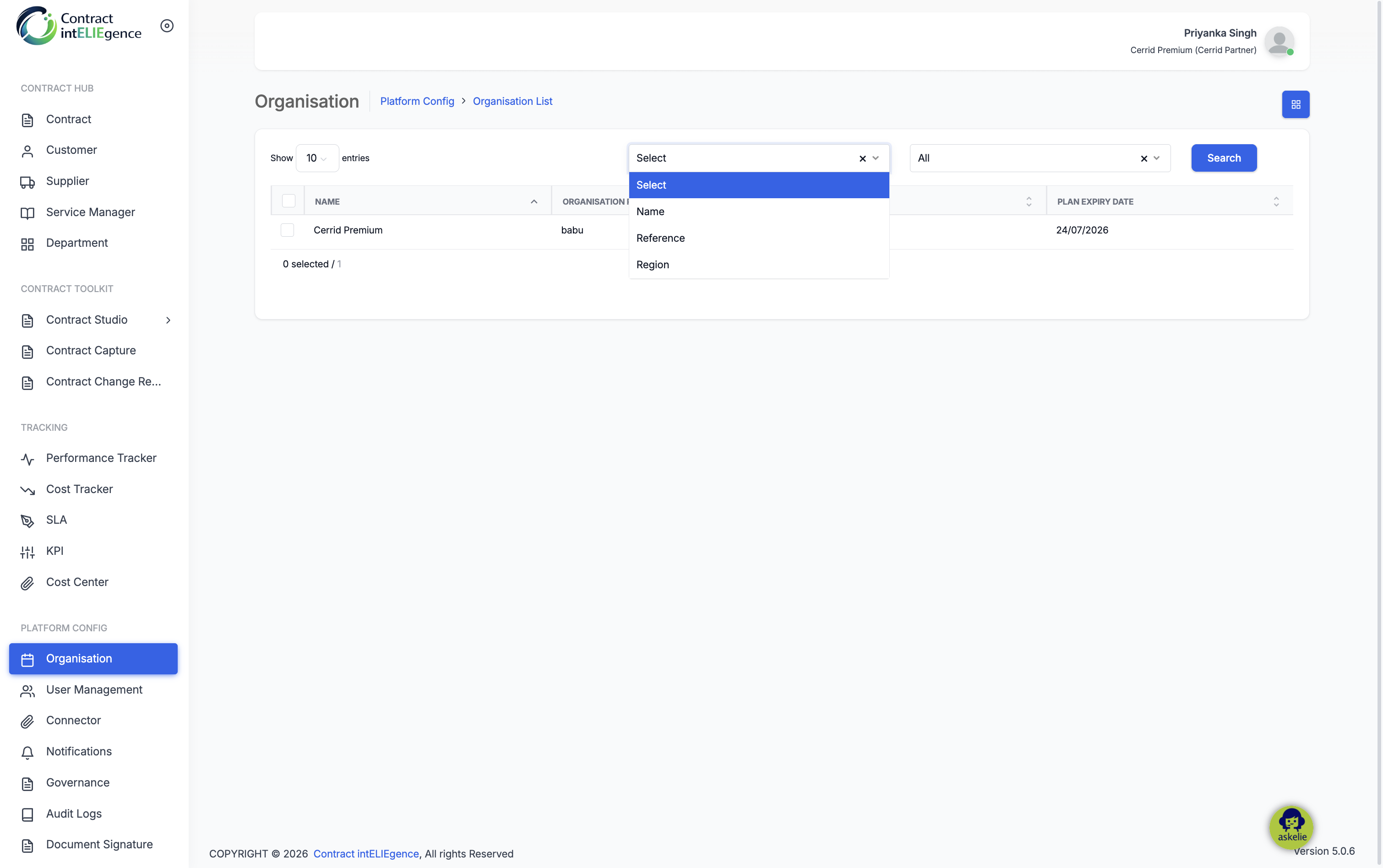
2. Overview Tab
The Overview tab captures the core identity, regional and branding details. Several fields are pre-filled during onboarding and may be updated as required.
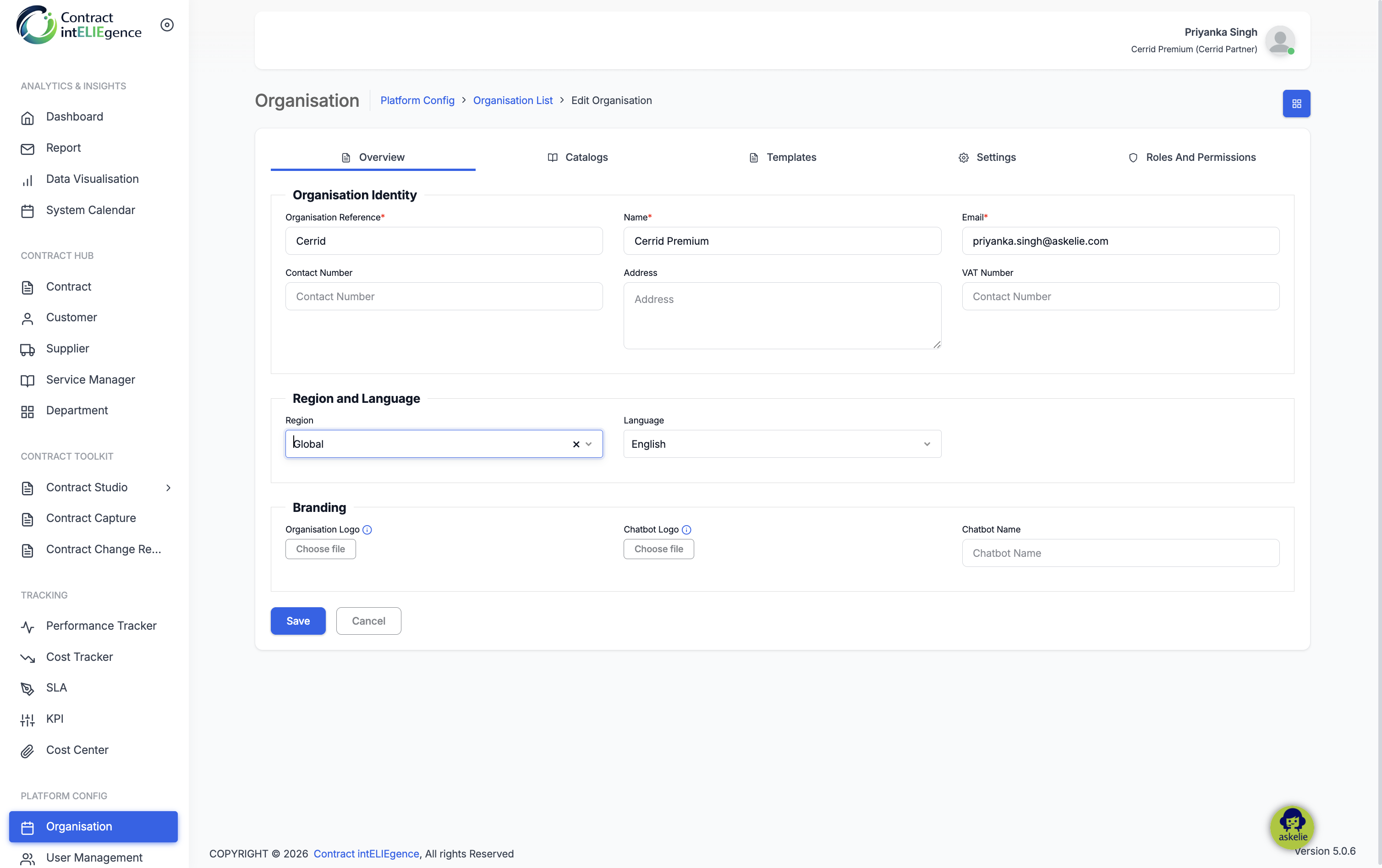
Organisation Identity:
- Review the Organisation Reference (pre-filled, editable) — a unique short code used to identify the organisation internally.
- Review the Name (pre-filled, editable) — the display name of the organisation.
- Review the Email (pre-filled with the primary Admin email captured during onboarding).
- Optionally enter a Contact Number, Address, and VAT Number.
Region and Language:
- Select a Region if applicable (APAC, AMER, EMEA, Global).
- Select a Language. Currently available: English, Spanish, German. Changing the language updates the entire application UI for this organisation.
Branding:
- Upload an Organisation Logo to replace the default logo shown at the top-left of the application.
- Upload a Chatbot Logo to replace the default ELIE chatbot icon.
- Enter a Chatbot Name to customise the chatbot display name.
Click Save to apply the changes, or Cancel to discard them.
3. Catalogs Tab
The Catalogs tab is where the Admin manages master data values reused across other modules (for example, regions, contract types, KPIs, SLAs, governance approvers). The list comes pre-populated with default items.
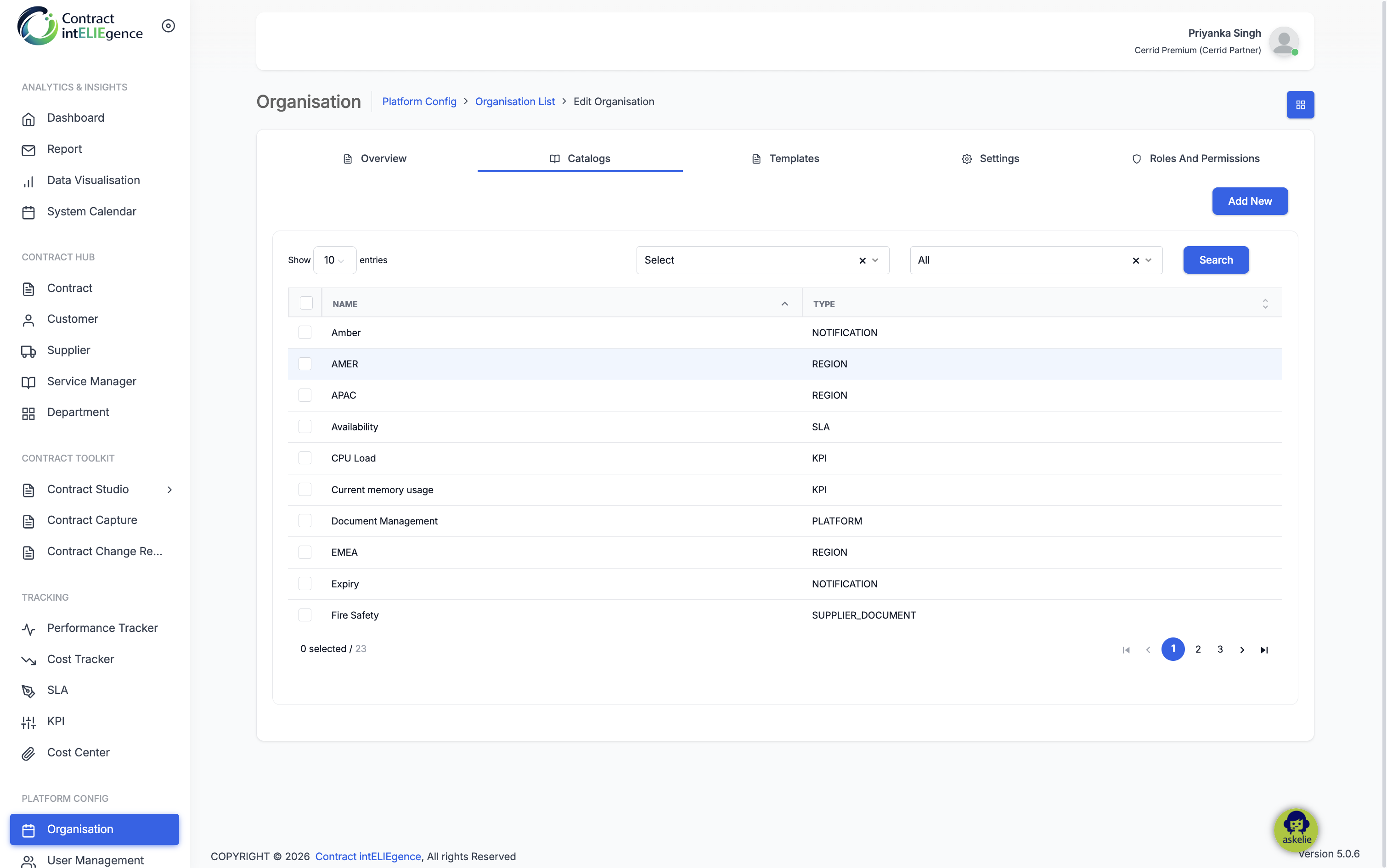
Adding a Catalog Item:
- On the Catalogs tab, click Add New.
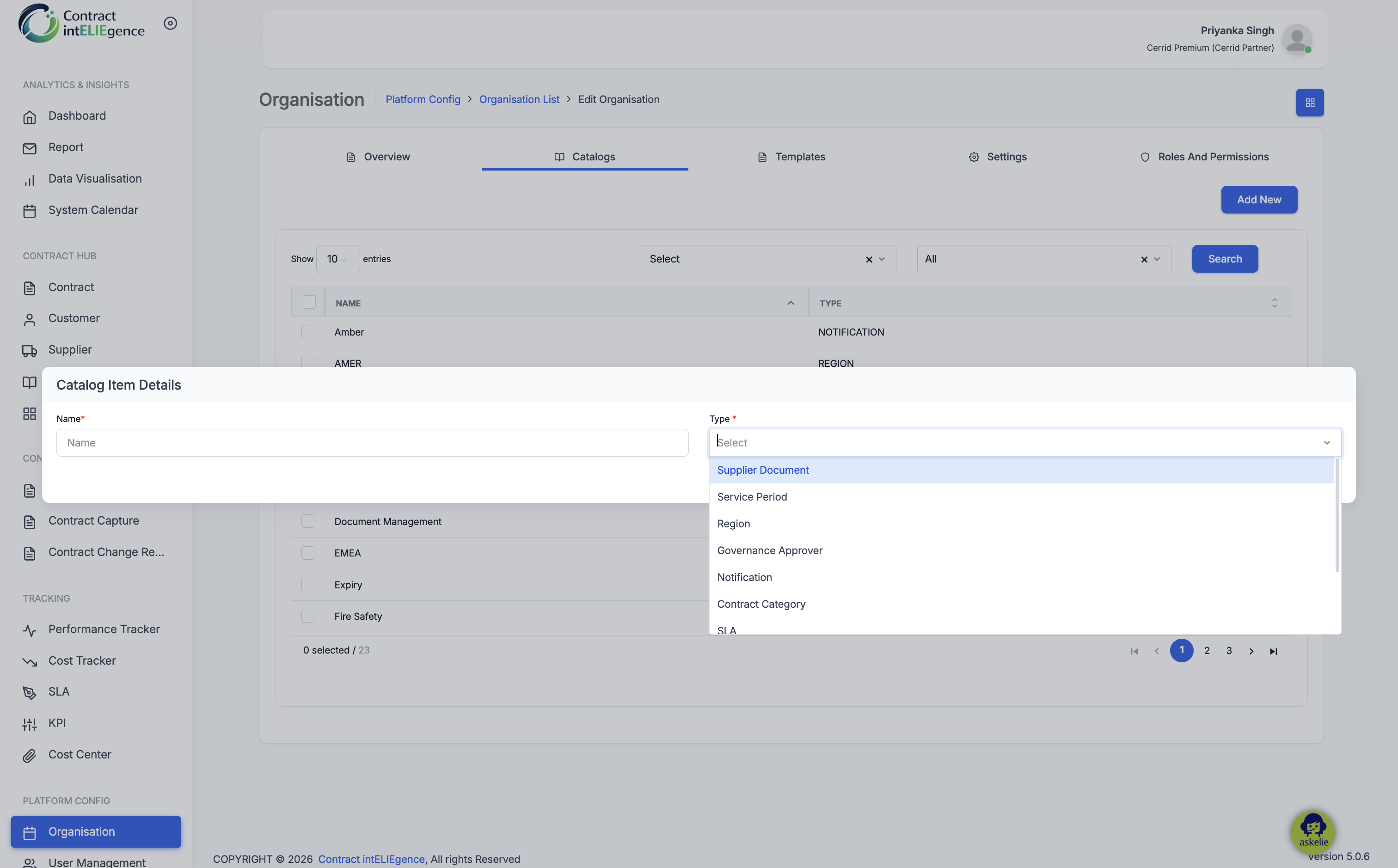
- In the Catalog Item Details panel, enter a Name (required).
- Select a Type (required). Available options: Notification, Region, Platform, Contract Category, Service Period, Governance Approver, Contract Type, SLA, KPI.
- Complete any additional fields that appear based on the selected Type (see below).
- Click Save.
3.1 Simple Types
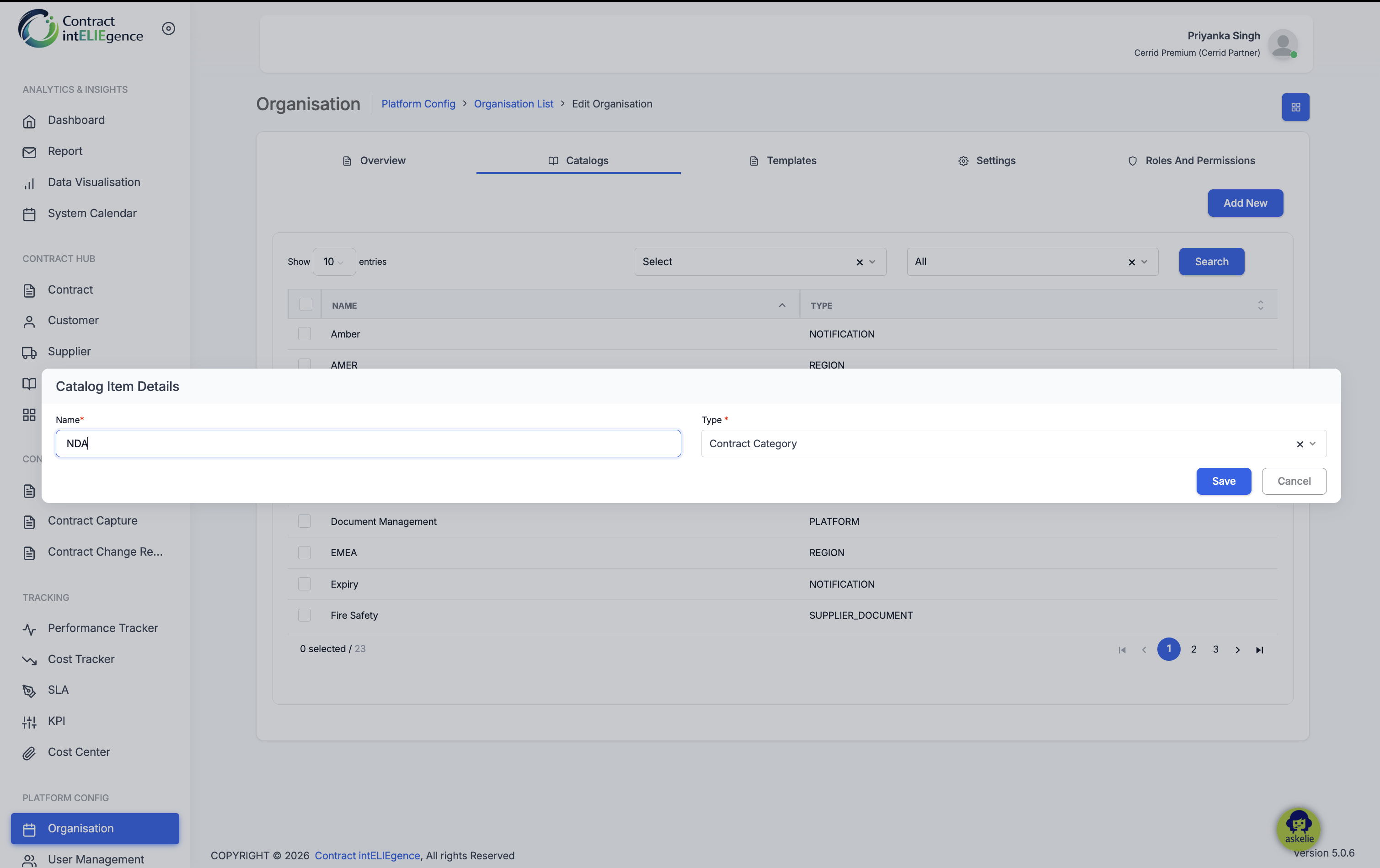
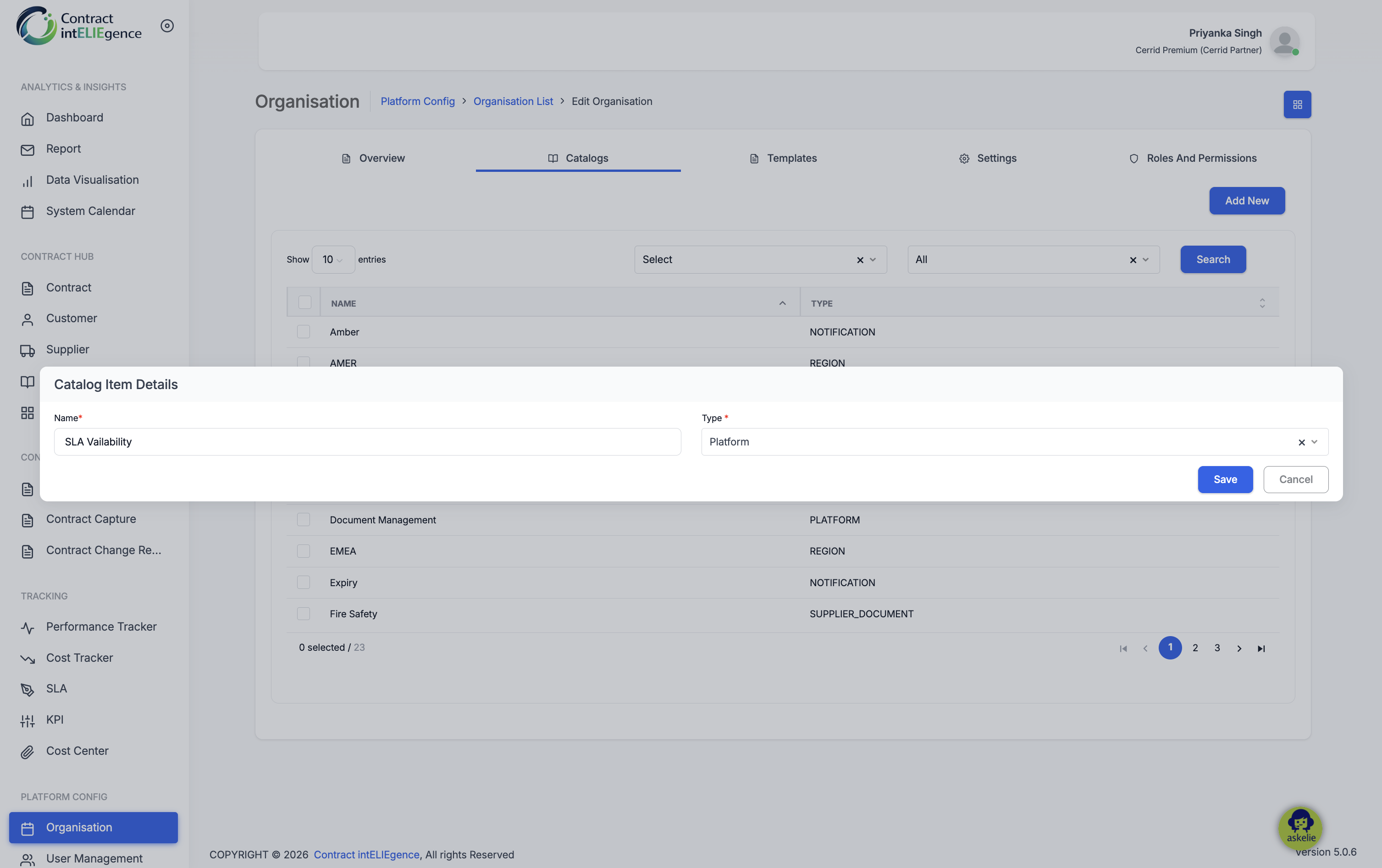
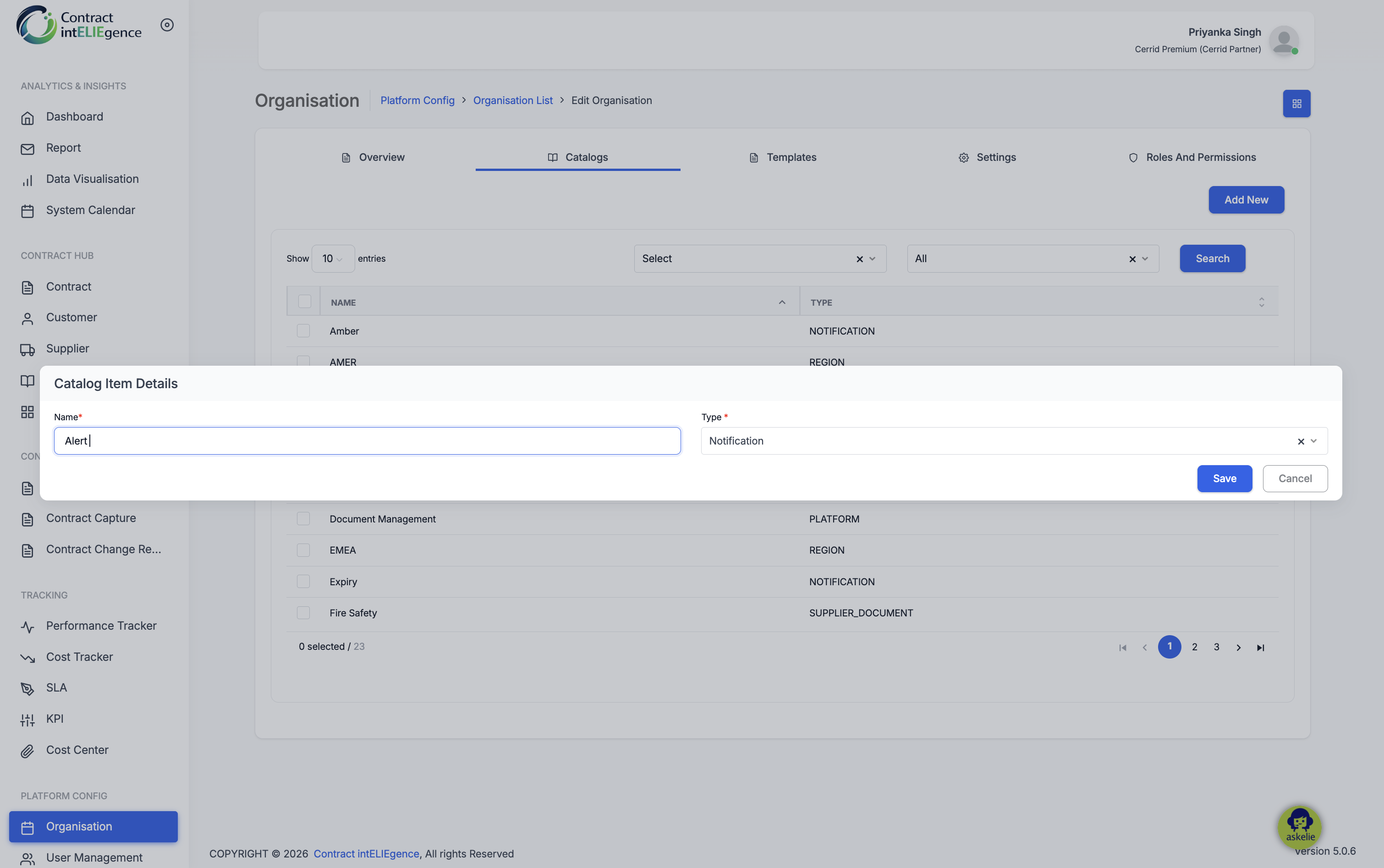
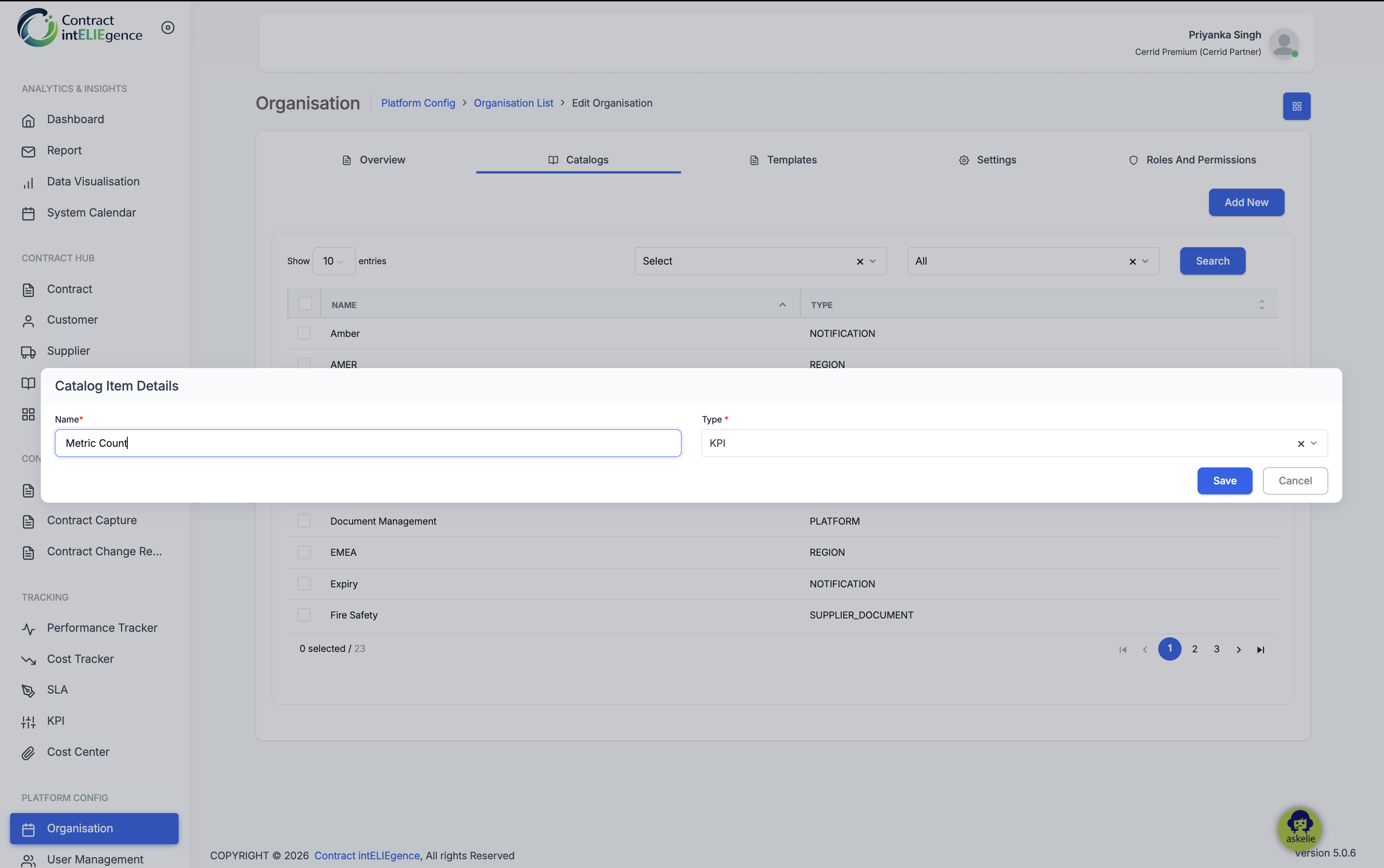
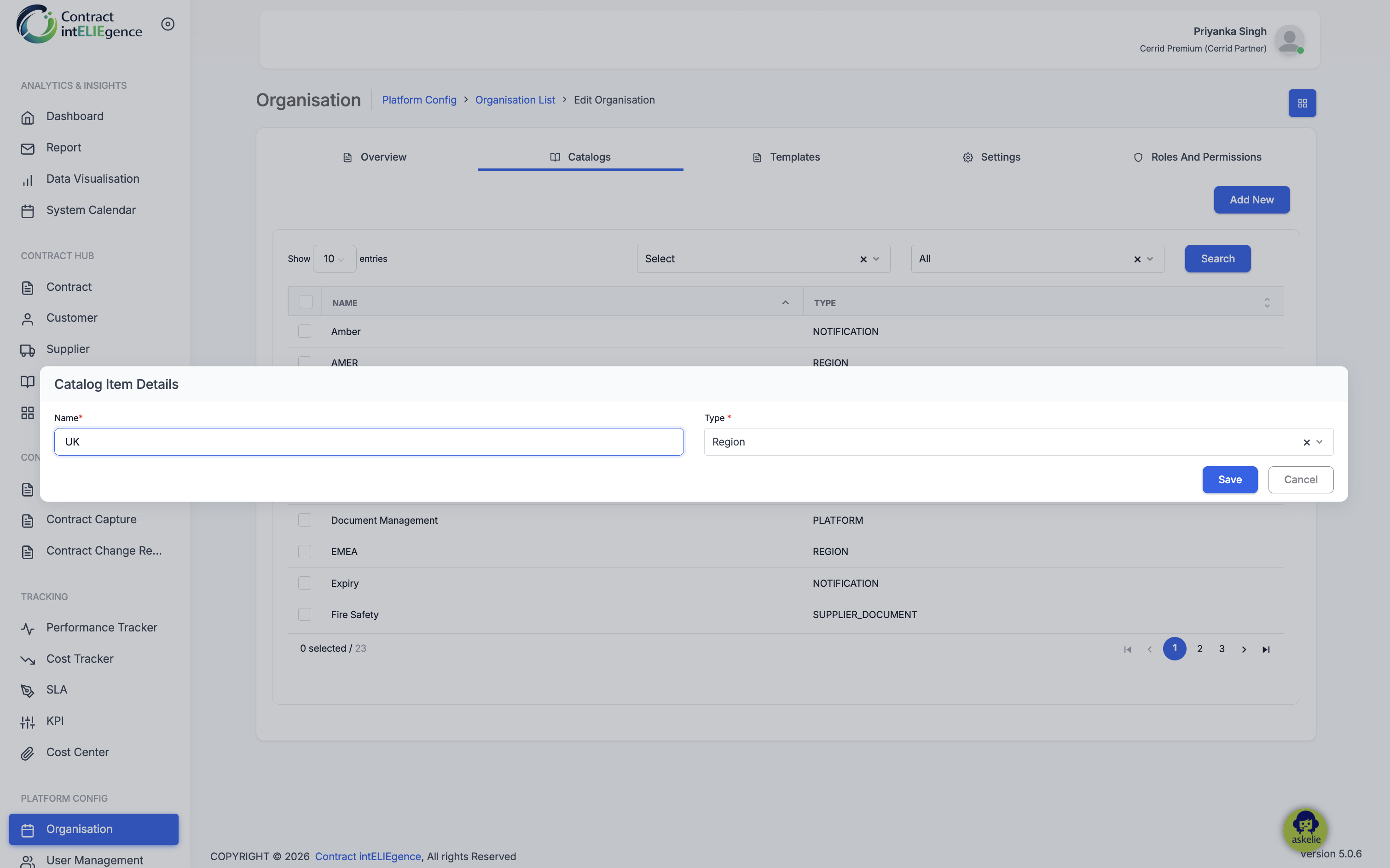
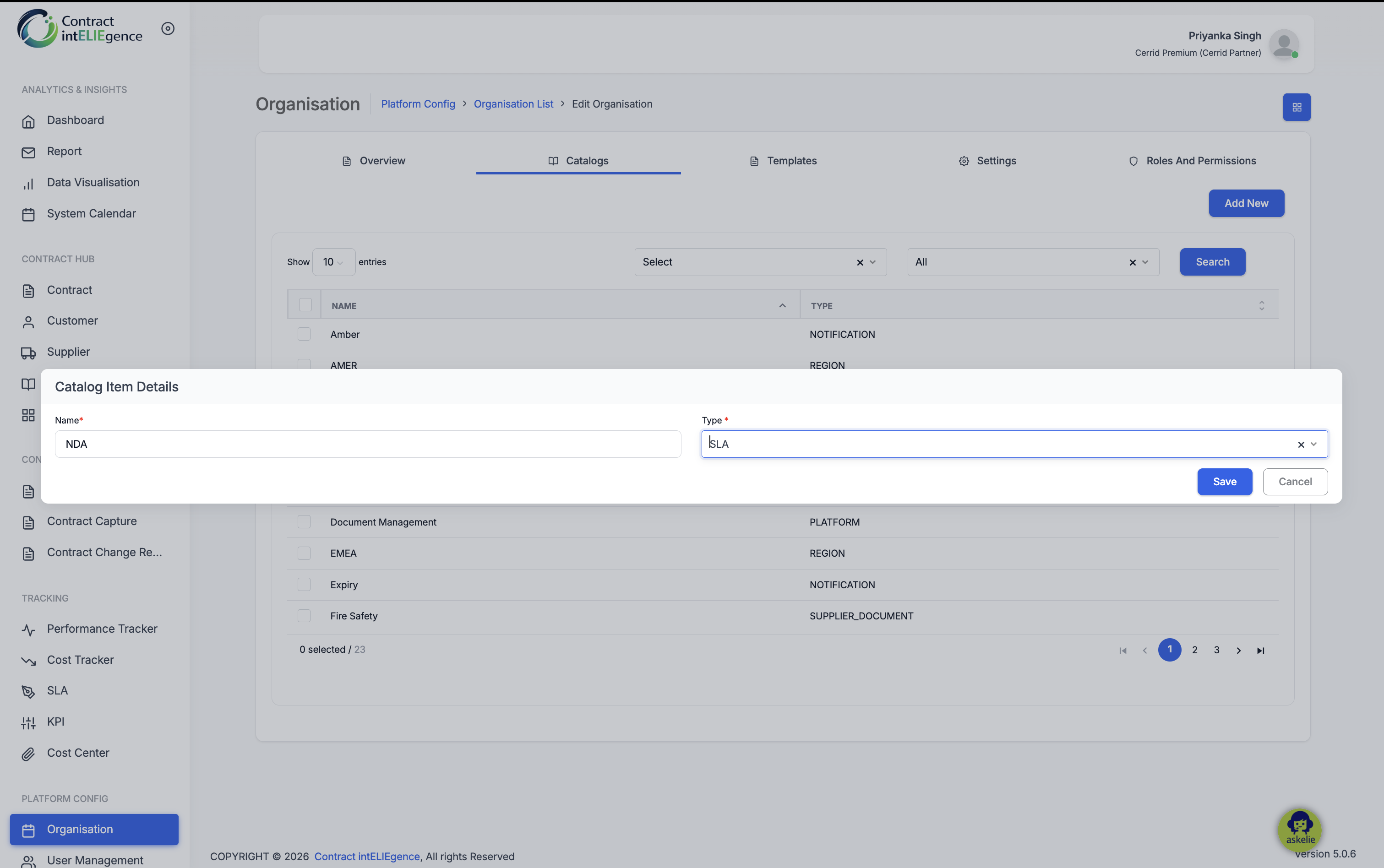
The following types require only Name and Type — no additional configuration is needed:
Contract Category:
Platform:
Notification:
KPI:
Region:
SLA:
3.2 Type: Service Period
When selected, additional scheduling fields appear.
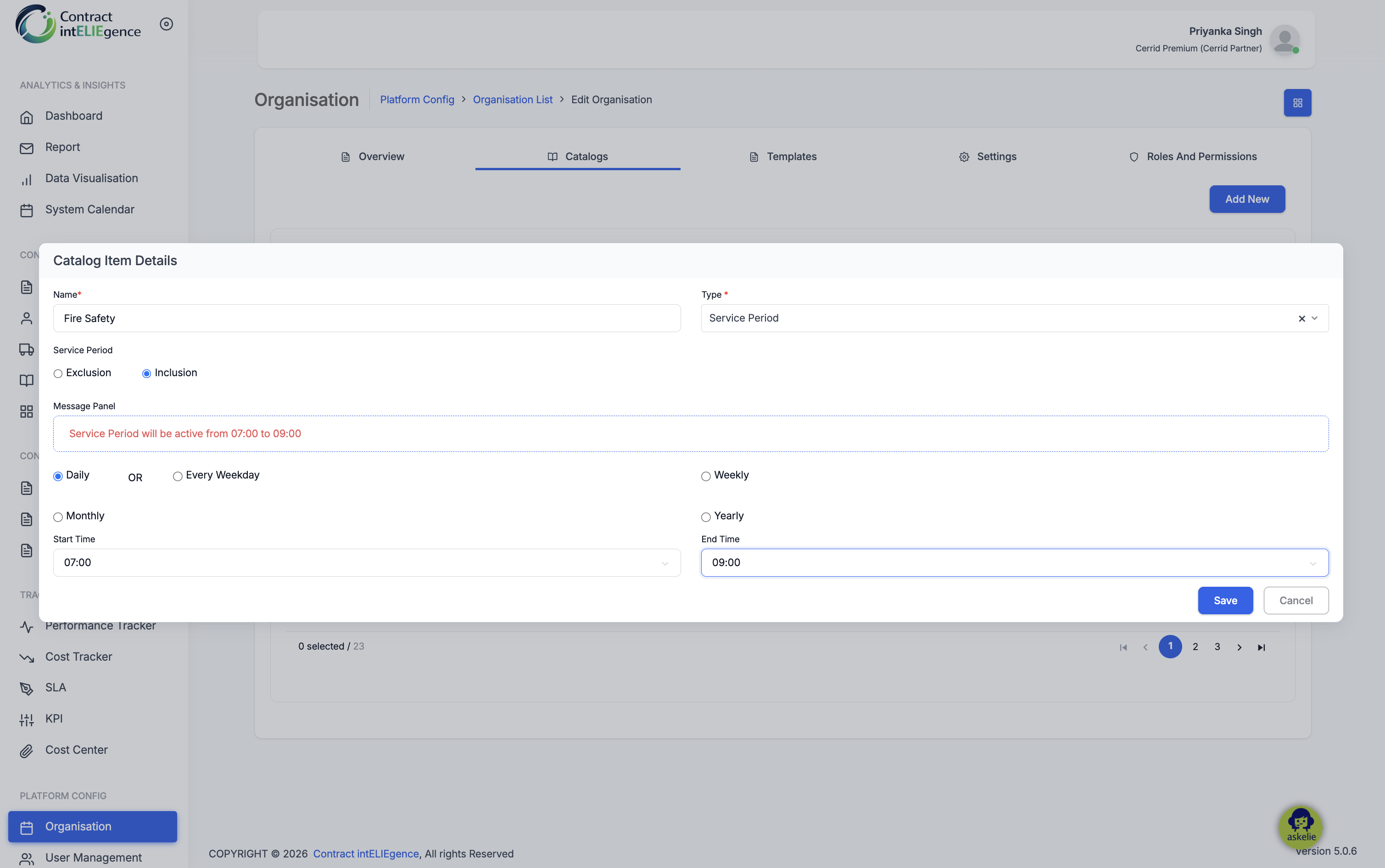
- Select a Service Period mode — Exclusion or Inclusion.
- Optionally enter a Message Panel text.
- Select a Frequency — Daily, Every Weekday, Weekly, Monthly, or Yearly.
- Select the Start Time and End Time.
- Click Save.
3.3 Type: Contract Type
When selected, clause and lifecycle fields appear.
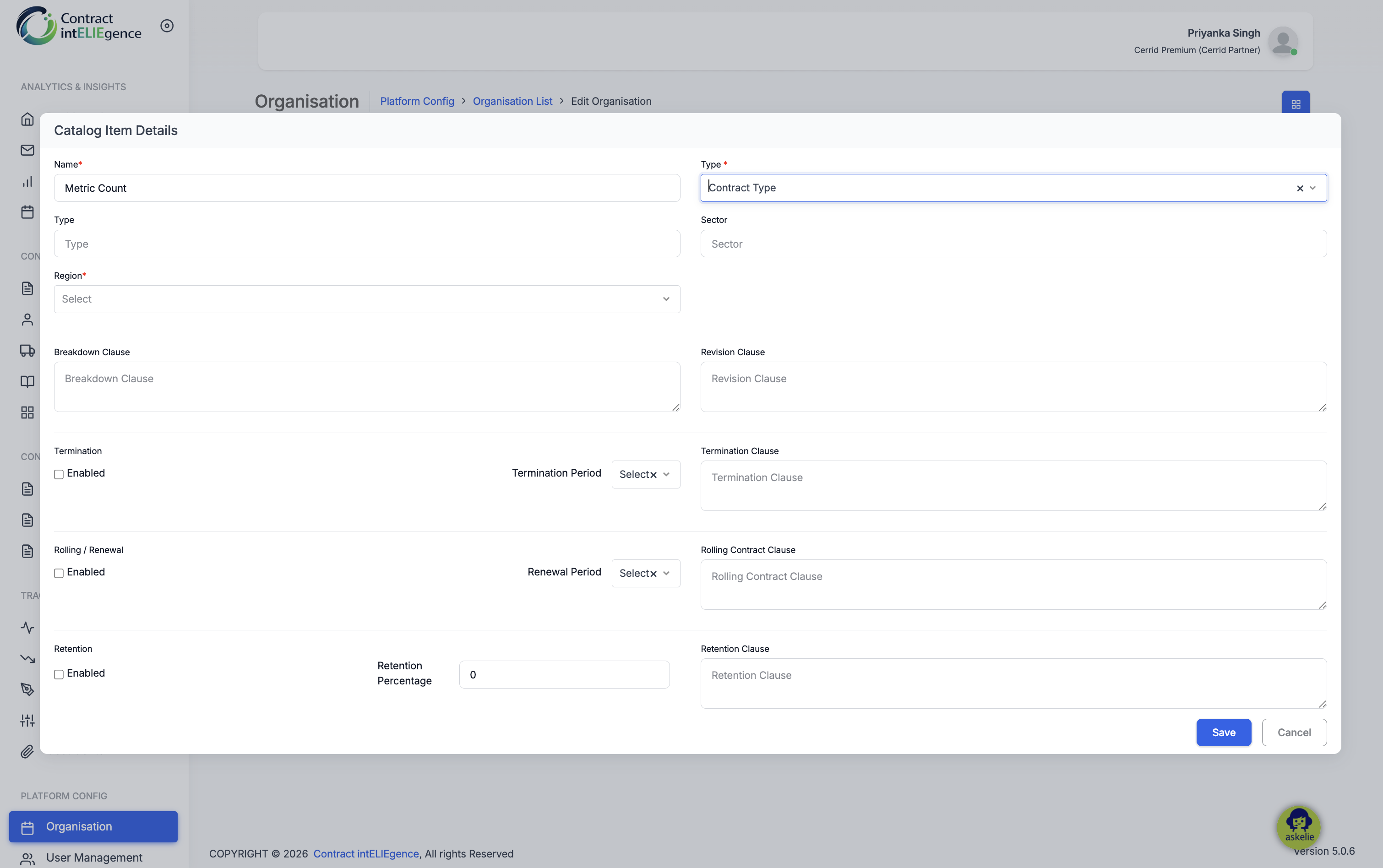
- Optionally enter a Type (sub-type) and Sector.
- Select a Region (required).
- Optionally enter a Breakdown Clause and Revision Clause.
- To enable Termination: tick Enabled, select a Termination Period, enter a Termination Clause.
- To enable Rolling / Renewal: tick Enabled, select a Renewal Period, enter a Rolling Contract Clause.
- To enable Retention: tick Enabled, enter a Retention Percentage, enter a Retention Clause.
- Click Save.
3.4 Type: Governance Approver
Two additional required fields appear.
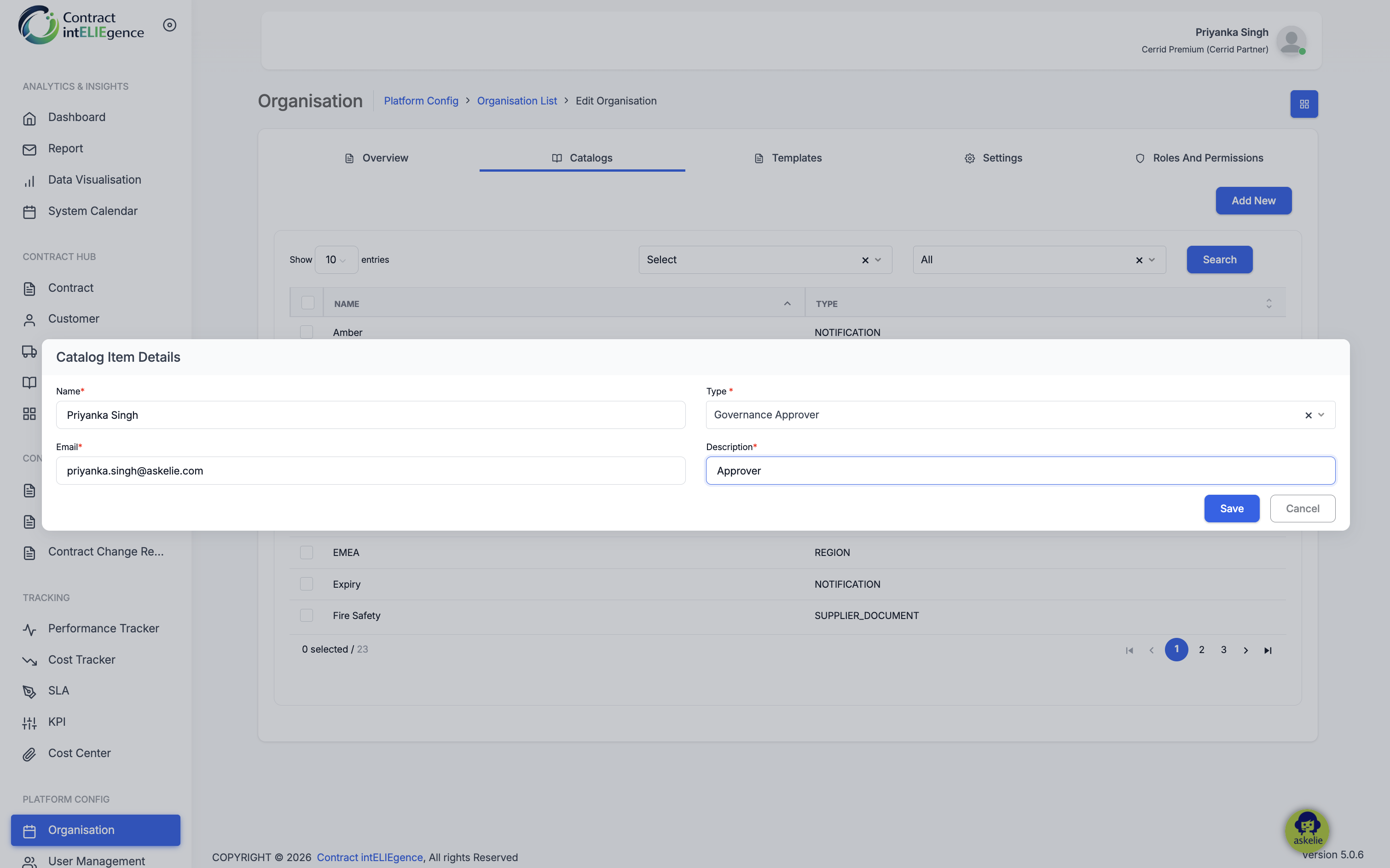
- Enter the Email address of the governance approver.
- Enter a Description of the approver's role.
- Click Save.
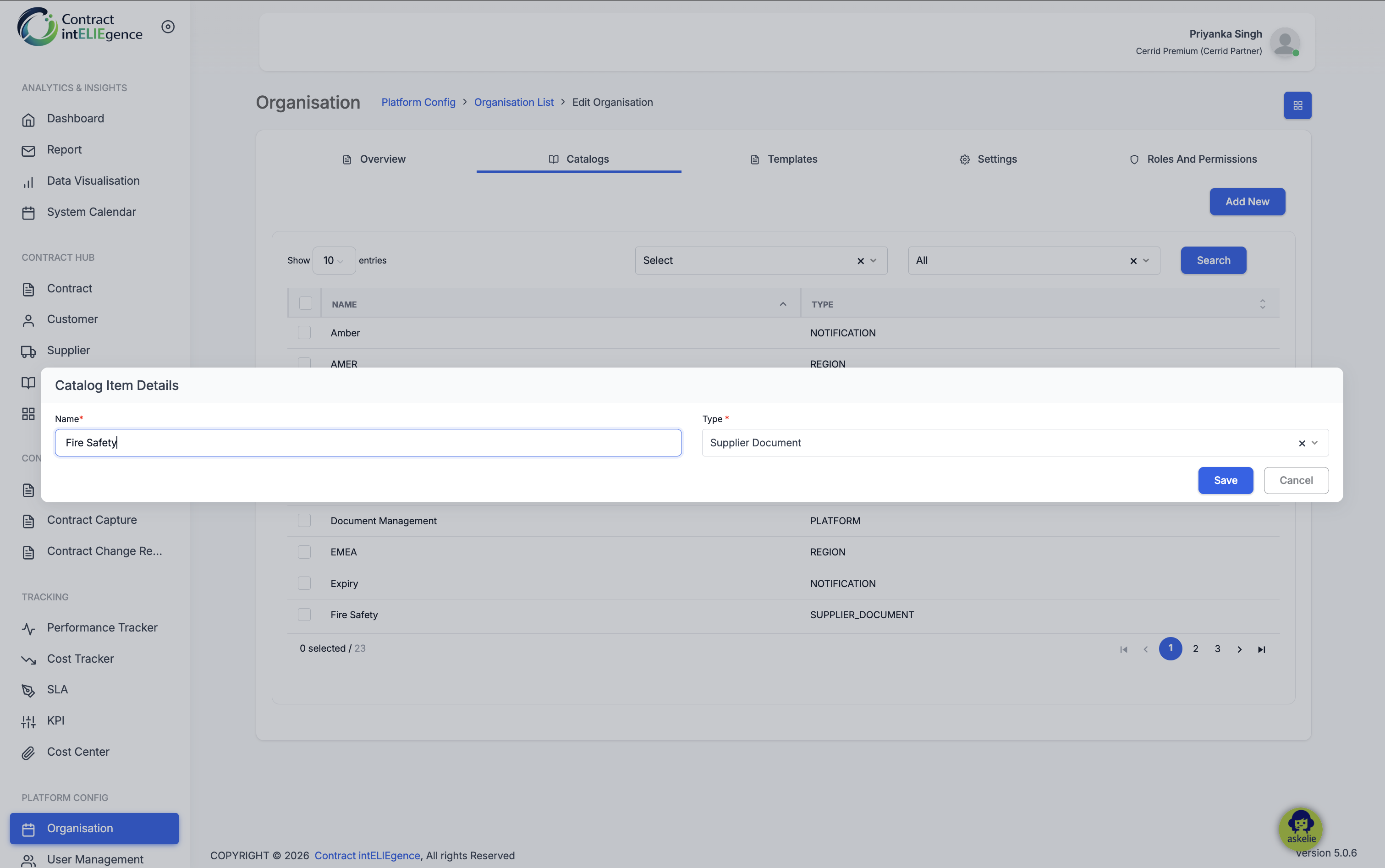
3.5 Type: Supplier Document
4. Templates Tab
Upload master Word documents that are auto-populated and sent for e-signature when customers and suppliers are onboarded. Two sections: Customer (NDA) and Supplier (MOU).
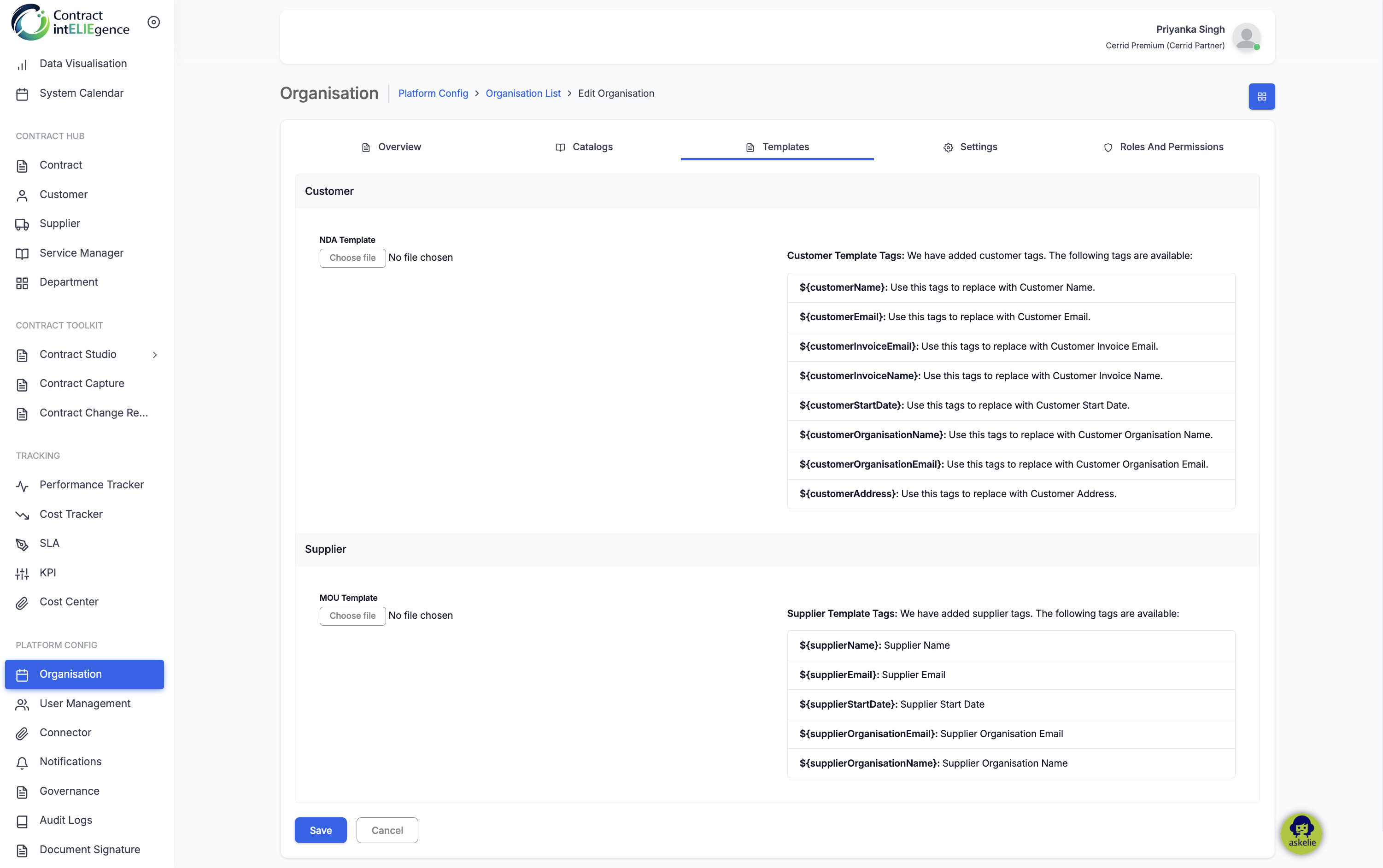
Customer — NDA Template Tags:
| Tag | Replaced With |
|---|---|
| ${customerName} | Customer Name |
| ${customerEmail} | Customer Email |
| ${customerInvoiceEmail} | Customer Invoice Email |
| ${customerInvoiceName} | Customer Invoice Name |
| ${customerStartDate} | Customer Start Date |
| ${customerOrganisationName} | Customer Organisation Name |
| ${customerOrganisationEmail} | Customer Organisation Email |
| ${customerAddress} | Customer Address |
Supplier — MOU Template Tags:
| Tag | Replaced With |
|---|---|
| ${supplierName} | Supplier Name |
| ${supplierEmail} | Supplier Email |
| ${supplierStartDate} | Supplier Start Date |
| ${supplierOrganisationEmail} | Supplier Organisation Email |
| ${supplierOrganisationName} | Supplier Organisation Name |
Uploading a Template:
- Prepare a .docx file containing the relevant placeholder tags exactly as listed above.
- Under the Customer or Supplier section, click Choose file.
- Select the prepared .docx file and confirm the upload.
- Click Save.
5. Supplier Documents Tab
Maintains the master list of documents suppliers are required to provide. Entries are populated automatically when documents are requested at Supplier creation. The Admin can review and delete entries from here.
6. Settings Tab
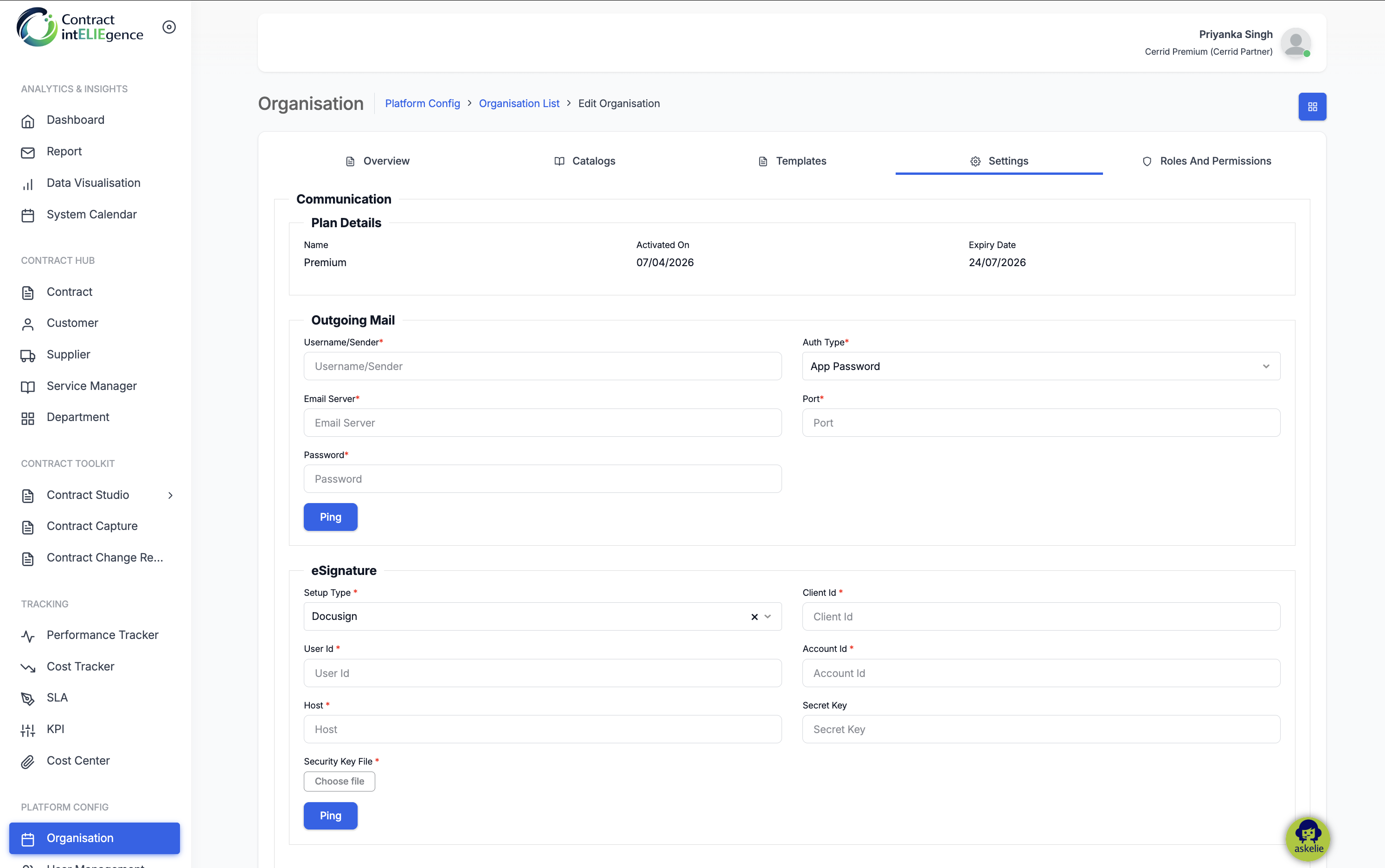
Plan Details (read-only):
Displays Plan Name, Activated On and Expiry Date. Cannot be changed from this screen.
Outgoing Mail:
- Enter the Email Server (SMTP hostname).
- Enter the Port.
- Enter the Username/Sender — appears in the From field of outgoing emails.
- Enter the Password.
- Click Ping to test the connection.
- Click Save.
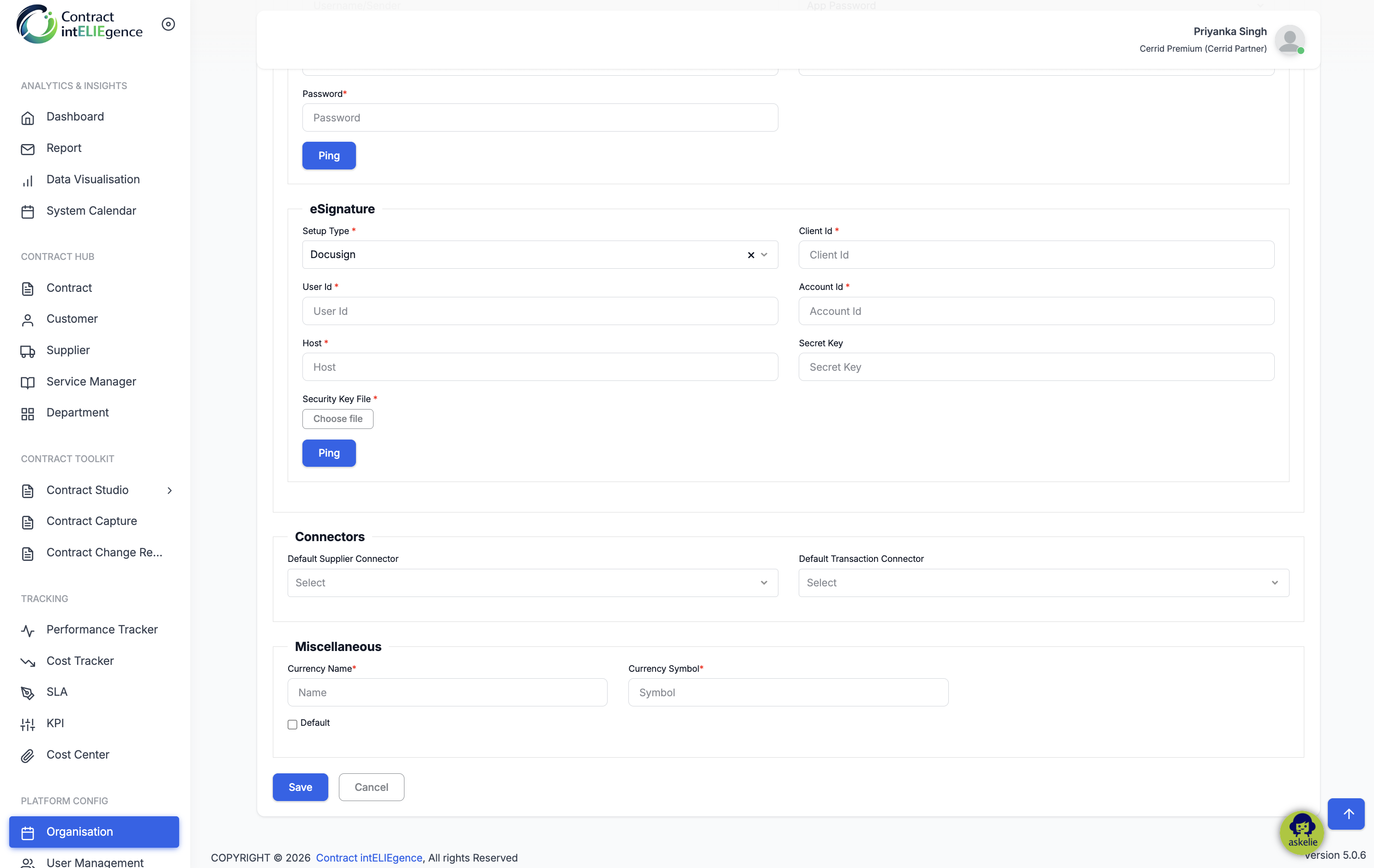
eSignature:
- Select the Setup Type (e.g., Docusign).
- Enter Client Id, User Id, Account Id, Host.
- Upload the Security Key File.
- Click Ping to test.
- Click Save.
Connectors:
These fields link the organisation to Sage ERP connectors for automatic data synchronisation. Connectors must first be created in the Connectors module before they appear here.
- Select a Default Supplier Connector — the Sage Connector used to pull (sync) suppliers from Sage into Contract intELIEgence and push supplier information back to Sage.
- Select a Default Transaction Connector — the Sage Connector used to pull (sync) transactions from Sage and push contract data back to Sage.
- Click Save.
Miscellaneous:
- Enter Currency Name and Currency Symbol.
- Tick Default to set as the organisation's default currency.
- Click Save.
7. Roles And Permissions Tab
Define custom roles and assign granular permissions. Roles created here are available in User Management.
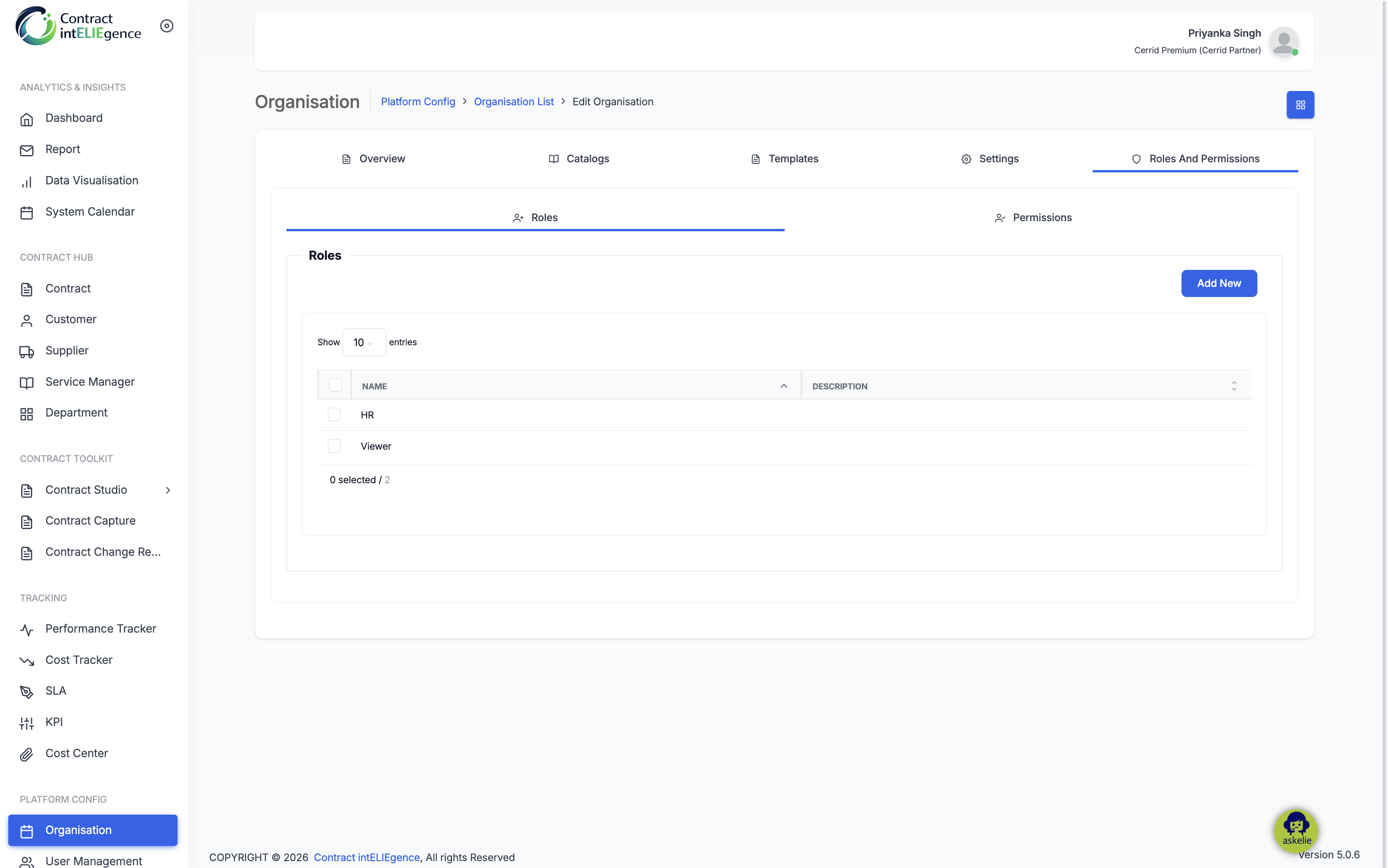
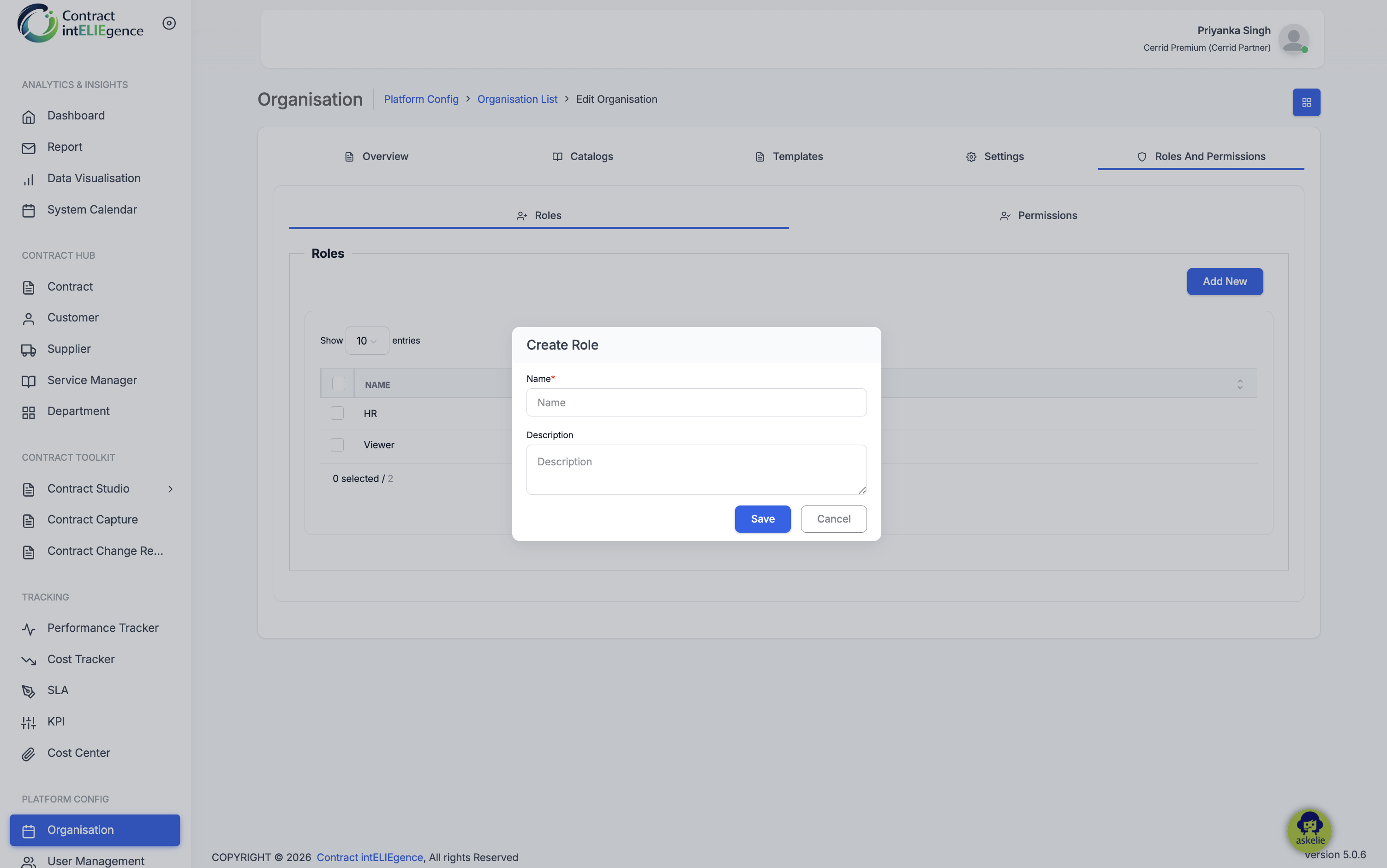
Creating a Role:
- On the Roles sub-tab, click Add New.
- Enter a Name and Description.
- Click Save.
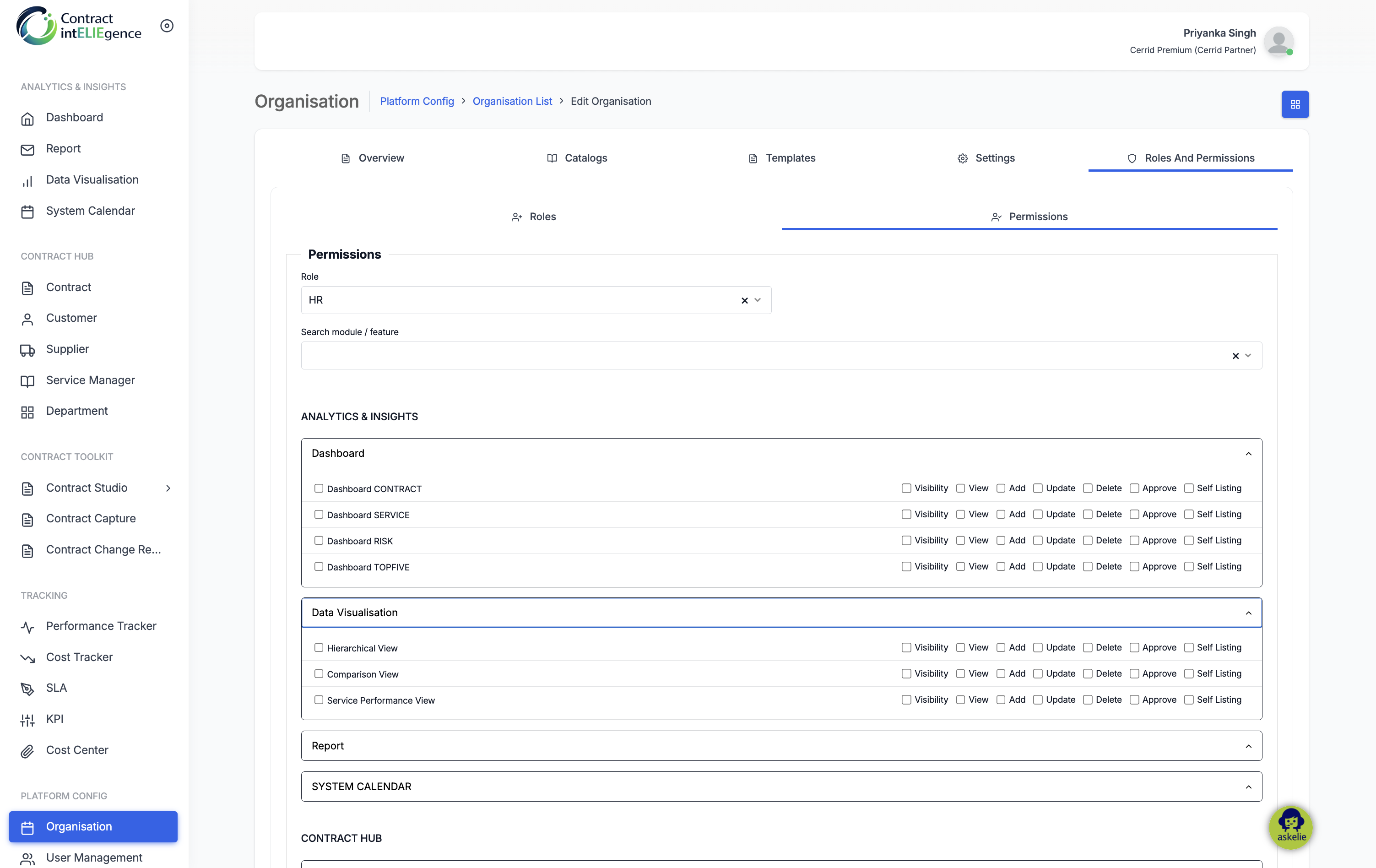
Assigning Permissions:
- Switch to the Permissions sub-tab.
- Select a Role from the dropdown.
- Expand the relevant module group.
- Tick the desired permissions: Visibility, View, Add, Update, Delete, Approve, Self Listing.
- Click Save.
8. Tips
- Complete the Overview tab first so identity and branding are in place.
- Configure Outgoing Mail and eSignature early — Templates depend on eSignature.
- Use Ping buttons to validate credentials before saving.
- Plan Catalogs carefully — they drive dropdowns throughout the application.
- Define Roles and Permissions before creating users.
9. Troubleshooting
| Issue | Resolution |
|---|---|
| Cannot see Organisation in the left nav | Confirm you are signed in as an Admin. |
| Outgoing Mail Ping fails | Re-check Email Server, Port, Username/Sender and Password. |
| eSignature Ping fails | Verify Client Id, User Id, Account Id, Host and Security Key File. |
| Template tags not replaced | Ensure tags match exactly (including ${ } syntax) and eSignature is complete. |
| Language change not reflected | Save the Overview tab and refresh the application. |
| New role not in User Management | Confirm the role was saved and permissions assigned. |