1. Overview
The Department module manages the internal departments of your organisation within Contract intELIEgence. Departments are used throughout the platform — they appear as selection options when creating customers, suppliers, contracts, and other entities. Each department can have an assigned Admin who is responsible for approval-related tasks for that department.
Department Approval Workflow
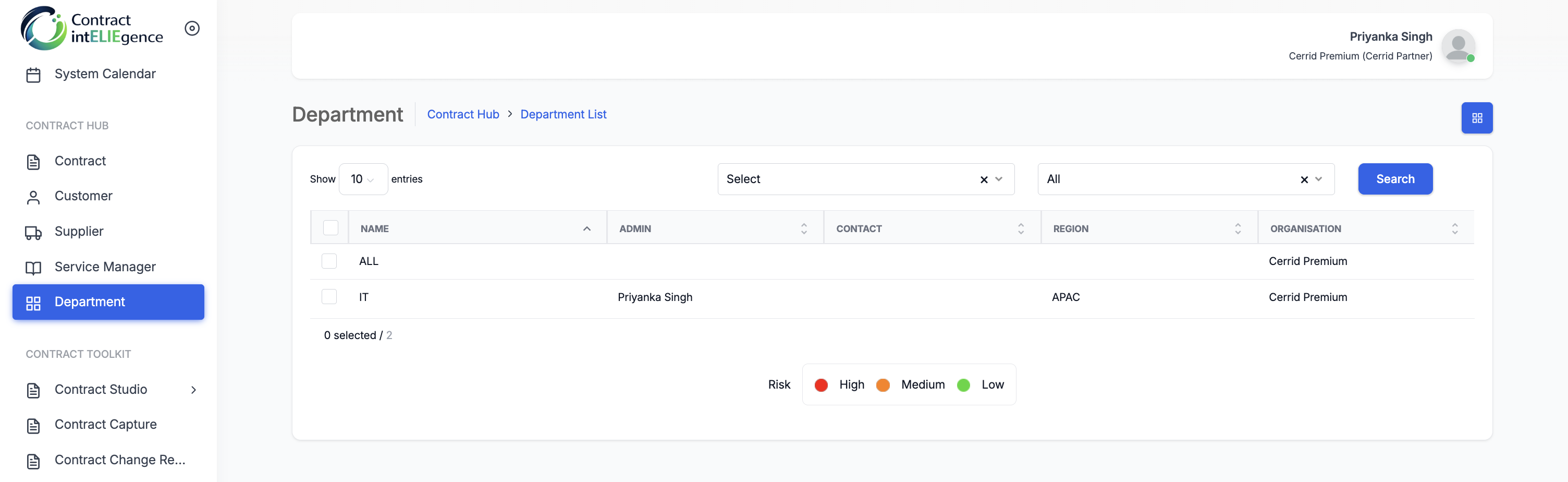
When an organisation is first created, a default "ALL" department is automatically generated. This department can be used for entities that are applicable across all departments rather than a specific one.
Prerequisites
- Platform Config must be completed (Organisation, User Management).
- Regions must exist in Organisation → Catalogs (Type = Region).
- Admin users must be created in User Management (required for the Admin dropdown).
2. Opening the Department List
- In the left navigation, under Contract Hub, click Department.
- The Department List page shows all departments. Each row displays the department Name, Admin, Contact, Region, and Organisation.
- Use the Show entries control, filter dropdowns, and Search button to locate a department.
3. Adding a Department
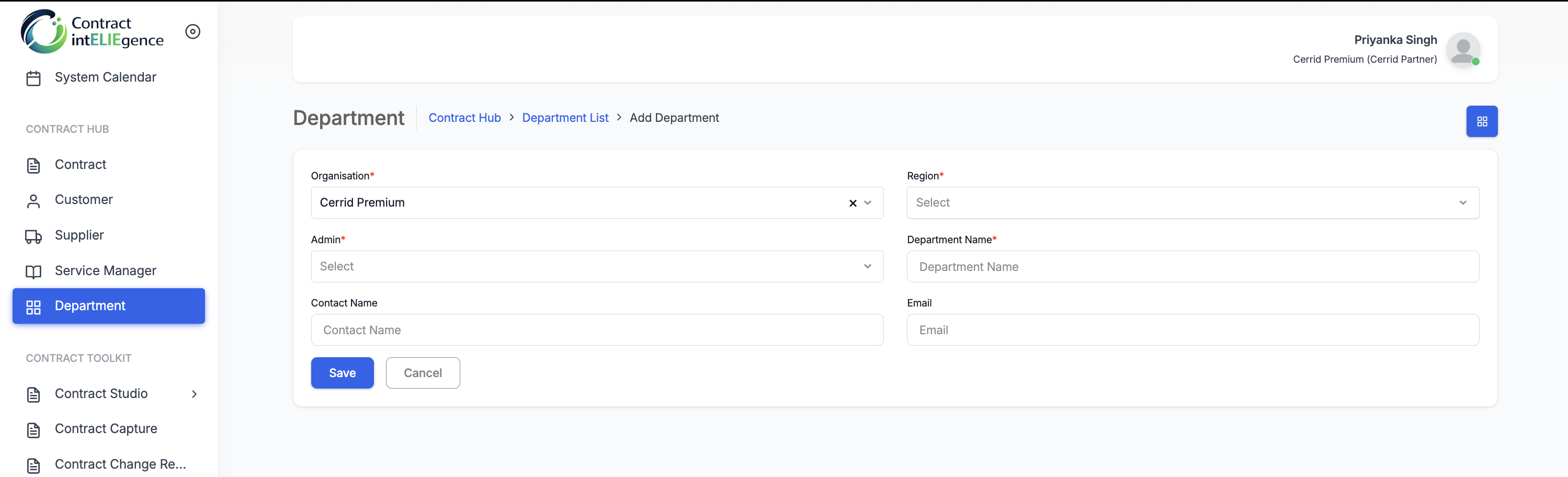
- On the Department List page, click Add New (the grid icon in the top-right).
- Organisation is pre-selected based on your login.
- Select a Region (required) — sourced from Organisation → Catalogs (Type = Region).
- Select an Admin (required) — this dropdown lists all Admin users from User Management. The selected Admin is responsible for approval-related tasks for this department (e.g. contract approvals, review sign-offs). When a Super User creates a contract linked to this department, it is routed to the Department Admin for approval. See the Contract guide (Section on Department-Based Approval) for full details on the approval workflow.
- Enter a Department Name (required) — e.g. IT, Finance, Legal, Procurement.
- Optionally enter a Contact Name — the primary contact person for this department.
- Optionally enter an Email — the department's contact email address.
- Click Save.
4. Editing a Department
- On the Department List page, click a department name to open the Edit Department screen.
- Update any fields as needed — Region, Admin, Department Name, Contact Name, or Email.
- Click Save to apply changes.
5. Deleting a Department
- On the Department List page, tick the checkbox next to one or more departments.
- A Delete button appears.
- Click Delete and confirm.
6. Department List Columns
| Column | Description |
|---|---|
| Name | The department name (e.g. ALL, IT, Finance). |
| Admin | The Admin user assigned to this department, responsible for approvals. |
| Contact | The contact person for this department. |
| Region | The region this department belongs to. |
| Organisation | The organisation this department belongs to. |
7. Bulk Import
Contract intELIEgence allows you to import multiple departments at once using a pre-formatted Excel template. This is useful when migrating data from another system or when you need to create many department records in a single operation.
7.1 How to Import
- On the Department List page, click the grid icon in the top-right corner to reveal a dropdown menu with + Add and Import options.
- Click Import to open the Import dialog.
- Select an Organisation from the dropdown.
- Click Import Template to download the pre-formatted Excel template for departments.
- Fill in the Excel template with the department data you wish to import (see the template columns below).
- Click Choose File to select the completed Excel file.
- Click Submit to import the records.
7.2 Import Template Columns
| Field | Description |
|---|---|
| name | Department name. |
| contactName | Contact person for the department. |
| contactEmail | Department contact email address. |
| regionName | Region name (must exist in Catalogs). |
| adminEmail | Admin user email (must exist in User Management). |
8. Tips
- Create departments before adding customers and suppliers — both modules require at least one department to be selected.
- Use the "ALL" department for entities that span the entire organisation rather than belonging to a specific department.
- Assign an appropriate Admin to each department — this person will handle approval workflows for contracts and other entities within that department.
- Keep department names clear and consistent (e.g. "IT", "Finance", "Legal") to make filtering and reporting easier across the platform.
- Add a Contact Name and Email for each department so other users know who to reach for department-specific queries.
9. Troubleshooting
| Issue | Resolution |
|---|---|
| Region dropdown is empty | Add Region catalog items in Organisation → Catalogs (Type = Region). |
| Admin dropdown is empty | Create Admin users in User Management first. Only users with the Admin role appear in this dropdown. |
| Cannot delete a department | The "ALL" department cannot be deleted. For other departments, check if active entities are linked and reassign them first. |
| Department not appearing in Customer/Supplier forms | Ensure the department is saved and the page is refreshed. Departments are loaded dynamically in other modules. |