1. Overview
The SLA (Service Level Agreement) module allows administrators to define measurable service level rules that are tracked against contracts. Each SLA connects to an external data source — either a database via a Data Connector or an email inbox via an Email Connector — and evaluates performance on a scheduled basis.
SLA RAG Evaluation Pipeline
SLAs are the engine behind the contract RAG (Red, Amber, Green) indicator. Once created, SLAs are assigned to a contract's RAG blocks in the Contract module. The system evaluates SLA performance on schedule, and the results drive the contract's RAG colour, which is visible in the contract listing and dashboard.
Important — the RAG colour is configured, not calculated. The system does not compute Amber vs Red from a threshold. Instead, you choose the severity (Amber or Red) for each SLA when you assign it to the contract's RAG block. When the SLA passes, the contract shows Green; when it fails, the contract shows the Amber or Red severity you configured for that SLA.
Two SLA Types
| Email/Connector Based | Data Source | What It Measures |
|---|---|---|
| Data Connector | External database via a Data Connector | Compares a KPI metric value against a target using a comparison operator (e.g. delivery count > 100). |
| Email Connector | Email inbox via an Email Connector | Monitors whether emails from specified senders have been received in the configured mailbox. |
Prerequisites
- For Data Connector SLAs:
- At least one Data Connector must be created and tested.
- At least one KPI must be defined (maps to a column in the connected database table).
- SLA Type values must be configured in Organisation → Catalogs (Type = SLA Type).
- For Email Connector SLAs:
- At least one Email Connector must be created and tested.
- SLA Type values must be configured in Organisation → Catalogs (Type = SLA Type).
- Service Period values must be configured in Organisation → Catalogs (Type = Service Period).
- Notification templates should be configured in the Notification module (for SLA review notifications).
2. SLA Listing
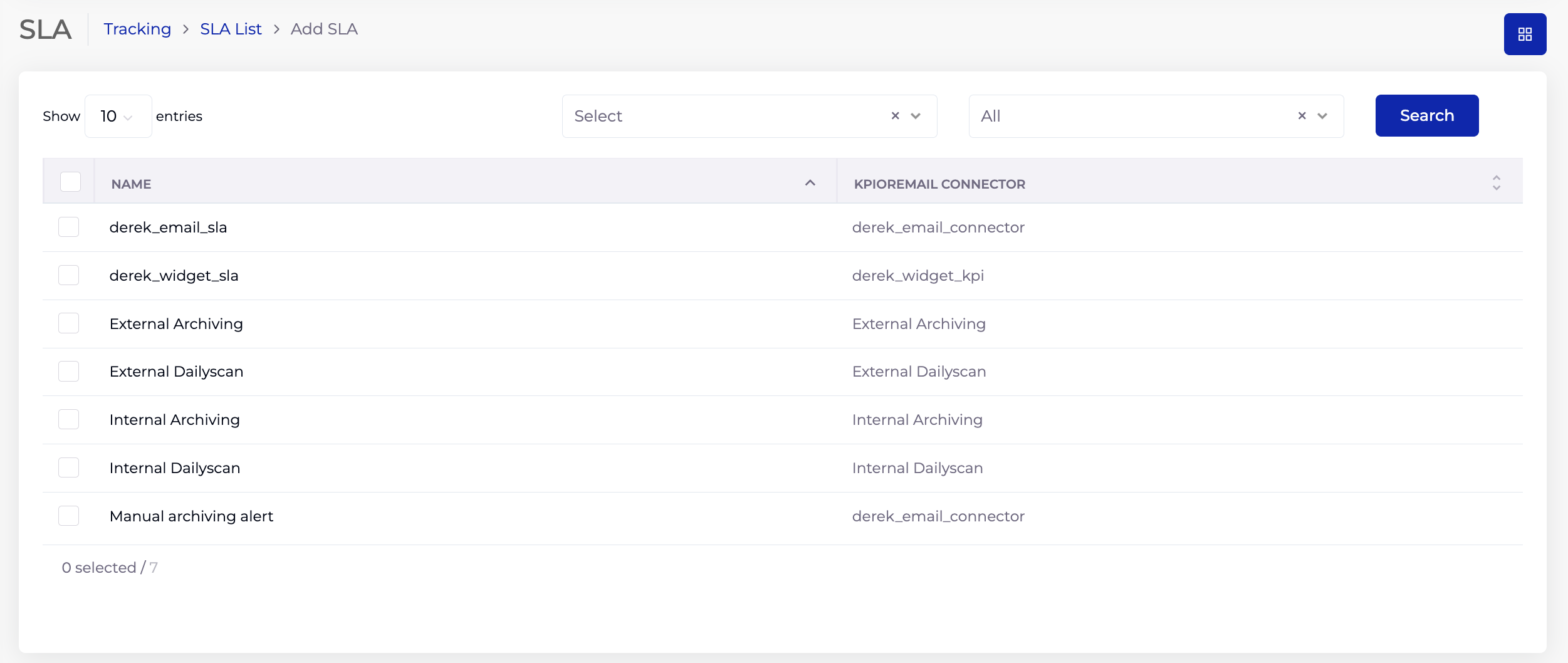
- In the left navigation, under Tracking, click SLA.
- The SLA List shows all defined SLAs with their Name and KPI/Email Connector reference.
- Use the filter dropdowns and Search button to locate an SLA.
- Click Add SLA to create a new SLA.
2.1 Listing Columns
| Column | Description |
|---|---|
| Name | The SLA name. |
| KPI/Email Connector | The KPI (for Data Connector SLAs) or Email Connector (for Email SLAs) that this SLA is linked to. |
3. Creating a Data Connector SLA
A Data Connector SLA measures a KPI metric value from an external database and compares it against a target value or another KPI using a comparison operator.
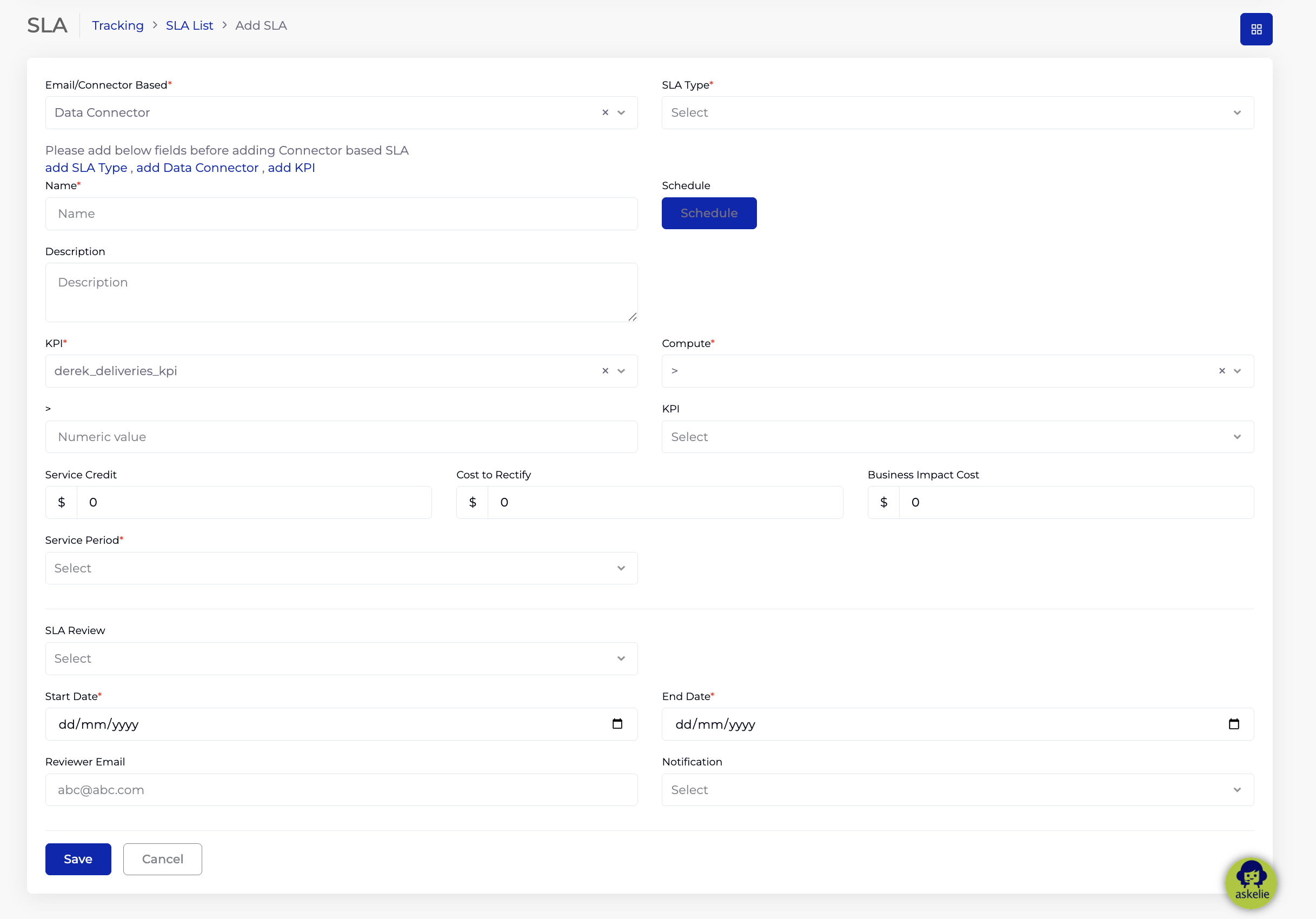
- On the SLA List page, click Add SLA.
- Select Email/Connector Based: Data Connector.
- Select an SLA Type (required) — the SLA category, from Organisation → Catalogs (Type = SLA Type).
- Enter a Name (required) — a descriptive name for this SLA.
- Click the Schedule button to configure how often the system fetches data from the connector and evaluates this SLA (e.g. daily, hourly).
- Enter a Description — optional notes about the SLA.
- Select a KPI (required) — the KPI whose metric value is measured. This determines what data is read from the external database.
- Select a Compute operator (required) — how the KPI value is compared against the target. Options:
<— less than>— greater than<=— less than or equal to>=— greater than or equal toEquals— exactly equal to%— percentage comparison
- Set the target — either:
- Enter a Numeric value — a fixed target number (e.g. KPI > 100), OR
- Select a second KPI (optional) — compare the primary KPI against another KPI's value (e.g. KPI1 > KPI2).
- Enter Service Credit, Cost to Rectify, and Business Impact Cost — monetary values ($) representing the financial impact when this SLA is breached. Used for reporting and cost tracking.
- Select a Service Period (required) — the evaluation period, from Organisation → Catalogs (Type = Service Period).
- Select an SLA Review — how often the SLA should be formally reviewed (similar to contract scheduled reviews).
- Select a Start Date (required) and End Date (required) — the period during which this SLA is active.
- Enter a Reviewer Email — the email address of the person responsible for reviewing this SLA.
- Select a Notification — the notification template (from the Notification module) used when sending SLA review alerts.
- Click Save.
3.1 How the SLA Rule Works
The SLA defines a rule in the format:
KPI [operator] Target Value or KPI [operator] Another KPI
For example:
- Delivery Count > 100 — the SLA passes if the KPI "Delivery Count" returns a value greater than 100.
- Archiving Count >= External Archiving KPI — the SLA passes if the first KPI's value is greater than or equal to the second KPI's value.
The system evaluates this rule on the configured schedule. Pass/fail results drive the RAG indicator on contracts where this SLA is assigned.
4. Creating an Email Connector SLA
An Email Connector SLA monitors an email inbox for messages from specified senders. It checks whether emails have been received from the configured sender addresses in the Email Connector's mailbox.
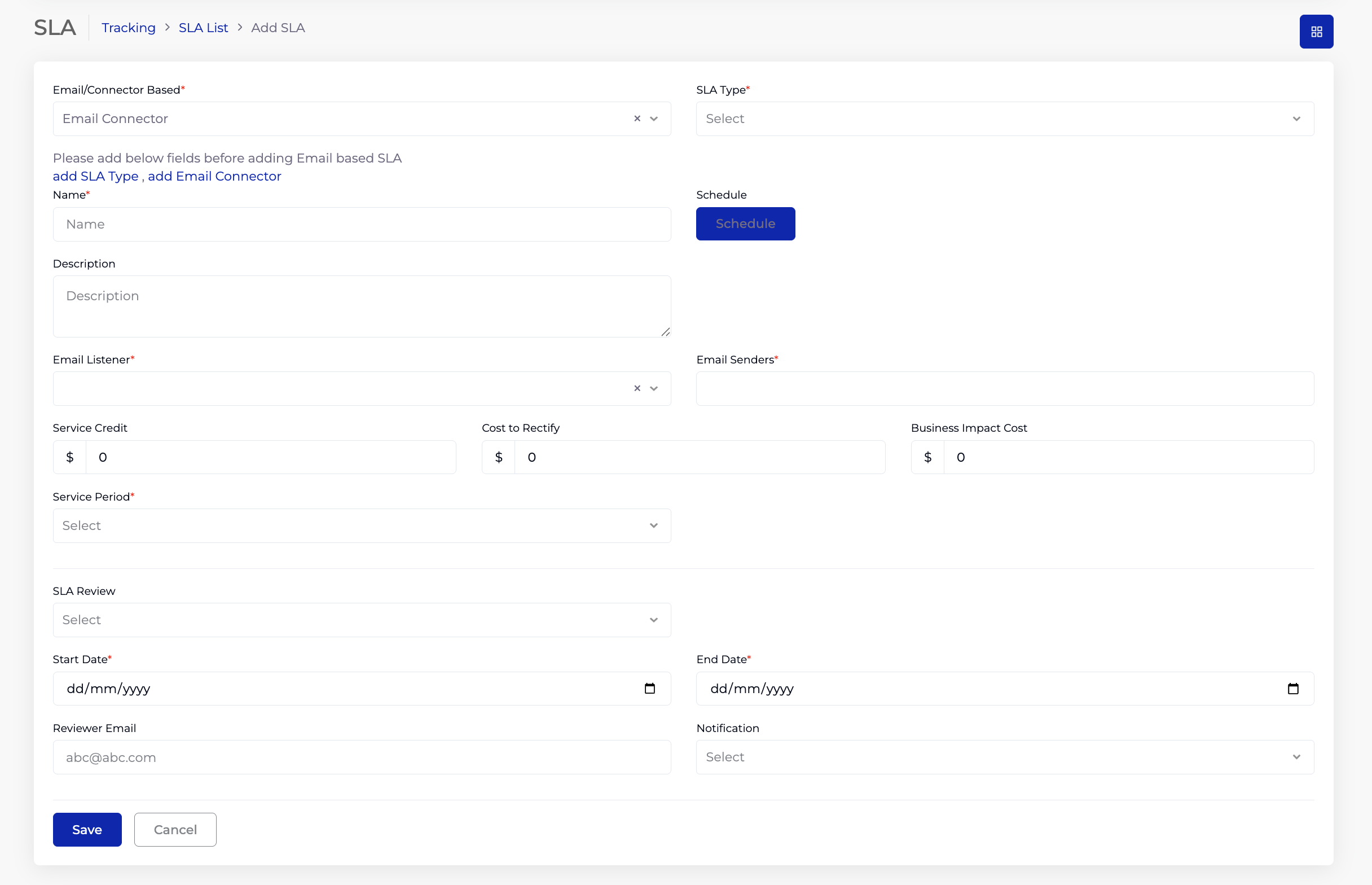
- On the SLA List page, click Add SLA.
- Select Email/Connector Based: Email Connector.
- Select an SLA Type (required) — from Organisation → Catalogs.
- Enter a Name (required).
- Click the Schedule button to configure how often the system checks the mailbox.
- Enter a Description — optional notes.
- Select an Email Listener (required) — the Email Connector whose mailbox the system monitors.
- Enter Email Senders (required) — the email addresses to monitor. The SLA checks whether emails from these senders have been received in the Email Listener's mailbox.
- Enter Service Credit, Cost to Rectify, and Business Impact Cost — breach cost values ($).
- Select a Service Period (required) — from Organisation → Catalogs.
- Select an SLA Review — review frequency.
- Select a Start Date (required) and End Date (required).
- Enter a Reviewer Email.
- Select a Notification — notification template for review alerts.
- Click Save.
5. Common Fields (Both Types)
The following fields appear on both Data Connector and Email Connector SLA forms:
| Field | Required | Description |
|---|---|---|
| Email/Connector Based | Yes | Select Data Connector or Email Connector. Determines the SLA type and which fields appear. |
| SLA Type | Yes | SLA category from Organisation → Catalogs (Type = SLA Type). |
| Name | Yes | A descriptive SLA name. |
| Schedule | — | Button to configure data fetch and evaluation frequency. |
| Description | No | Free text description. |
| Service Credit | No | Monetary value ($) — credit owed to the customer when SLA is breached. |
| Cost to Rectify | No | Monetary value ($) — estimated cost to fix the breach. |
| Business Impact Cost | No | Monetary value ($) — business impact of the breach. |
| Service Period | Yes | Evaluation period from Organisation → Catalogs (Type = Service Period). |
| SLA Review | No | Frequency for formal SLA reviews. |
| Start Date | Yes | Date the SLA becomes active. |
| End Date | Yes | Date the SLA expires. |
| Reviewer Email | No | Email address of the SLA reviewer. |
| Notification | No | Notification template for review alerts (from Notification module). |
6. How SLAs Connect to Contracts
SLAs are not directly attached to contracts from this module. Instead, the connection is made in the Contract module:
- Open a contract in edit mode.
- Navigate to the Operational tab → SLA section.
- Add a RAG block (Red, Amber, or Green).
- Within each RAG block, select one or more SLAs.
- Configure escalation contacts and notification settings for the RAG block.
The system evaluates all SLAs assigned to a contract on their configured schedules. The results determine the contract's RAG colour, which is displayed in the contract listing and drives alerts and escalations.
7. Schedule Configuration
When you click the Schedule button on an SLA (or anywhere else in the platform that uses scheduling — Contract Transactions, Customer Billing, etc.), a Schedule popup opens. The configuration options are the same across all modules.
The Schedule popup’s full detail — timing modes (Every / Time) and frequency options (Daily, Every Weekday, Weekly, Monthly, Yearly), with screenshots — is documented once in Common Features → Schedules & Recurrence, because the popup is identical wherever it appears.
8. Tips
- Create KPIs first (for Data Connector SLAs) — the SLA form depends on having at least one KPI defined.
- Use meaningful SLA names that describe the rule (e.g. "External Archiving > 50 Daily" rather than "SLA 1").
- Configure the Schedule before saving — this determines how often the SLA is evaluated. Without a schedule, the SLA will not be checked automatically.
- Set the breach cost fields (Service Credit, Cost to Rectify, Business Impact Cost) to enable accurate financial reporting on SLA failures.
- Use the second KPI comparison (instead of a fixed numeric value) when the target is dynamic — for example, comparing actual delivery count against expected delivery count.
- Ensure Start Date and End Date align with the contract period — an expired SLA will not drive RAG updates.
- SLA Review + Reviewer Email + Notification work together — set all three to enable automatic review reminders.
- For Email SLAs, use specific sender addresses in Email Senders to avoid false positives from unrelated emails.
9. Troubleshooting
| Issue | Resolution |
|---|---|
| "add SLA Type, add Data Connector, add KPI" banner | One or more prerequisites are missing. Create SLA Type in Catalogs, Data Connector in Connectors, and KPI in the KPI module. |
| "add SLA Type, add Email Connector" banner | Create SLA Type in Catalogs and Email Connector in Connectors. |
| KPI dropdown is empty | No KPIs have been created. Navigate to Tracking → KPI and create at least one. |
| SLA not affecting contract RAG | The SLA must be assigned to a RAG block in the contract's Operational → SLA section. Creating the SLA alone does not link it to a contract. |
| SLA evaluation not running | Check the Schedule configuration. Also verify the SLA's Start/End dates — the SLA must be within its active period. |
| Email SLA always failing | Verify the Email Connector is working (test in Connectors). Check Email Senders addresses are correct. Ensure the Email Connector's mailbox is receiving emails. |
| Service Period dropdown is empty | Add Service Period values in Organisation → Catalogs (Type = Service Period). |
| Breach costs not appearing in reports | Ensure Service Credit, Cost to Rectify, and Business Impact Cost are populated on the SLA. These are optional but required for cost reporting. |