1. Overview
The Supplier module is where the Admin or authorised user creates and manages supplier records. Each supplier captures identity, financial, review, compliance, and document information. Suppliers are a key part of the Buy-side contract flow — once a supplier is created, contracts can be raised against it.
In edit mode, two additional tabs become available: Contracts (listing all contracts linked to this supplier) and Supplier Documents (used to manage required documents such as MOUs and Fire Safety certificates).
Prerequisites
- Platform Config must be completed (Organisation, User Management, Notification, Connectors).
- Regions must exist in Organisation → Catalogs (Type = Region).
- Departments must be created in the Department module.
- Notification templates must be configured in the Notification module (required for Review and Compliance tabs).
- Document templates (e.g. MOU, Fire Safety) must be configured in Organisation → Templates (required for the Supplier Documents tab).
2. Opening the Supplier List
- In the left navigation, under Contract Hub, click Supplier.
- The Supplier List page shows all supplier records. Each row displays key details including Name, Reference, Region, Risk Rating, Start Date, and End Date.
- Use Show entries, the filters and Search to locate a supplier.
3. Adding a Supplier
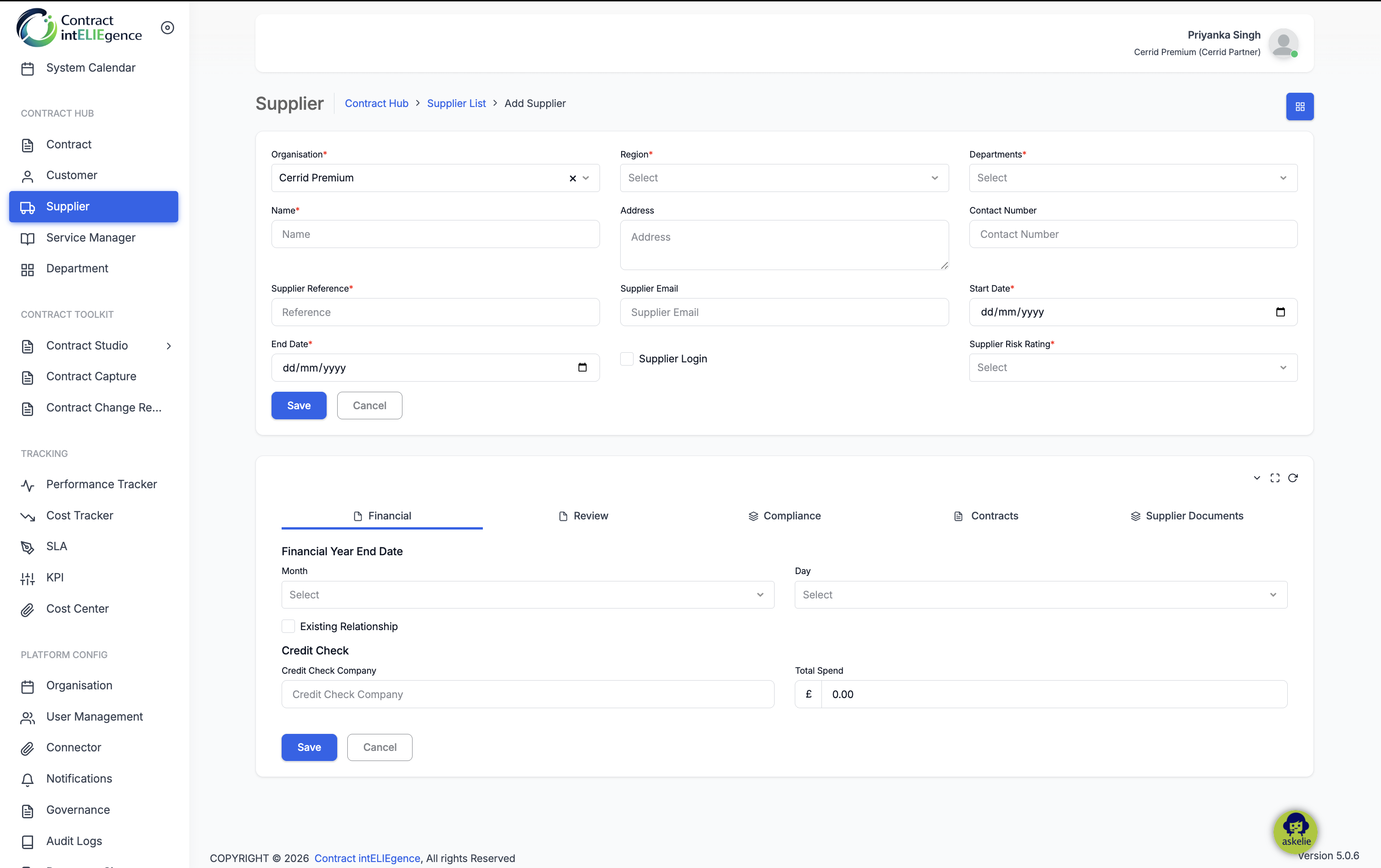
The Add Supplier form has a top section for core details and a lower panel with tabs for Financial, Review, and Compliance information.
3.1 Core Details
- Click Add New on the Supplier List page.
- Organisation is pre-selected based on your login.
- Select a Region (required) — sourced from Organisation → Catalogs (Type = Region).
- Select one or more Departments (required) — sourced from the Department module.
- Enter the supplier's Name (required).
- Optionally enter an Address.
- Optionally enter a Contact Number.
- Enter a Supplier Reference (required) — a unique short code to identify this supplier.
- Optionally enter a Supplier Email.
- Select a Start Date (required).
- Select an End Date (required) — the supplier engagement end date.
- Optionally tick Supplier Login — see note below.
- Select a Supplier Risk Rating (required) — Low, Medium, or High.
If the Supplier Login checkbox is ticked, the system creates a user account for the supplier using the Supplier Email and Name, with the role set to Supplier. The supplier receives login credentials and can sign in to Contract intELIEgence to view their own contracts and a dashboard filtered to show only their data. If the checkbox is not ticked, no account is created — the supplier record exists only for internal tracking.
3.2 Financial Tab
Captures the supplier's financial year end and credit check details.
- Select the Financial Year End Date — Month and Day.
- Tick Existing Relationship if this is not a new supplier.
- Under Credit Check, enter the Credit Check Company name.
- Enter the Total Spend amount.
- Click Save.
3.3 Review Tab
Configure periodic reviews for this supplier. The system automatically schedules review dates based on the start date and frequency, and sends email notifications to the reviewer.
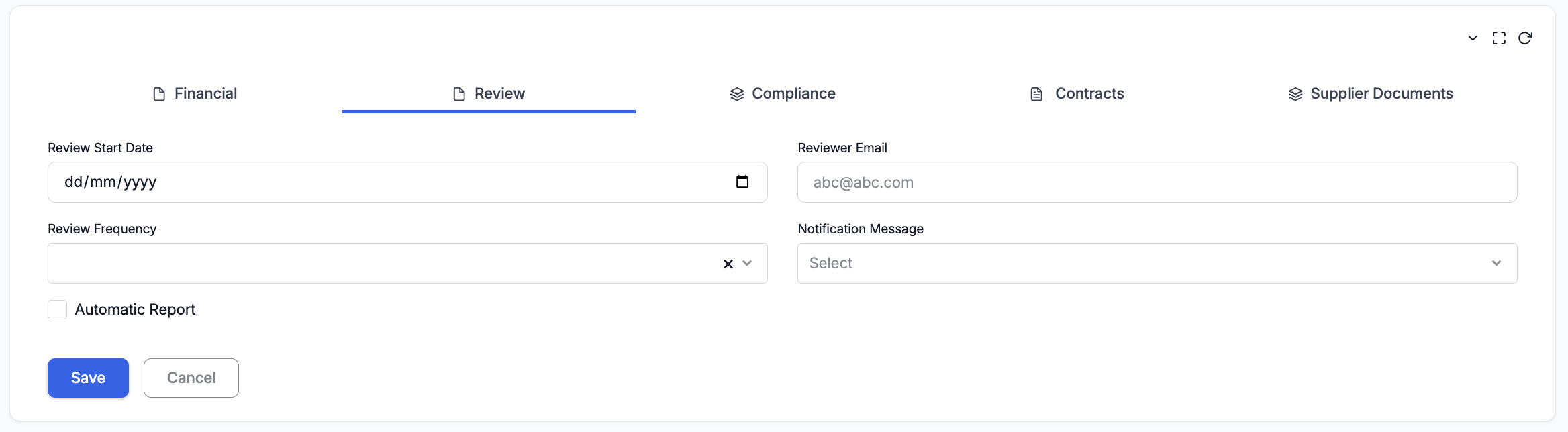
- Select a Review Start Date.
- Enter the Reviewer Email — the person who will receive the review notifications.
- Select a Review Frequency — 1 Month through to 12 Months. The system calculates the next review dates from the start date at this interval.
- Select a Notification Message — sourced from the Notification module. This is the email template sent to the reviewer.
- Optionally tick Automatic Report — when enabled, the system generates a supplier performance report and attaches it to the review notification email. The reviewer receives both the notification and the report in a single email.
- Click Save.
3.4 Compliance Tab
Track compliance certificates related to this supplier (for example, ISO certifications, insurance, safety accreditations). Multiple certificates can be added.
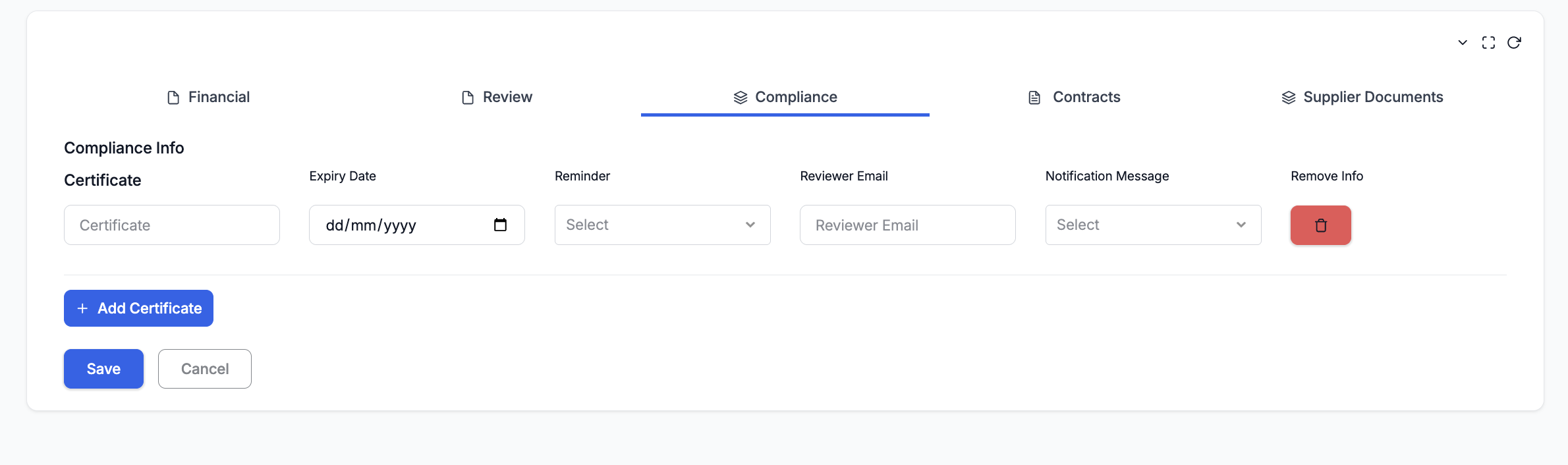
- Click + Add Certificate to add a compliance certificate row.
- Enter the Certificate name.
- Select the Expiry Date.
- Select a Reminder — how far in advance of expiry the notification should be sent.
- Enter the Reviewer Email — the person who will be notified before expiry.
- Select a Notification Message — the email template used for the expiry notification.
- Repeat for additional certificates as needed.
- To remove a certificate, click the red Remove button on its row.
- Click Save.
4. Editing a Supplier
Click a supplier name from the Supplier List to open the Edit Supplier screen. All core details and tab data can be updated. In edit mode, two additional tabs become available:
4.1 Contracts Tab (Edit Mode Only)
Lists all contracts that have been created for this supplier. This is a read-only view from the supplier's perspective.
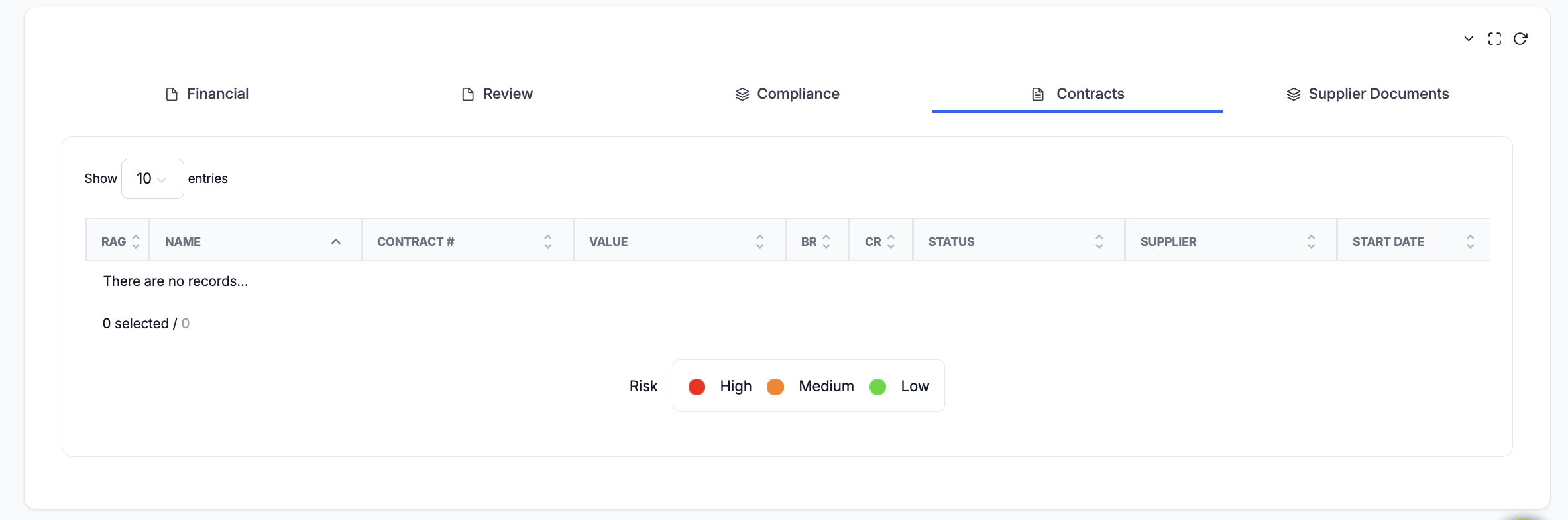
The table shows:
| Column | Description |
|---|---|
| RAG | Risk indicator — Red (High), Amber (Medium), Green (Low). |
| Name | Contract name. Click to navigate directly to the contract record. |
| Contract # | Contract number. |
| Value | Contract value. |
| BR / CR | Business Risk / Contract Risk indicators. |
| Status | Current contract status (e.g., Passive, Active, Draft). |
| Supplier | Associated supplier name. |
| Start Date | Contract start date. |
4.2 Supplier Documents Tab (Edit Mode Only)
Manages required documents for this supplier. Document types (e.g. MOU, Fire Safety) are sourced from Organisation → Templates. Use this tab to request, track, and store supplier-specific documents.

- In the Document Requirements dropdown, start typing to search and select a document type (e.g. MOU, Fire Safety).
- The selected document type is added to the requirements list.
- Once added, the supplier can upload the required document, or the Admin can upload it on their behalf.
- Repeat for additional document requirements as needed.
5. Supplier Approval & Document Review
Suppliers and their compliance documents pass through an approval workflow controlled by Admins.
5.1 Profile Approval
Every supplier carries a Profile Status — Pending, Approved, or Rejected:
- A supplier created or edited by a Super User is set to Pending, and the Admins of the supplier's department(s) are emailed to review it.
- While the supplier is Pending, an Admin sees Approve and Reject buttons on the supplier record.
- On Approve the supplier becomes active; if Supplier Login is enabled, the supplier's portal login is created at this point.
- A supplier created by an Admin is approved directly — no Pending step.
5.2 Document Review Lifecycle
Each required document (added via Document Requirements above) moves through these statuses:
| Status | Meaning |
|---|---|
| Pending | Uploaded (by the supplier or an admin) and awaiting review. |
| Accepted | An Admin has reviewed and accepted the document. |
| Rejected | An Admin has rejected it; a replacement is required. |
| Expired | The document's expiry date has passed; a renewal is required. |
- When a document is uploaded it is set to Pending.
- An Admin reviews each Pending document and clicks Accept or Reject.
- Documents that are expiring soon (within 30 days), Expired, or Rejected are flagged for attention so a replacement can be uploaded.
6. Deleting a Supplier
- On the Supplier List page, tick the checkbox next to one or more suppliers.
- A Delete button appears.
- Click Delete and confirm.
7. Bulk Import
Contract intELIEgence allows you to import multiple suppliers at once using a pre-formatted Excel template. This is useful when migrating data from another system or when you need to create many supplier records in a single operation.
7.1 How to Import
- On the Supplier List page, click the grid icon in the top-right corner to reveal a dropdown menu with + Add and Import options.
- Click Import to open the Import dialog.
- Select an Organisation from the dropdown.
- Click Import Template to download the pre-formatted Excel template for suppliers.
- Fill in the Excel template with the supplier data you wish to import (see the template columns below).
- Click Choose File to select the completed Excel file.
- Click Submit to import the records.
7.2 Import Template Columns
| Field | Description |
|---|---|
| name | Supplier name. |
| reference | Unique supplier reference code. |
| address | Supplier address. |
| contactNumber | Contact phone number. |
| Supplier email address. | |
| reviewStartDate | Review start date. |
| reviewFrequency | Review frequency (e.g. 1 Month, 3 Months). |
| reviewerEmail | Reviewer email address. |
| notificationMessage | Notification message template for reviews. |
| creditCheckCompany | Credit check company name. |
| risk | Supplier risk rating (Low, Medium, High). |
| financialEndDay | Financial year end day. |
| financialEndMonth | Financial year end month. |
| relationshipNote | Existing relationship note. |
| startDate | Supplier start date. |
| endDate | Supplier end date. |
| regionName | Region name (must exist in Catalogs). |
| supplierdocument | Supplier document reference. |
| department | Department name (must exist in Departments). |
| supplierLogin | Whether to create a supplier login account. |
8. Tips
- Only tick Supplier Login if you want the supplier to have portal access — unlike customers, supplier account creation is not automatic.
- Set the End Date to track supplier engagement periods. This helps with contract renewal planning.
- Enable Automatic Report in the Review tab to include a performance report with each review notification — the reviewer gets the report as an email attachment.
- Configure Review frequency and Notification Message to automate periodic supplier reviews.
- Add compliance certificates with expiry dates and reminders to stay ahead of renewals.
- Use the Contracts tab in edit mode to quickly navigate to any contract linked to this supplier.
- Add Document Requirements early so suppliers know what documents they need to provide.
9. Troubleshooting
| Issue | Resolution |
|---|---|
| Region dropdown is empty | Add Region catalog items in Organisation → Catalogs (Type = Region). |
| Department dropdown is empty | Create departments in the Department module first. |
| Supplier Login ticked but no account created | Ensure Supplier Email is filled in before saving. The email is required for account creation. |
| Review notifications not being sent | Verify Outgoing Mail is configured, the Notification Message template exists, and the Reviewer Email is correct. |
| Contracts tab not visible | This tab only appears in Edit mode. Open an existing supplier to see it. |
| Supplier Documents tab not visible | This tab only appears in Edit mode. Open an existing supplier to see it. |
| Document type not in dropdown | Add the document template in Organisation → Templates. |
| Automatic Report not attached to email | Ensure the Automatic Report checkbox is ticked and saved. Verify that the connector providing performance data is active. |