1. Overview
The Document Signature module is a tracking module — it does not create documents or initiate signatures directly. Instead, it lists all documents that have been generated and sent for electronic signature through other flows in Contract intELIEgence.
Three Signature Paths
Documents are created and sent for signature automatically when:
- Contract creation via Contract Builder — generates a contract document (Invoice) and sends it for signature to the Organisation's designated signer and the Customer.
- Supplier MOU — generates an MOU document from the Organisation → Templates and sends it for signature to the Organisation's designated signer and the Supplier.
- Customer Invoice Profile NDA — generates an NDA document from the Organisation → Templates and sends it for signature to the Organisation's designated signer and the Customer Invoice Profile contact.
All documents are sent via e-Signature (configured in Organisation → Settings). The signature process sends the document first to the Organisation's designated signer, and then to the customer, supplier, or invoice profile contact.
2. Document Signature Listing
- In the left navigation, under Contract Hub (or Operation), click Document Signature.
- The listing shows all documents sent for signature with their current status.
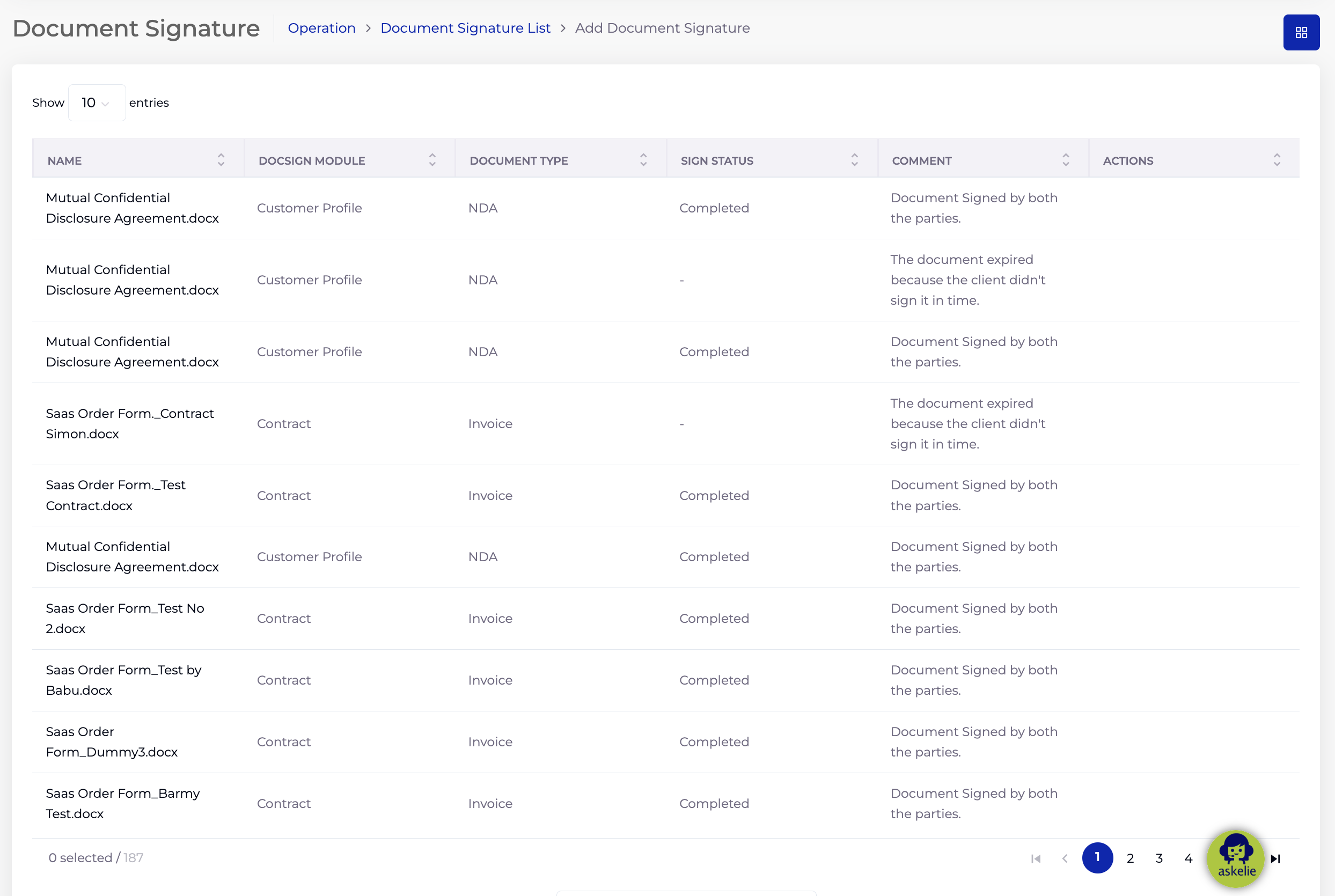
2.1 Listing Columns
| Column | Description |
|---|---|
| Name | The document file name (e.g. "Mutual Confidential Disclosure Agreement.docx", "Saas Order Form_Contract.docx"). |
| DocSign Module | Which module triggered the document: Contract (from Contract Builder), Customer Profile (NDA from Invoice Profile), or Supplier (MOU). |
| Document Type | The type of document: Invoice (for contracts), NDA (for customer invoice profiles), or MOU (for suppliers). |
| Sign Status | Current signature status: Sent, Sent to customer/supplier, Completed, or expired/unsigned. |
| Comment | Status description (e.g. "Document Signed by both the parties", "The document expired because the client didn't sign it in time"). |
| Actions | Action buttons for downloading documents. |
3. Document Detail View
Click on a document in the listing to view its full details.
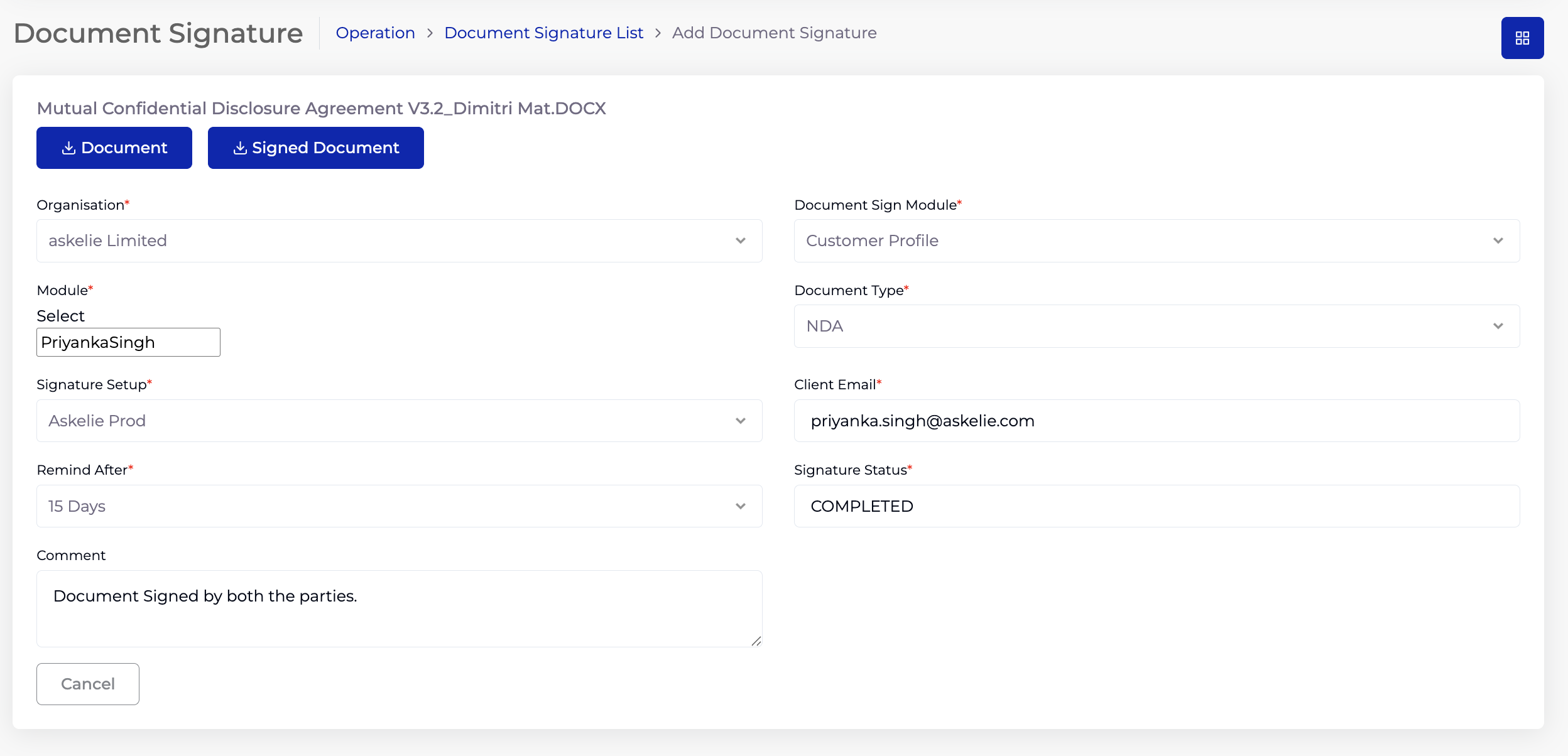
Download Buttons:
- Document — downloads the original document that was generated and sent for signature.
- Signed Document — downloads the fully signed document. This button is only enabled when both parties (Organisation's designated signer and the client) have signed.
3.1 Detail Fields
| Field | Description |
|---|---|
| Organisation | The organisation the document belongs to. |
| Document Sign Module | Which module triggered the signature: Contract, Customer Profile, or Supplier. |
| Module | The specific record name — Contract Name (for contracts), Invoice Profile Name (for customer profiles), or Supplier Name (for suppliers). |
| Document Type | Invoice (contract), NDA (customer invoice profile), or MOU (supplier). |
| Signature Setup | The eSignature provider — currently DocuSign (configured in Organisation → Settings). |
| Client Email | The email address of the customer, supplier, or invoice profile contact who received the document for signing. |
| Remind After | Automatic reminder period — defaults to 15 Days. A reminder is sent if the document has not been signed within this period. |
| Signature Status | Current status: Sent (sent to Organisation's designated signer), Sent to customer/supplier (Admin signed, waiting for client), Completed (both parties signed). |
| Comment | Status description or notes about the signing process. |
4. Signature Flow
The signing process follows the same sequence for all document types:
- A document is generated from a template (Contract Builder, Supplier MOU, or Customer Invoice Profile NDA).
- The document is sent via the e-signature provider to the Organisation's designated signer for signature first.
- After the Admin signs, the document is forwarded to the client (customer, supplier, or invoice profile contact) for their signature.
- Once both parties sign, the Signature Status changes to Completed and the Signed Document button becomes enabled.
4.1 Document Types by Flow
| Source Flow | Document Sign Module | Document Type | Sent To |
|---|---|---|---|
| Contract Builder | Contract | Invoice | Organisation's designated signer → Customer |
| Supplier (MOU template) | Supplier | MOU | Organisation's designated signer → Supplier |
| Customer Invoice Profile (NDA template) | Customer Profile | NDA | Organisation's designated signer → Invoice Profile contact |
4.2 Signature Statuses
| Status | Meaning |
|---|---|
| Sent | Document has been sent to the Organisation's designated signer for signature. |
| Sent to customer/supplier | Organisation's designated signer has signed. Document is now with the client awaiting their signature. |
| Completed | Both parties have signed. The signed document is available for download. |
| Expired / Unsigned | The document was not signed within the required timeframe. A new document may need to be generated. |
Note: This module is read-only — documents cannot be created or sent from here. They are generated automatically through the Contract Builder, Supplier, and Customer Invoice Profile flows. The Document Signature module provides a centralised view for tracking all signature activity across the platform.
5. Tips
- Use this module to monitor pending signatures — filter by Sign Status to find documents waiting for client signatures.
- The Remind After field defaults to 15 Days — if a client hasn't signed within this period, an automatic reminder is sent.
- If a document expires because the client didn't sign in time, a new document may need to be generated from the original flow (Contract Builder, Supplier, or Customer Invoice Profile).
- The Signed Document button is only enabled after both parties have signed — use it to download the legally executed document for filing.
- The e-signature provider must be configured in Organisation → Settings for the signature flow to work. If documents are not being sent, check the e-signature configuration.
6. Troubleshooting
| Issue | Resolution |
|---|---|
| Document not appearing in listing | The document may not have been generated yet. Check the source flow (Contract Builder, Supplier, or Customer Invoice Profile) to confirm the document was created. |
| Status stuck on "Sent" | The Organisation's designated signer has not yet signed. Contact the designated signer to sign the document in e-Signature. |
| Status stuck on "Sent to customer/supplier" | The client has not yet signed. Check the Client Email is correct. The automatic reminder will be sent after the Remind After period. |
| Signed Document button disabled | Both parties must sign before the signed document is available. Check the Signature Status — it must be "Completed". |
| Document expired | The client did not sign within the required timeframe. Re-initiate the flow from the source module to generate and send a new document. |
| e-Signature emails not being received | Verify e-Signature is configured in Organisation → Settings. Check email addresses and spam folders. |