1. Overview
The User Management module is where the Admin creates and manages users for the organisation. Each user is assigned a Role Type and an Access Level that together determine what they can see and do. Once created, the system sends a welcome email with login credentials.
Prerequisites
- The Organisation module has been configured.
- If custom roles are needed, create them under Organisation → Roles And Permissions first.
- Outgoing Mail is configured under Organisation → Settings (otherwise welcome emails come from noreply@askelie.com).
2. Opening the User List
- Click User Management in the left navigation under Platform Config.
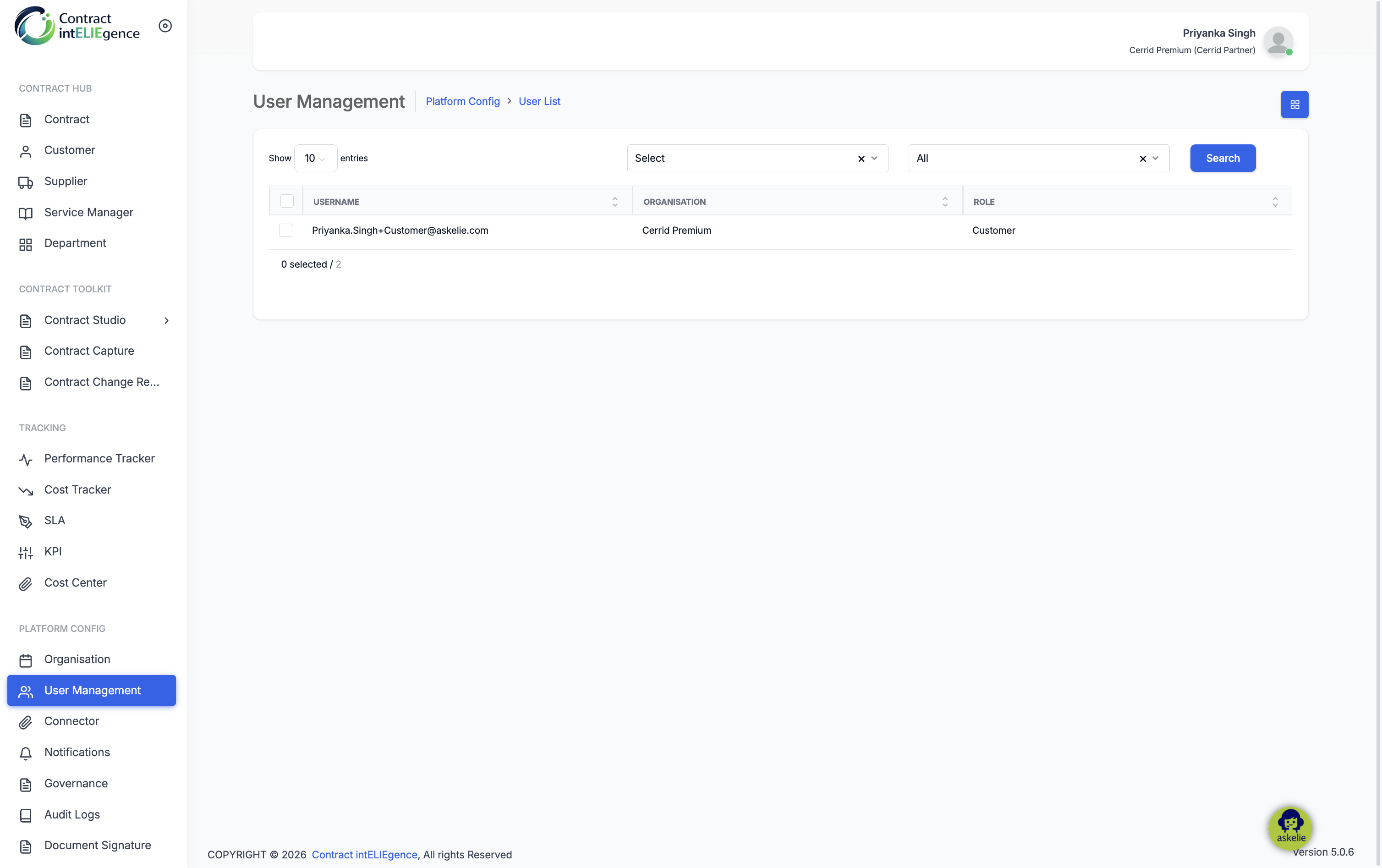
- The User List page shows all users. Each row displays Username (email), Organisation and Role.
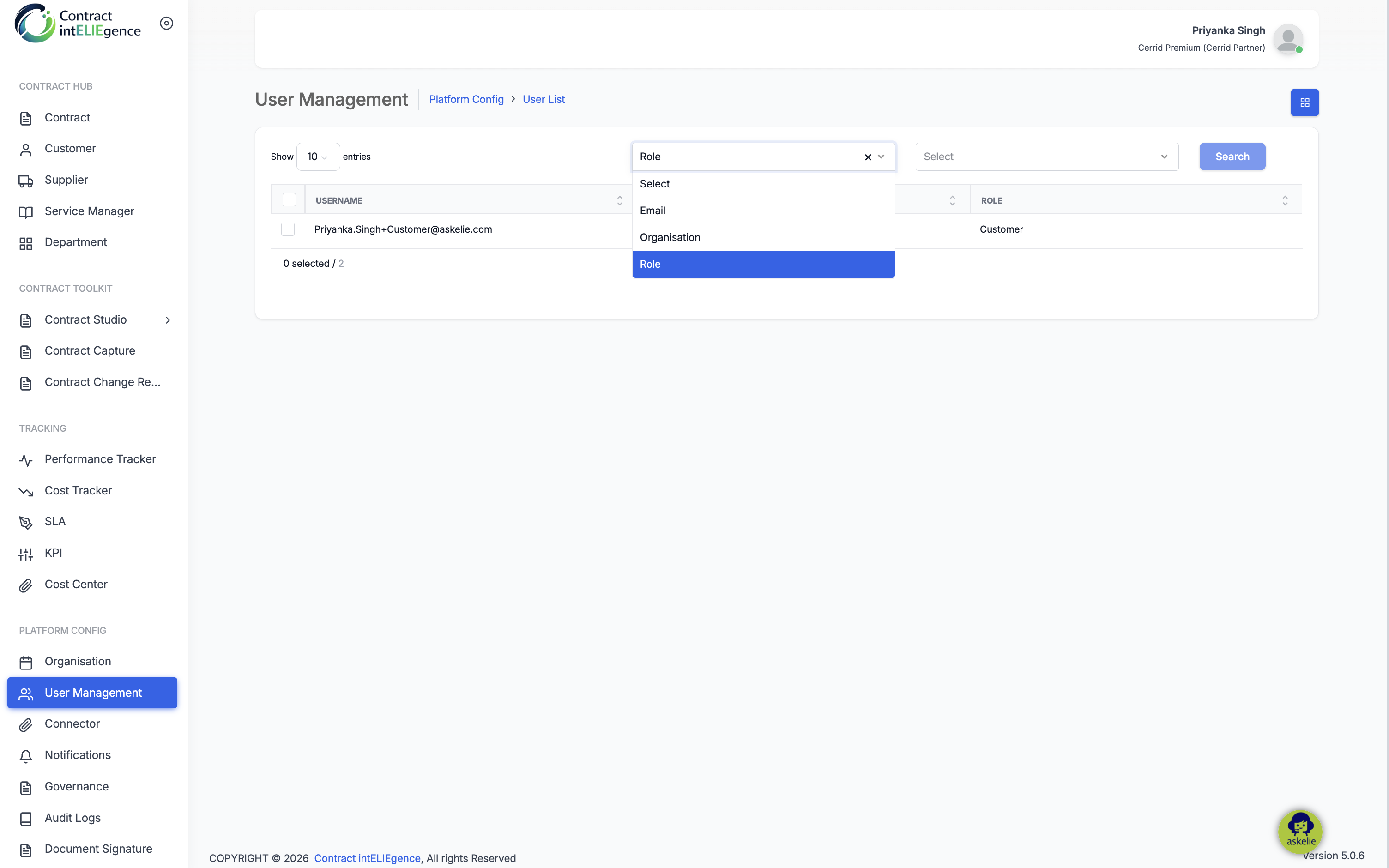
- Use Show entries, the Select / All filters and the Search button to locate a user.
3. Adding a New User
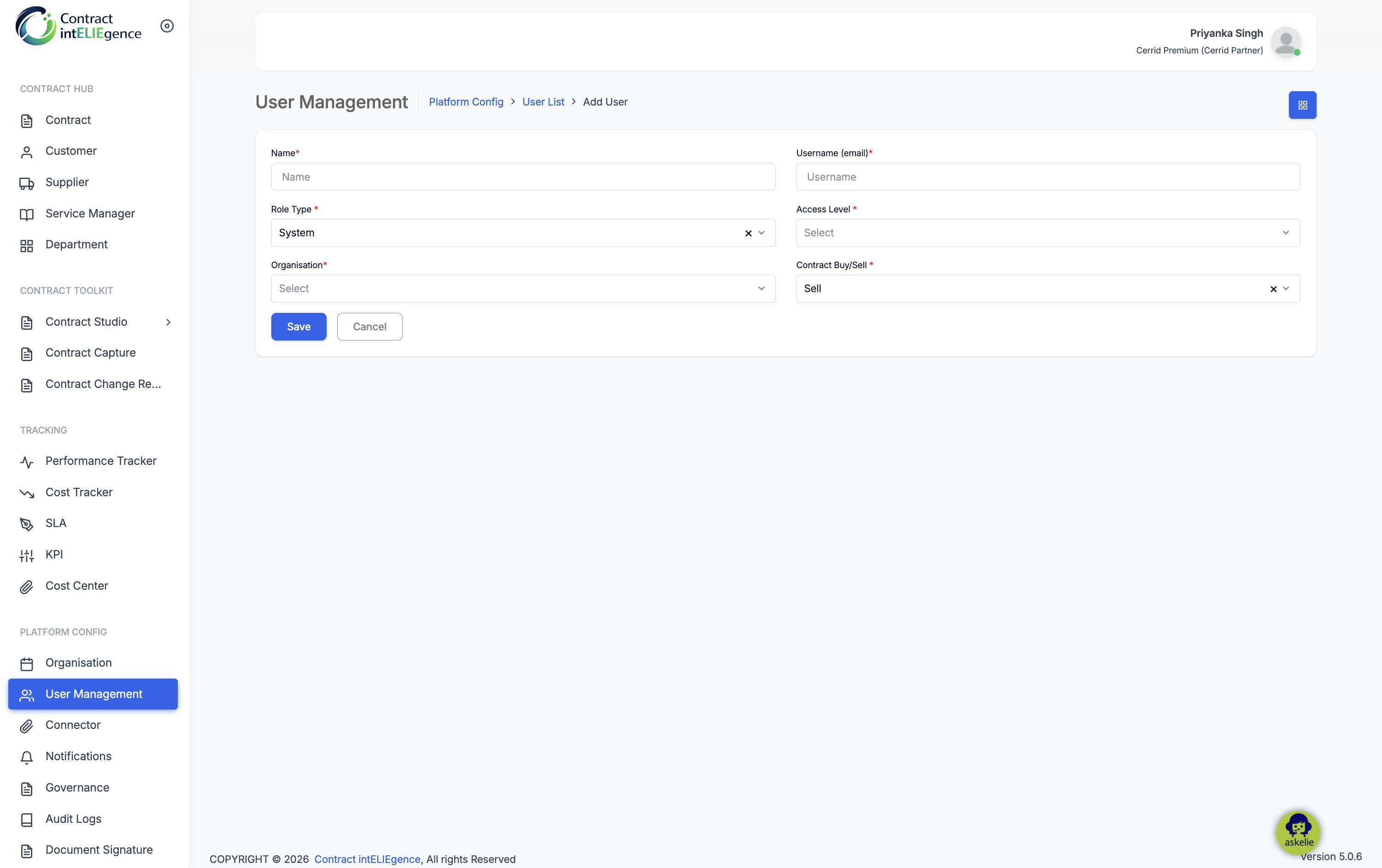
- On the User List page, click Add New.
- Enter the user's Name.
- Enter the Username (email). This becomes the login ID and receives the welcome email.
- Select a Role Type — System or Organisation. This controls which options appear in Access Level.
- Select the Organisation the user belongs to.
- Select an Access Level. System: Admin, Super_User, End_User, Maintenance_Engineer. Organisation: custom roles from Roles And Permissions.
- Select a Contract Buy/Sell value — Buy for Supplier contracts, Sell for Customer contracts.
- Click Save. The user is created and a welcome email is sent.
Note: If the custom role you need is not listed, go to Organisation → Roles And Permissions, create it, assign permissions, save, and return.
4. Editing a User
- Click the Username of the user you want to edit.
- Update Name and/or Contract Buy/Sell (an additional option None is available here).
- Other fields are displayed but cannot be changed.
- Click Save or Cancel.
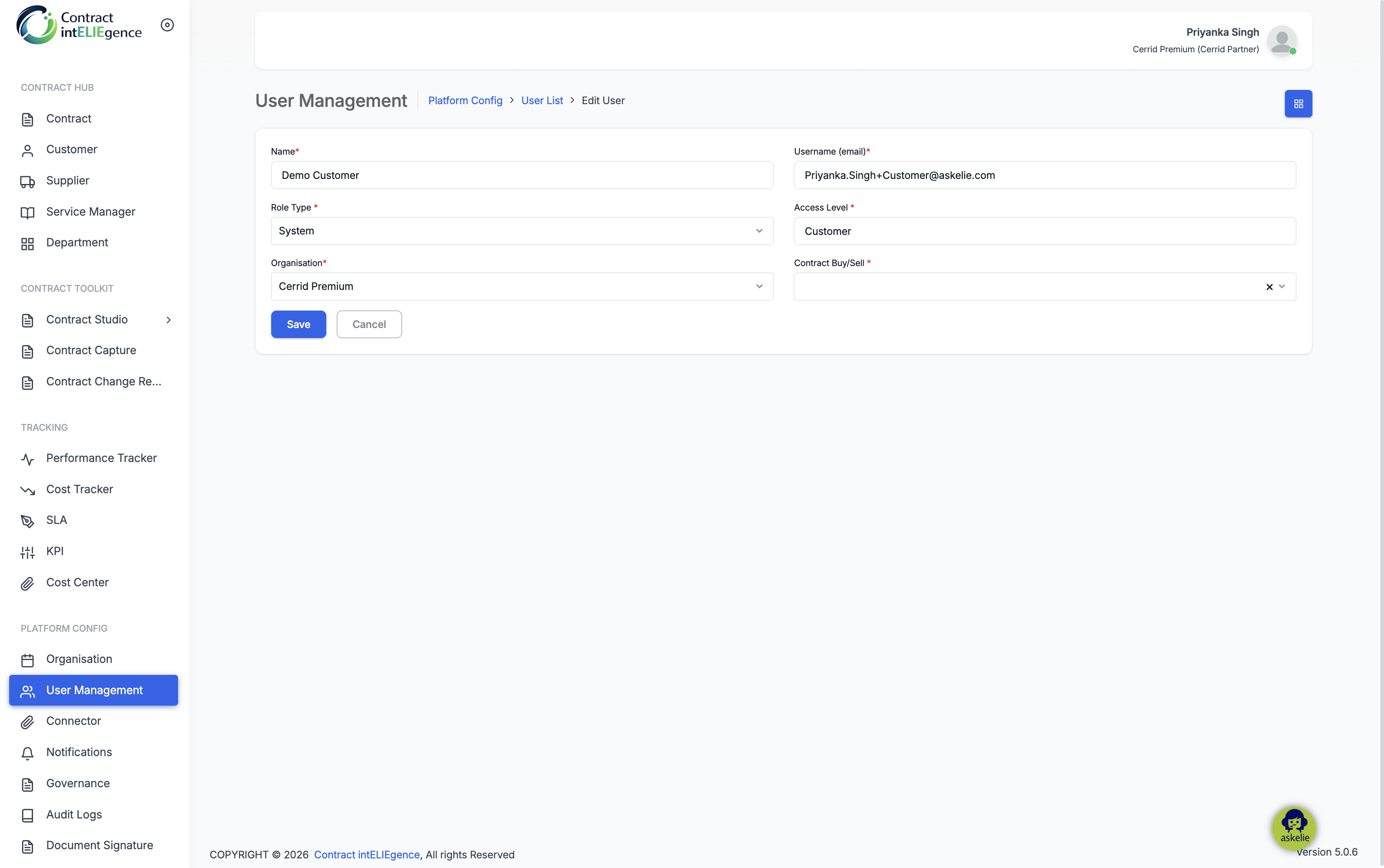
Note: To change Role Type, Access Level or Organisation, delete the user and recreate.
5. Deleting a User
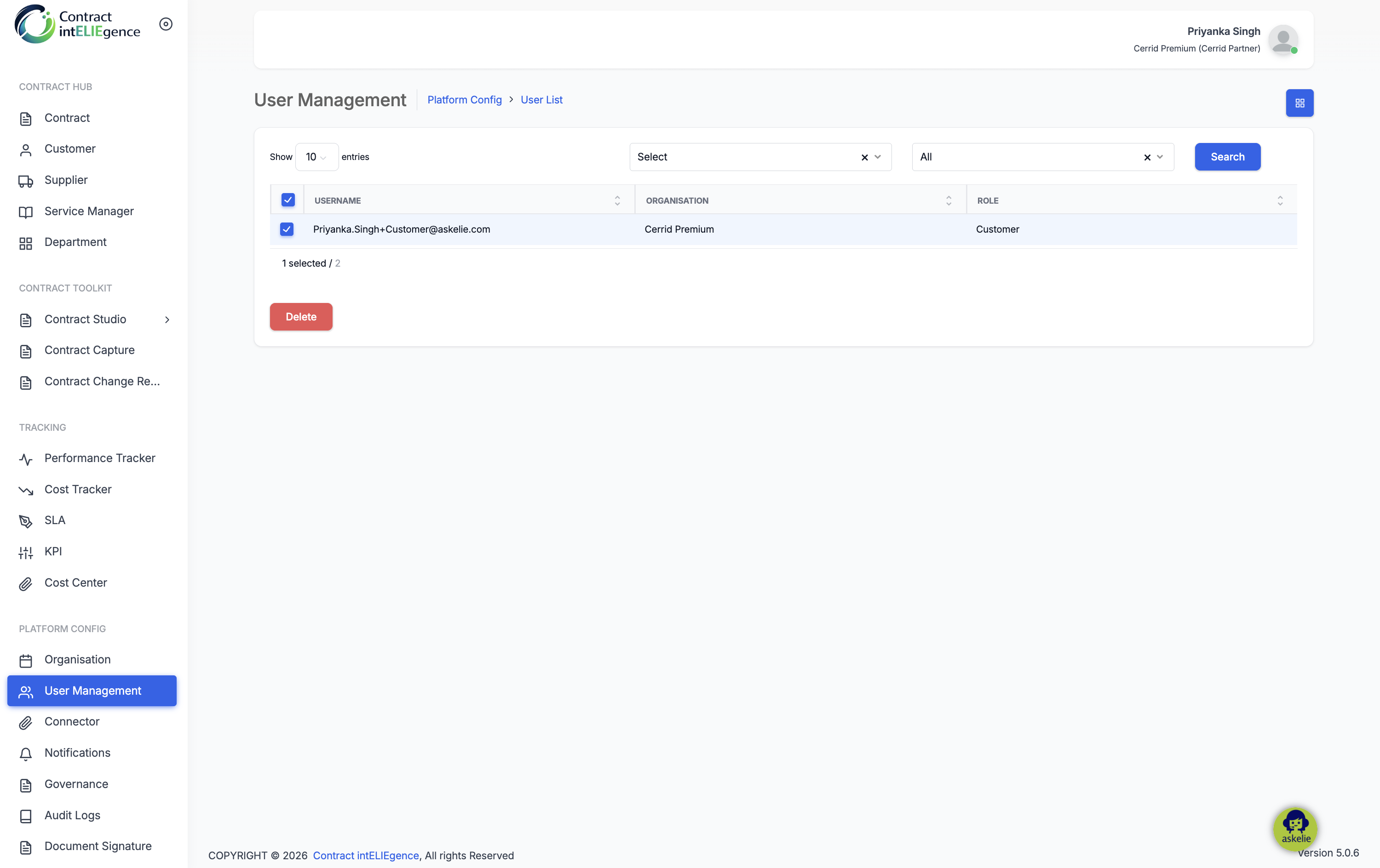
- Tick the checkbox next to one or more users.
- A Delete button appears at the bottom.
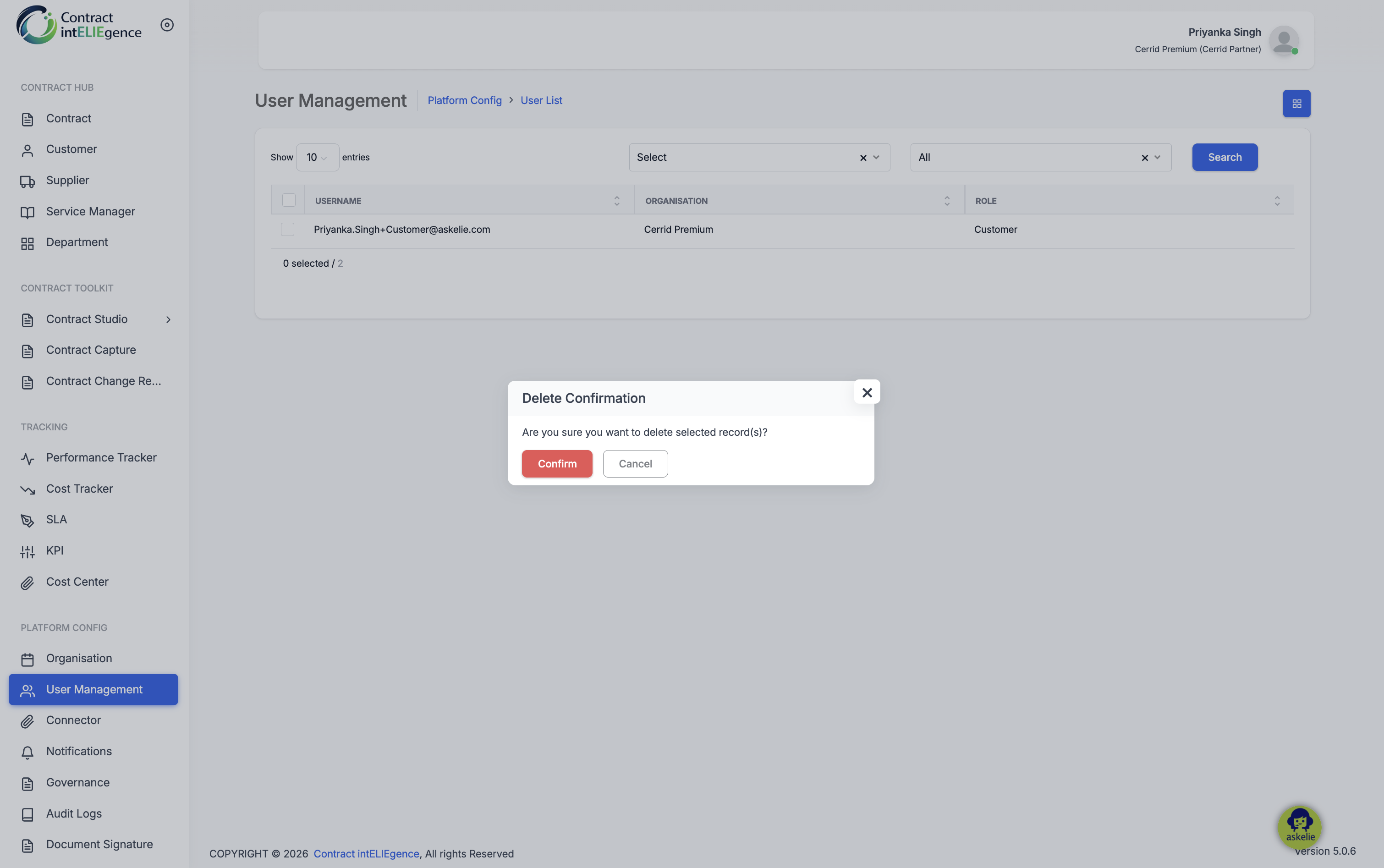
- Click Delete and confirm.
6. Tips
- Use System role types for standard access; Organisation role types for fine-grained customisation.
- Confirm Outgoing Mail is configured before bulk-creating users.
- Communicate the Buy/Sell convention to your team.
7. Troubleshooting
| Issue | Resolution |
|---|---|
| User did not receive welcome email | Check Outgoing Mail config and run Ping. Check spam folders. |
| Custom role missing in Access Level | Create it under Organisation → Roles And Permissions first. |
| Cannot change Access Level or Role Type | Delete the user and recreate with correct values. |
| User cannot see expected modules | Verify role permissions and plan inclusions. |