1. Overview
The KPI (Key Performance Indicator) module allows administrators to define measurable metrics sourced from external databases via Data Connectors. Each KPI maps to a specific column (metric field) in a connected database table, creating a reusable metric definition that can be tracked over time.
KPI Data Flow
KPIs are not used in isolation — once created, they serve as building blocks for two key modules:
- SLA (Data type) — KPIs are selected when configuring Data type SLAs, where the system measures actual performance against defined targets using the KPI's metric.
- Performance Tracker — KPIs are tracked and visualised in the Performance Tracker for ongoing monitoring and reporting.
Prerequisites
- At least one Data Connector must be created and tested in Platform Config → Connectors. The Data Connector defines which external database server, database, and table to read data from.
- KPI Type values must be configured in Organisation → Catalogs (Type = KPI Type).
2. KPI Listing
- In the left navigation, under Tracking, click KPI.
- The KPI List shows all defined KPIs with their Name and Data Connector Name.
- Use the filter dropdowns and Search button to locate a KPI.
- Click Add KPI to create a new KPI.
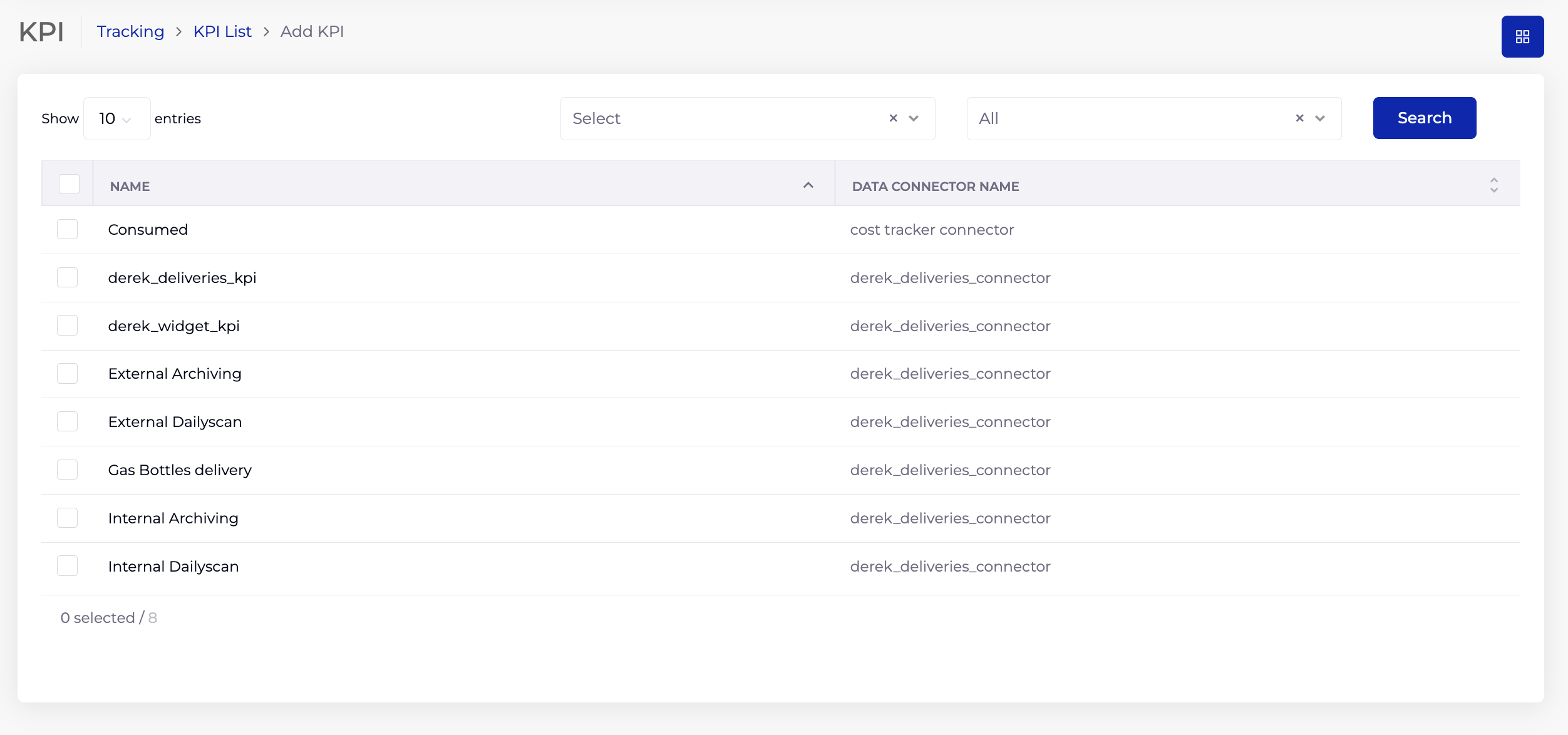
2.1 Listing Columns
| Column | Description |
|---|---|
| Name | The KPI name. |
| Data Connector Name | The Data Connector this KPI reads from. |
3. Adding a KPI
- On the KPI List page, click Add KPI.
- Enter a Name (required) — a descriptive name for this KPI (e.g. "External Archiving", "Gas Bottles delivery", "Consumed").
- Select a Data Connector (required) — the Data Connector that provides the data source. This determines which database table the KPI reads from.
- Select a Metric Field (required) — the specific column from the connected database table that this KPI measures. The dropdown is populated dynamically from the columns available in the Data Connector's configured table.
- Select a KPI Type (required) — the KPI category, sourced from Organisation → Catalogs (Type = KPI Type).
- Tick Record Count if this KPI should count records rather than aggregate the metric field value.
- Enter a Description — optional notes about what this KPI measures and its purpose.
- Click Save.
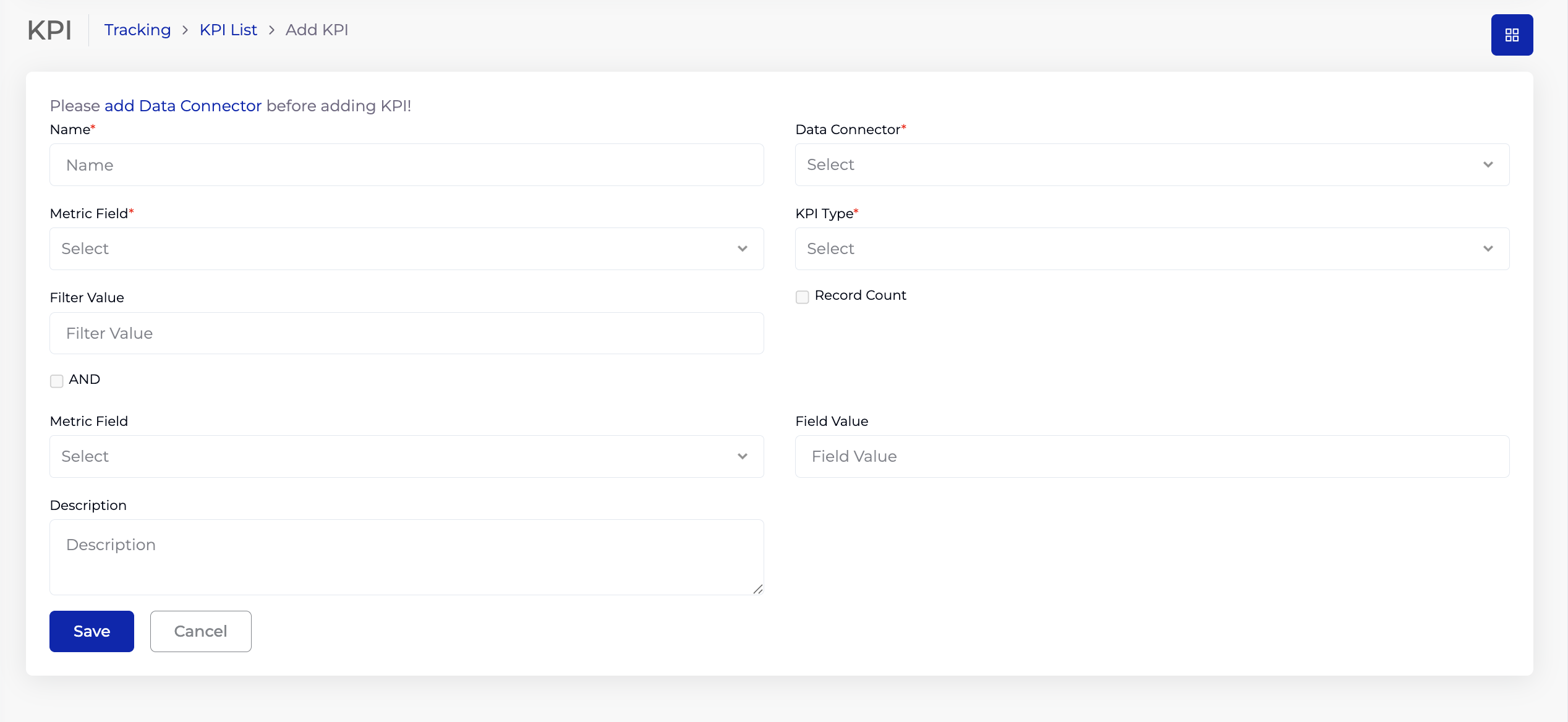
3.1 Form Fields
| Field | Required | Description |
|---|---|---|
| Name | Yes | A descriptive name for the KPI. |
| Data Connector | Yes | Dropdown listing all Data Connectors configured in Platform Config → Connectors. Determines the database table to read from. |
| Metric Field | Yes | Dropdown of columns from the Data Connector's table. This is the field whose values the KPI measures. |
| KPI Type | Yes | Category of the KPI, from Organisation → Catalogs (Type = KPI Type). |
| Record Count | No | Checkbox — when ticked, the KPI counts the number of records instead of aggregating the metric field value. |
| Description | No | Free text description of the KPI. |
3.2 Filtering Data (Optional)
The KPI form includes optional filter fields to narrow down which records from the database table are included in the KPI calculation.
Single Filter:
- Filter Value — enter a value to filter the Metric Field by. Only records where the Metric Field matches this value will be included.
Adding a Second Filter (AND):
- Tick the AND checkbox to enable a second filter condition.
- Select a second Metric Field — choose another column from the same database table.
- Enter a Field Value — the value to filter the second metric field by.
When both filters are set, only records matching both conditions are included in the KPI (i.e. Metric Field = Filter Value AND second Metric Field = Field Value).
4. How KPIs Connect to Other Modules
KPIs are reusable metric definitions that feed into downstream modules:
| Module | How KPI Is Used |
|---|---|
| SLA (Data type) | When creating a Data type SLA, a KPI is selected as the metric to measure. The SLA defines targets (thresholds) against the KPI's value to determine pass/fail and drive the contract's RAG indicator. |
| Performance Tracker | KPIs are tracked over time in the Performance Tracker, providing trend data and visualisations for ongoing monitoring. |
5. Tips
- Create the Data Connector and verify it connects successfully before creating KPIs — the Metric Field dropdown depends on a valid connector.
- Use descriptive KPI names that clearly identify what is being measured (e.g. "External Archiving — Daily Count" rather than "KPI 1").
- Use filters to create focused KPIs from a single database table — for example, create separate KPIs for "Internal Archiving" and "External Archiving" using the same connector but different filter values.
- KPI Types are defined in Catalogs — set up meaningful KPI Type values before creating KPIs so they can be properly categorised.
- A single Data Connector can serve multiple KPIs — each KPI simply selects a different Metric Field or applies different filters.
- Test KPIs by checking their values in the SLA or Performance Tracker after creation to confirm data is being read correctly.
6. Troubleshooting
| Issue | Resolution |
|---|---|
| "Please add Data Connector" banner | No Data Connectors exist. Create one in Platform Config → Connectors first. |
| Data Connector dropdown is empty | No Data Connectors have been created or saved. Navigate to Connectors and create one. |
| Metric Field dropdown is empty | The selected Data Connector may not have a valid table configured, or the connection may have failed. Check the connector's database, table, and connection status. |
| KPI Type dropdown is empty | No KPI Type values exist in Catalogs. Add them in Organisation → Catalogs (Type = KPI Type). |
| KPI not appearing in SLA | Ensure the KPI is saved. Check that the SLA is configured as a Data type SLA, which is where KPIs are selected. |
| KPI returning unexpected values | Check the Metric Field and filters. Verify the data in the source database table matches expectations. Test the Data Connector in the Connectors module. |