1. Overview
The Contract Change Request (CCR) module allows users to formally request changes to an existing contract's value or end date. Each request goes through the department-based approval workflow — the Department Admin reviews the request and either approves or rejects it.
When a CCR is approved, the contract is automatically updated with the requested change. This ensures all contract modifications are tracked, justified, and governed.
Prerequisites
- At least one Contract must exist in the system.
- Department Admins must be assigned in the Department module (they review and approve/reject CCRs).
- The department-based Governance approval workflow must be configured.
2. Opening the CCR List
- In the left navigation, under Contract Toolkit → Contract Studio, click Contract Change Request.
- The Contract Change Request List shows all submitted requests with their Subject, Request Reason, CCR Number (auto-generated), Contract, Status, and Remark.
- Use Show entries and the Search button to locate a request.
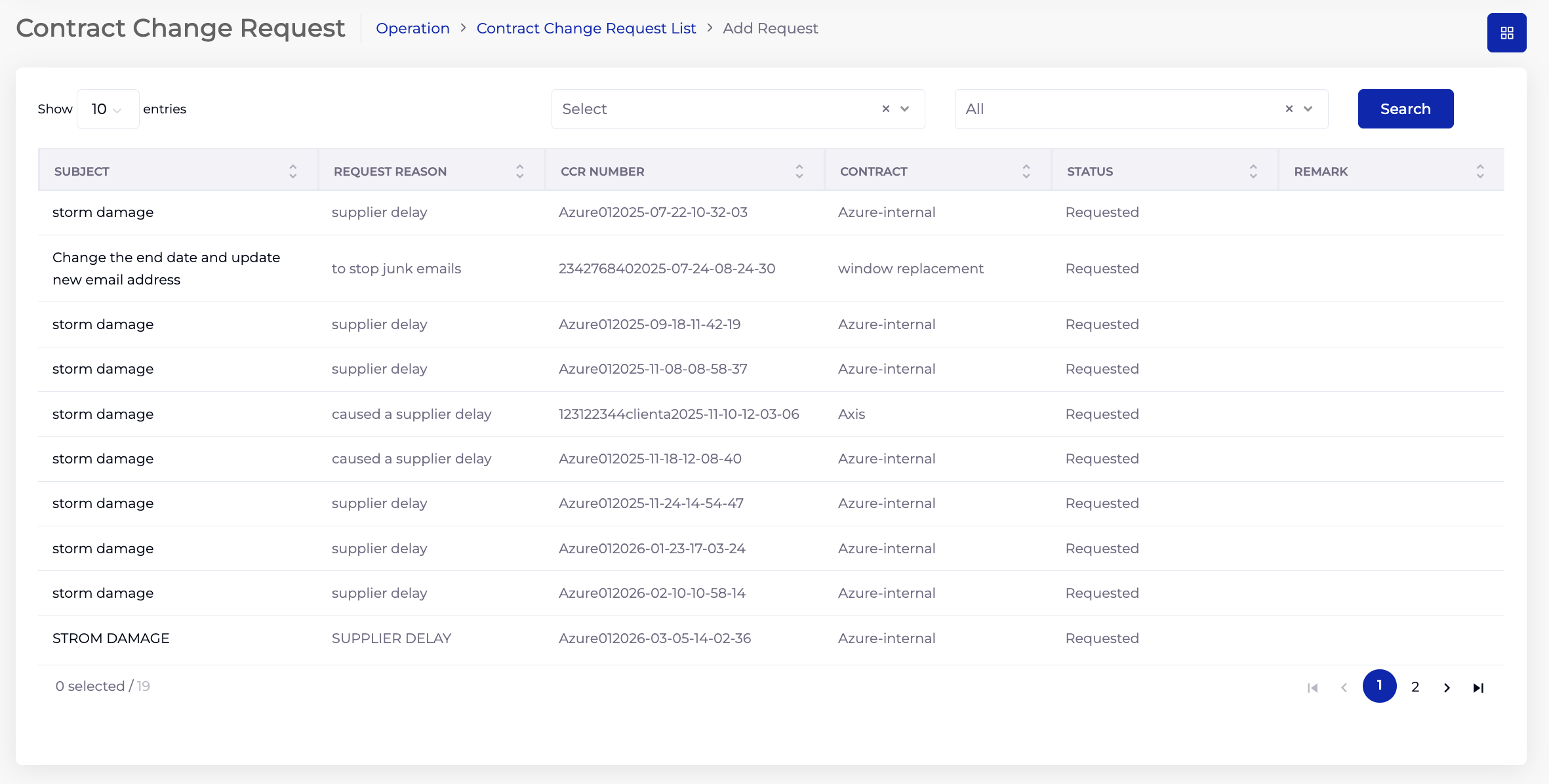
2.1 Listing Columns
| Column | Description |
|---|---|
| Subject | Brief description of the change request. |
| Request Reason | Why the change is being requested. |
| CCR Number | Auto-generated unique identifier (format: ContractName + timestamp). |
| Contract | The contract this change applies to. |
| Status | Current status — Requested, Approved, or Rejected. |
| Remark | Approver's remark (populated after review). |
3. Raising a Change Request
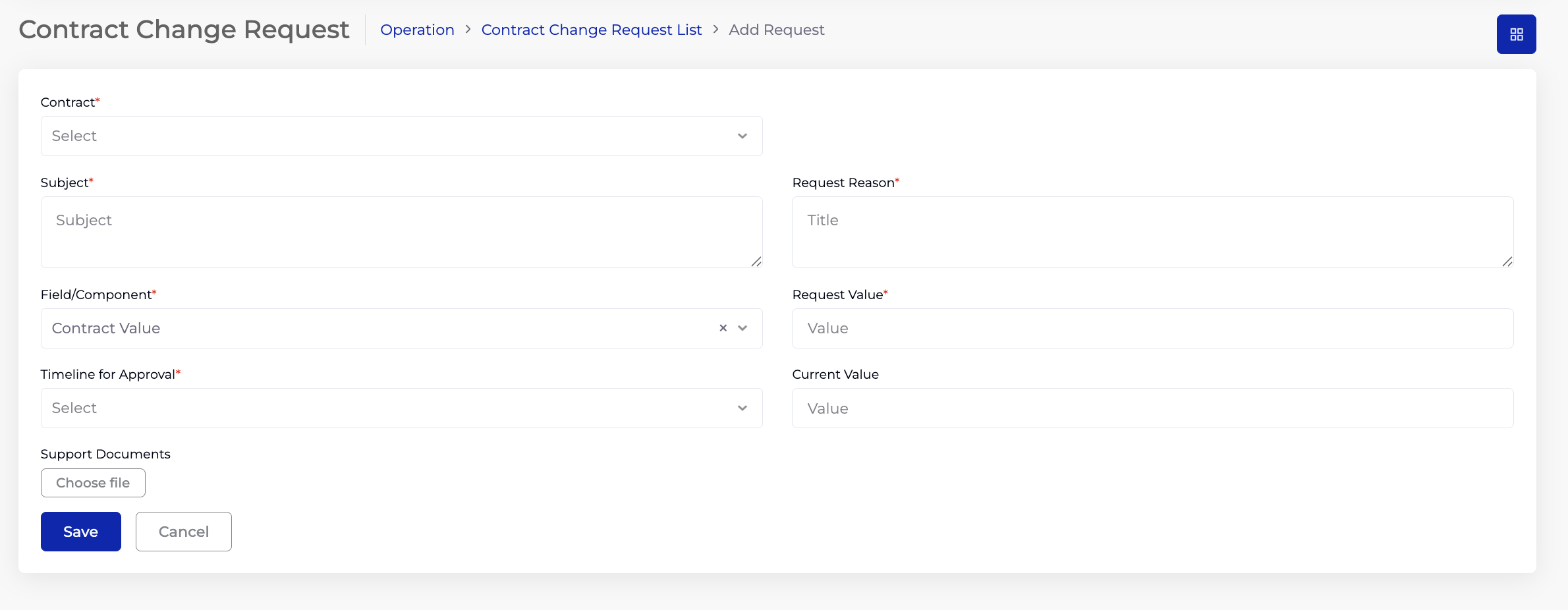
- On the CCR List page, click Add Request.
- Select a Contract (required) — the contract you want to change.
- Enter a Subject (required) — a brief description of the requested change.
- Enter a Request Reason (required) — the justification for the change.
- Select the Field/Component (required) — the contract field to change. Two options are available:
- Contract Value — to request a change to the contract's value.
- Contract End Date — to request a change to the contract's end date.
- The form dynamically adapts based on the selected field (see below).
- Select a Timeline for Approval (required) — 1 to 12 Months. This sets the expected timeframe for the approval decision.
- Optionally attach Support Documents to justify the change.
- Click Save.
3.1 Requesting a Value Change
When Contract Value is selected as the Field/Component:
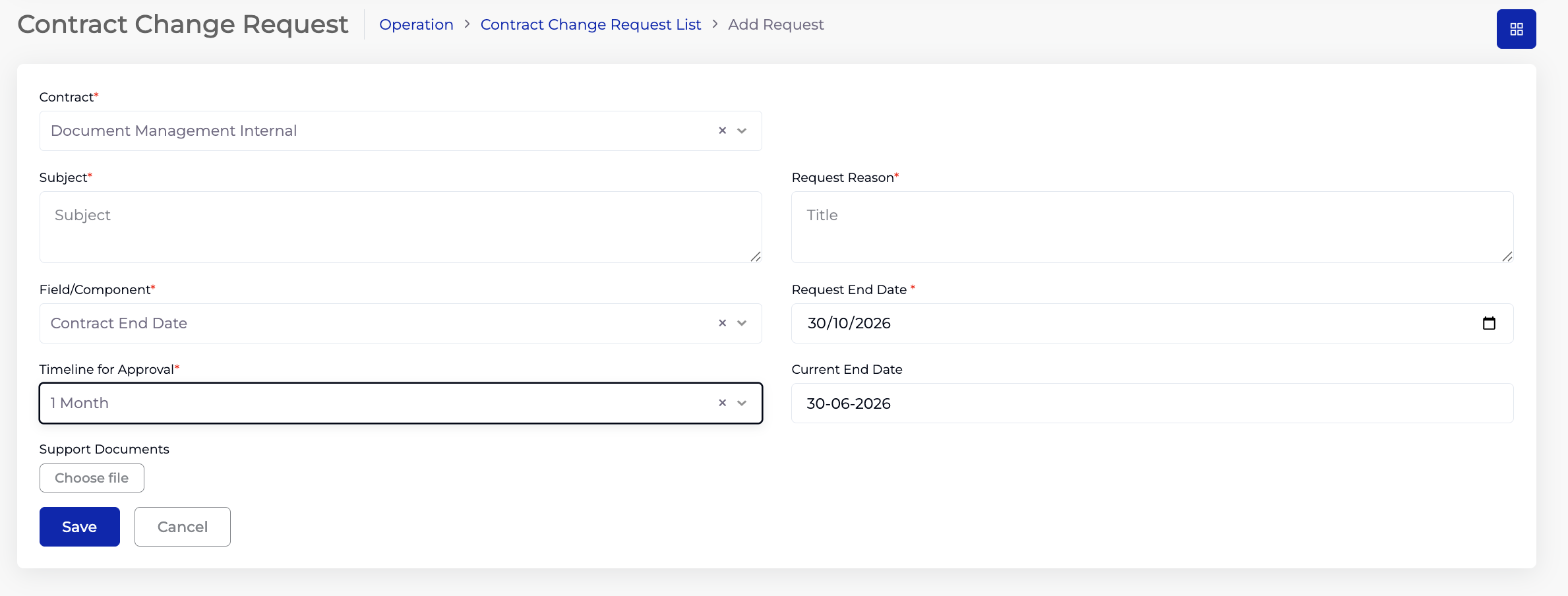
- Enter the Request Value (required) — the new value being requested.
- The Current Value field auto-populates with the contract's current value (read-only) for reference.
3.2 Requesting a Date Change
When Contract End Date is selected as the Field/Component:
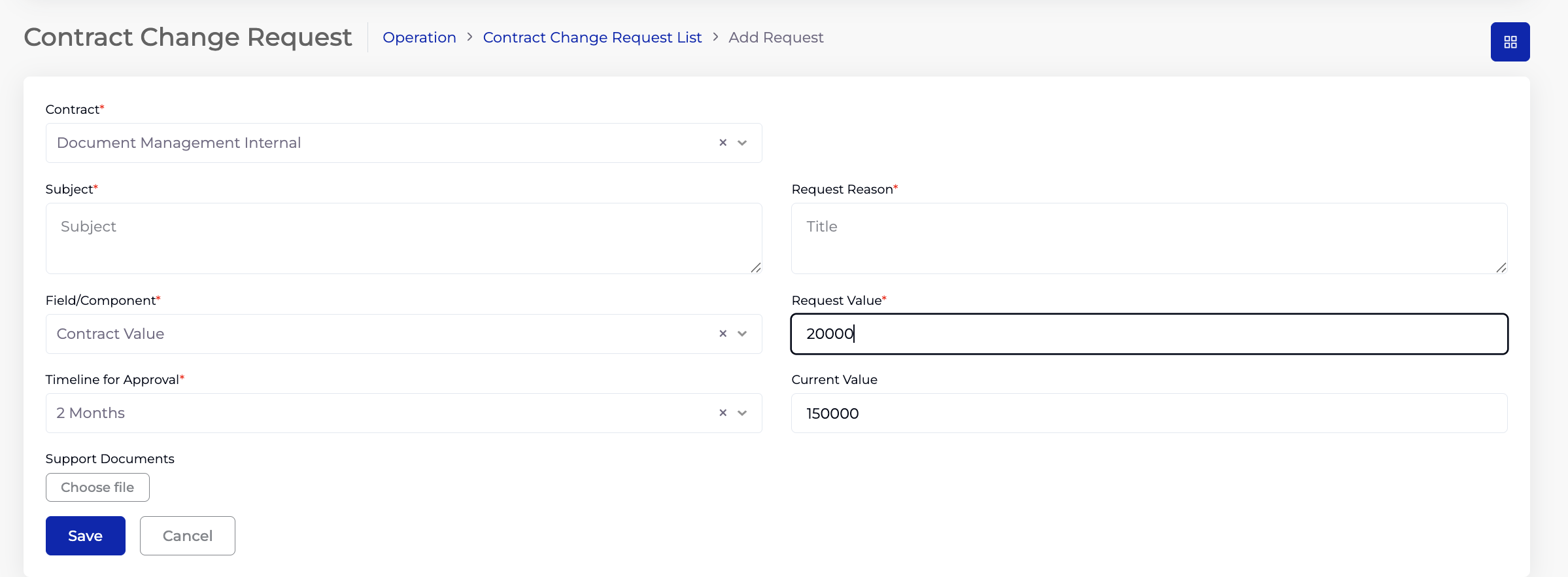
- Select the Request End Date (required) — the new end date being requested.
- The Current End Date field auto-populates with the contract's current end date (read-only) for reference.
4. Approving or Rejecting a CCR
When a CCR is submitted, it is routed to the Department Admin for the contract's linked department. The Admin opens the CCR from the list to review and act on it.
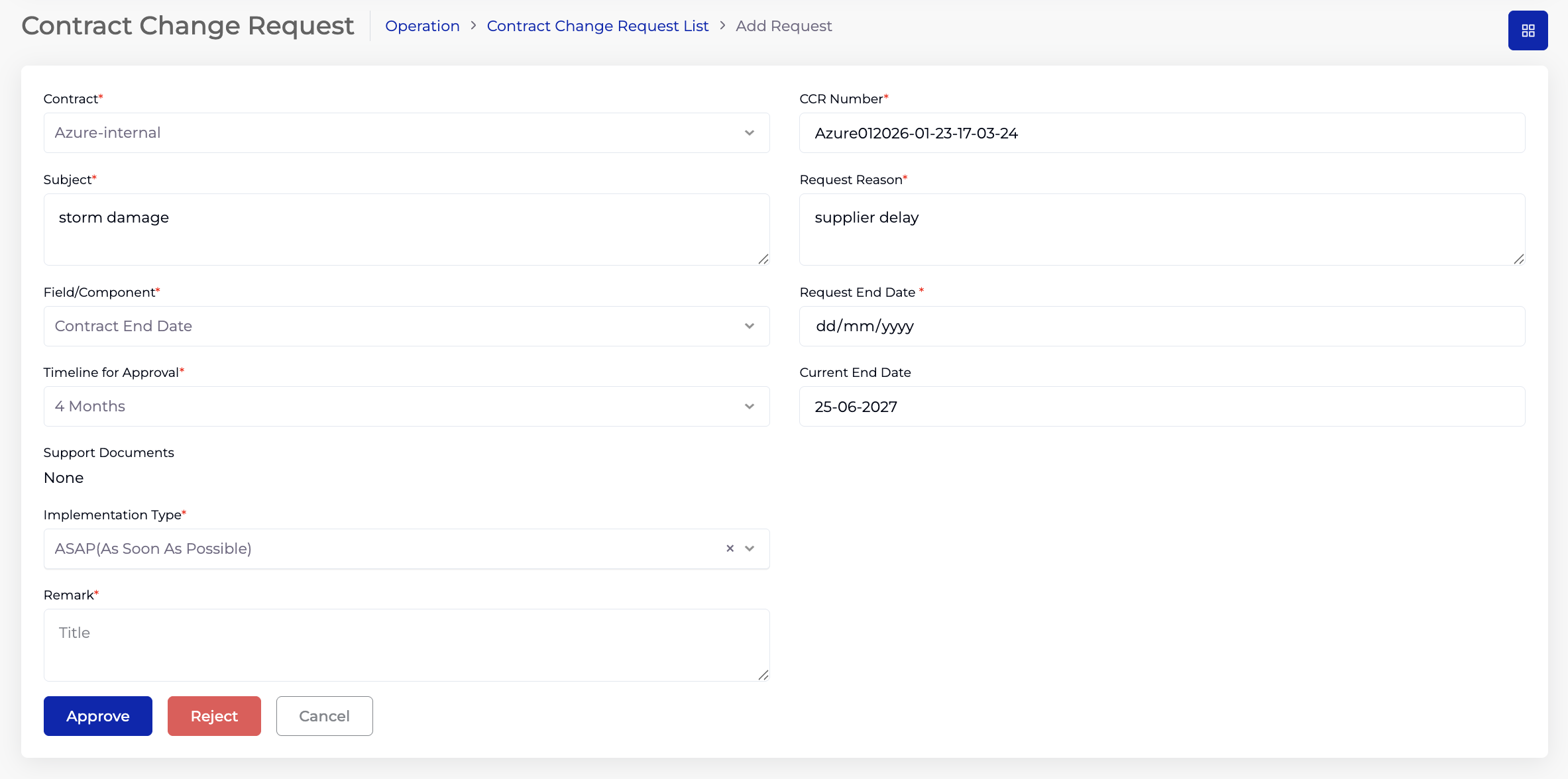
The approval form shows all the original request details (Contract, CCR Number, Subject, Request Reason, Field/Component, requested and current values, Timeline for Approval, Support Documents) plus two additional fields:
- Select an Implementation Type (required) — either “ASAP (As Soon As Possible)” or “Custom”.
- Enter a Remark (required) — the approver's comment on the decision.
- Click Approve to accept the change, or Reject to decline it, or Cancel to return without acting.
When a CCR is approved, the contract is automatically updated with the requested change. If the Field/Component was Contract Value, the contract value is updated to the requested value. If it was Contract End Date, the contract end date is updated to the requested date. No manual update is needed.
5. Tips
- Always provide a clear Subject and Request Reason — the Department Admin uses these to assess whether the change is justified.
- Attach Support Documents (e.g. supplier correspondence, cost analysis) to strengthen the request.
- The Current Value/Date auto-populates when you select the Contract and Field/Component, so you can immediately see what the current state is before requesting a change.
- Set a realistic Timeline for Approval so the Department Admin knows the urgency.
- After a CCR is approved, check the contract record to confirm the value or date has been updated.
6. Troubleshooting
| Issue | Resolution |
|---|---|
| Contract dropdown is empty | No contracts exist yet. Create a contract first. |
| CCR stuck on "Requested" status | The Department Admin has not yet reviewed the request. Contact them directly if urgent. |
| Current Value/Date not showing | Ensure both the Contract and Field/Component are selected — the current value auto-populates from the contract. |
| Cannot see Approve/Reject buttons | Only the Department Admin for the contract's department can approve or reject. Check your role and department assignment. |
| Contract not updated after approval | The update is automatic. Refresh the contract page. If still not updated, check with the system administrator. |