1. Overview
The Notification module is where the Admin configures custom email notification templates used by other modules. Each notification has a type, sender, subject and message body that can include dynamic variables automatically replaced with real values when sent.
Prerequisites
- Notification Types must exist in Organisation → Catalogs (Type = Notification).
- Outgoing Mail must be configured in Organisation → Settings.
2. Opening the Notification List
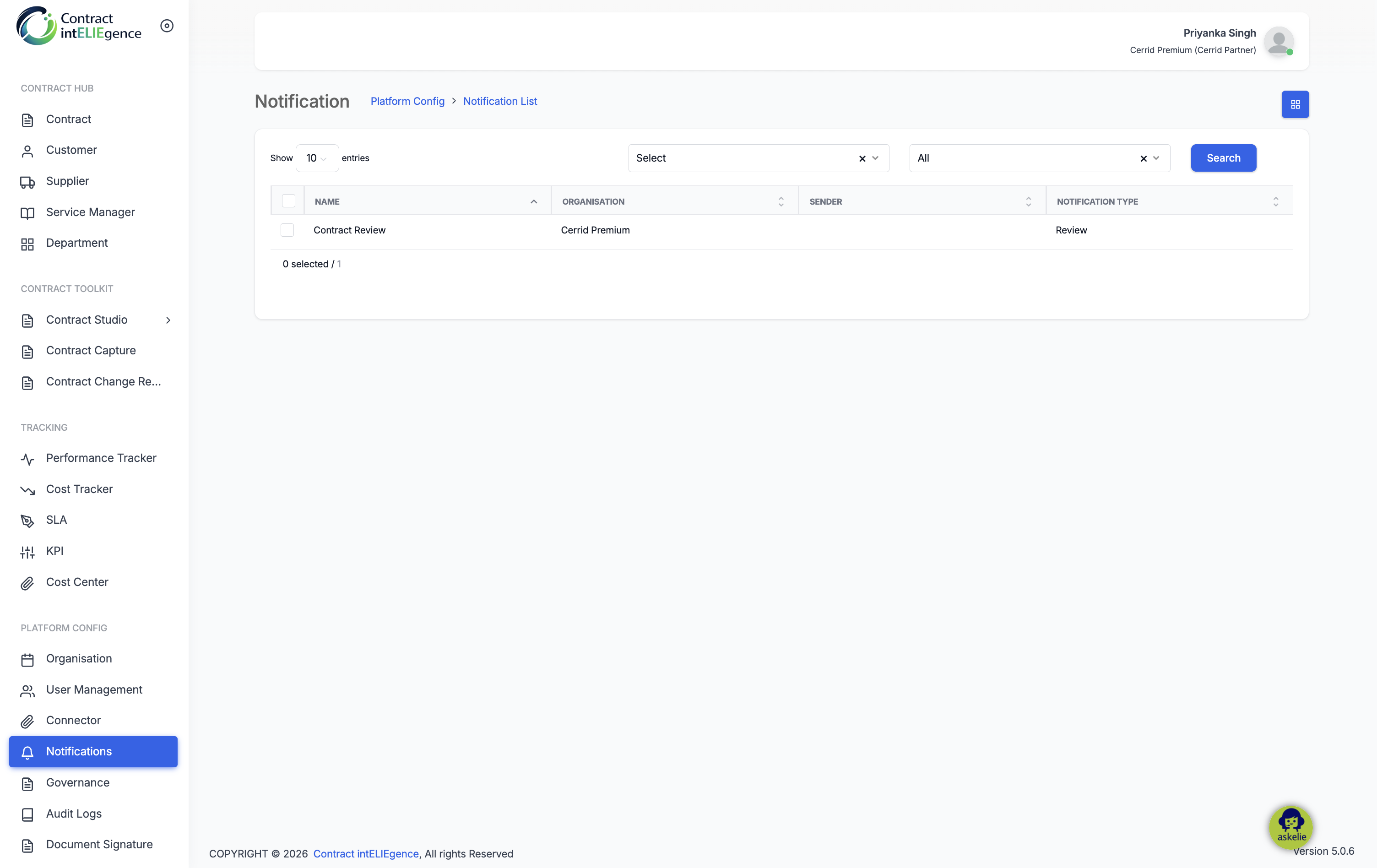
- Click Notification in the left navigation under Platform Config.
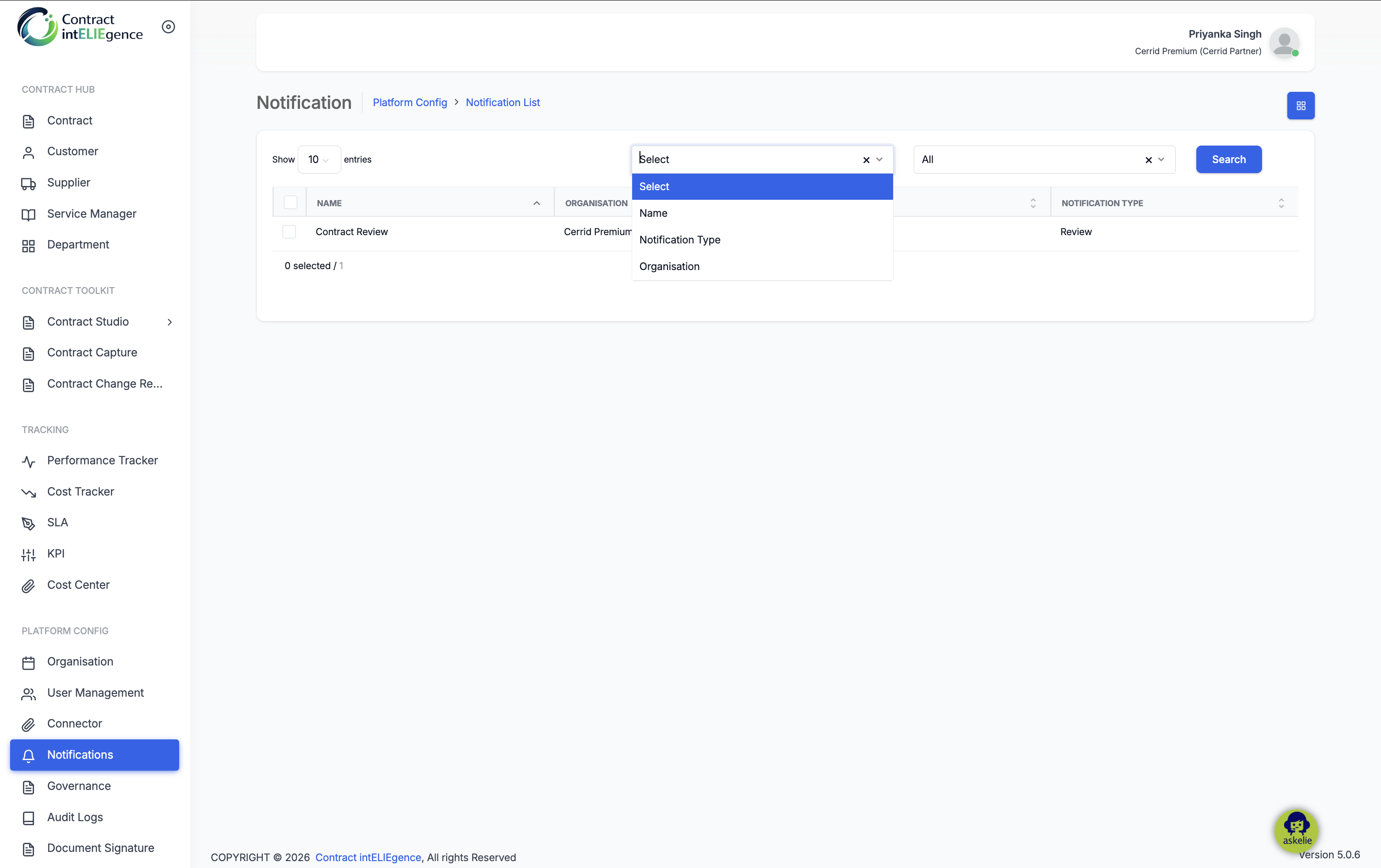
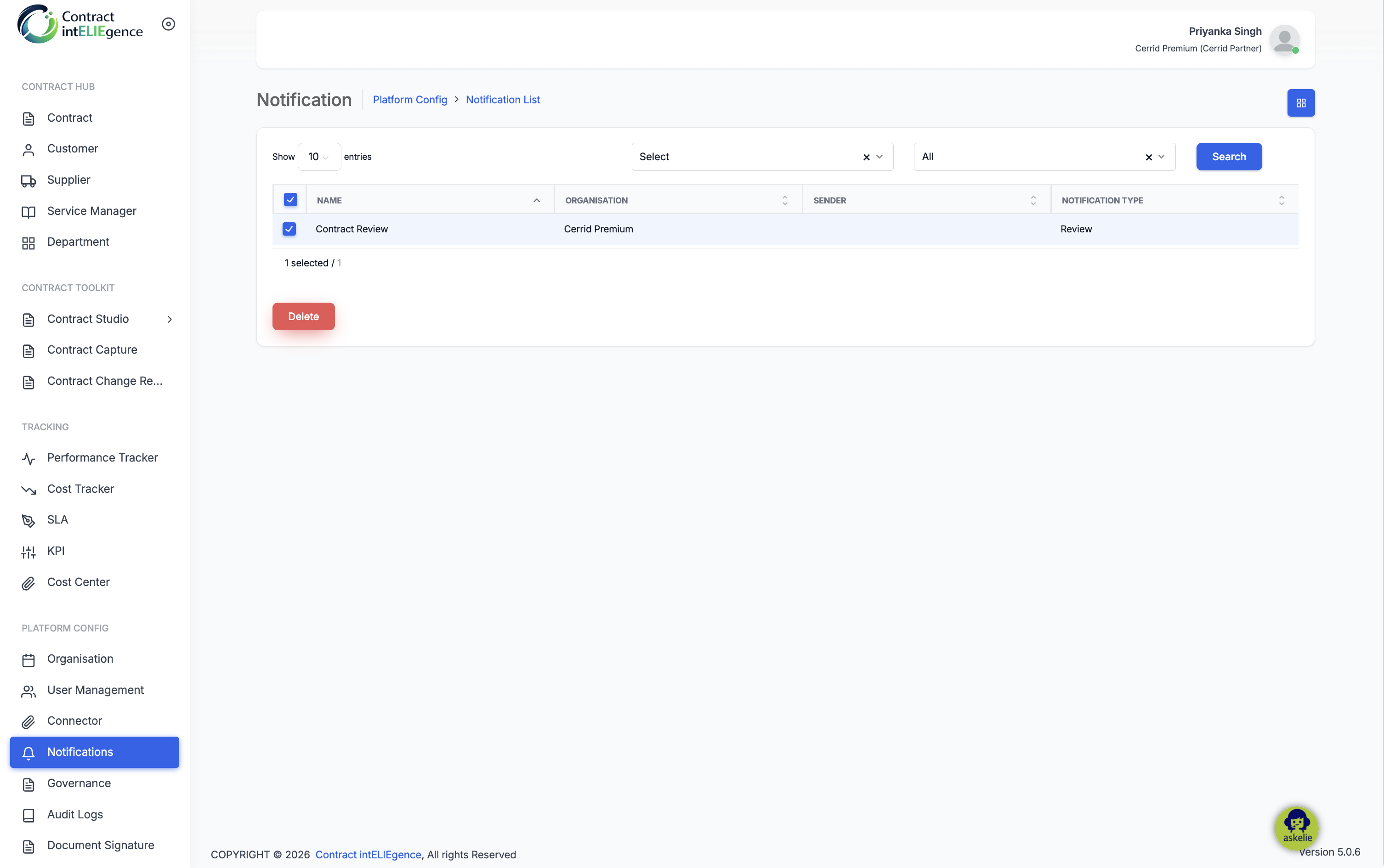
- The Notification List page shows all configured notifications.
3. Adding a Notification
- Click Add New.
- The Organisation is pre-selected.
- Select a Notification Type — populated from Catalogs (Type = Notification).
- Enter a Name.
- Enter the Sender email address (must match Outgoing Mail config).
- Enter the Subject.
- Compose the Message Body. Drag dynamic variables from the panel on the right.
- Click Save.
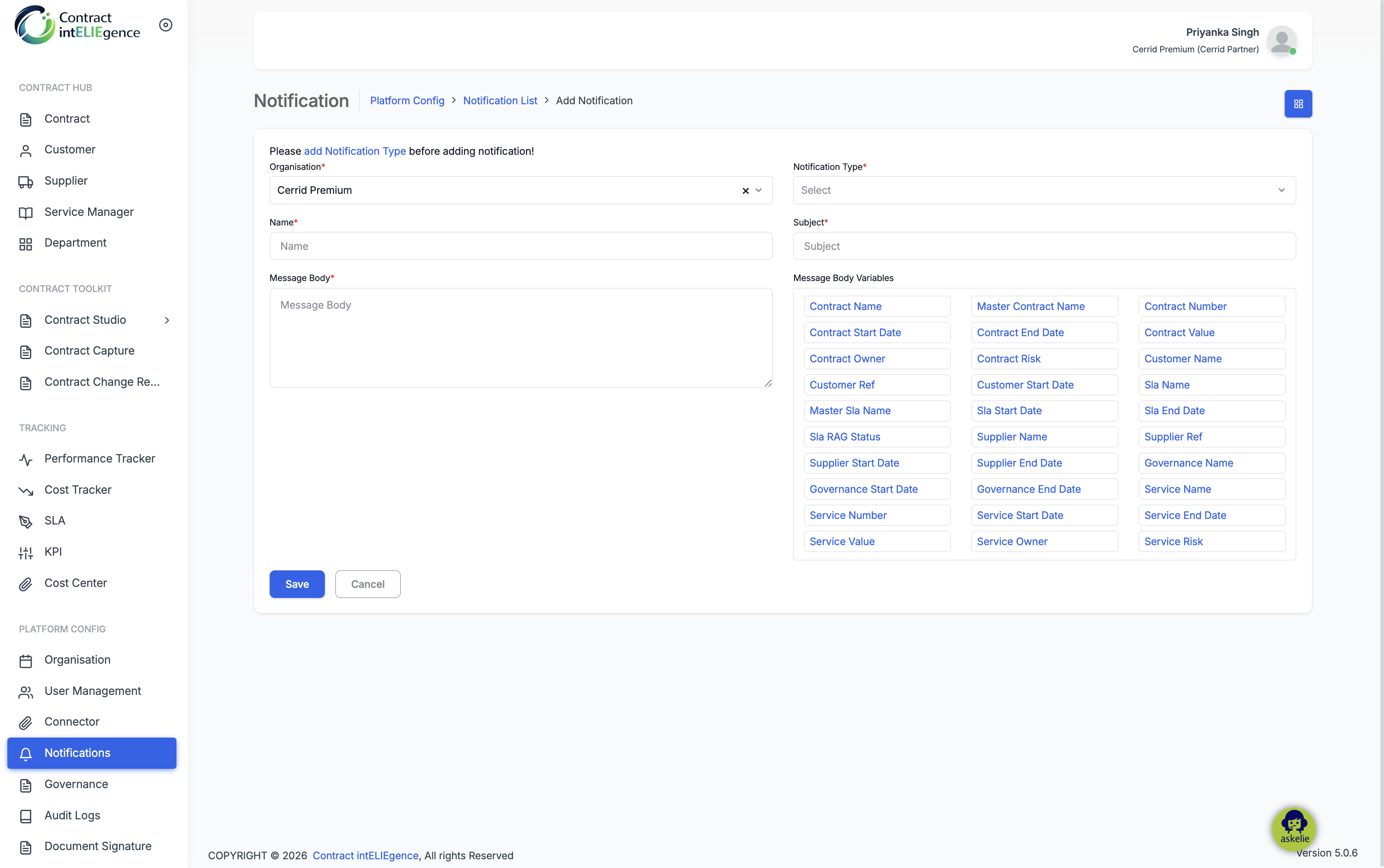
Note: If you see "Please add Notification Type before adding notification!", add Notification types in Organisation → Catalogs first.
3.1 Available Message Body Variables
Drag any of the following into the Message Body — they are replaced with actual values when sent:
| Variable | Category |
|---|---|
| Contract Name | Contract |
| Master Contract Name | Contract |
| Contract Number | Contract |
| Contract Start Date | Contract |
| Contract End Date | Contract |
| Contract Value | Contract |
| Contract Owner | Contract |
| Contract Risk | Contract |
| Customer Name | Customer |
| Customer Ref | Customer |
| Customer Start Date | Customer |
| Sla Name | SLA |
| Master Sla Name | SLA |
| Sla Start Date | SLA |
| Sla End Date | SLA |
| Sla RAG Status | SLA |
| Supplier Name | Supplier |
| Supplier Ref | Supplier |
| Supplier Start Date | Supplier |
| Supplier End Date | Supplier |
4. Editing a Notification
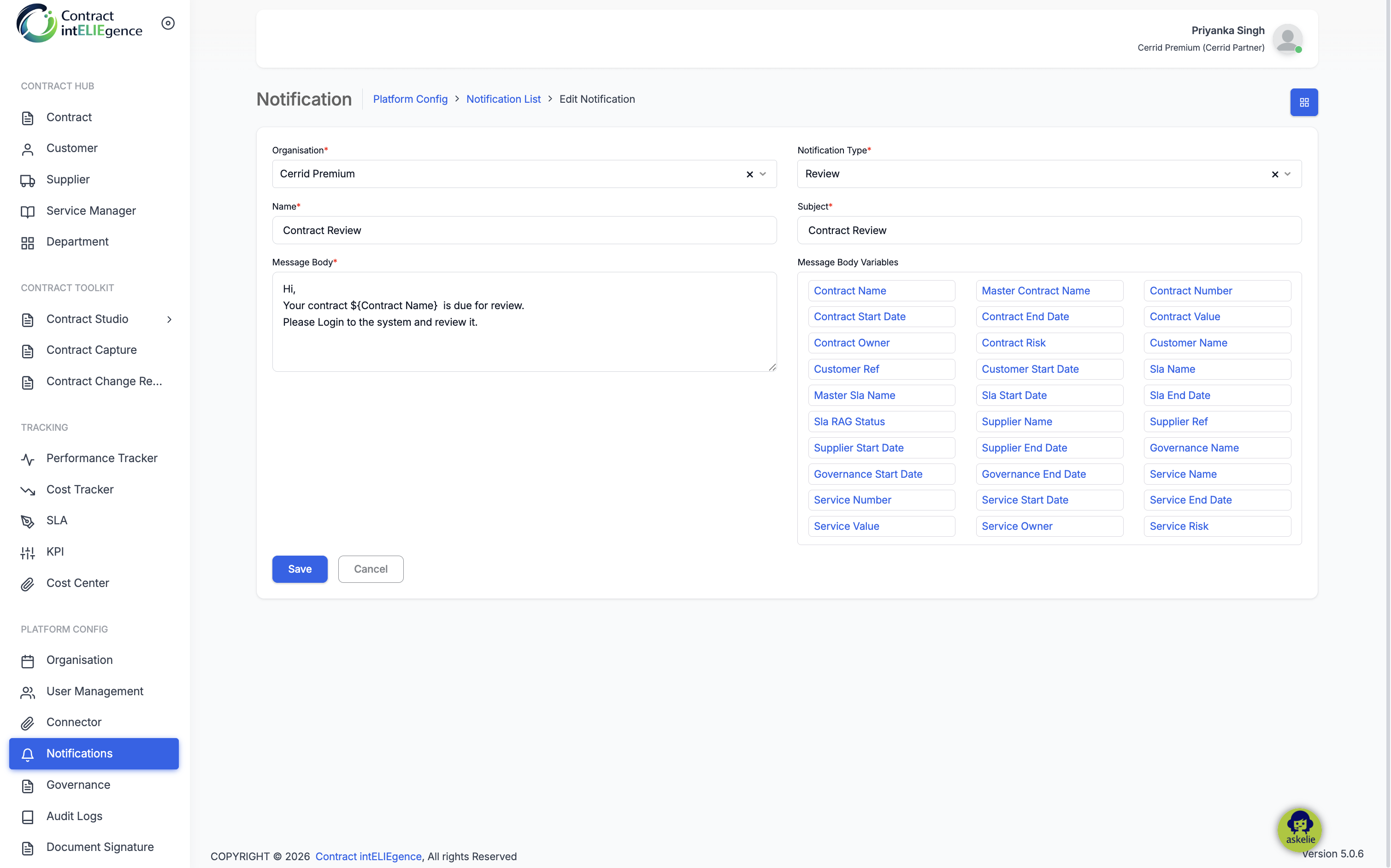
- Click the Name of the notification you want to edit.
- Update the fields as required.
- Click Save or Cancel.
5. Deleting a Notification
- Tick the checkbox next to one or more notifications.
- A Delete button appears at the bottom.
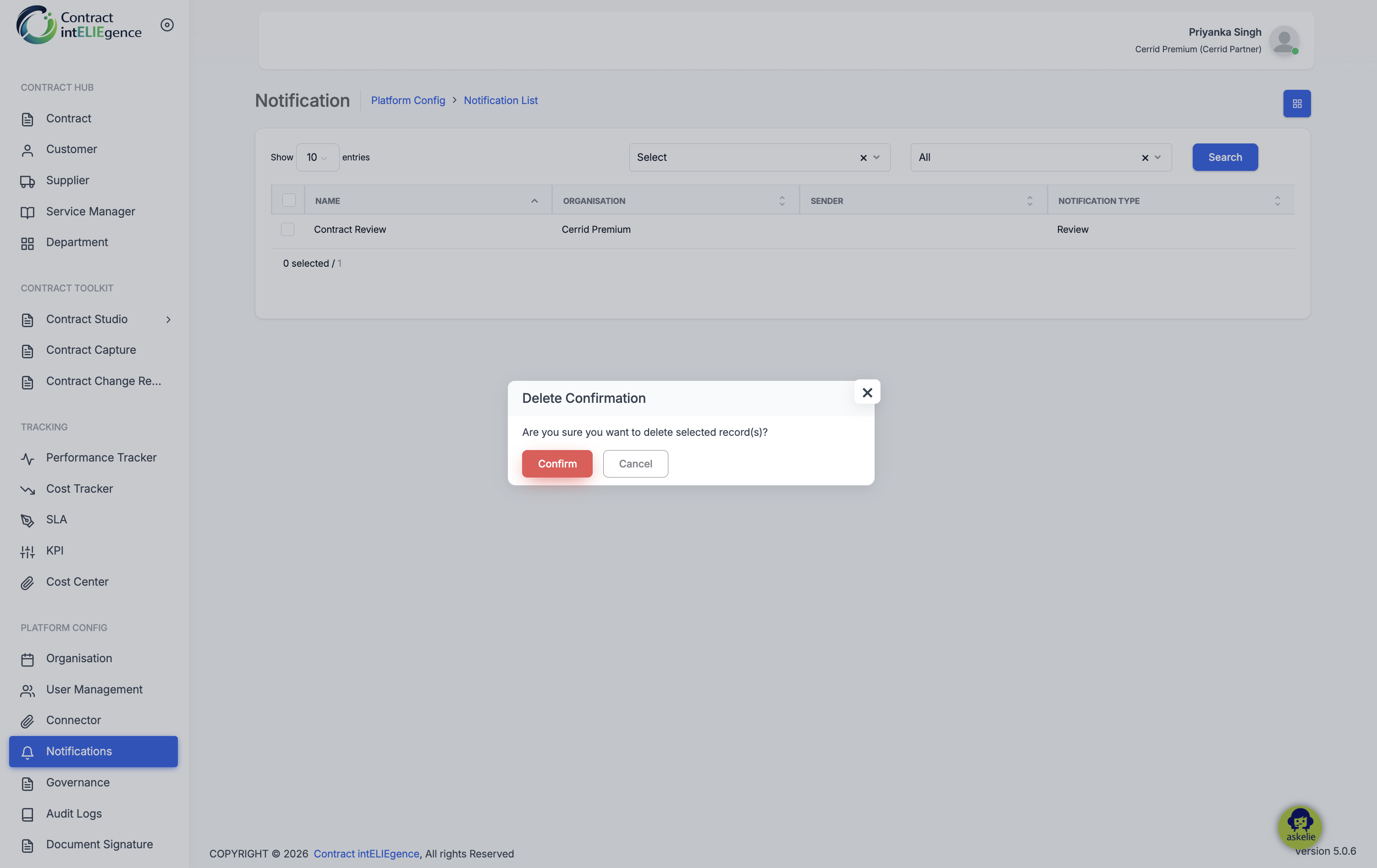
- Click Delete and confirm.
6. Tips
- Plan notification types upfront in Catalogs so templates can be created in one go.
- Use clear, descriptive Names — they appear in dropdowns in later modules.
- Drag variables from the panel rather than typing them to avoid typos.
7. Troubleshooting
| Issue | Resolution |
|---|---|
| "Please add Notification Type" message | Add entries with Type = Notification in Organisation → Catalogs. |
| Notification Type dropdown empty | Same — types are sourced from Catalogs. |
| Emails arrive from noreply@askelie.com | Configure Outgoing Mail in Organisation → Settings. |
| Variables not replaced | Ensure variables were dragged from the panel, not typed. |