1. Overview
The Service Manager module is a portfolio layer that sits on top of individual contracts. It allows users to group multiple contracts into a single "service" and provides aggregated views of value, cost, performance, alerts, and SLA breach costs across all linked contracts.
Service Manager — Contract Aggregation
Think of a Service Manager record as a combination of contracts — for example, an "HR APP" service might include contracts for cloud hosting, support, licensing, and consulting, all managed as a single service with a consolidated view.
Key Concepts
- Service Value — auto-calculated as the sum of all linked contracts' values.
- Service RAG — auto-calculated from the linked contracts' RAG indicators, with priority RED > AMBER > GREEN (the worst RAG wins).
- Service Flow — aggregated alert counts and SLA breach costs across all linked contracts.
Prerequisites
- At least one Contract must exist in the system.
- Service Type (same as Contract Type) must be configured in Organisation → Catalogs.
2. Service Manager Listing
- In the left navigation, under Contract Hub (or Operation), click Service Manager.
- The listing shows all services with their key details and aggregated indicators.
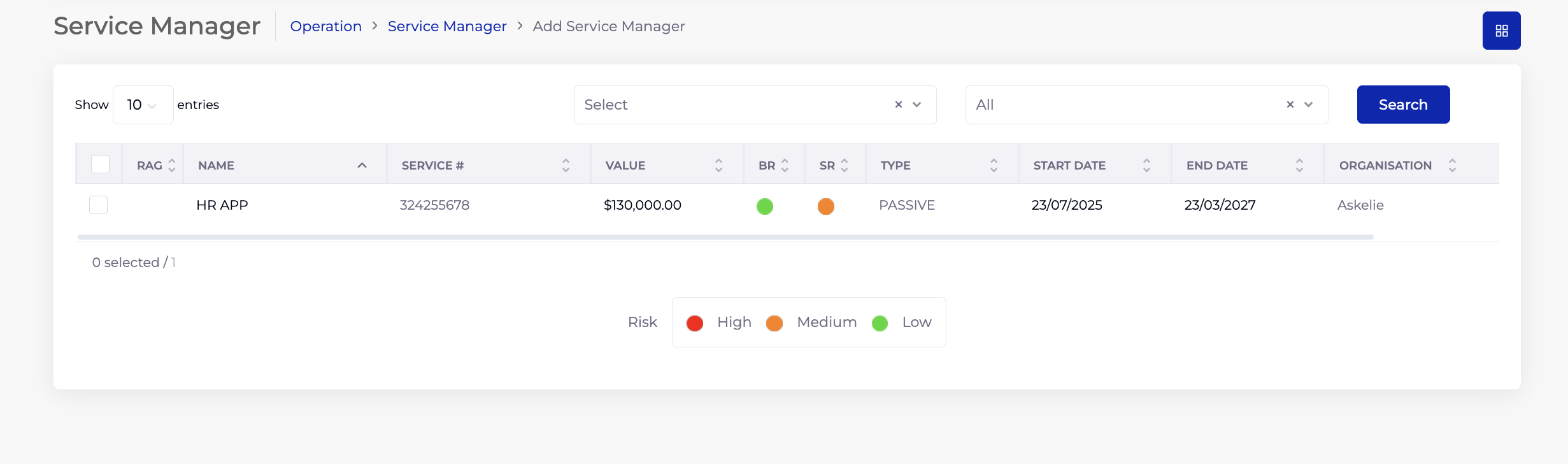
2.1 Listing Columns
| Column | Description |
|---|---|
| RAG | The aggregated RAG indicator — the worst RAG from all linked contracts (RED > AMBER > GREEN). |
| Name | The service name. |
| Service # | The service number. |
| Value | The total service value — sum of all linked contracts' values. |
| BR | Business Risk rating indicator (High/Medium/Low). |
| SR | Service Risk rating indicator (High/Medium/Low). |
| Type | The service type (from Catalogs — same list as Contract Type). |
| Start Date | Service start date. |
| End Date | Service end date. |
| Organisation | The organisation this service belongs to. |
3. Creating a Service
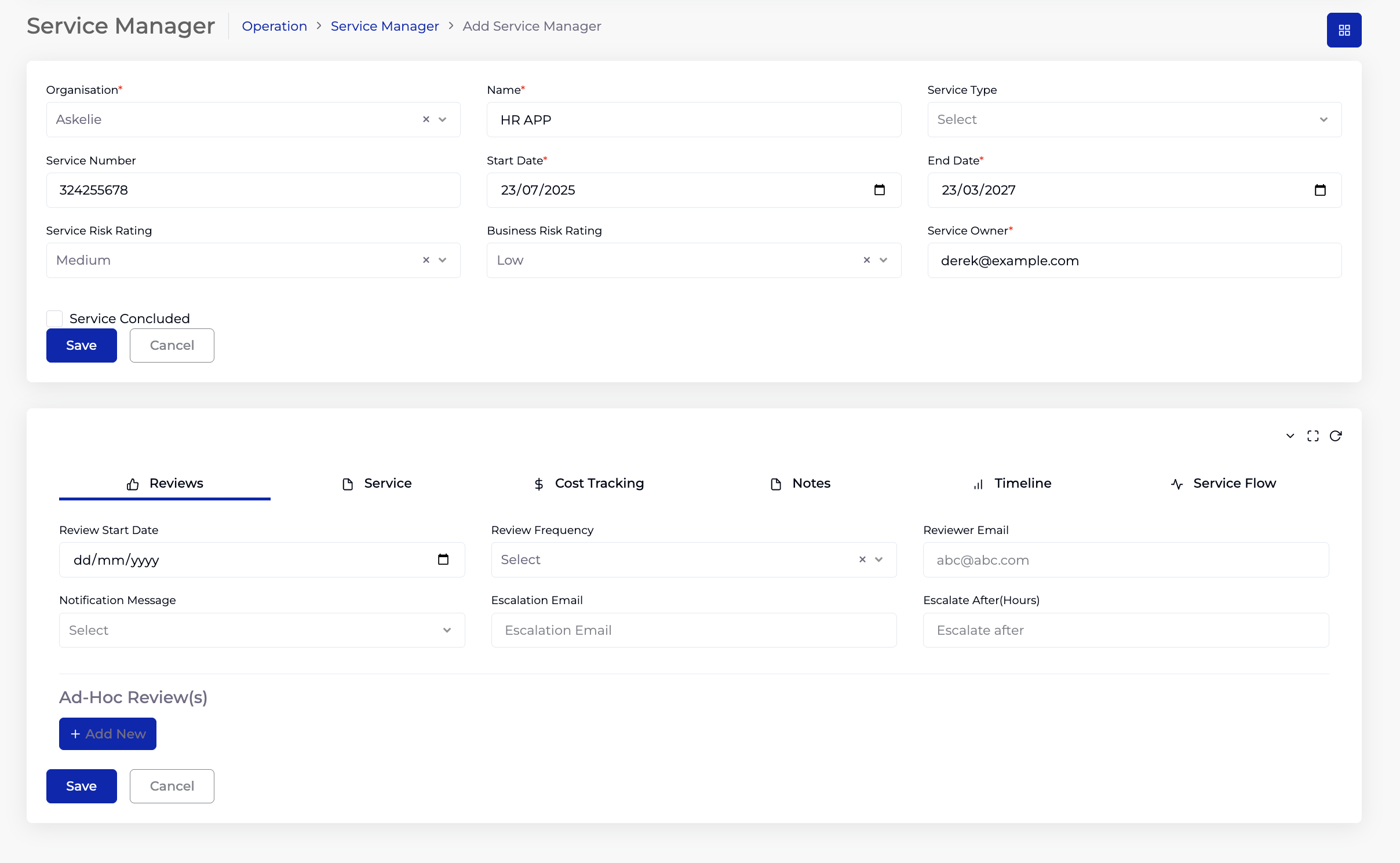
- On the Service Manager listing, click Add Service Manager.
- Select the Organisation (required).
- Enter a Name (required) — a descriptive name for the service (e.g. "HR APP", "IT Infrastructure", "Facilities Management").
- Select a Service Type — from Organisation → Catalogs (same list as Contract Type).
- Enter a Service Number — a unique identifier.
- Select a Start Date (required) and End Date (required).
- Select a Service Risk Rating — Low, Medium, or High.
- Select a Business Risk Rating — Low, Medium, or High.
- Enter the Service Owner (required) — email address of the service owner.
- Click Save.
4. Service Tabs
After saving, the lower panel provides six tabs for managing and monitoring the service. These tabs are similar in concept to the contract form's tabs but operate at the service (multi-contract) level.
4.1 Reviews Tab
Configure scheduled and ad-hoc reviews for the service — similar to the contract review setup.
| Field | Description |
|---|---|
| Review Start Date | When reviews begin. |
| Review Frequency | How often reviews occur (dropdown). |
| Reviewer Email | Email address of the reviewer. |
| Notification Message | Notification template for review alerts (from Notification module). |
| Escalation Email | Email for escalations if the review is not completed. |
| Escalate After (Hours) | Hours to wait before escalating. |
Ad-hoc reviews can also be added using + Add New under the Ad-Hoc Review(s) section.
4.2 Service Tab
This is the core tab where contracts are linked to the service. It shows all contracts that are part of this service and provides aggregated financial data.
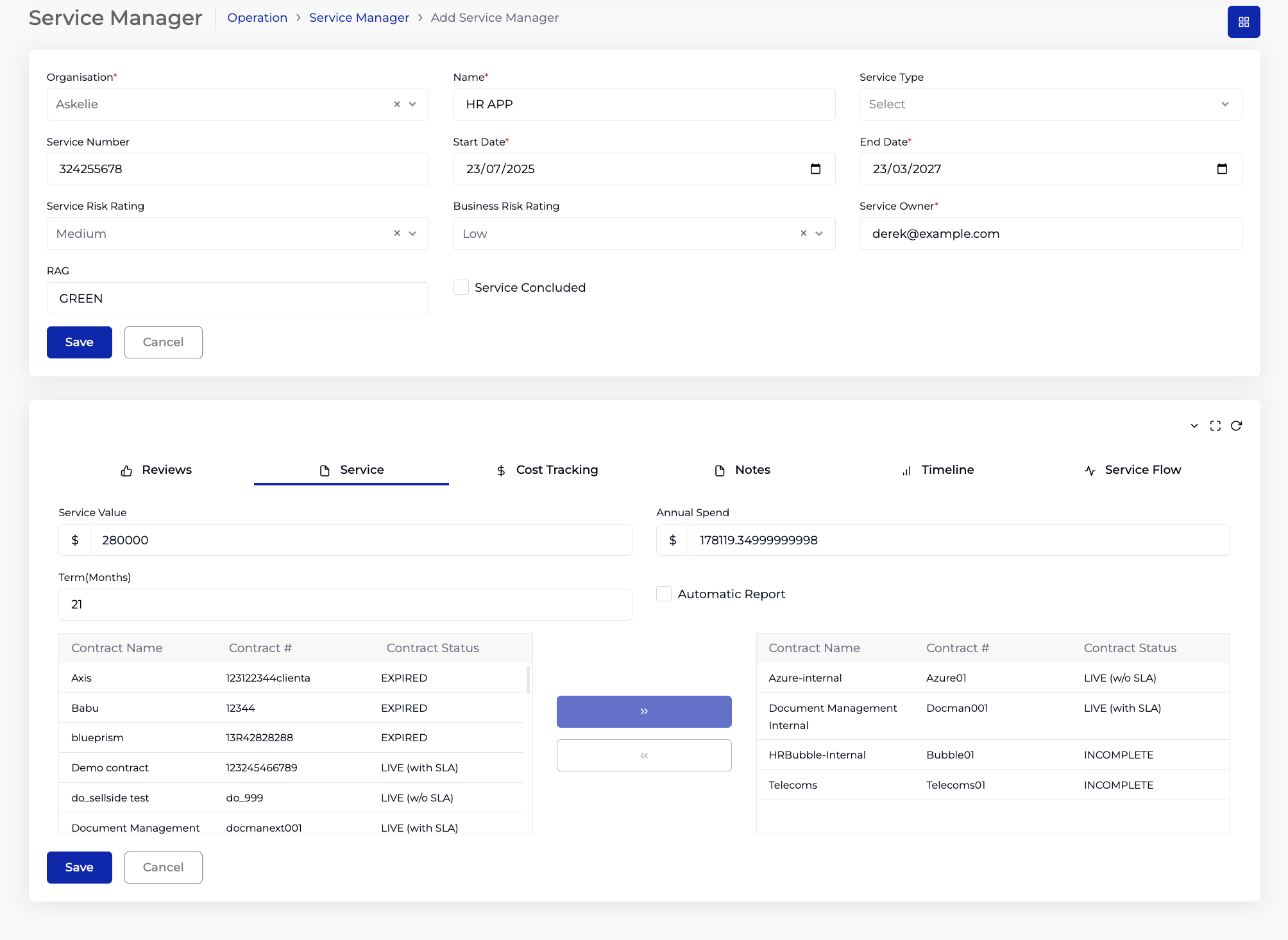
Aggregated Fields (auto-calculated):
| Field | Description |
|---|---|
| Service Value | Sum of all linked contracts' values. Auto-calculated — not editable. |
| Annual Spend | Service Value divided by the term in years. Auto-calculated. |
| Term (Months) | Duration of the service in months. |
Linked Contracts:
The contracts table lists all contracts linked to this service, showing Contract Name, Contract #, and Contract Status for each. Contracts are manually selected and added to the service.
The Automatic Report checkbox enables automated reporting for this service.
4.3 Cost Tracking Tab
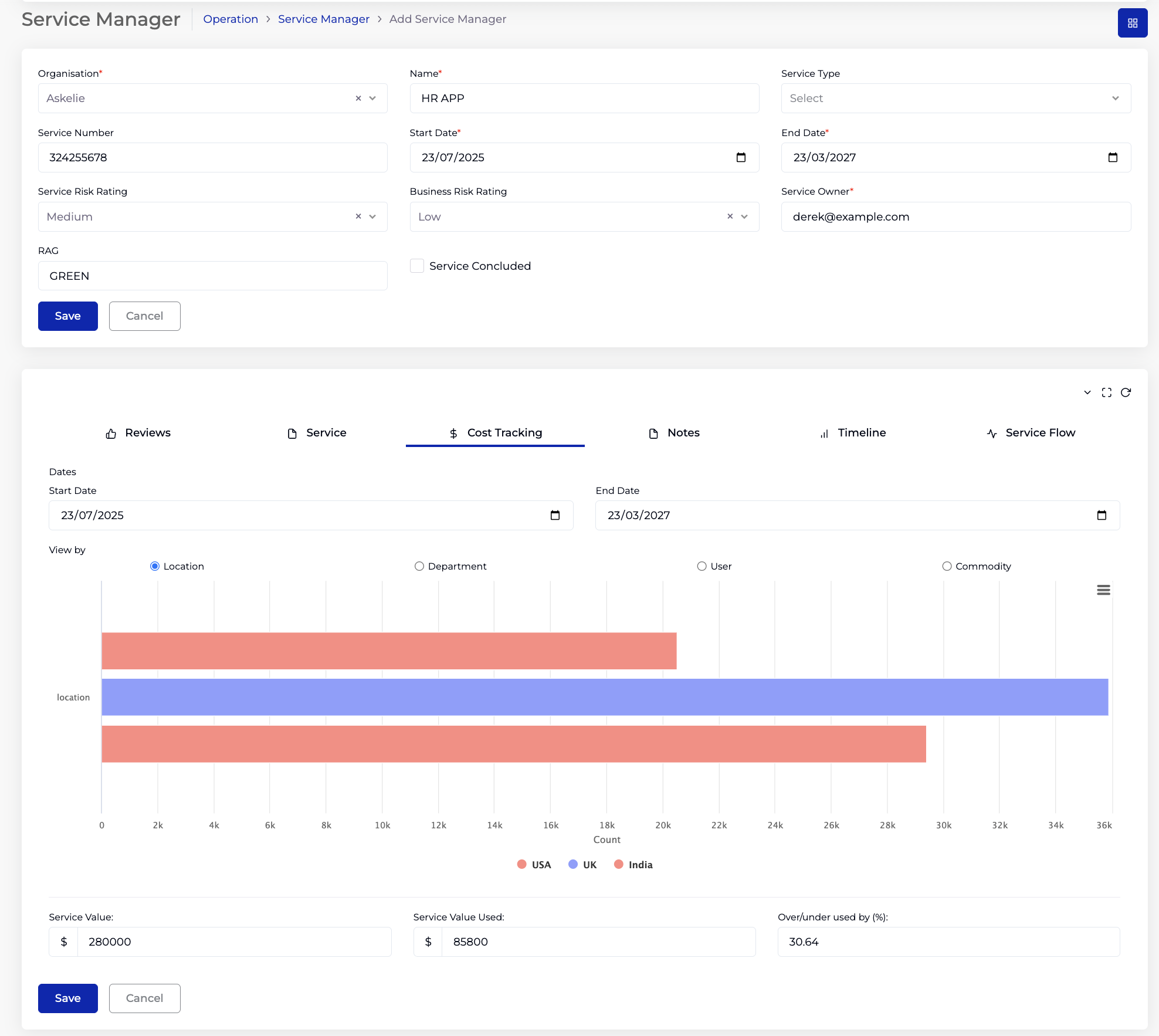
Provides a combined visual breakdown of costs from all linked contracts' cost tracker data. The charts aggregate cost data across the selected contracts into a unified view.
Date Filter:
Set the Start Date and End Date to define the reporting period.
View By:
Switch between four cost dimensions using the radio buttons:
- Location — costs broken down by location (from Cost Center).
- Department — costs broken down by department.
- User — costs broken down by user to bill (from Cost Center).
- Commodity — costs broken down by commodity (from Cost Center).
The bar chart displays costs by region (e.g. USA, UK, India) within the selected dimension.
Summary Fields:
| Field | Description |
|---|---|
| Service Value | Total value of the service (sum of linked contracts). |
| Service Value Used | Total cost consumed across all linked contracts. |
| Over/under used by (%) | Percentage of service value consumed. |
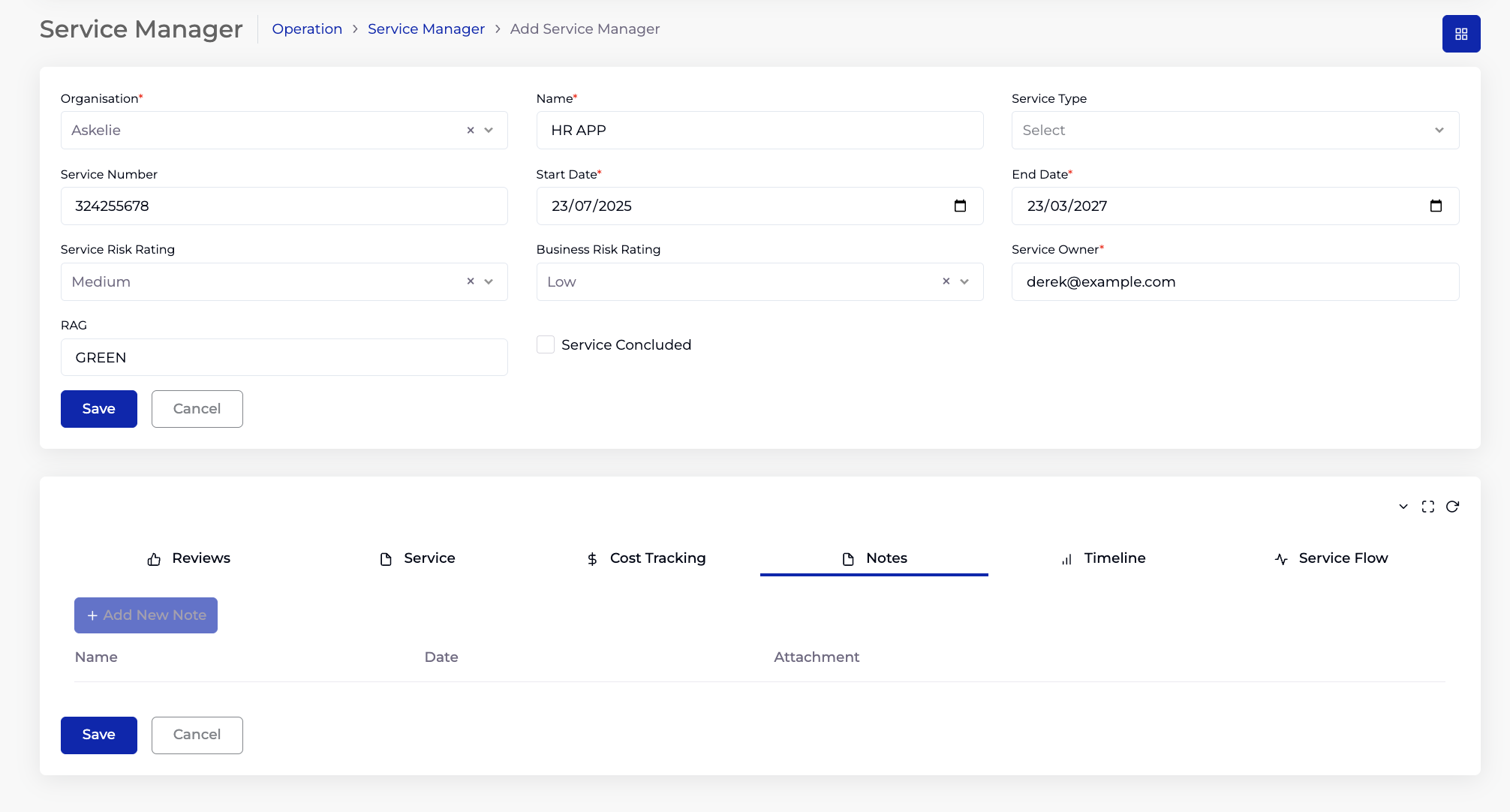
4.4 Notes Tab
Add notes and attachments for the service record. Click + Add New Note to create a note with a Name, Date, and optional Attachment.
4.5 Timeline Tab
Displays a combined chronological view of key events and milestones, auto-generated from the linked contracts' timeline data. Similar to the Cost Tracking tab, this aggregates timeline entries from all selected contracts into a unified timeline.
4.6 Service Flow Tab
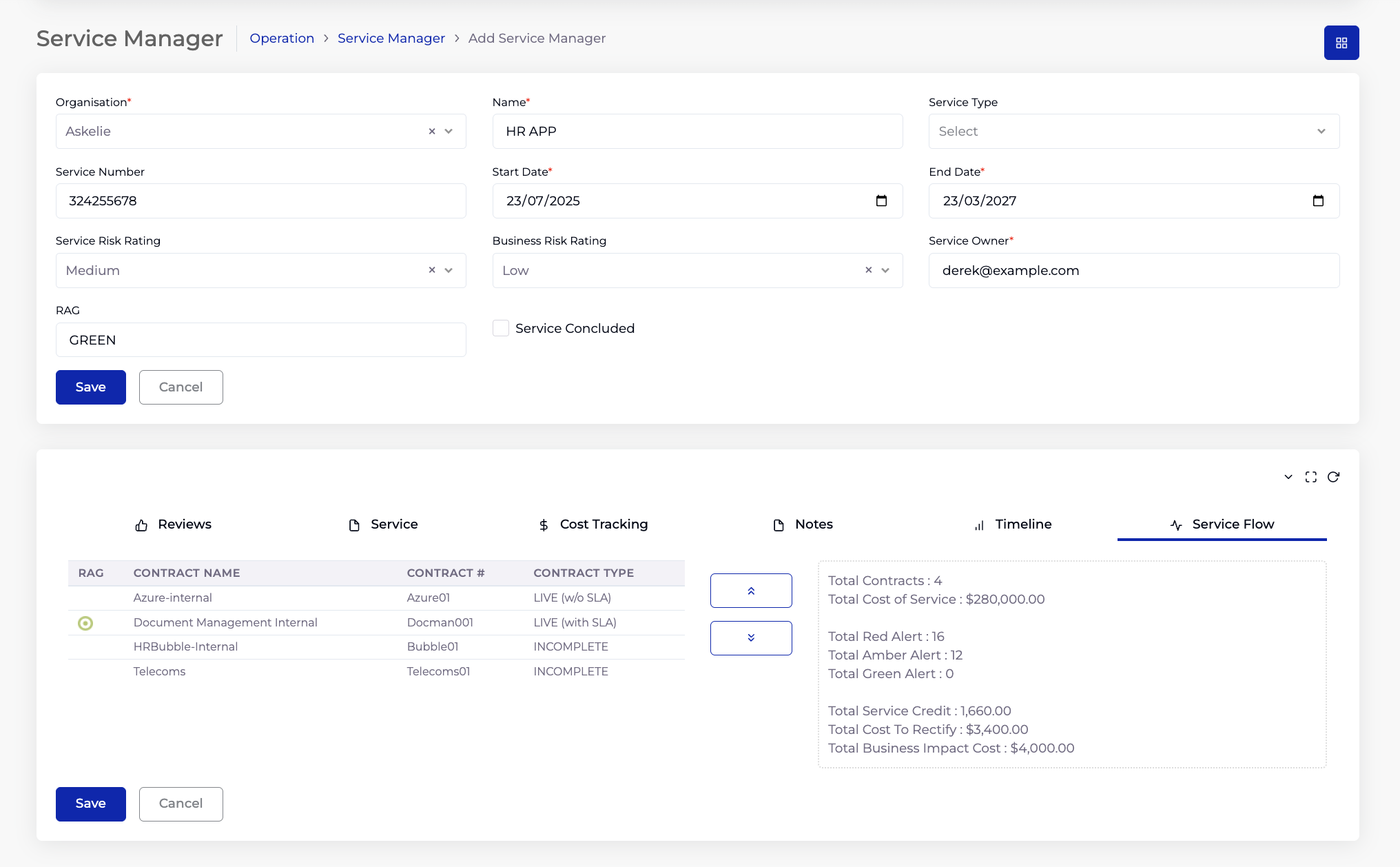
Provides a consolidated summary across all linked contracts, showing the overall health and financial impact of the service.
Linked Contracts (left panel):
Lists all contracts in the service with their RAG indicator, Contract Name, Contract #, and Contract Type (status). Contracts can be selected and reordered using the up/down arrows to arrange them in the preferred display order.
Service Summary (right panel):
| Metric | Description |
|---|---|
| Total Contracts | Number of contracts linked to this service. |
| Total Cost of Service | Sum of all linked contracts' values. |
| Total Red Alert | Total count of red SLA alerts across all linked contracts. |
| Total Amber Alert | Total count of amber SLA alerts across all linked contracts. |
| Total Green Alert | Total count of green SLA alerts across all linked contracts. |
| Total Service Credit | Sum of service credit costs from SLA breaches across all linked contracts. |
| Total Cost To Rectify | Sum of rectification costs from SLA breaches across all linked contracts. |
| Total Business Impact Cost | Sum of business impact costs from SLA breaches across all linked contracts. |
5. Service Manager vs Contract
| Aspect | Contract | Service Manager |
|---|---|---|
| Scope | Single agreement with a supplier/customer. | Groups multiple contracts into a service portfolio. |
| Value | Individual contract value. | Aggregated — sum of all linked contracts' values. |
| RAG | Driven by SLA performance. | Aggregated — worst RAG from linked contracts (RED > AMBER > GREEN). |
| Cost Tracking | Tracks transactions for one contract. | Aggregated cost view across all linked contracts, filterable by Location/Department/User/Commodity. |
| SLA Breach Costs | Per-SLA breach costs. | Aggregated Service Credit, Cost to Rectify, Business Impact Cost across all contracts. |
| Best For | Managing individual agreements. | Managing a portfolio of related contracts as a single service. |
6. Tips
- Group related contracts under a single service — for example, all contracts supporting an application (hosting, support, licensing) should be in one Service Manager entry.
- The Service RAG follows "worst wins" — if any linked contract is RED, the entire service shows RED. Use this to identify services that need attention.
- Use the Cost Tracking tab's View By options to understand where costs are concentrated — by location, department, user, or commodity.
- The Service Flow tab provides a one-page health summary — use it for management reporting and service reviews.
- Service Value is auto-calculated from linked contracts — if the value looks wrong, check that all relevant contracts are linked in the Service tab.
- A contract can belong to multiple services if it supports more than one service portfolio.
7. Troubleshooting
| Issue | Resolution |
|---|---|
| Service Value is $0 | No contracts are linked. Add contracts in the Service tab. |
| RAG not updating | RAG is driven by linked contracts' RAG indicators. Ensure the contracts have SLAs assigned to RAG blocks and that SLA evaluations are running. |
| Cost Tracking chart is empty | The linked contracts may not have Cost Tracker data. Check the Customer Billing and Cost Tracker configuration for each linked contract. |
| Service Flow shows zero alerts | No SLAs are assigned to the linked contracts' RAG blocks, or SLA evaluations have not run yet. |
| Contract not appearing in Service tab | Ensure the contract exists and is saved. Refresh the page and try selecting the contract again. |
| Service Type dropdown is empty | Add Contract Type values in Organisation → Catalogs (Service Type uses the same list as Contract Type). |