1. Overview
The Contract Builder module is a user-facing tool for creating contracts from pre-configured templates. Instead of filling in the standard contract form manually, users select a template, complete the dynamically generated form fields, and the system produces both a contract record and a completed Word document with all tag placeholders replaced by the entered values.
After the document is generated, it is sent to the configured e-signature provider for electronic signatures. The contract remains in Draft status until all parties sign, after which its status is set automatically from its dates — typically Active, or Executory/Expired depending on the start and end dates.
Prerequisites
- At least one Contract Template must be created and saved by an Admin in the Contract Template module.
- An e-signature provider must be configured in Organisation → Settings (for the signature flow).
2. Creating a Contract from a Template
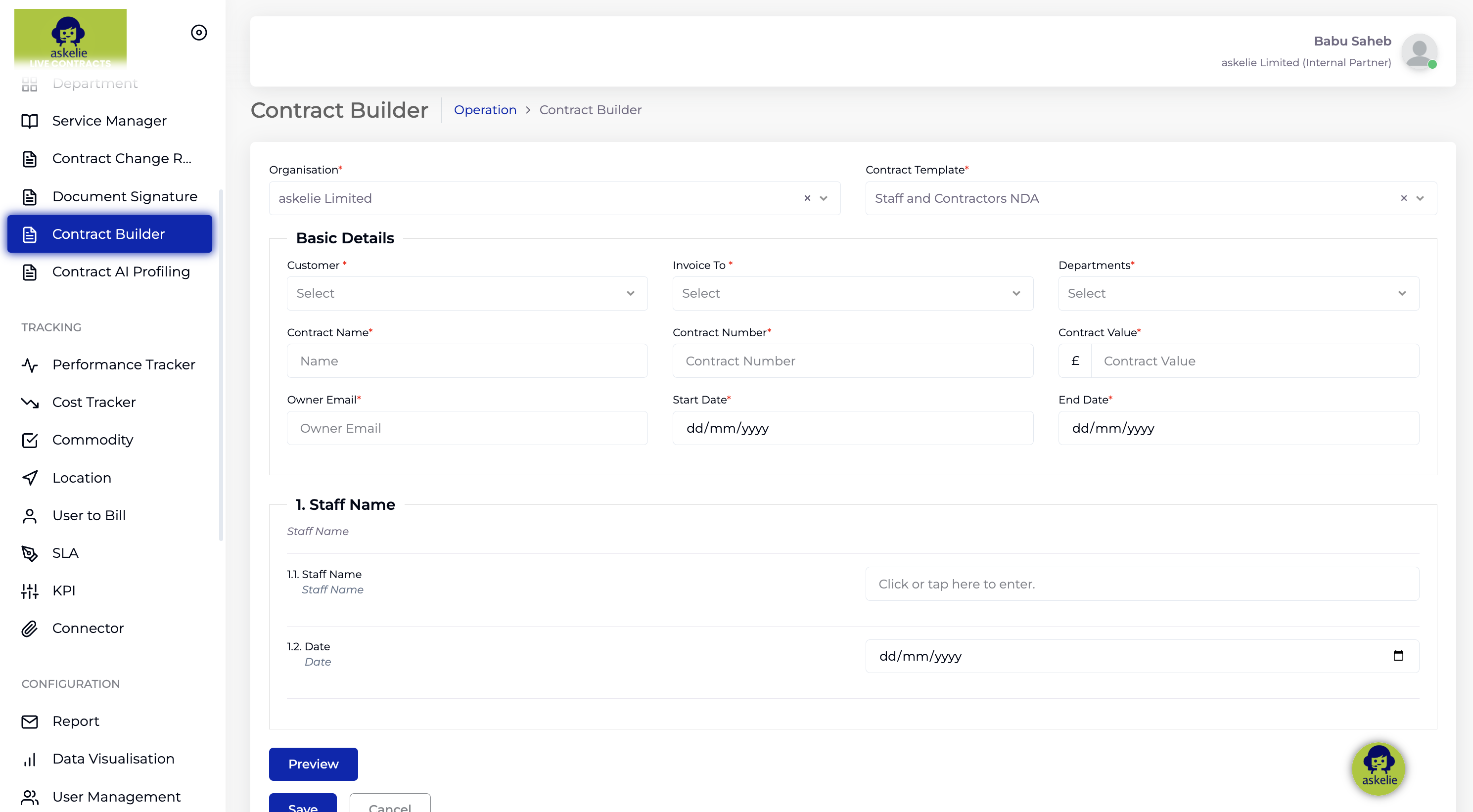
- In the left navigation, under Contract Toolkit → Contract Studio, click Contract Builder.
- Click Create Contract.
- Select the required Contract Template from the list.
- The system generates a contract form automatically based on the template's sections and components. Each section appears as a group of fields that the user must complete.
- Fill in all required fields in the form.
- Click Save.
Once saved:
- A contract record is created in Contract intELIEgence.
- A Word document is generated automatically — all
${tagName}placeholders in the template are replaced with the values entered in the form.
3. Document Preview and Offline Editing
Before the contract is sent for signature, users can validate the generated document.
- After completing the form fields, click the Preview button to generate and download the contract document.
- Review the downloaded document to confirm the content and formatting are correct.
- If any changes are required, update the document offline using Microsoft Word.
- Re-upload the updated document using the upload option in the same window.
4. Signature Process (e-Signature)
After the contract is generated and saved, Contract intELIEgence automatically sends the document for electronic signature.
- The generated contract is sent to the Organisation contact and the Customer for signature via the e-signature provider.
- Both parties receive an e-signature email request.
- Each party reviews and signs electronically.
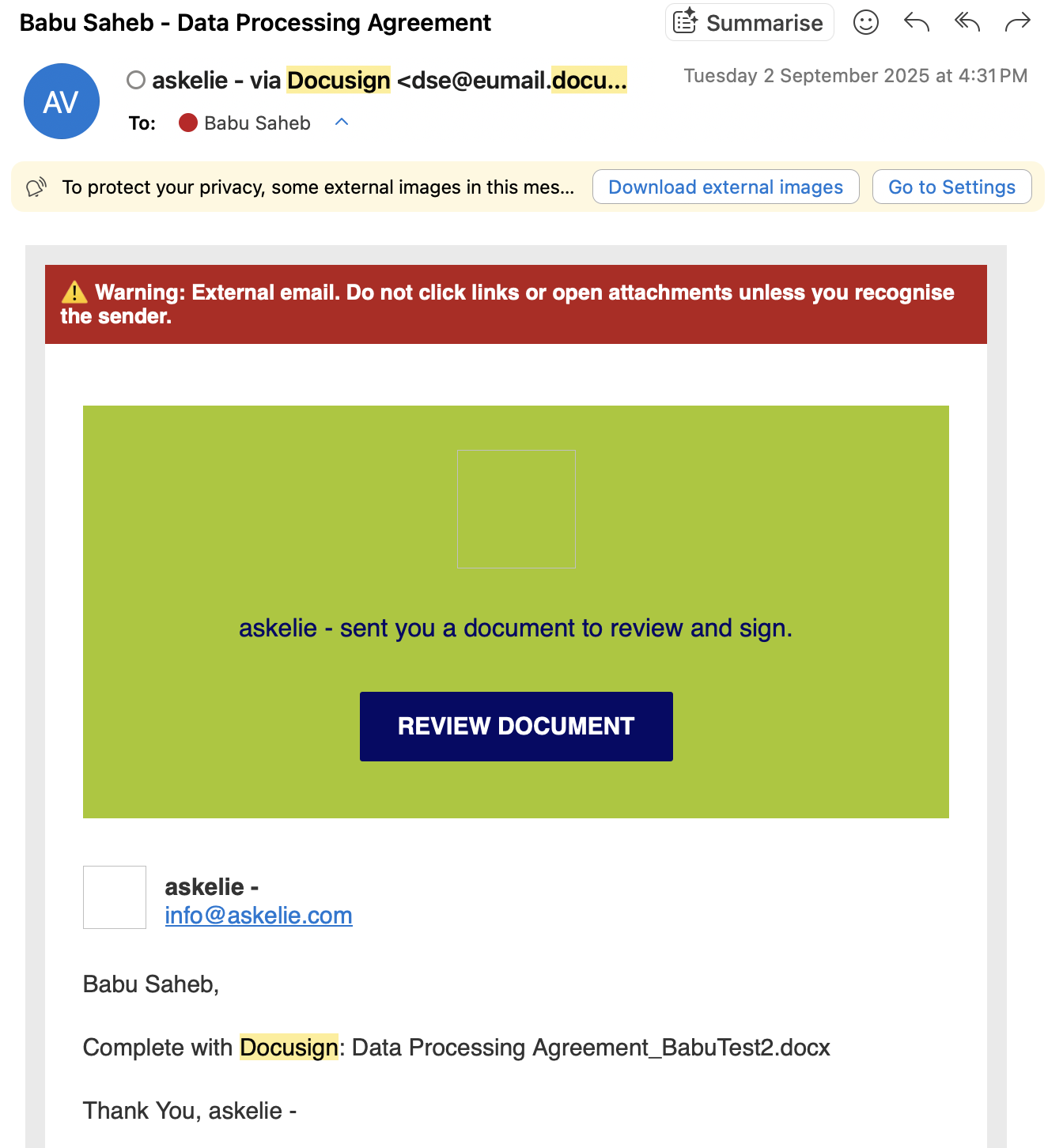
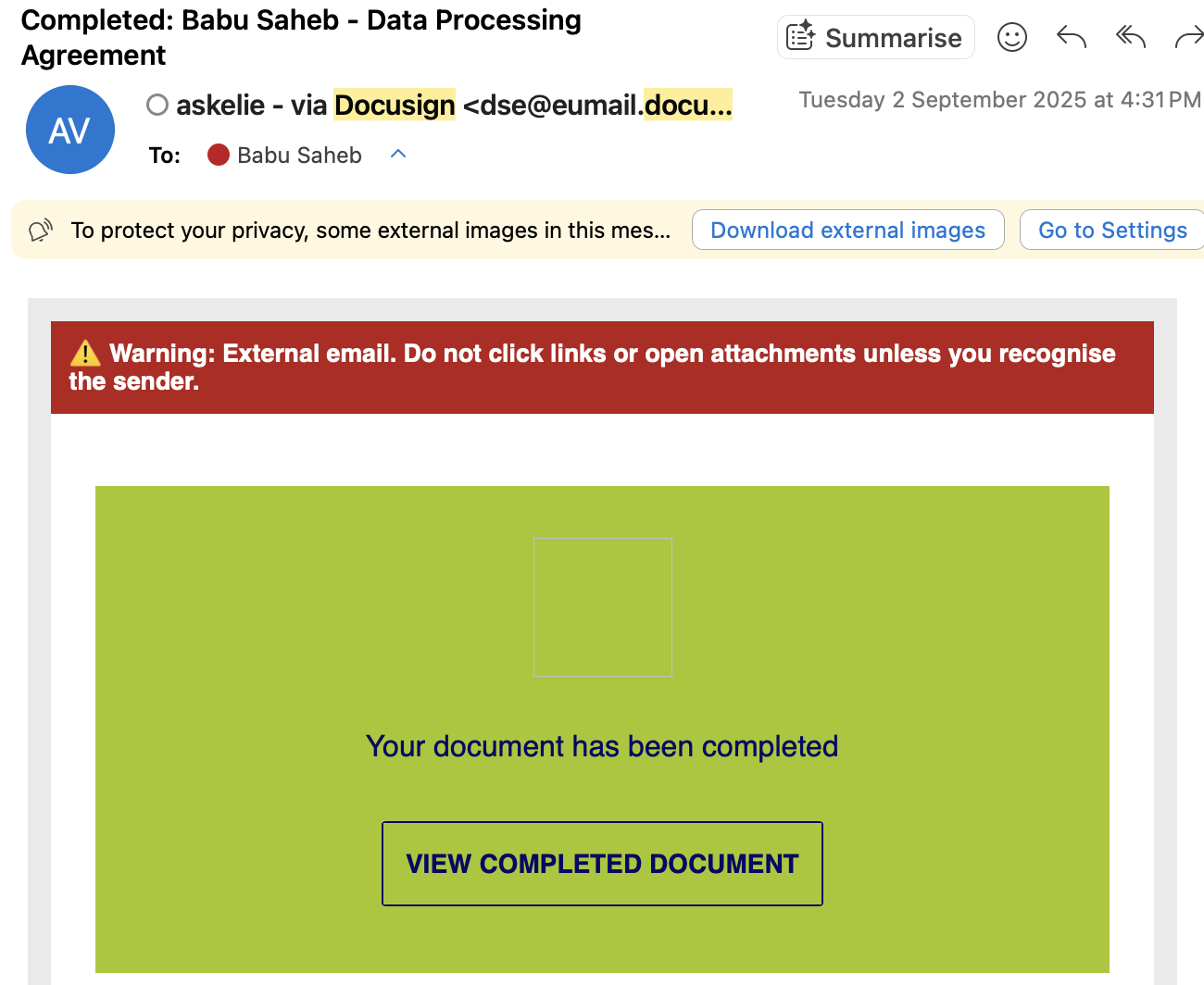
- After submission for signature, the contract remains in Draft status until both parties sign.
- Once signing is completed by all parties, the system automatically updates the contract status to Active.
- The contract can then be fully managed, monitored, and reported on within Contract intELIEgence.
5. Contract Builder vs Manual Contract Creation
There are two ways to create a contract in Contract intELIEgence:
| Aspect | Manual (Contract Module) | Template-Based (Contract Builder) |
|---|---|---|
| Form | Standard contract form with fixed fields and tabs. | Dynamic form generated from the template's sections and components. |
| Document | Files can be attached manually (Contract Files / Policy Files). | Word document is auto-generated with tag replacement. |
| Signature | Manual process or separate arrangement. | Automatic e-signature — sent to Organisation contact + Customer. |
| Initial Status | Based on dates and Actively Managed setting. | Draft (until both parties sign). |
| Best for | Contracts that don't follow a standard template, or when full control over all fields is needed. | Standardised contracts with consistent language, requiring formal signatures. |
6. Tips
- Always use Preview to check the generated document before it goes for signature — this is your last chance to catch formatting issues or incorrect data.
- If the Preview shows issues, edit the document offline in Word and re-upload — the updated version replaces the auto-generated one.
- Use Contract Builder for standardised, high-volume contract creation (e.g. service agreements, NDAs) where consistent language is critical.
- Use the manual Contract form for one-off or complex contracts that don't fit a template structure.
- Check with your Admin if you don't see the template you need — they may need to create or update it in the Contract Template module.
7. Troubleshooting
| Issue | Resolution |
|---|---|
| No templates available | An Admin must create at least one Contract Template first. |
| Generated document has unreplaced tags | The template may have tags that don't match any component. Contact the Admin to check the template configuration. |
| Signature email not received | Check the recipient email addresses. Verify the e-signature provider is configured in Organisation → Settings. |
| Contract stuck in Draft | Both parties must sign. Check the signature status to see which party has not yet signed. |
| Cannot re-upload edited document | Ensure the file is a valid Word document (.docx). Try refreshing the page and re-uploading. |