1. Overview
The Cost Tracker module links a sell-side contract to its customer's billing configuration, creating a cost tracking record that monitors usage costs against the commodities, locations, departments, and users defined in the customer's billing setup.
Cost Tracking Pipeline
How the Data Flows
Cost Tracker sits at the end of a data pipeline that connects multiple modules:
- Cost Center — Commodities, Locations, and Users To Bill are defined here.
- Customer → Billing Tab — Commodities are selected from Cost Center, assigned a Minimum Cost and Cost Per Unit, and linked to Locations, Departments, and Users To Bill. A Data Connector and schedule are configured to fetch usage data.
- Contract — A sell-side contract is created and linked to the Customer.
- Cost Tracker — When you select a contract, the system traces back to the Customer linked to that contract, pulls the billing configuration (commodities table and Data Connector), and populates the Cost Tracker form automatically.
Prerequisites
- A sell-side contract must exist with status Live and must not already have a Cost Tracker linked.
- The contract must have a Customer assigned.
- The Customer must have the Billing tab configured with commodities, a Data Connector, and a schedule.
- Cost Center items (Commodities, Locations, Users To Bill) must be created.
2. Cost Tracker Listing
- In the left navigation, under Tracking, click Cost Tracker.
- The listing shows all Cost Trackers with their Name, Contract #, and Description.
- Use the filter dropdowns and Search button to locate a tracker.
- Click Add Cost Tracker to create a new one.
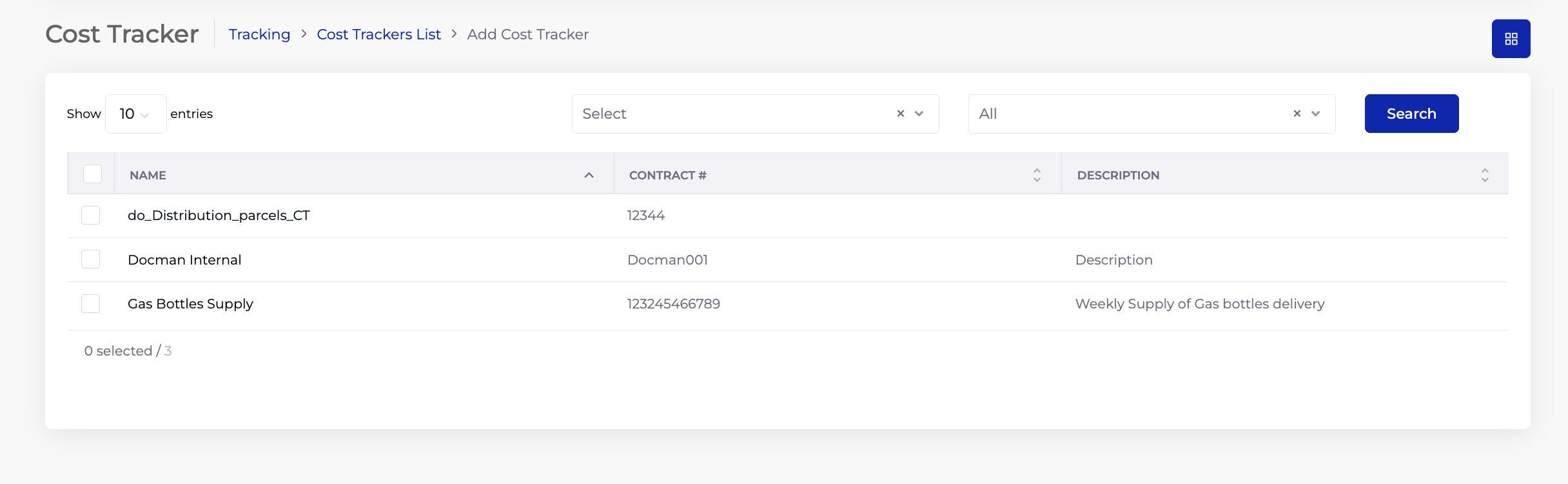
2.1 Listing Columns
| Column | Description |
|---|---|
| Name | The Cost Tracker name. |
| Contract # | The contract number this tracker is linked to. |
| Description | Description of the cost tracker. |
3. Adding a Cost Tracker
- On the Cost Tracker listing, click Add Cost Tracker.
- Enter a Name (required) — a descriptive name for this cost tracker.
- Enter a Description — optional notes.
- Select a Contract (required) — the dropdown lists only live sell-side contracts that do not already have a Cost Tracker linked. Each contract can have only one Cost Tracker.
- On contract selection, the system automatically:
- Traces back to the Customer linked to the selected contract.
- Reads the Customer's Billing tab configuration.
- Populates the Data Connector field with the connector configured in the Customer's billing setup.
- Populates the commodities table with all billing items from the Customer's Billing tab, including their Minimum Cost, Cost Per Unit, Location, Department, and User To Bill values.
- Review the auto-populated table. The values come from the Customer Billing configuration and represent the cost structure for this contract.
- Click Save.
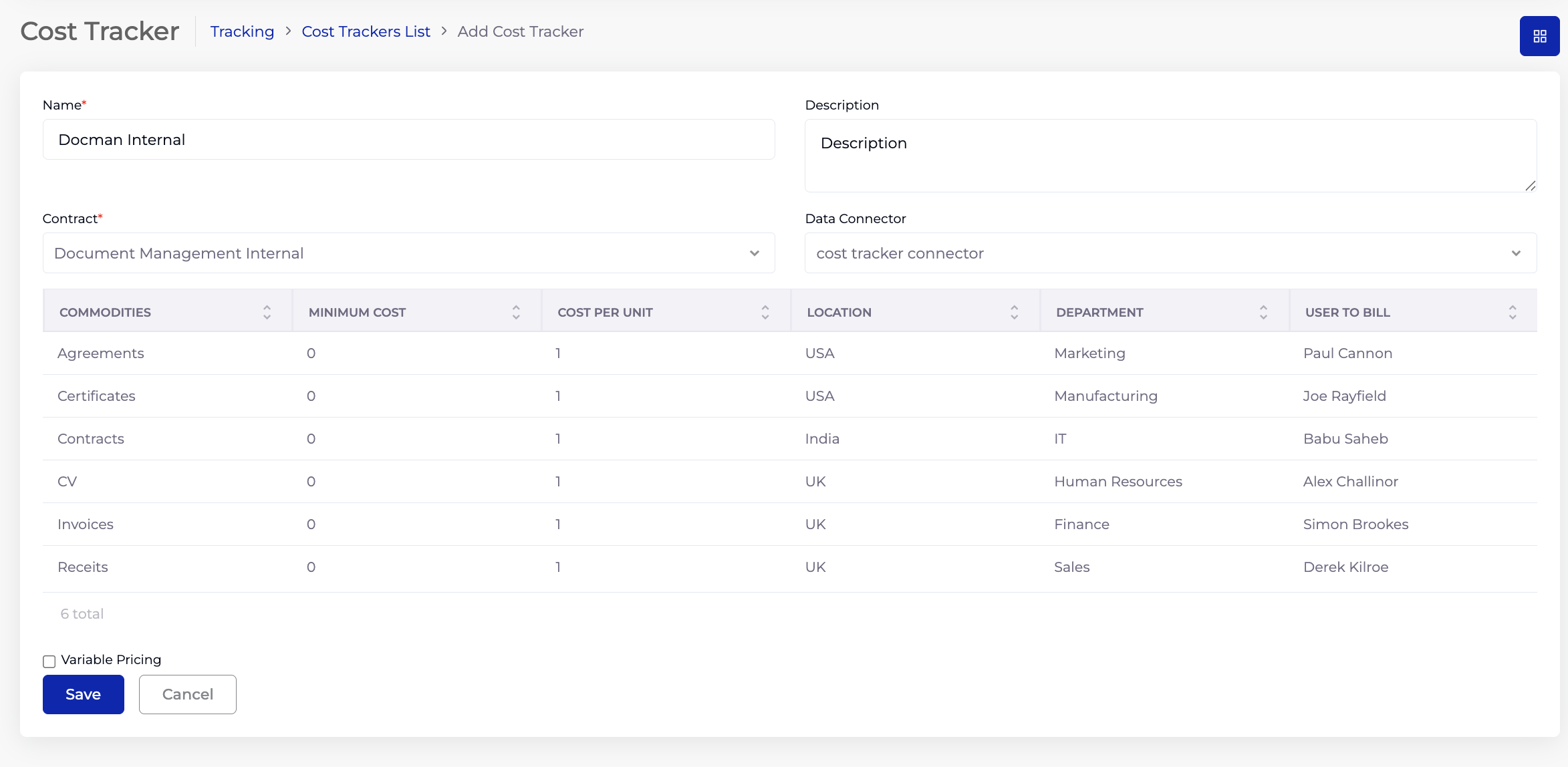
3.1 Form Fields
| Field | Required | Description |
|---|---|---|
| Name | Yes | A descriptive name for the Cost Tracker. |
| Description | No | Free text description. |
| Contract | Yes | Dropdown showing live sell-side contracts without an existing Cost Tracker. |
| Data Connector | Auto | Auto-populated from the Customer's Billing tab. The Data Connector that fetches usage data. |
3.2 Commodities Table (Auto-Populated)
This table is populated automatically from the Customer's Billing tab configuration:
| Column | Source | Description |
|---|---|---|
| Commodities | Customer Billing → Cost Center | The billable items (e.g. Agreements, Certificates, Contracts, CV, Invoices, Receipts). |
| Minimum Cost | Customer Billing | The minimum cost for this commodity. |
| Cost Per Unit | Customer Billing | The per-unit cost for this commodity. |
| Location | Customer Billing → Cost Center | The location where this commodity is consumed (e.g. USA, UK, India). |
| Department | Customer Billing → Department | The department responsible (e.g. Marketing, IT, Finance). |
| User To Bill | Customer Billing → Cost Center | The user or account charged for this commodity. |
4. Variable Pricing
The Variable Pricing checkbox at the bottom of the form enables a calendar-based pricing override. When ticked, a monthly calendar view appears below the commodities table, allowing you to create pricing events that override the standard cost for specific dates or time periods.
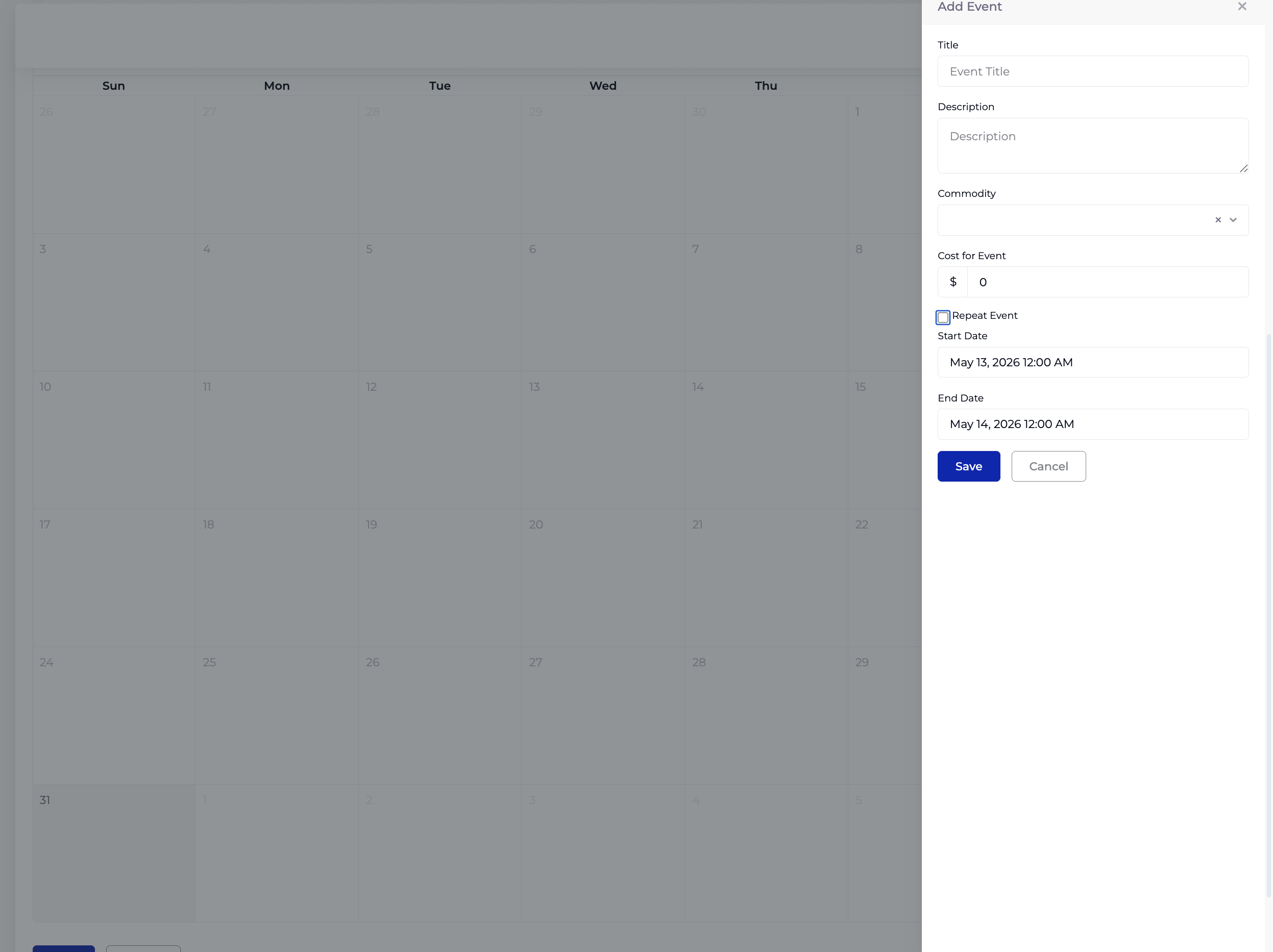
4.1 Adding a Pricing Event
Click on a date in the calendar or use the Add Event panel to create a pricing event:
- Enter a Title — a name for the pricing event (e.g. "Holiday Peak Rate", "Promotional Discount").
- Enter a Description — optional notes.
- Select a Commodity — the commodity this pricing change applies to (from the commodities in the table above).
- Enter the Cost for Event ($) — the overridden cost for this commodity during the event period.
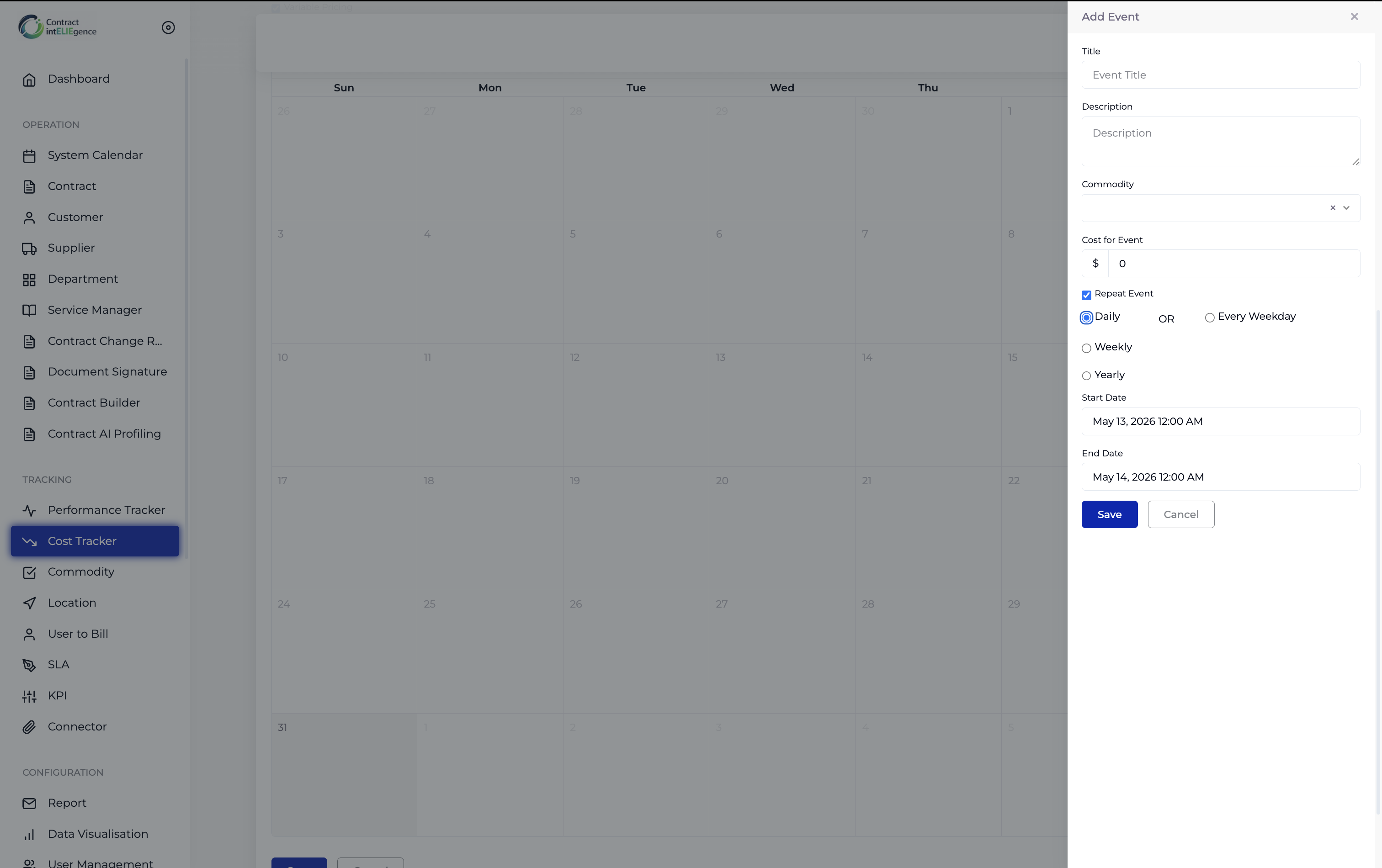
- Tick Repeat Event to make this a recurring pricing change (see below).
- Set the Start Date and End Date — the period during which this pricing applies.
- Click Save.
4.2 Repeat Event Options
When Repeat Event is ticked, the recurrence options (Daily, Every Weekday, Weekly, Monthly, Yearly) appear. They work exactly as described in Common Features → Schedules & Recurrence.
5. How Cost Tracker Connects to Other Modules
| Step | Module | What Happens |
|---|---|---|
| 1 | Cost Center | Commodities, Locations, and Users To Bill are defined. |
| 2 | Customer → Billing Tab | Commodities are assigned costs, linked to locations/departments/users, and connected to a Data Connector with a schedule. |
| 3 | Contract | A live sell-side contract is created and linked to the Customer. |
| 4 | Cost Tracker | Links to the contract and inherits the billing configuration. Variable pricing events can be added. |
| 5 | Contract → Cost Tracking tab | Cost data is displayed in the contract's Charts and Review section. |
| 6 | Service Manager → Cost Tracking tab | Cost data from multiple contracts is aggregated into a unified service-level cost view. |
6. Tips
- The Contract dropdown only shows live sell-side contracts without an existing Cost Tracker — if you don't see a contract, check its status, type (must be sell-side), and whether it already has a tracker.
- All commodity data is inherited from the Customer Billing tab — set up the billing configuration correctly before creating a Cost Tracker.
- The Data Connector is auto-populated from the Customer Billing setup — ensure the connector is valid and tested before relying on it for cost tracking.
- Use Variable Pricing for seasonal or promotional pricing changes rather than modifying the base Customer Billing configuration — this keeps the standard pricing intact.
- Variable pricing events can be one-time or repeating (daily, weekly, yearly) — use repeating events for regular pricing patterns.
- Cost Tracker data feeds into both the contract's Cost Tracking tab and the Service Manager's aggregated cost view.
7. Troubleshooting
| Issue | Resolution |
|---|---|
| Contract dropdown is empty | No eligible contracts exist. The contract must be live, sell-side, and not already linked to a Cost Tracker. Check contract status and type. |
| Commodities table is empty after contract selection | The Customer linked to the contract does not have a Billing tab configured. Set up billing in the Customer module first. |
| Data Connector field is empty | No Data Connector is configured in the Customer's Billing tab. Add one in the Customer module. |
| Variable Pricing calendar not appearing | Ensure the Variable Pricing checkbox is ticked. Save the Cost Tracker first, then edit it to access the calendar. |
| Cost data not appearing in contract | Check the Data Connector is connected and the schedule is running. Verify the Customer Billing configuration is complete. |
| Cannot create a second Cost Tracker for a contract | Each contract can only have one Cost Tracker. The contract will not appear in the dropdown if it already has one. |