1. Overview
Contract Capture (Contract AI Profiling) uses artificial intelligence to extract key contract data from uploaded PDF documents. Instead of manually entering contract details, users upload an existing contract document and the system automatically identifies and extracts critical information — contract name, dates, value, parties, and clause details.
Once the AI extraction is complete, the extracted data can be reviewed and synced to create a full contract record in Contract intELIEgence, along with associated supplier/customer and department records if they don't already exist.
How It Works
- User uploads a contract document (PDF).
- The AI engine analyses the document and extracts key entities (names, dates, values, clauses).
- Extracted data is displayed on the Extraction tab for review.
- User clicks Sync to push the extracted data into a contract record. Missing supplier/customer and department entries are automatically created.
- The contract is created with status based on dates (if Admin) or routed through the approval workflow (if Super User).
Prerequisites
- Organisation must be set up.
- The AI extraction service must be configured (backend configuration).
2. Contract Capture Listing
- In the left navigation, under Contract Toolkit → Contract Studio, click Contract Capture.
- The listing shows all uploaded contract documents with their extraction status.
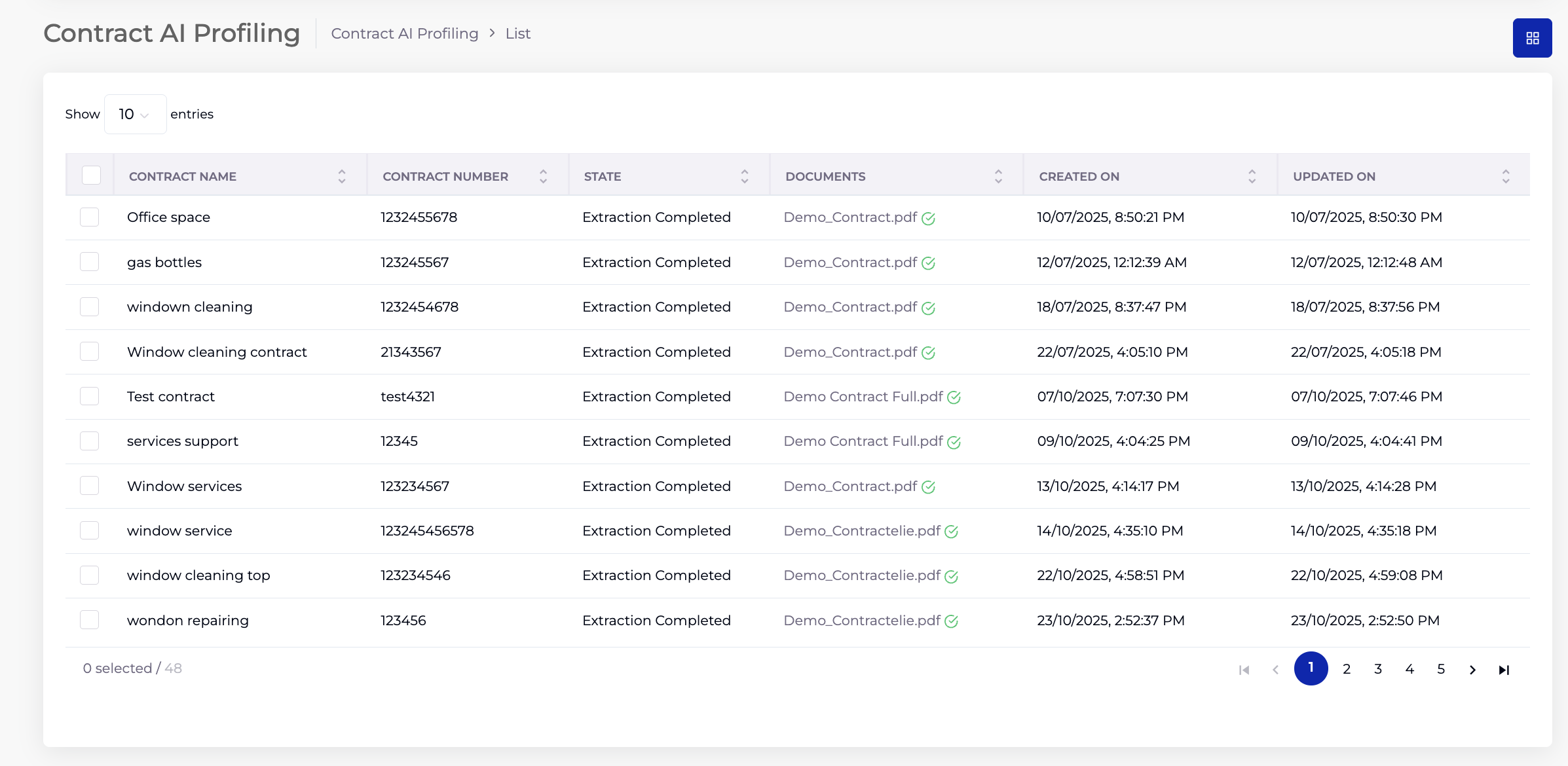
2.1 Listing Columns
| Column | Description |
|---|---|
| Contract Name | The draft name given when uploading the document. |
| Contract Number | The contract number entered during upload. |
| State | Current extraction status (e.g. "Extraction Completed"). |
| Documents | The uploaded PDF file name, with a link to download. |
| Created On | Date and time the document was uploaded. |
| Updated On | Date and time of the last update. |
3. Uploading a Contract Document
- On the Contract Capture listing, click Add.
- Select the Organisation (required) — pre-selected based on your login.
- Enter the Owner's Email (required) — the contract owner's email address.
- Enter a Draft Name (required) — a descriptive name for this contract capture entry.
- Enter a Contract Number (required) — a unique identifier for the contract.
- Set Is Sell Type Contract — toggle on if this is a sell-side contract, leave off for buy-side.
- Upload the contract Documents (required) — drag and drop a PDF file or click Choose Files to browse.
- Click Save.
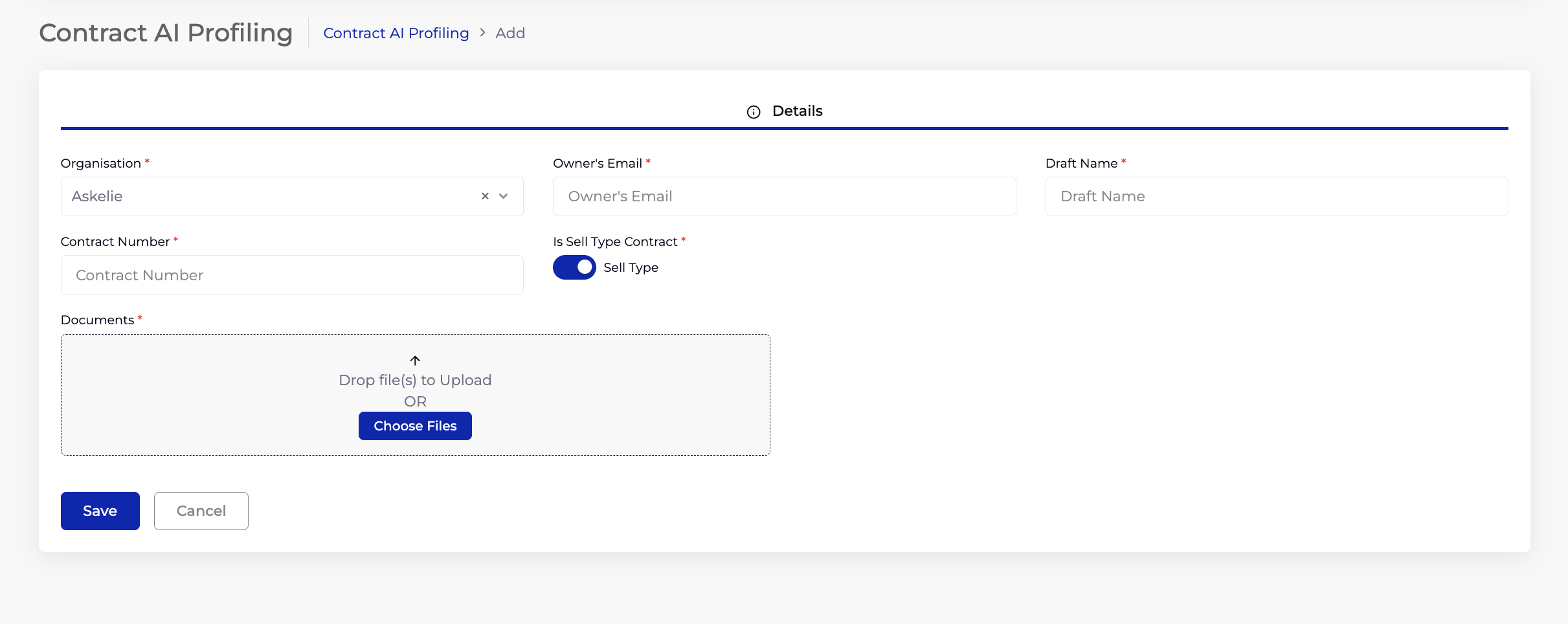
After saving, the system begins AI extraction of the uploaded document. The State in the listing updates to "Extraction Completed" once processing is finished.
4. Reviewing Extracted Data
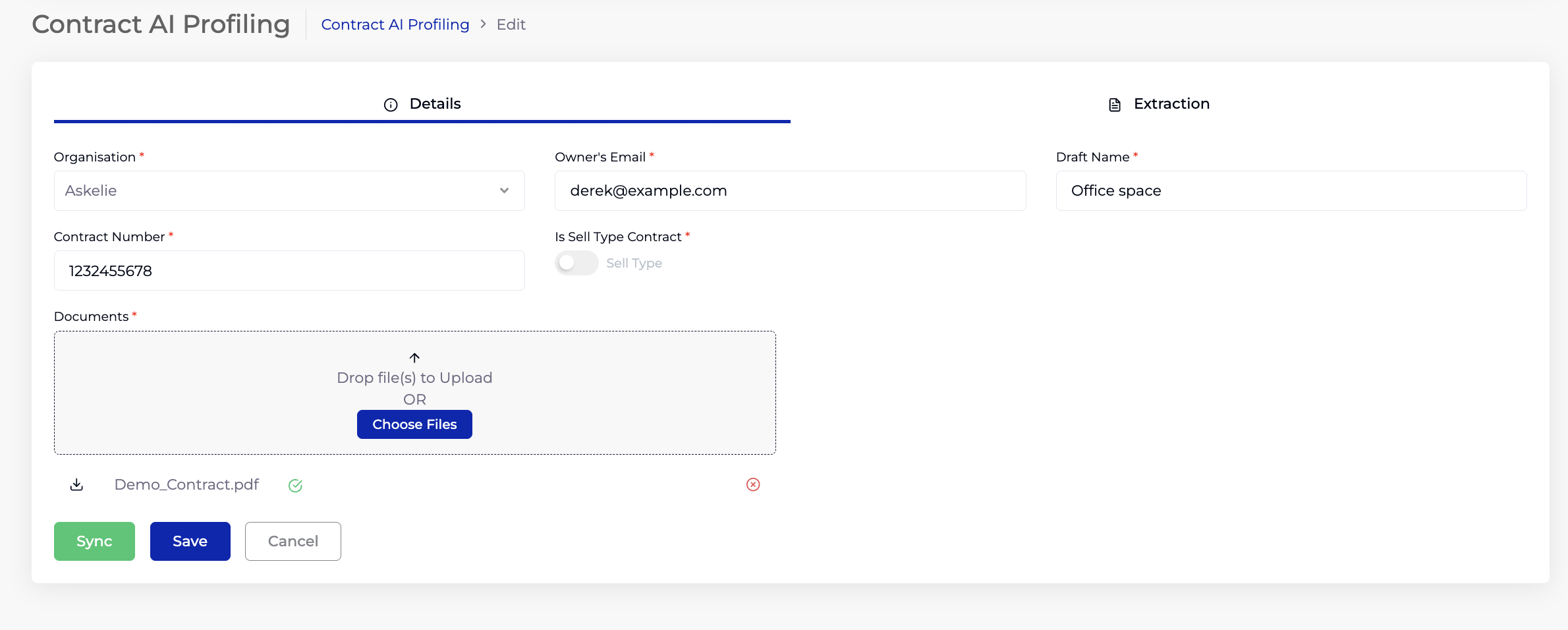
Once extraction is complete, click on an entry in the listing to open it in edit mode. The edit view has two tabs: Details and Extraction.
4.1 Details Tab
Shows the original upload details (Organisation, Owner's Email, Draft Name, Contract Number, Is Sell Type Contract) and the uploaded document. The document can be downloaded from here.
4.2 Extraction Tab
Shows the AI extraction results. The left panel displays the uploaded PDF in a document viewer, and the right panel lists all Extracted Entities — the key data points the AI identified in the document.
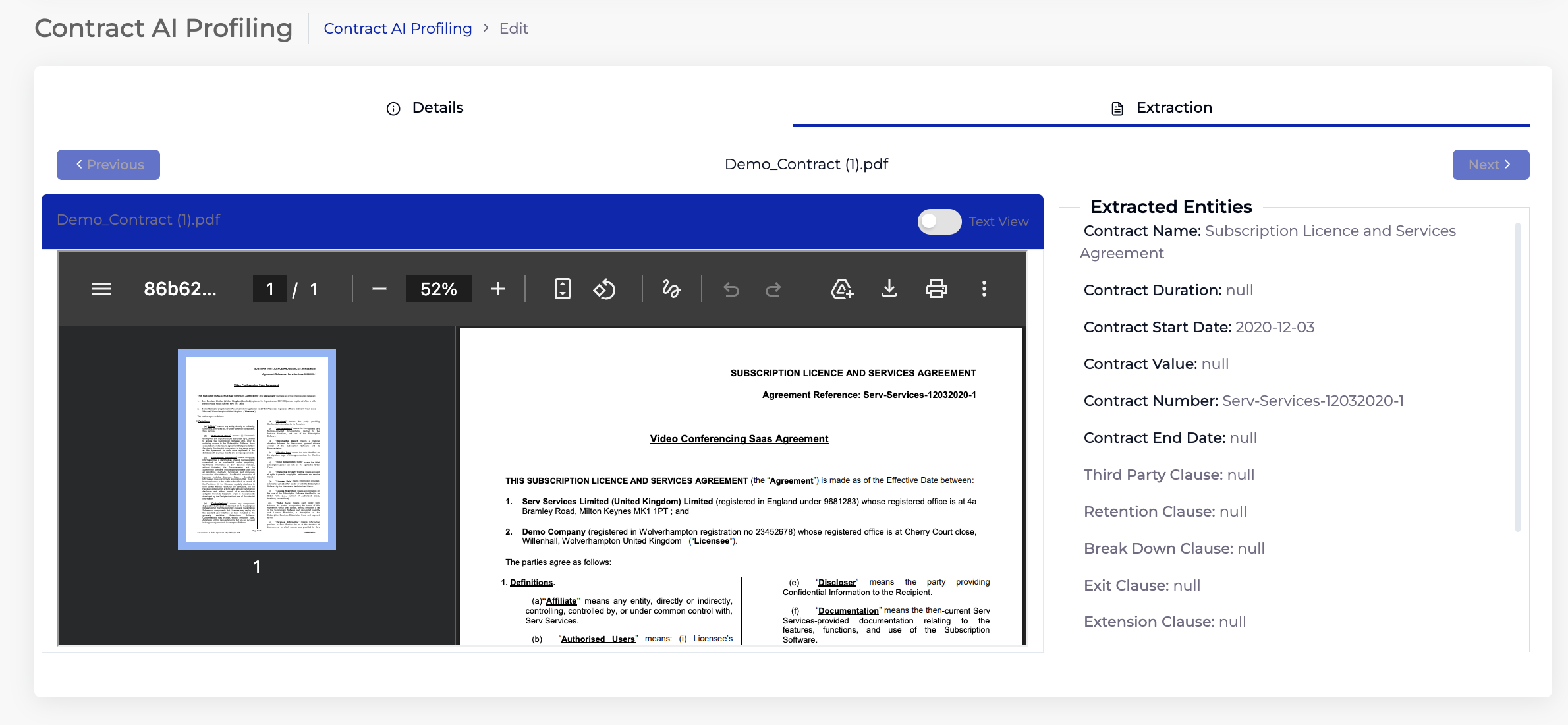
Extracted Entities:
| Entity | Description |
|---|---|
| Contract Name | The full contract title extracted from the document. |
| Contract Duration | The duration/term of the contract. |
| Contract Start Date | The start date identified in the document. |
| Contract End Date | The end date identified in the document. |
| Contract Value | The monetary value of the contract. |
| Contract Number | The contract reference number found in the document. |
| Third Party Clause | Any third-party related clause text extracted from the document. |
| Retention Clause | Data retention or record-keeping clause text. |
| Break Down Clause | Contract breakdown or partial termination clause text. |
| Exit Clause | Exit or termination clause text. |
| Extension Clause | Contract extension or renewal clause text. |
5. Syncing to Create a Contract
Once the extracted data has been reviewed, click the Sync button on the Details tab to push the data into a contract record.
The Sync Contract Data popup opens, pre-filled with all the AI-extracted values:
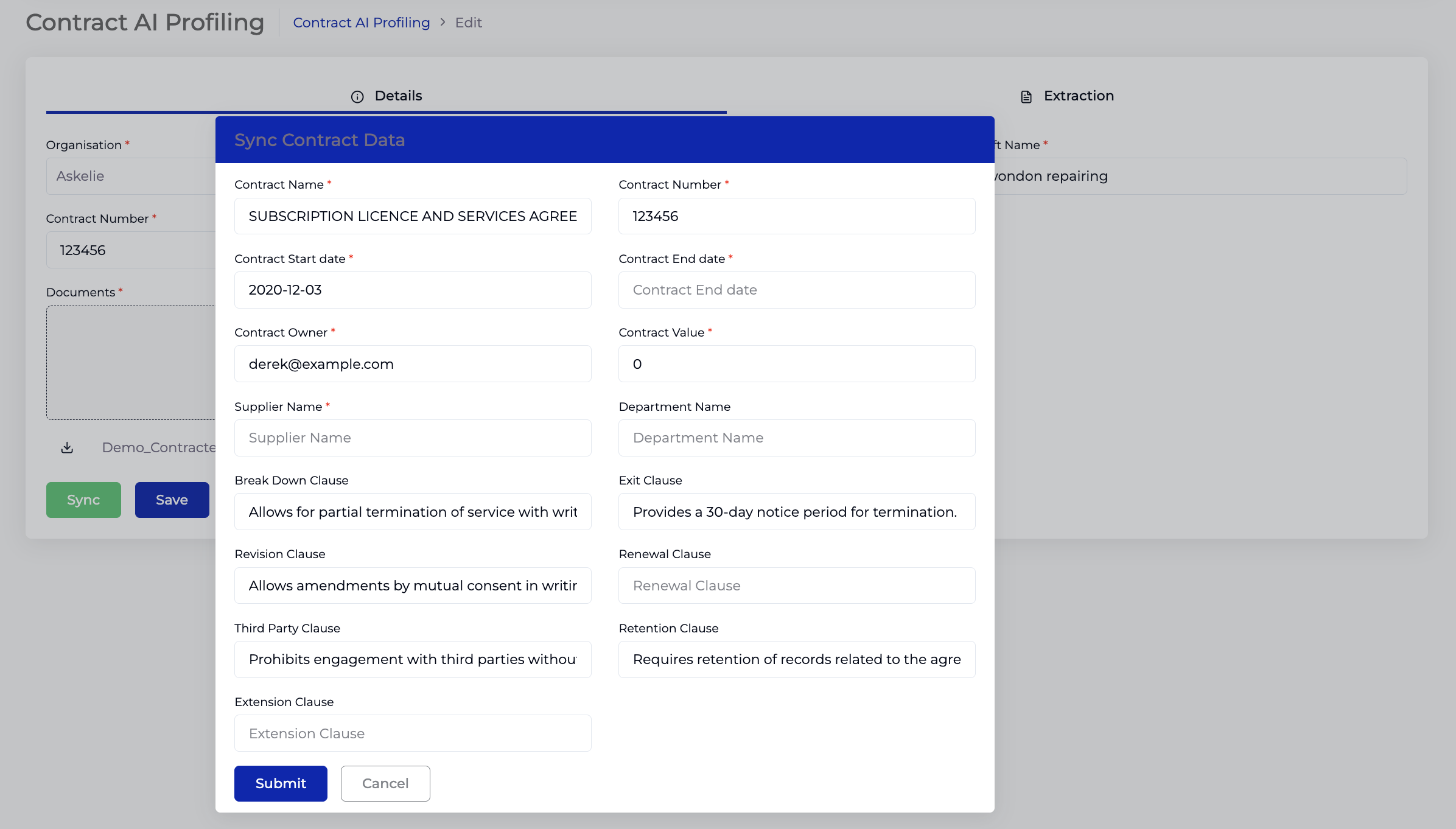
5.1 Sync Contract Data Fields
| Field | Source | Description |
|---|---|---|
| Contract Name* | AI Extracted | The contract title from the document. Editable before submission. |
| Contract Number* | AI Extracted | The contract reference number. |
| Contract Start date* | AI Extracted | The contract start date. |
| Contract End date* | AI Extracted | The contract end date. |
| Contract Owner* | From Upload | The owner's email entered during upload. |
| Contract Value* | AI Extracted | The contract value. |
| Supplier Name* | AI Extracted | The supplier/vendor identified in the document. |
| Department Name | AI Extracted | The department associated with the contract. |
| Break Down Clause | AI Extracted | Partial termination clause text. |
| Exit Clause | AI Extracted | Termination clause text. |
| Revision Clause | AI Extracted | Amendment/revision clause text. |
| Renewal Clause | AI Extracted | Renewal clause text. |
| Third Party Clause | AI Extracted | Third-party related clause text. |
| Retention Clause | AI Extracted | Data retention clause text. |
| Extension Clause | AI Extracted | Extension clause text. |
All fields are editable — review and correct any values the AI may have extracted incorrectly before submitting.
5.2 Automatic Record Creation
When Sync is submitted, the system automatically handles supplier/customer and department matching:
- If the Supplier Name (or Customer Name for sell-side) matches an existing record in the system, that record is linked to the contract.
- If no match is found, a new supplier/customer record is automatically created with the extracted name.
- The same logic applies to Department Name — matched to existing or created as new.
- If an Admin performs the Sync, the contract is created with its status determined by the start and end dates (same as manual contract creation — Executory, Live, Expired, etc.).
- If a Super User performs the Sync, the contract goes through the department-based approval workflow — the Department Admin must approve before the contract becomes active.
Click Submit to create the contract, or Cancel to return without syncing.
6. Contract Capture vs Other Contract Creation Methods
| Aspect | Manual (Contract Module) | Template-Based (Contract Builder) | AI-Based (Contract Capture) |
|---|---|---|---|
| Input | User fills in all fields manually. | User fills a dynamic form from a template. | User uploads a PDF; AI extracts data. |
| Document | Files attached manually. | Word document auto-generated with tag replacement. | Original PDF is the source document. |
| Data Entry | Full manual entry required. | Only template-defined fields. | AI extracts; user reviews and corrects. |
| Clause Extraction | Not applicable. | Not applicable. | AI identifies and extracts clause text (Exit, Renewal, Extension, etc.). |
| Entity Creation | Supplier/Customer must exist. | Depends on template fields. | Supplier/Customer/Department auto-created if not found. |
| Best For | One-off or complex contracts. | Standardised, high-volume contracts. | Digitising existing signed contracts or third-party documents. |
7. Tips
- Upload clear, text-based PDFs for best extraction accuracy. Scanned images may produce lower quality results.
- Always review the Extraction tab before syncing — AI extraction is not perfect, and critical fields like dates and values should be verified.
- Edit any incorrect values directly in the Sync popup before submitting — this is your last chance to correct data before the contract is created.
- After syncing, check the created contract in the Contract module to confirm all data was transferred correctly.
- If supplier/customer names are extracted slightly differently from existing records (e.g. "Acme Corp" vs "Acme Corporation"), the system will create a new record. Review and merge duplicates if necessary.
- Use Contract Capture for bulk digitisation of existing signed contracts — upload each document and let the AI do the initial data entry.
8. Troubleshooting
| Issue | Resolution |
|---|---|
| State stuck on processing | The AI extraction may still be running. Wait and refresh. If it remains stuck, check with the system administrator — the AI service may be unavailable. |
| Most extracted entities show null | The document may be a scanned image without selectable text, or the format may not be recognised. Try uploading a text-based PDF. Check that the document is a valid contract with standard structure. |
| Incorrect values extracted | AI extraction is not perfect. Edit the values in the Sync popup before submitting. For recurring issues with similar document formats, report to the system administrator for AI model improvement. |
| Sync creates duplicate supplier | The extracted name may differ slightly from an existing record. After syncing, check the Supplier/Customer module and merge duplicates if needed. |
| Contract not appearing after Sync | If submitted by a Super User, the contract may be pending approval. Check with the Department Admin. If submitted by an Admin, check the Contract listing with all status filters. |
| Cannot upload document | Ensure the file is a valid PDF. Check file size limits. Try dragging and dropping instead of using Choose Files. |