1. Overview
The Cost Center module is a configuration module used to define the building blocks for customer billing and cost tracking. It contains three tabs — Commodity, Location, and User To Bill — each managing a different dimension of cost allocation.
Items created here are used in the Customer module's Billing tab, where commodities, locations, and users to bill are selected and configured with cost and scheduling details. The billing data then feeds into the Cost Tracker module for cost reporting.
Prerequisites
- Regions must be configured in Organisation → Catalogs (Type = Region). All three tabs require a Region value.
2. Commodity Tab
Commodities represent the items, services, or assets being tracked for billing. Each commodity is assigned to a region and can have a description.
2.1 Commodity Listing
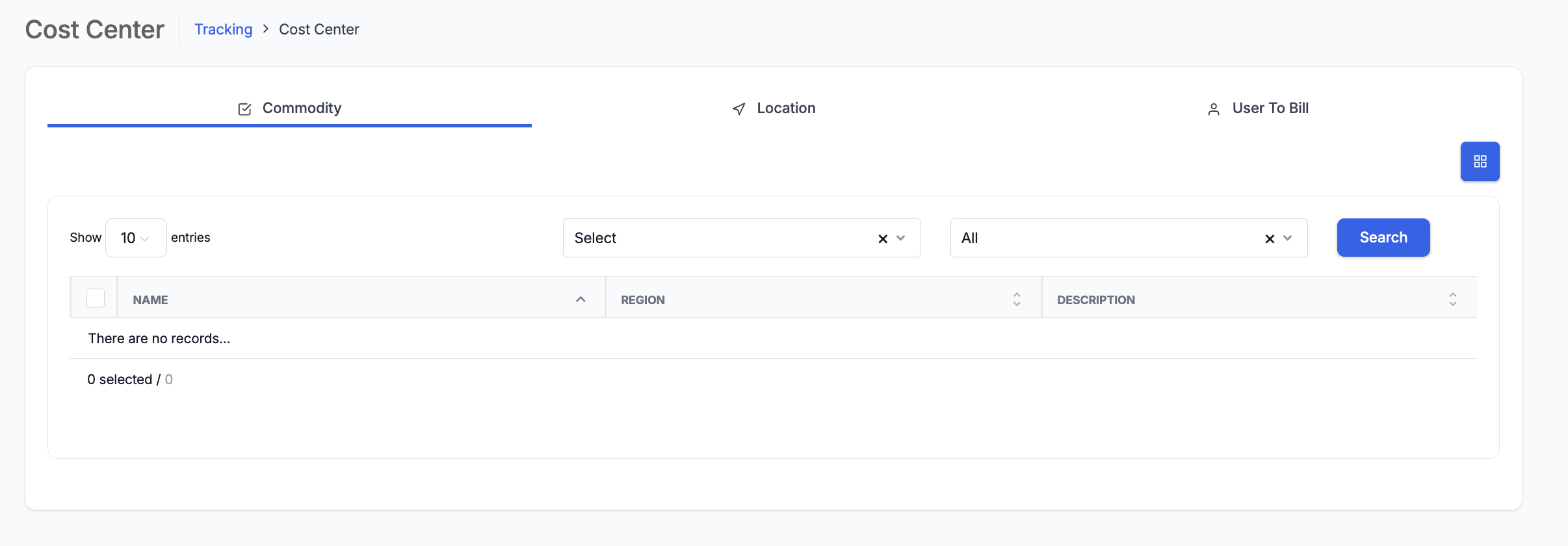
The Commodity tab shows a listing of all commodities with columns for Name, Region, and Description. Use the filter dropdowns and Search button to locate a commodity.
2.2 Adding a Commodity
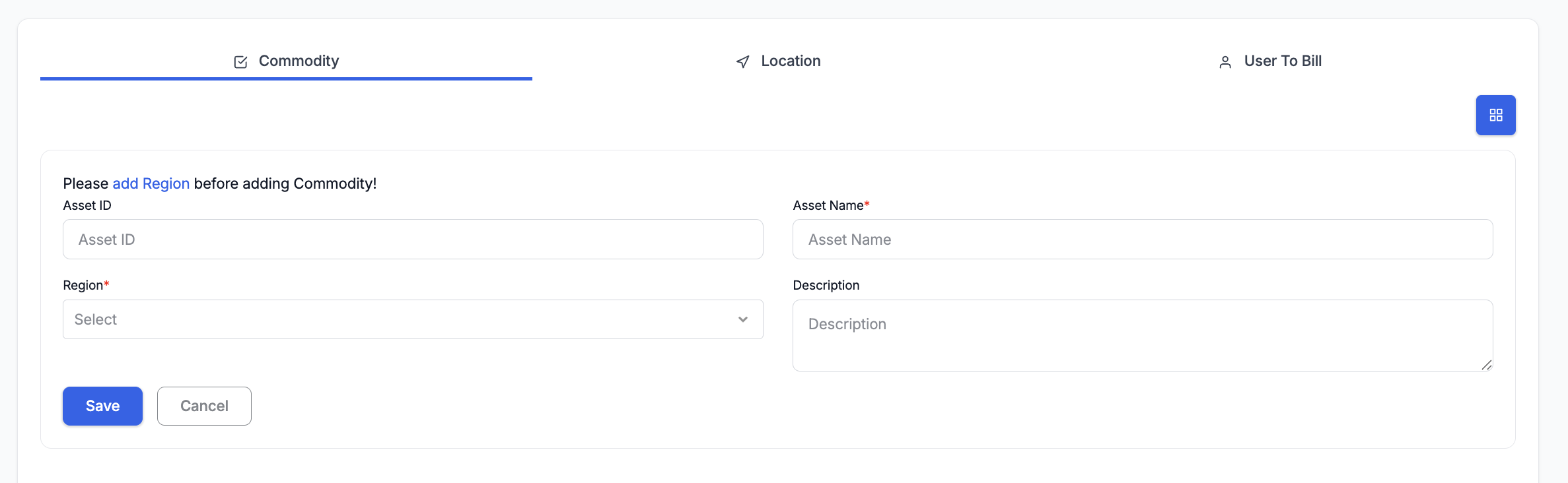
- On the Commodity tab, the add form appears below the listing (or click the grid icon to switch views).
- Enter an Asset ID — an optional identifier for the commodity/asset.
- Enter an Asset Name (required) — the name of the commodity or service.
- Select a Region (required) — from Organisation → Catalogs (Type = Region).
- Enter a Description — optional notes about the commodity.
- Click Save.
2.3 Commodity Fields
| Field | Required | Description |
|---|---|---|
| Asset ID | No | An identifier for the asset or commodity (e.g. internal asset code). |
| Asset Name | Yes | The name of the commodity or service (e.g. "Printing", "Cloud Storage", "Office Supplies"). |
| Region | Yes | The region this commodity belongs to. From Organisation → Catalogs (Type = Region). |
| Description | No | Free text description of the commodity. |
3. Location Tab
Locations represent the physical or logical locations where commodities are consumed or services are delivered. Locations are used in the Customer Billing tab to associate billing items with specific sites.
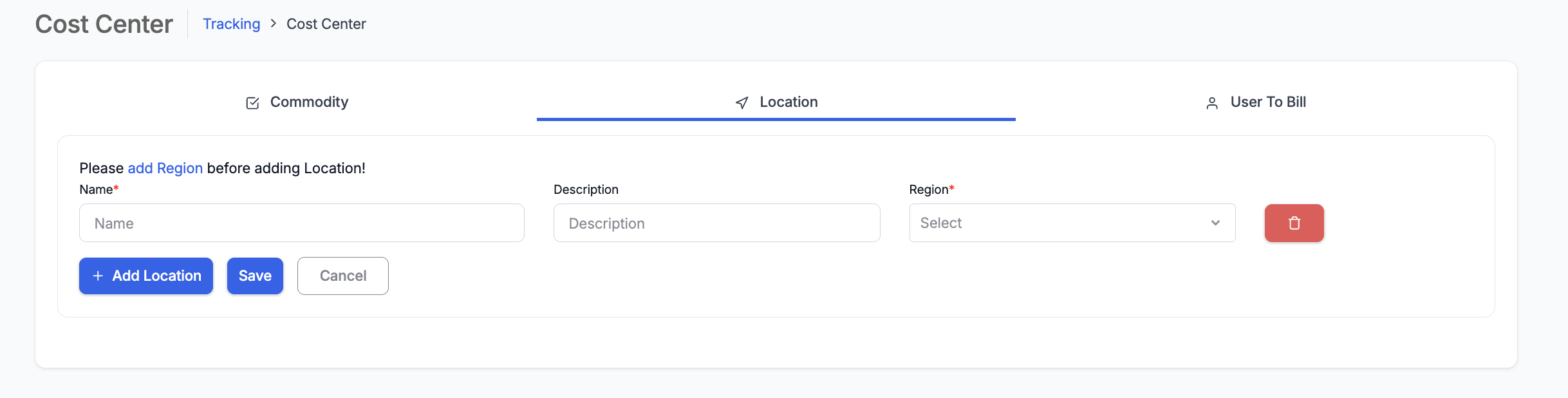
- Click the Location tab.
- Enter a Name (required) — the location name (e.g. "Head Office", "Warehouse A", "Remote Site").
- Enter a Description — optional notes.
- Select a Region (required) — from Organisation → Catalogs (Type = Region).
- Click + Add Location to add another row, or click Save to save.
- Click the delete icon (red bin) to remove a row before saving.
3.1 Location Fields
| Field | Required | Description |
|---|---|---|
| Name | Yes | The location name. |
| Description | No | Free text description of the location. |
| Region | Yes | The region this location belongs to. From Organisation → Catalogs (Type = Region). |
4. User To Bill Tab
Users To Bill represent the individuals or accounts that billing should be attributed to. These are used in the Customer Billing tab to assign billing responsibility.
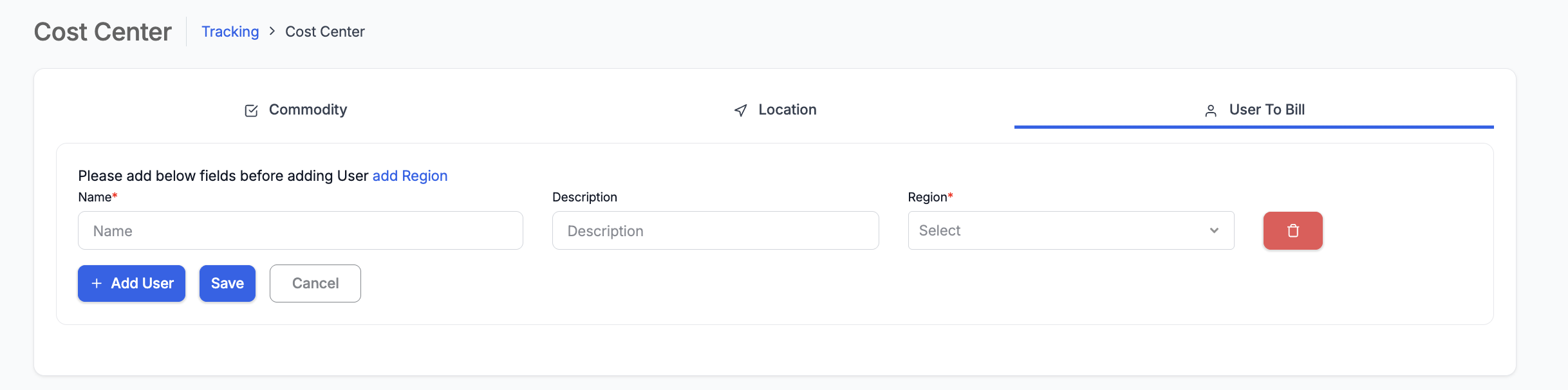
- Click the User To Bill tab.
- Enter a Name (required) — the user or account name.
- Enter a Description — optional notes.
- Select a Region (required) — from Organisation → Catalogs (Type = Region).
- Click + Add User to add another row, or click Save to save.
- Click the delete icon (red bin) to remove a row before saving.
4.1 User To Bill Fields
| Field | Required | Description |
|---|---|---|
| Name | Yes | The name of the user or billing account. |
| Description | No | Free text description. |
| Region | Yes | The region this user belongs to. From Organisation → Catalogs (Type = Region). |
5. How Cost Center Connects to Other Modules
| Cost Center Item | Used In | Purpose |
|---|---|---|
| Commodity | Customer → Billing Tab | Selected as billable items. Each commodity is assigned a Minimum Cost and Cost Per Unit in the billing configuration. |
| Location | Customer → Billing Tab | Assigned to each commodity in the billing table to indicate where the service is delivered or consumed. |
| User To Bill | Customer → Billing Tab | Assigned to each commodity in the billing table to indicate who is responsible for the cost. |
Billing data configured in the Customer module (using Cost Center items + Data Connector + Schedule) feeds into the Cost Tracker module for cost reporting and analysis.
6. Tips
- Create Regions in Organisation → Catalogs before setting up any Cost Center items — all three tabs require a Region.
- Use meaningful names for commodities that match how they appear in contracts and billing reports (e.g. "Managed Print Service" rather than "MPS").
- Location and User To Bill support adding multiple rows at once — use + Add Location / + Add User to batch-add entries.
- Plan your cost center structure before creating entries — consider how commodities, locations, and users will map to your customer billing needs.
- Cost Center items can be shared across multiple customers — the same commodity can appear in different customer billing configurations with different cost values.
7. Troubleshooting
| Issue | Resolution |
|---|---|
| "Please add Region" banner | No Regions exist in Catalogs. Navigate to Organisation → Catalogs and add Region values (Type = Region). |
| Region dropdown is empty | Same as above — create Region values in Catalogs first. |
| Commodity not appearing in Customer Billing | Ensure the commodity is saved. Check that the commodity's Region matches the customer's region if region-based filtering applies. |
| Cannot delete a commodity/location/user | The item may be in use in a customer's billing configuration. Remove the reference in the Customer Billing tab first. |