1. Overview
The Contract module is the central hub of Contract intELIEgence. It is where contracts are created, configured, monitored, and managed throughout their lifecycle. The module supports both Buy-side (supplier-facing) and Sell-side (customer-facing) contracts, switched via the user's profile settings.
Contract Lifecycle
Admin bypasses approval. Super User contracts route through Department Admin.
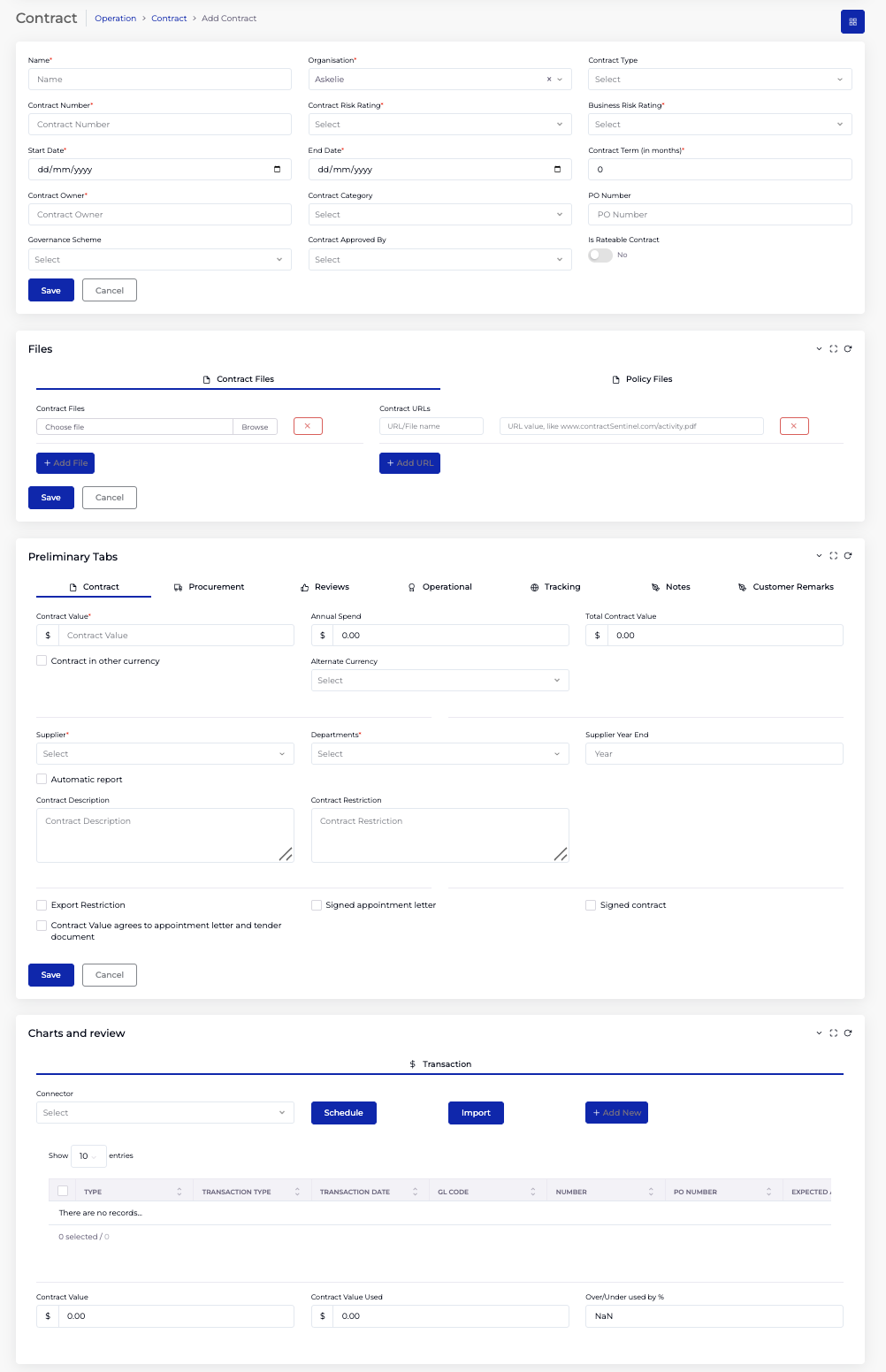
The contract form is divided into four major sections:
- Contract Details — core identity fields (name, number, dates, risk ratings, governance).
- Files — attach contract documents and policy documents (files or URLs).
- Preliminary Tabs — seven tabs covering Contract (financial & entity linking), Procurement (clauses & renewal), Reviews, Operational (SLA, RAG, milestones, master contracts), Tracking, Notes, and Customer Remarks.
- Charts and Review (edit mode) — four tabs for Cost Tracking, SLA Log, Timeline, and Transaction data.
Prerequisites
- Platform Config must be completed (Organisation, User Management, Notification, Connectors, Governance).
- Regions must exist in Organisation → Catalogs (Type = Region).
- Departments must be created in the Department module, each with an Admin assigned (for approval workflows).
- Contract Types must be configured in Organisation → Catalogs (Type = Contract Type) — these act as procurement templates.
- Governance Schemes must be set up in the Governance module (for approver assignment).
- Notification templates must be configured in the Notification module (for review and escalation emails).
- Suppliers must exist for Buy-side contracts; Customers and Invoice Profiles must exist for Sell-side contracts.
- SLAs must be configured in the SLA module (for Actively Managed contracts).
- Connectors must be set up for transaction data import via schedule.
Buy-side vs Sell-side
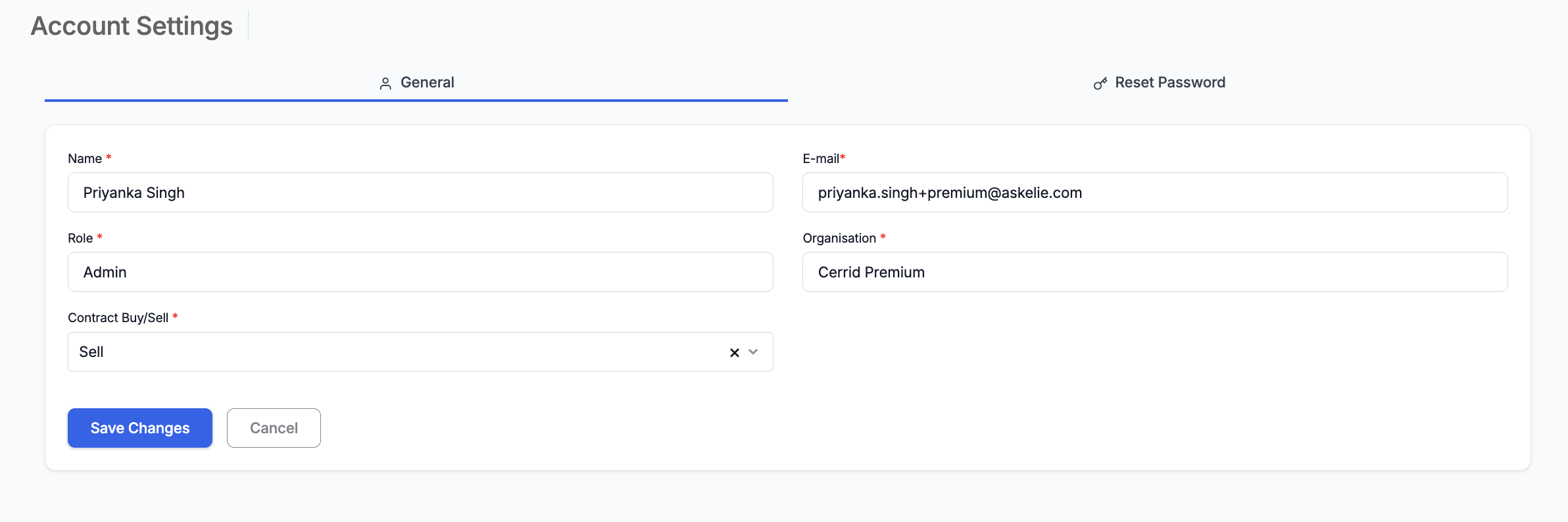
The contract form adapts based on the Buy/Sell mode selected in the user's profile settings (click the user icon in the top-right corner). The key difference appears in the Contract tab under Preliminary Tabs:
| Field | Buy-side | Sell-side |
|---|---|---|
| Entity linked | Supplier* and Departments* | Customer*, Departments*, and Invoice To* |
| Year/Billing | Supplier Year End | Customer Billing Period (months) |
2. Contract Listing
- In the left navigation, under Contract Hub (or Operation), click Contract.
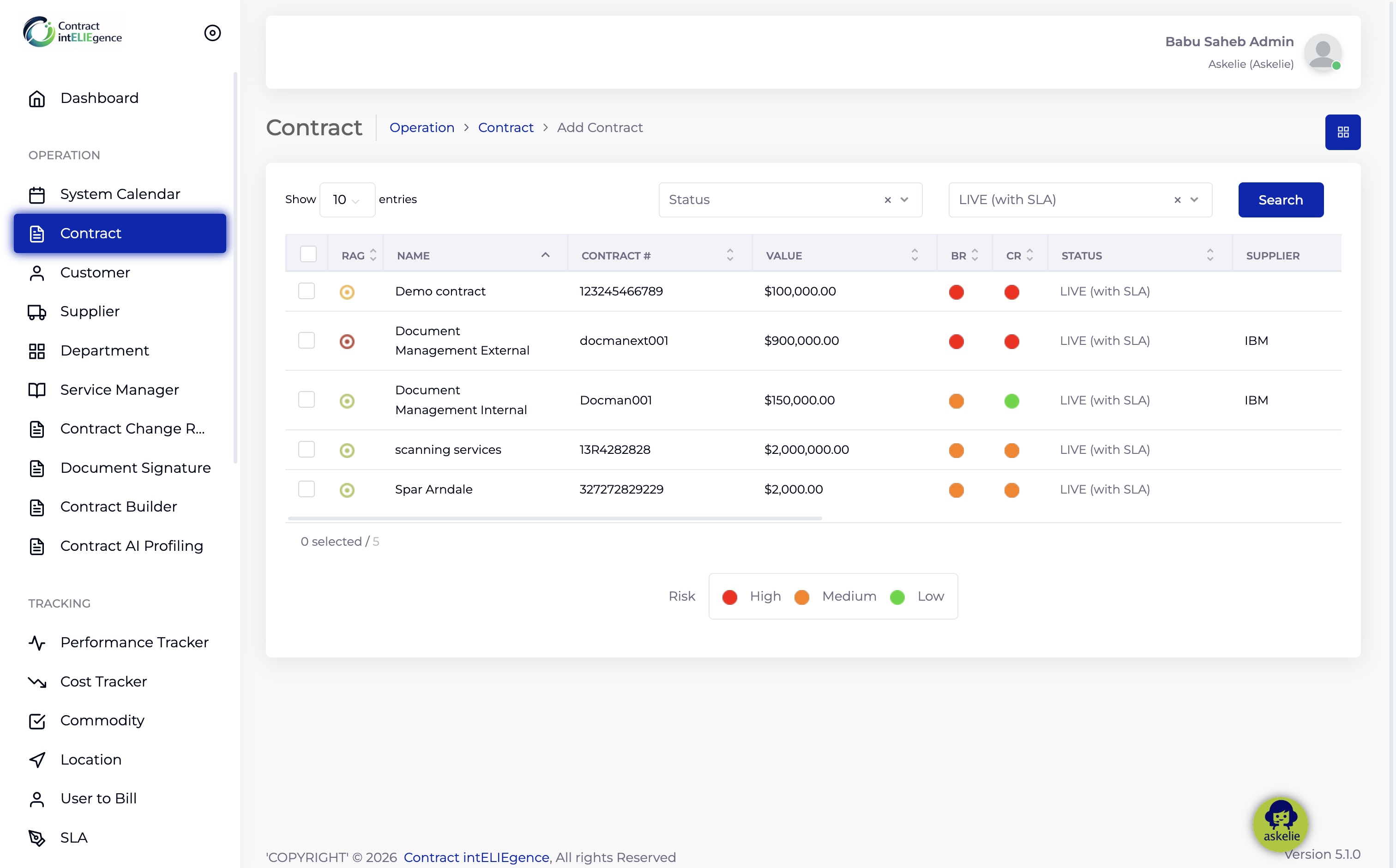
- The Contract List page shows all contracts. Each row displays RAG indicator, Name, Contract #, Value, BR (Business Risk), CR (Contract Risk), Status, and Supplier/Customer.
- Use the extensive filter options and Search to locate contracts.
2.1 Listing Filters
| Filter | Type | Options / Notes |
|---|---|---|
| Contract Number | Free text | Search by contract number. |
| Start Date / End Date | Date picker | Filter by contract date range. |
| Organisation | Dropdown | Filter by organisation. |
| Contract Name | Auto-suggest | Type to search by name with lookup suggestions. |
| RAG | Dropdown | Red, Amber, Green. |
| Business Risk | Dropdown | Low, Medium, High. |
| Contract Risk | Dropdown | Low, Medium, High. |
| Supplier / Customer | Dropdown | Filter by linked entity. |
| Status | Dropdown | Executory, Live without SLA, Incomplete, Live with SLA, Expired, Concluded, Approval Pending, Rejected, Draft. |
| Contract Type | Dropdown | Filter by contract type (from Catalogs). |
| Expiry Interval | Dropdown | <3 months, 3–6 months, 6–9 months, 9–12 months, >12 months. |
| Contract Pending | Dropdown | Days pending: <5, 5–10, 10–15, 15–30, >30. |
| Contract Received | Dropdown | Days since received: <5, 5–10, 10–15, 15–30, >30. |
| Contract Signature | Dropdown | Approved, Internal Waiting, External Waiting. |
2.2 Listing Actions
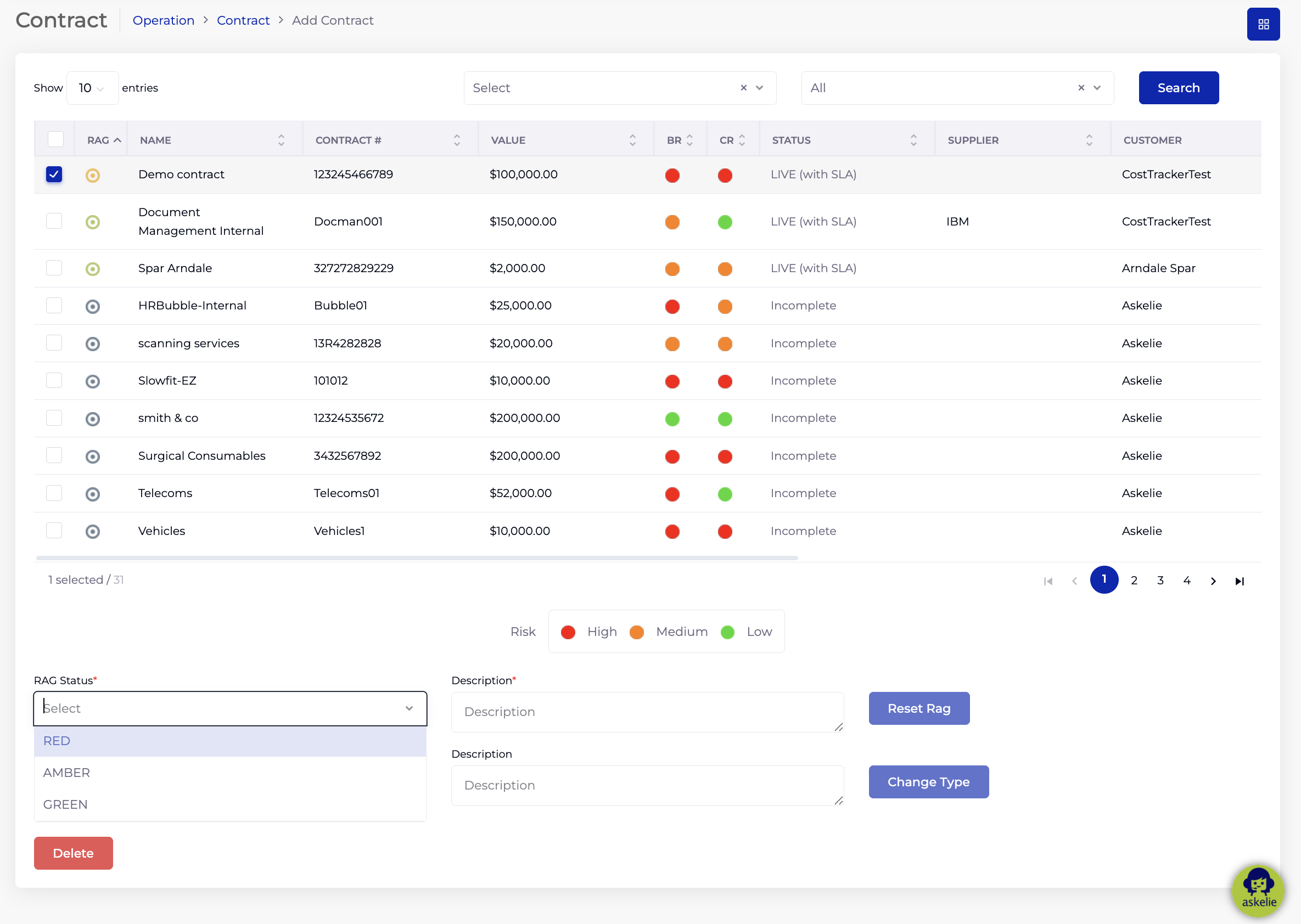
When one or more contracts are selected using the checkboxes in the listing, an action panel appears at the bottom of the page. The available actions depend on the number of contracts selected and their current status.
Single Contract Selected
When a single contract is selected, the following actions are available:
RAG Status Override
The RAG indicator on a contract is normally driven by SLA performance. However, it can also be manually overridden from the listing:
- Select a contract using the checkbox.
- In the action panel, use the RAG Status dropdown to select RED, AMBER, or GREEN.
- Enter a Description to record the reason for the manual override.
- Click Reset Rag to apply the selected RAG colour to the contract.
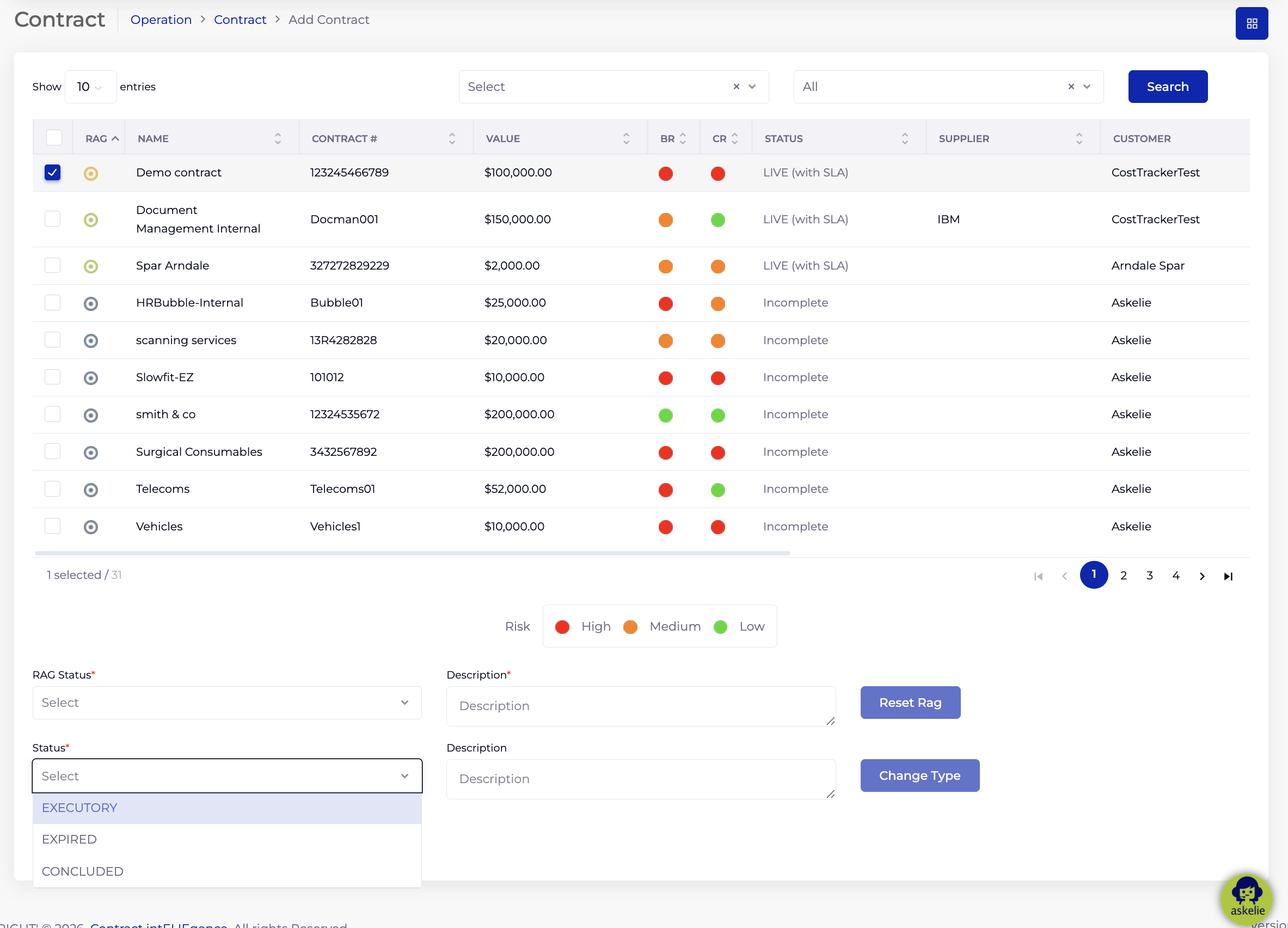
Status Update
The contract status can be manually changed from the listing. The available statuses in the dropdown are context-sensitive — they depend on the current status of the selected contract. For example, a contract that is currently "Live with SLA" may show Executory, Expired, and Concluded as available transitions.
- Select a contract using the checkbox.
- In the action panel, use the Status dropdown to select the new status.
- Enter a Description to record the reason for the status change.
- Click Change Type to apply the new status.
Delete
Click the Delete button to delete the selected contract. A confirmation popup appears before the contract is permanently deleted.
Multiple Contracts Selected
When multiple contracts are selected, only the Delete action is available — the RAG Status and Status Update options are hidden. This allows bulk deletion of contracts with a single confirmation.
3. Adding a Contract
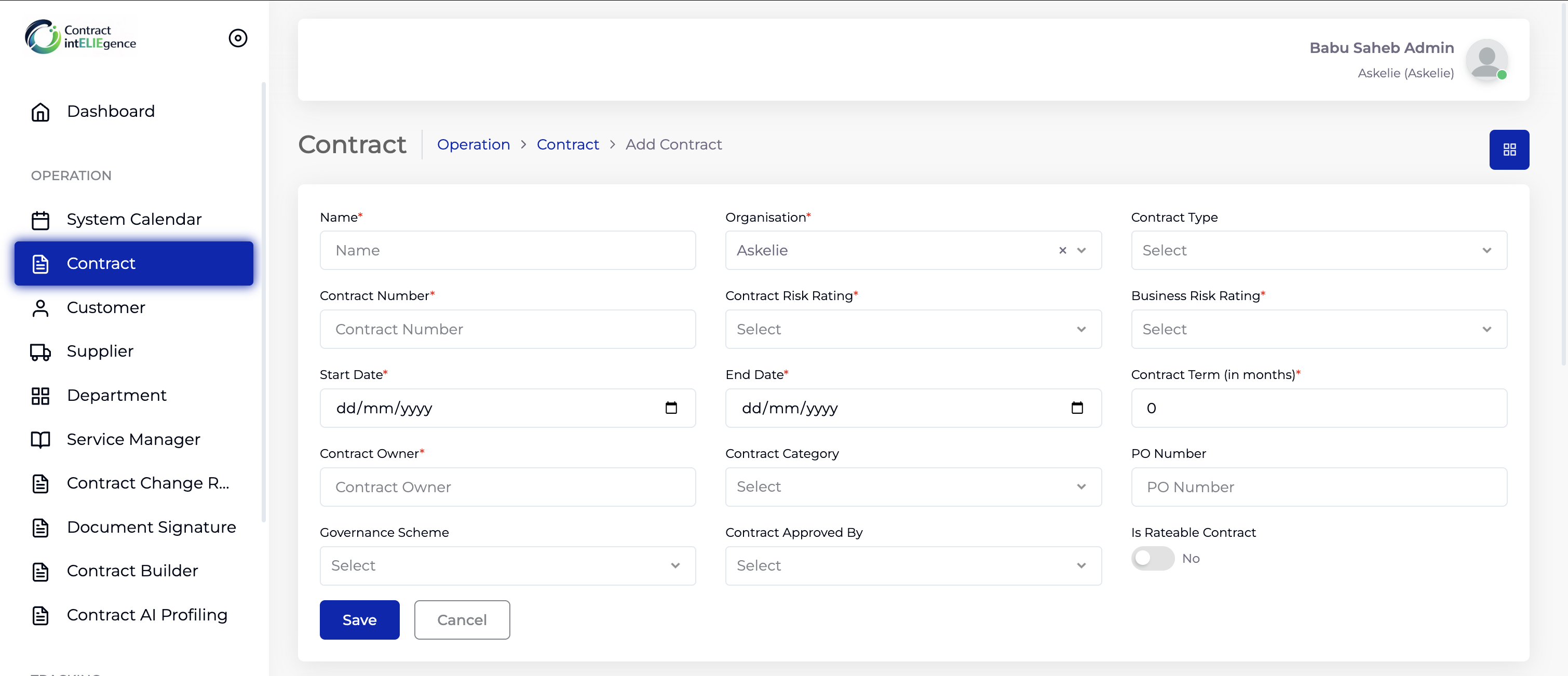
The Add Contract form has a top section for core contract details, followed by the Files section and the Preliminary Tabs panel.
3.1 Core Contract Details
- Click Add New on the Contract List page.
- Enter a Name (required) — the contract name.
- Organisation is pre-selected based on your login.
- Select a Contract Type — sourced from Organisation → Catalogs (Type = Contract Type). On selection, the Procurement tab is pre-filled with the clause values configured for this type.
- Enter a Contract Number (required) — a unique identifier.
- Select a Contract Risk Rating (required) — Low, Medium, or High. Used for reporting purposes.
- Select a Business Risk Rating (required) — Low, Medium, or High. Used for reporting purposes.
- Select a Start Date (required) and End Date (required).
- Enter the Contract Term (in months) (required).
- Enter the Contract Owner (required) — a free-text email field. Contract-related communications are sent to this address.
- Select a Contract Category — sourced from Organisation → Catalogs (Type = Contract Category).
- Optionally enter a PO Number.
- Select a Governance Scheme — sourced from the Governance module.
- Select Contract Approved By — lists governance approvers filtered by the selected Governance Scheme (configured in the Governance module).
- Toggle Is Rateable Contract — see note below.
This toggle determines how contract value is tracked against transactions:
- Not Rateable (default): The contract starts with a fixed Contract Value. Each transaction consumes from this value, decreasing the remaining balance. For example, a $5,000 contract with a $1,000 transaction leaves a $4,000 balance.
- Rateable: The contract starts at $0. Each transaction builds up the contract value, increasing the balance. The total of all transactions becomes the contract value.
4. Files Section
Below the core details, the Files section has two tabs for attaching documents.
4.1 Contract Files
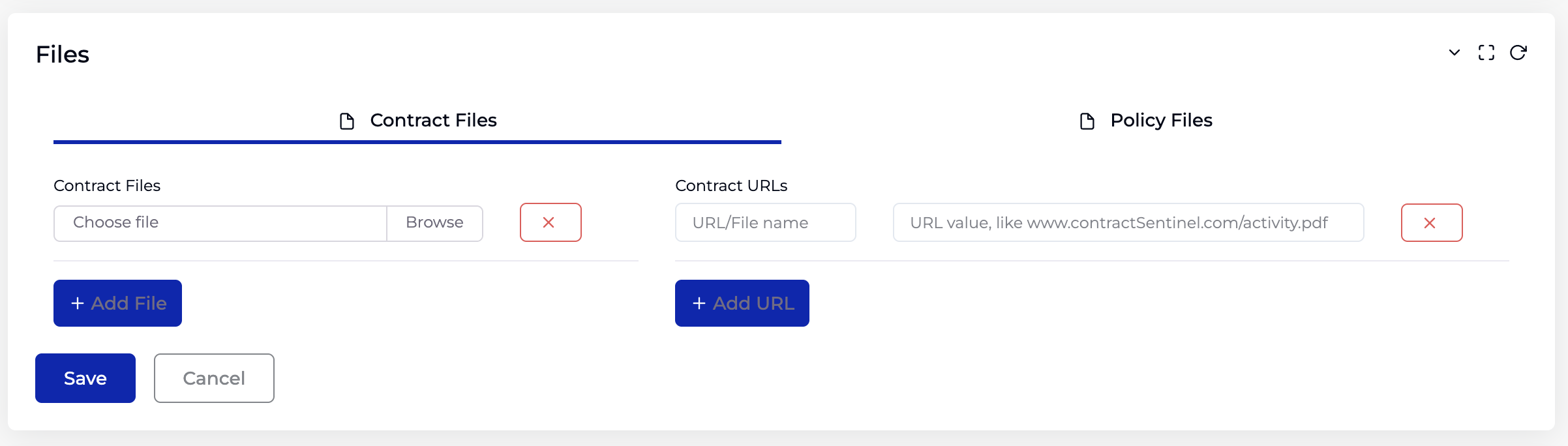
- Click Choose file / Browse to upload a contract document. Click + Add File to add more files.
- Under Contract URLs, enter a URL/File name and the URL value to link to an external document. Click + Add URL to add more links.
- Click the red X button to remove a file or URL row.
4.2 Policy Files
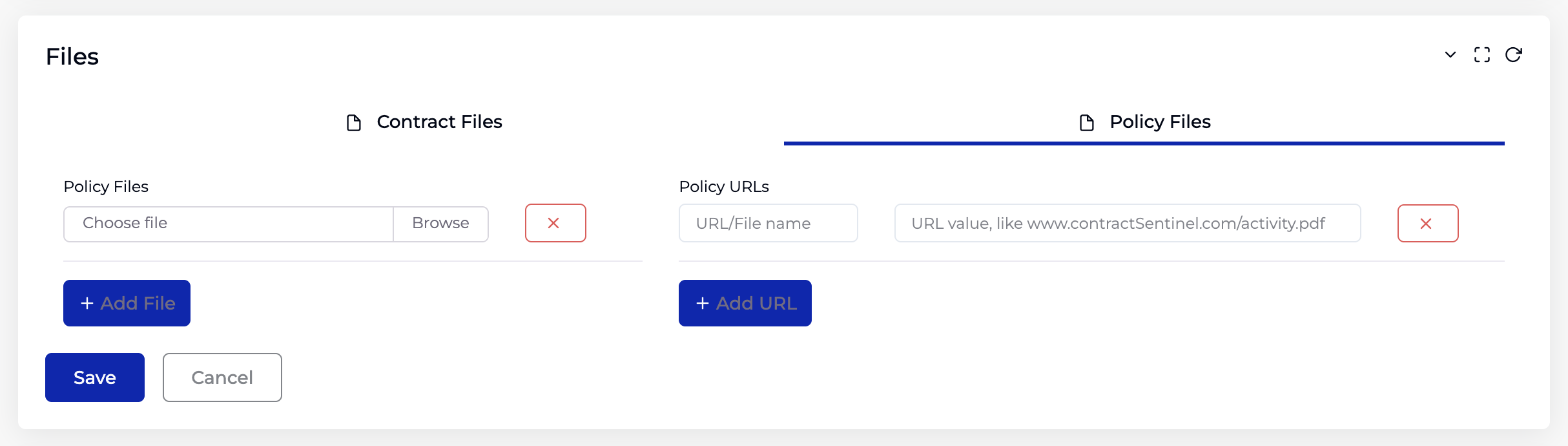
- Switch to the Policy Files tab.
- Upload policy documents or add policy URLs using the same pattern as Contract Files.
5. Preliminary Tabs
The Preliminary Tabs panel contains seven tabs for detailed contract configuration.
5.1 Contract Tab
Captures financial details and links the contract to a Supplier (Buy-side) or Customer (Sell-side).
Buy-side Contract Tab
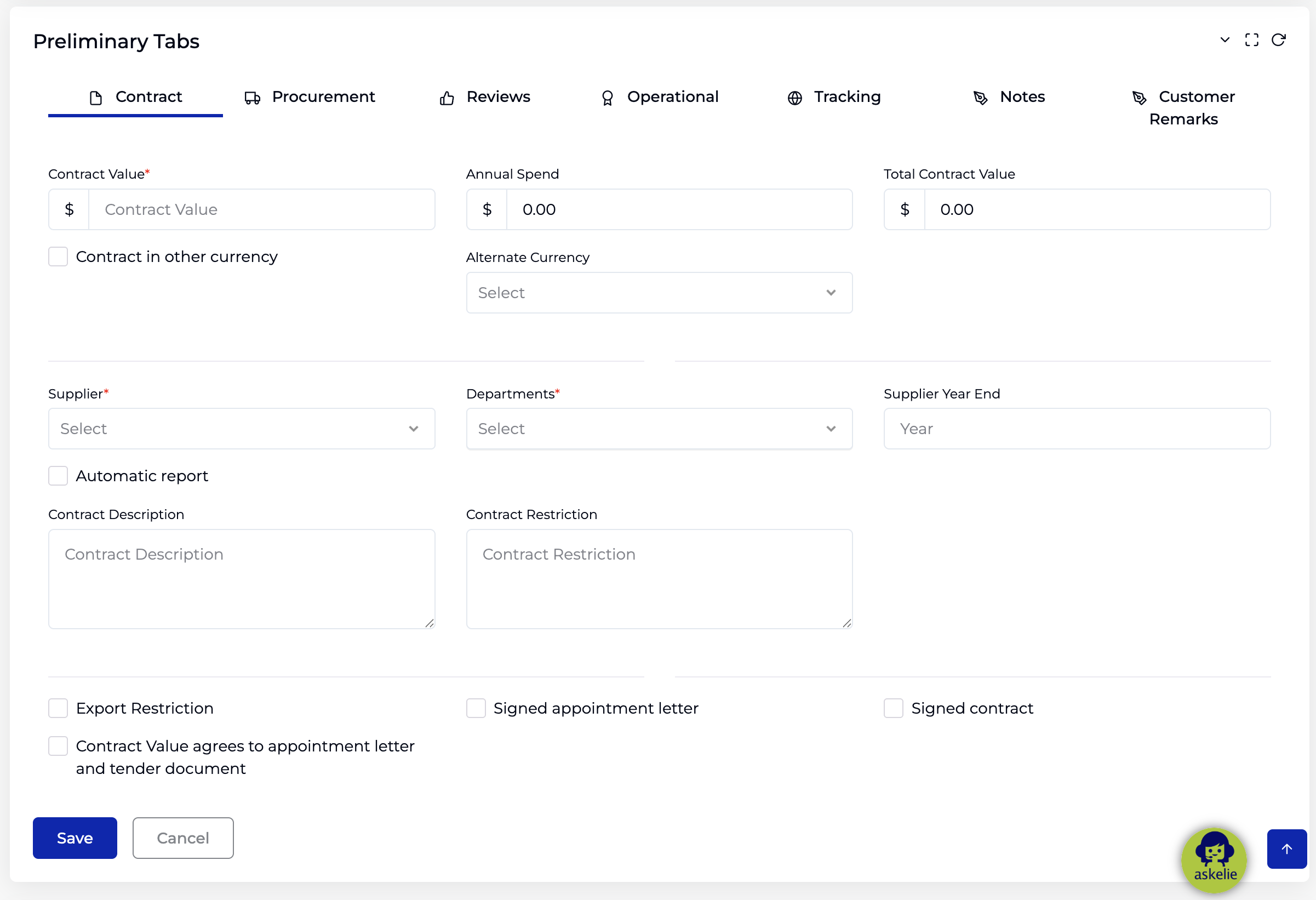
- Enter the Contract Value (required) — the initial contract value in dollars.
- Annual Spend — auto-calculated (Contract Value ÷ contract term in years).
- Total Contract Value — auto-calculated. Starts equal to Contract Value and increases when extensions or variance values are added.
- Optionally tick Contract in other currency and select an Alternate Currency to mark the contract as being in a different currency (no conversion is applied).
- Select a Supplier (required) — the supplier this contract is with.
- Select one or more Departments (required).
- Optionally enter the Supplier Year End.
- Optionally tick Automatic Report — generates a performance report and attaches it to review notification emails.
- Optionally enter a Contract Description and Contract Restriction.
- Tick any applicable record-keeping flags: Export Restriction, Signed appointment letter, Signed contract, Contract Value agrees to appointment letter and tender document.
- Click Save.
Sell-side Contract Tab
When the user's profile is set to Sell-side, the Contract tab shows different entity fields:
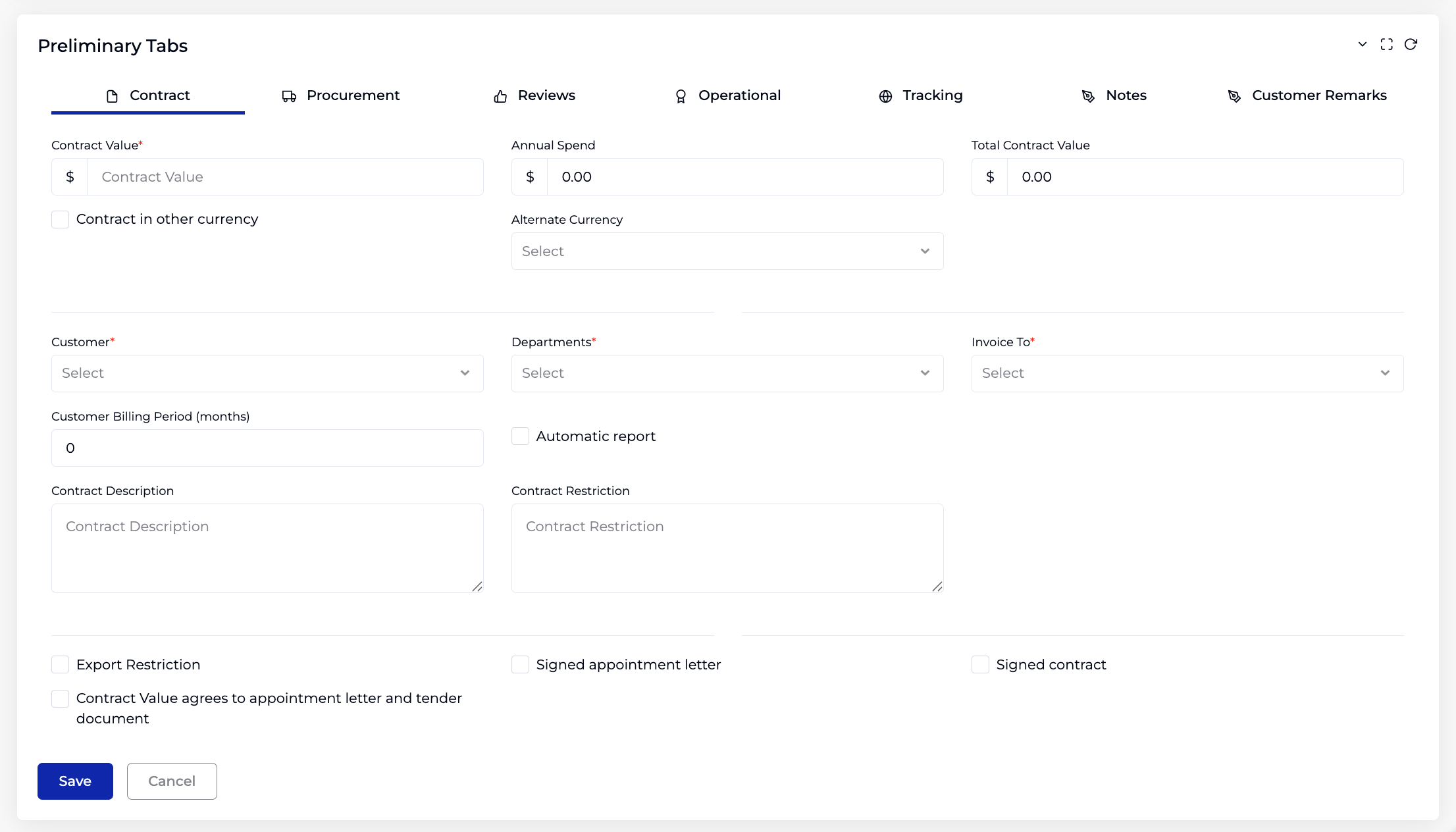
- Select a Customer (required) — the customer this contract is with.
- Select one or more Departments (required).
- Select Invoice To (required) — lists the Invoice Profiles created under the selected Customer.
- Enter the Customer Billing Period (months).
All other fields (Contract Value, Annual Spend, Total Contract Value, currency, descriptions, checkboxes) are the same as Buy-side.
5.2 Procurement Tab
Captures contract clauses, renewal and exit terms, third-party usage, retention, extensions, and financial thresholds. If a Contract Type was selected, this tab is pre-filled with values from that type — but all fields can be overridden per contract.
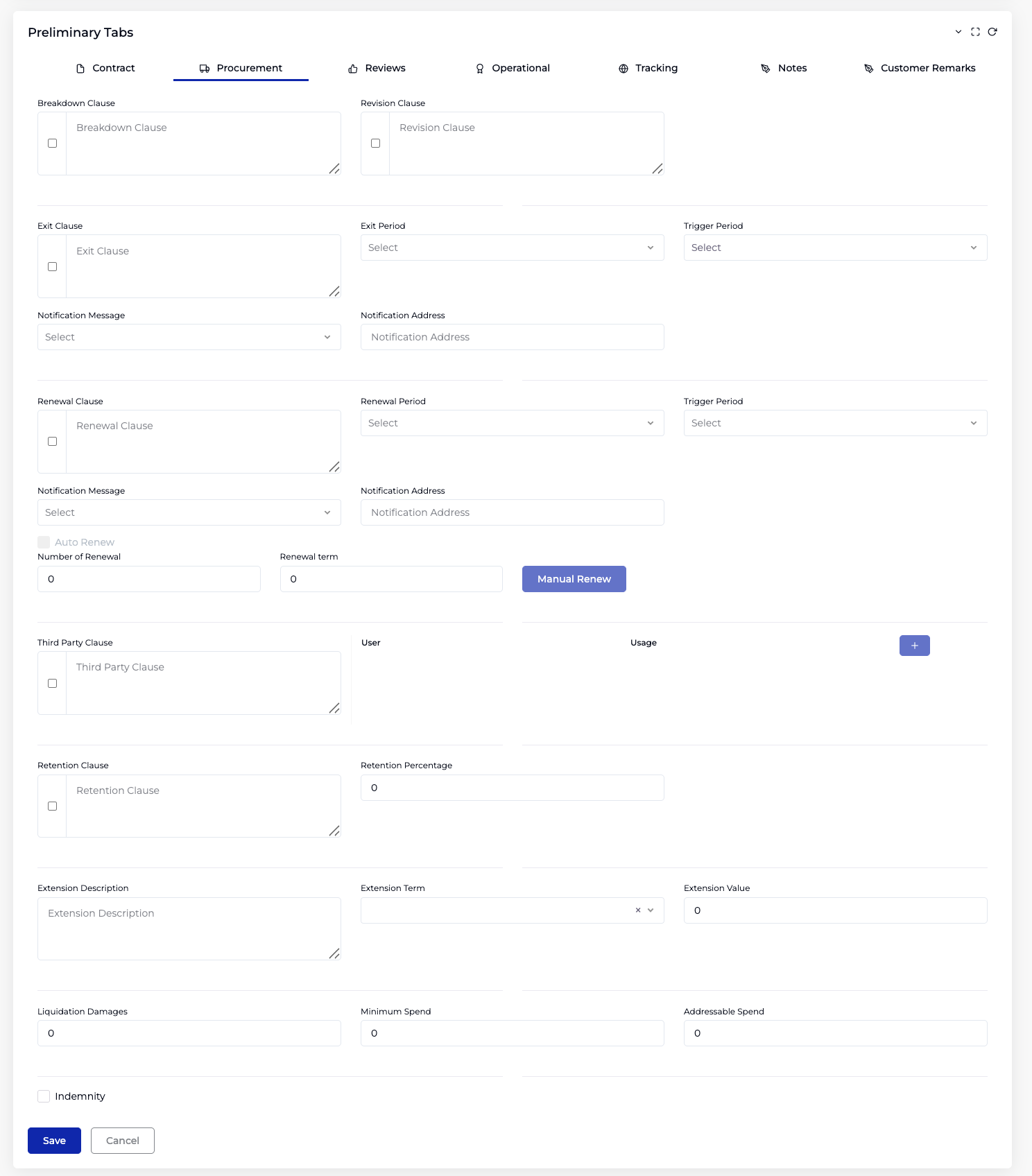
Breakdown & Revision Clauses
- Tick the checkbox to enable, then enter the Breakdown Clause text.
- Tick the checkbox to enable, then enter the Revision Clause text.
Exit Clause
- Tick the checkbox to enable, then enter the Exit Clause text.
- Select an Exit Period (1–12 months) — how many months prior to the contract end date the exit can be exercised.
- Select a Trigger Period (1–12 months) — how many months before the Exit Period a notification is sent.
- Select a Notification Message — the email template sent when triggered.
- Enter a Notification Address — the email recipient.
Renewal Clause
- Tick the checkbox to enable, then enter the Renewal Clause text.
- Select a Renewal Period (1–12 months) — how many months prior to the end date the contract can be renewed.
- Select a Trigger Period (1–12 months) — how many months before the Renewal Period a notification is sent.
- Select a Notification Message and enter a Notification Address.
- Optionally tick Auto Renew — the system automatically renews the contract when the renewal period arrives.
- Set Number of Renewal — limits how many times the contract can auto-renew.
- Set Renewal Term — the duration (in months) of each renewal.
- The Manual Renew button is available in edit mode — clicking it instantly renews the contract.
Third Party Clause

- Tick the checkbox to enable, then enter the Third Party Clause text.
- Click the + button to add third-party users. Each row has a User (free text — the third-party person) and Usage (free text — the reason or purpose).
- Click the red delete button to remove a row. Multiple rows can be added.
Retention Clause
- Tick the checkbox to enable, then enter the Retention Clause text.
- Enter the Retention Percentage.
Extension
- Enter an Extension Description.
- Select an Extension Term (1–12 months) — adds this many months to the current contract term (unlike renewal, which restarts the term).
- Enter the Extension Value — this amount is added to the Total Contract Value.
Financial Thresholds
- Enter Liquidation Damages, Minimum Spend, and Addressable Spend — all record-keeping numeric fields for reporting.
- Optionally tick Indemnity — reveals three additional fields: Policy Number (required), Liability value (required), and an Unlimited Liability checkbox. All are record-keeping fields.
5.3 Reviews Tab
Configure periodic contract reviews with escalation and ad-hoc reviews.
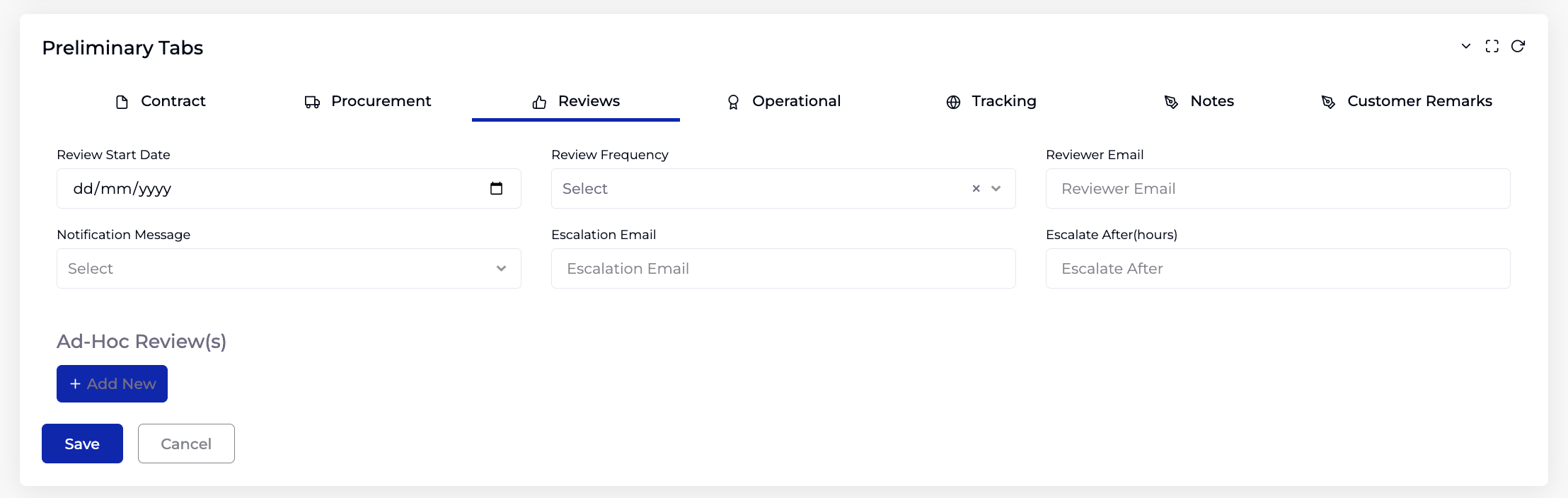
Scheduled Review
- Select a Review Start Date.
- Select a Review Frequency — 1 Month through 12 Months.
- Enter the Reviewer Email.
- Select a Notification Message — the email template sent to the reviewer.
- Enter an Escalation Email — the person notified if the review is not completed on time.
- Enter Escalate After (hours) — if the reviewer does not add a note in the Notes tab within this many hours, the escalation email is triggered.
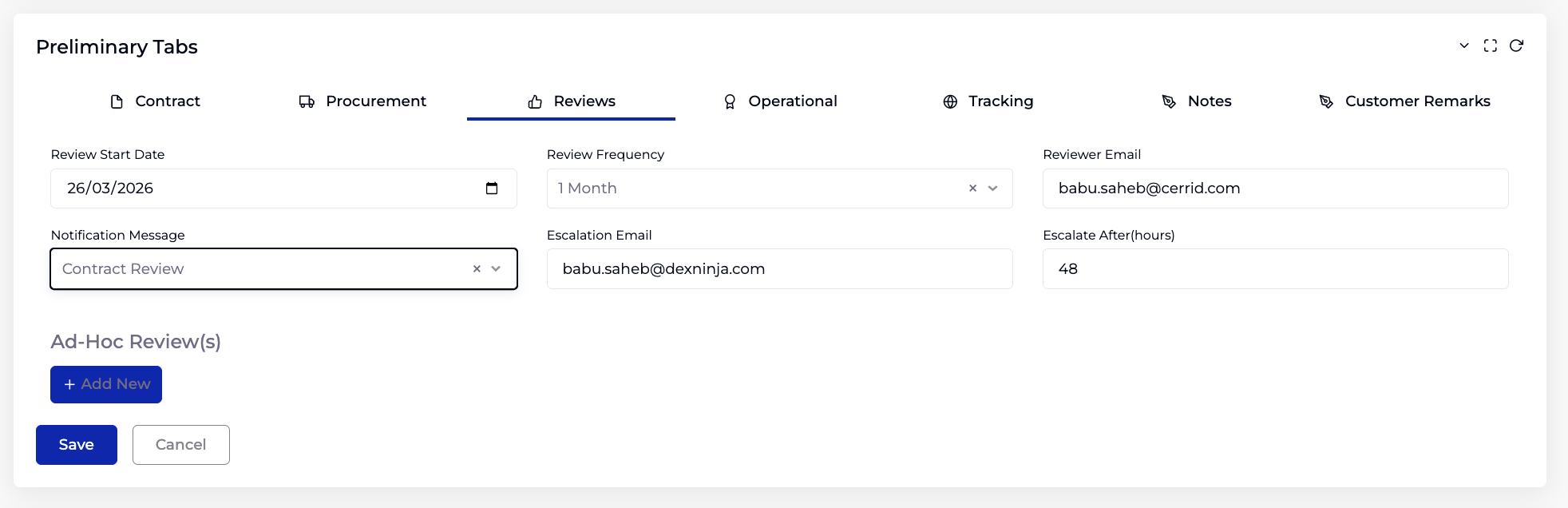
Ad-Hoc Reviews
Up to 4 one-off reviews can be added outside the regular schedule cycle.
- Click + Add New under Ad-Hoc Review(s).
- For each ad-hoc review, enter: Review Date, Review Email, and select a Notification Message.
- Click the X button to remove an ad-hoc review.
5.4 Operational Tab
Controls whether the contract is actively monitored with SLAs, RAG escalation, master contract linking, and milestones. This tab determines the contract's operational status.
Actively Managed

When the Actively Managed checkbox is ticked, the SLA, RAG, and Milestone sections appear. This setting directly affects the contract status:
- Unchecked → contract status is Live without SLA.
- Checked but no SLAs added → status is Incomplete.
- Checked with SLAs added → status is Live with SLA.
SLA Assignment & RAG Escalation
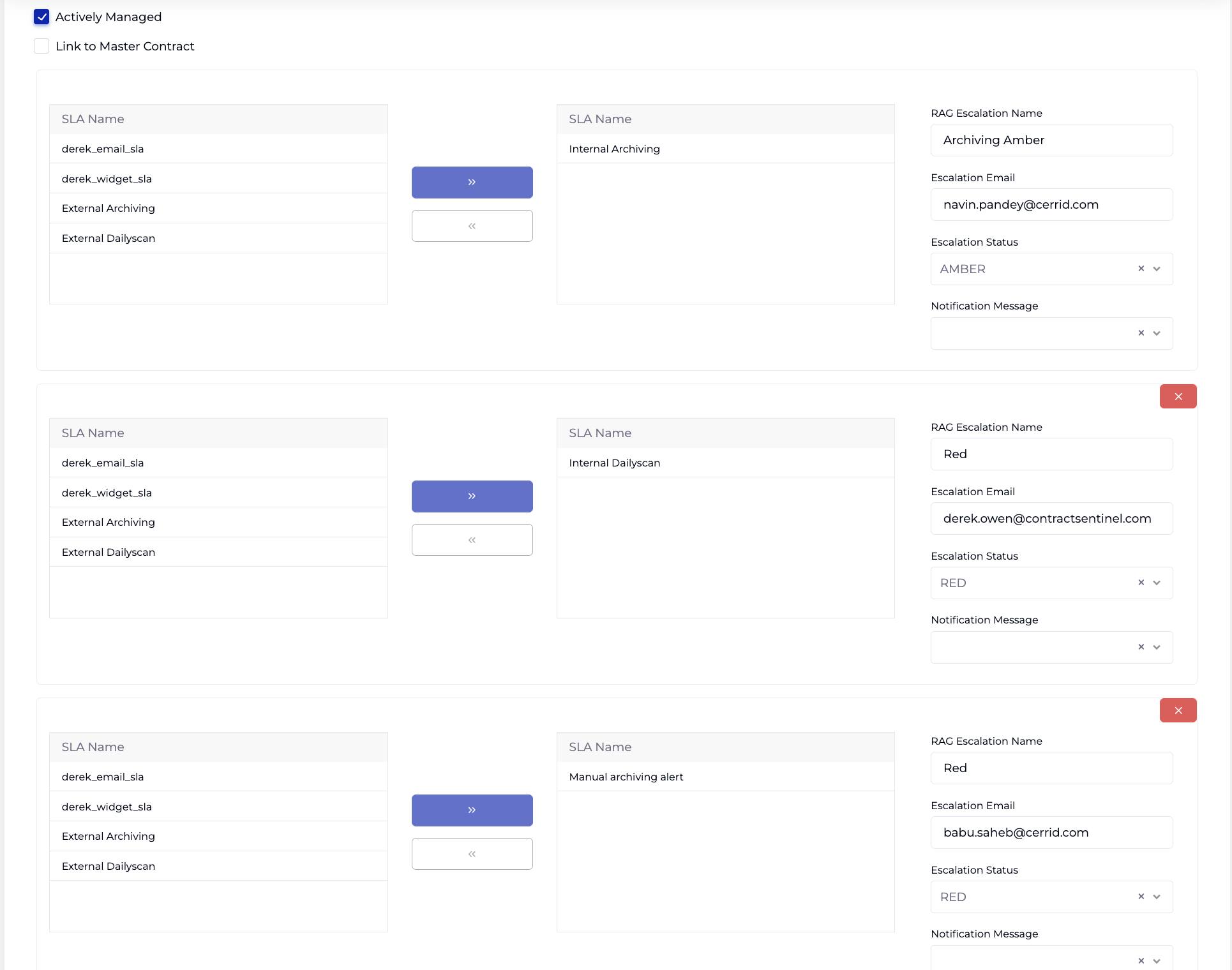
SLAs are assigned to the contract in RAG blocks. Each RAG block groups one or more SLAs together with a shared escalation configuration. The RAG indicator in the contract listing is driven by SLA performance against these assignments.
- In the left SLA Name panel, select the SLAs you want to assign (sourced from the SLA module).
- Click >> to move them to the right panel. Click << to remove.
- Enter a RAG Escalation Name — a label for this escalation rule (e.g. "Red Alert", "Amber Alert").
- Enter an Escalation Email — the person notified when this RAG is triggered.
- Select an Escalation Status — RED or AMBER. This sets the contract's RAG colour when the SLAs in this block breach their targets.
- Select a Notification Message — the email template used for the escalation.
- Click Add RAG to create additional RAG blocks with different SLAs, colours, and recipients.
- Click the red X button to remove a RAG block.
Link to Master Contract
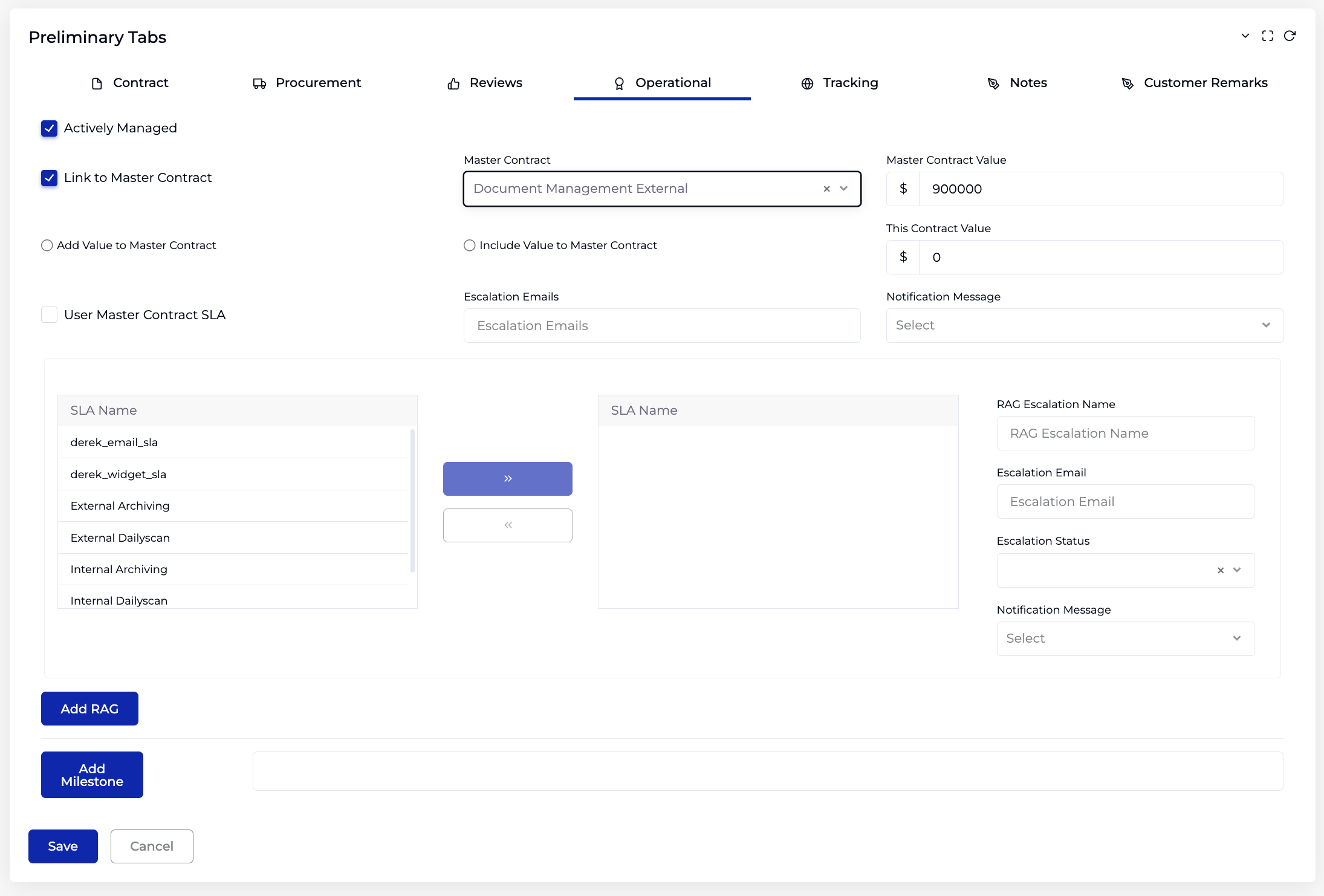
Tick Link to Master Contract to create a parent–child contract relationship.
- Select a Master Contract from the dropdown — shows the master's name and value.
- The Master Contract Value is displayed (read-only).
- Enter This Contract Value.
- Choose a value relationship:
- Add Value to Master Contract — this contract's value is added on top of the master in dashboard totals (counted as its own amount). Use when the child is additional spend beyond the master.
- Include Value to Master Contract — this contract's value is treated as already part of the master contract's value, so it is not counted again in dashboard totals (prevents double-counting). Use when the child is a portion of the master's overall value.
- Optionally tick Use Master Contract SLA — inherits all SLA rules from the master contract. If the master contract's SLA breaches, this sub-contract also shows as breached.
- Enter Escalation Emails and select a Notification Message for this sub-contract's escalation.
Milestones
Milestones schedule automatic RAG colour resets for the contract. This allows the RAG to start fresh at regular intervals, with SLA performance driving it from there.
- Click Add Milestone.
- In the Milestone dialog, enter a Name.
- Select a Status — GREEN, AMBER, or RED. This is the colour the contract resets to at each scheduled interval.
- Select a Time for the reset to occur.
- Choose a frequency: Daily, Weekly (set interval in weeks and select day(s)), Monthly, or Yearly.
- Click Submit.
5.5 Tracking Tab
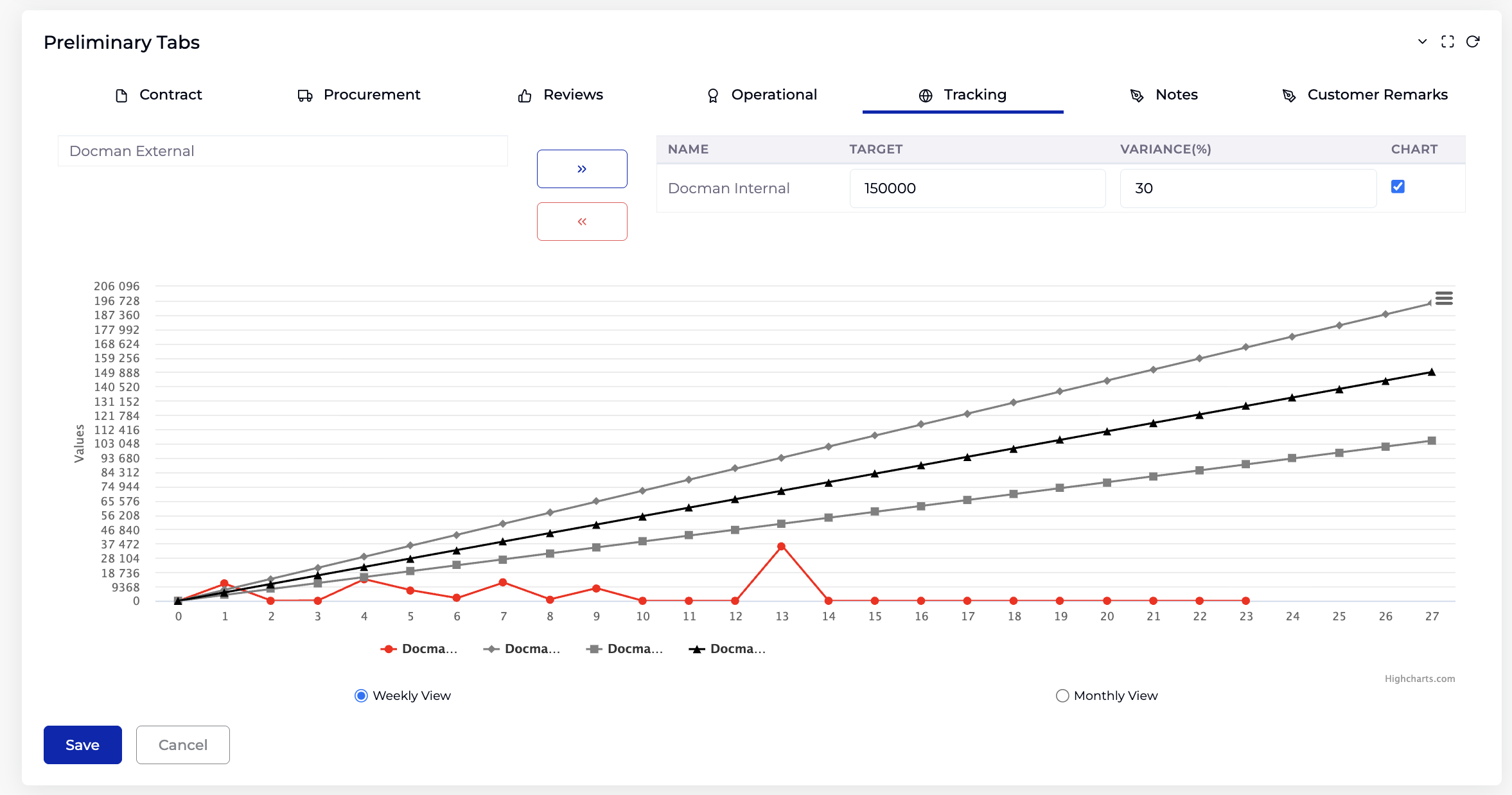
The Tracking tab displays performance data from Performance Trackers and cost data from Cost Trackers linked to this contract.
Performance Tracking
This section shows KPI performance data that is automatically populated through a data pipeline:
- A Data Connector connects to an external database table.
- A KPI selects a specific column (metric field) from that table.
- A Performance Tracker applies a computation method to the KPI and runs on a configured schedule (e.g. daily, weekly).
- Each time the schedule runs, the system fetches the latest data from the external database, computes the result, and stores it as a data point.
- The accumulated data points appear here as a trend chart, showing how the KPI metric has changed over time.
How the Compute Method Affects the Chart:
- If the Performance Tracker uses a Sum compute (e.g. "Sum-Deliveries"), the chart shows the aggregated sum of the selected column across all records — a single cumulative line that grows over time.
- If the Performance Tracker uses a normal compute (e.g. "Deliveries"), the chart shows individual data point values — each scheduled fetch plots the raw value from the database.
Left Panel — Tracker Selection:
The left panel lists the Performance Trackers assigned to this contract (e.g. "Docman External"). Use the up/down arrows to navigate between trackers.
Right Panel — Target and Variance:
The table on the right allows you to configure and monitor each tracker:
| Column | Description |
|---|---|
| Name | The Performance Tracker name. |
| Target | Enter the target value for the metric. This is set directly in this table — it represents the expected performance level (e.g. 150,000 deliveries). |
| Variance (%) | The acceptable percentage variance from the target. If the actual value deviates beyond this threshold, it indicates underperformance. |
| Chart | Tick the checkbox to include this tracker's data in the chart below. |
Trend Chart:
Below the table, a line chart plots the tracked KPI values over time. Each line represents a different tracker or computation. The chart can be toggled between Weekly View and Monthly View to adjust the time granularity.
Cost Tracking
Displays cost tracking data linked to this contract from the Cost Tracker module.
5.6 Notes Tab
Add timestamped notes with attachments to the contract. Notes are also used to satisfy review escalation — the reviewer must add a note within the escalation timeframe to prevent the escalation email from firing.
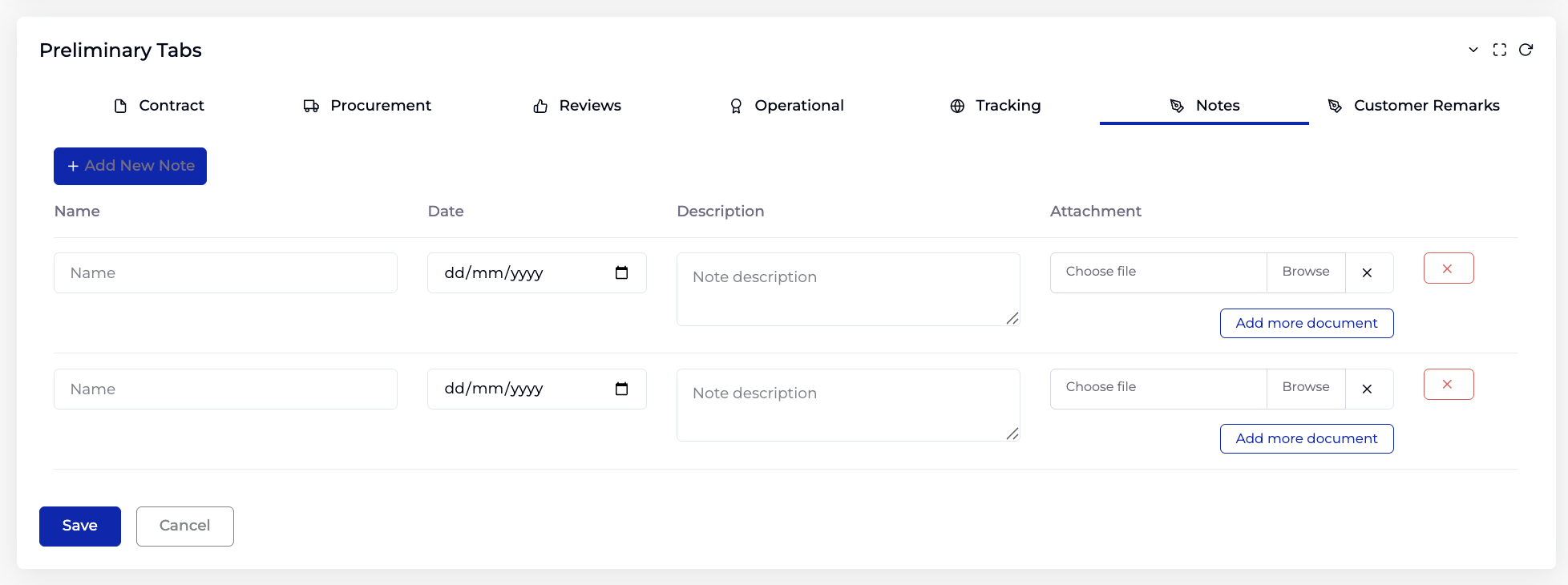
- Click + Add New Note.
- Enter a Name for the note.
- Select a Date.
- Enter a Description (free text).
- Optionally attach files using Choose file / Browse. Click Add more document to attach additional files to the same note.
- Multiple notes can be added. Click the red X to remove a note.
- Click Save.
5.7 Customer Remarks Tab
This tab displays remarks related to the customer. The data is populated from the backend via a separate flow and is read-only in the contract form — no user input is required here.
6. Contract Statuses
Contract status is system-determined based on dates, configuration, and workflow state:
| Status | Condition |
|---|---|
| Executory | Start Date is in the future. |
| Live without SLA | Current date is between Start/End Date; Actively Managed is not ticked. |
| Incomplete | Current date is between Start/End Date; Actively Managed is ticked but no SLAs assigned. |
| Live with SLA | Current date is between Start/End Date; Actively Managed is ticked and SLAs are assigned. |
| Expired | End Date is in the past. |
| Concluded | Expired contract with the "Contract Concluded" checkbox ticked (edit mode only). |
| Draft | Contract created via Contract Builder; pending e-signature. |
| Approval Pending | Created or updated by a Super User; awaiting Department Admin approval. |
| Rejected | Department Admin has rejected the submission. |
7. Approval Workflow
Contract intELIEgence supports a department-based approval workflow. When a Super User creates or updates a Contract (or Supplier or Customer), the record does not become active immediately. Instead, it follows this process:
- The Super User creates or submits the record.
- The record is automatically sent for approval to the Department Admin assigned to the entity's department.
- The Department Admin reviews the submission and selects Approve or Reject.
If Approved:
- The record becomes active and the status updates to Approved.
- The entity is available for operational use and reporting.
If Rejected:
- The Department Admin enters a rejection comment.
- The Super User receives an email with the rejection details.
- The record remains inactive until corrected and resubmitted.
8. Charts and Review (Edit Mode)
When editing an existing contract, the Charts and Review section provides four tabs for monitoring contract performance and financial data.
8.1 Transaction Tab
Tracks financial transactions against the contract. Transactions can be added in three ways:
- Connector + Schedule — select a Data Connector (configured in Platform Config → Connectors) and click Schedule to configure automatic transaction imports from an external database. The Data Connector defines which database server, database, and table to read from. The Schedule popup allows you to set the fetch frequency (every X minutes/hours, or at a specific time — daily, weekly, monthly, or yearly). See the Schedule Configuration section for full details on all scheduling options.
- Import — click Import to upload transactions from an Excel file.
- + Add New — manually add individual transaction rows.
Each transaction row contains:
| Field | Description |
|---|---|
| Transaction Type | Invoice or Credit Note. |
| Transaction Date | Date of the transaction. |
| GL Code | General Ledger code. |
| Number | Transaction number. |
| PO Number | Purchase Order number. |
| Expected Amount | The expected transaction amount. |
| Actual Amount | The actual transaction amount. |
| Balance | Auto-calculated running balance. |
Below the transaction table, three summary fields are displayed:
- Contract Value — the contract's total value.
- Contract Value Used — sum of all transaction actual amounts.
- Over/Under used by % — percentage of contract value consumed.
8.2 SLA Log Tab
Displays SLA performance data in two chart views plus a detailed alert summary table.
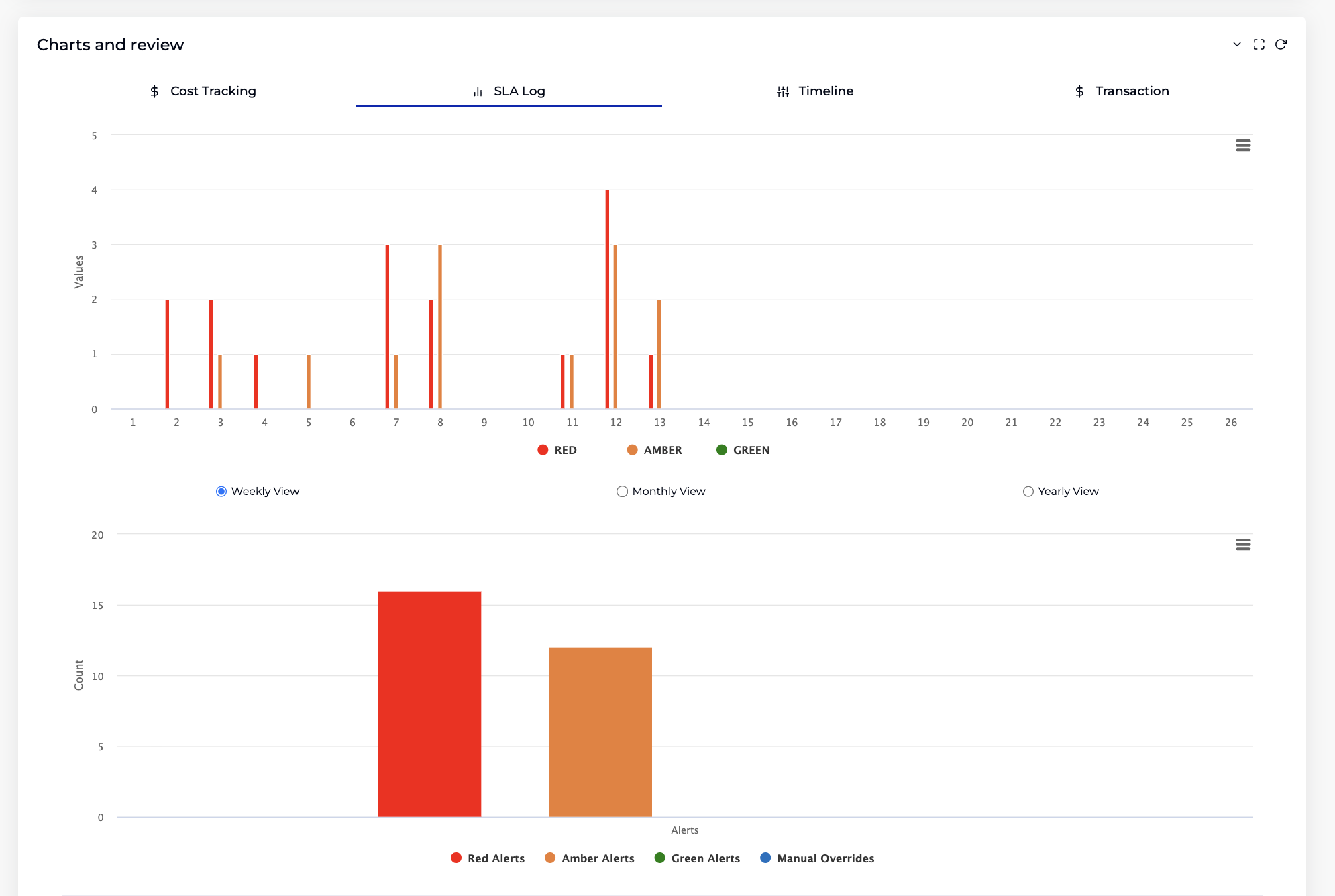
The top chart shows RAG status changes (RED, AMBER, GREEN) over time. The bottom chart shows an aggregated alert summary — total counts of Red Alerts, Amber Alerts, Green Alerts, and Manual Overrides. Both charts support Weekly, Monthly, and Yearly views.
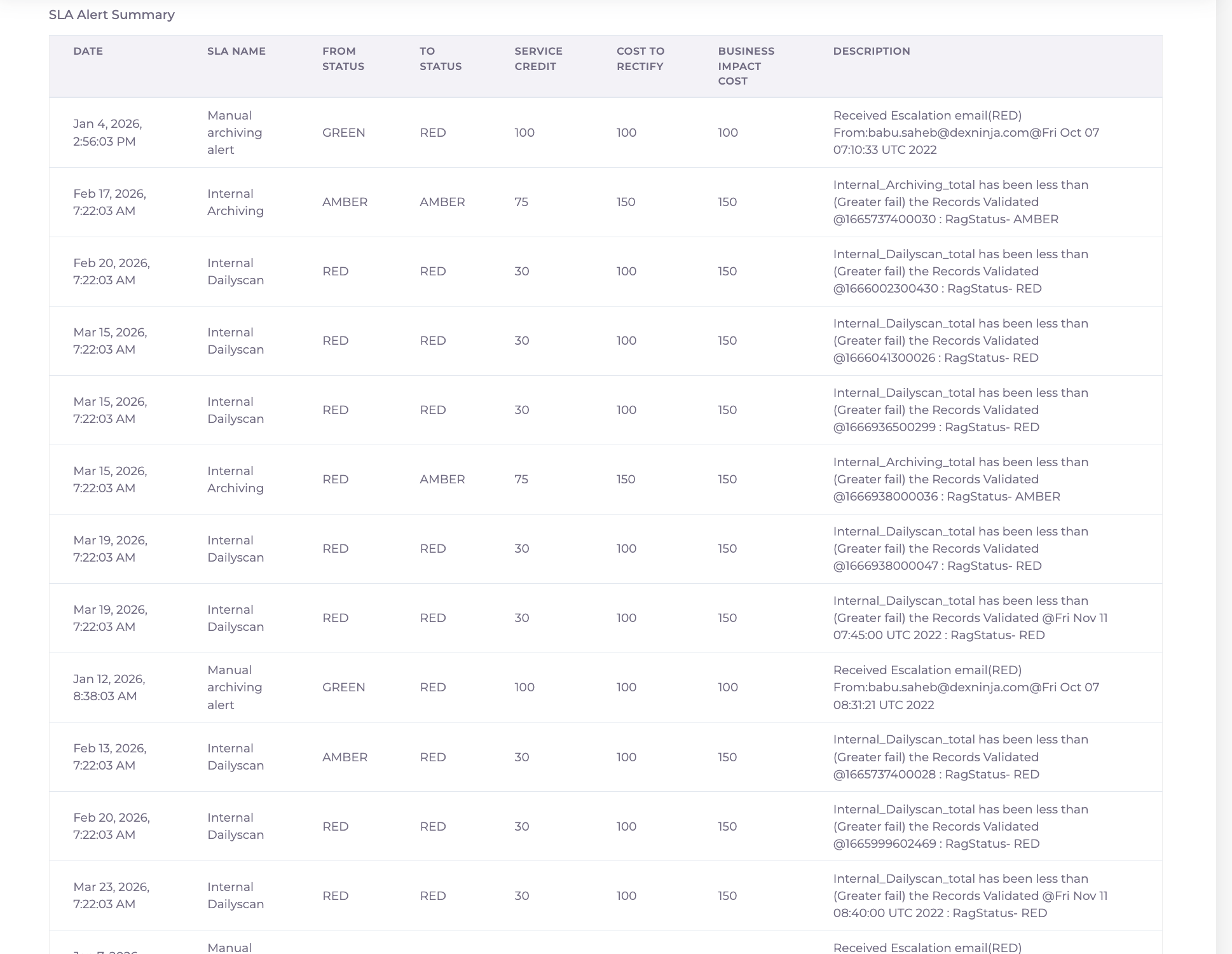
The SLA Alert Summary table below the charts logs every status transition with columns: Date, SLA Name, From Status, To Status, Service Credit, Cost to Rectify, Business Impact Cost, and Description. The cost columns are sourced from the SLA module configuration.
8.3 Timeline Tab
A bar chart showing SLA activity broken down by individual SLA name over time. Unlike the SLA Log (which groups by RAG colour), the Timeline shows per-SLA performance including Reviews Data and Manual Overrides.
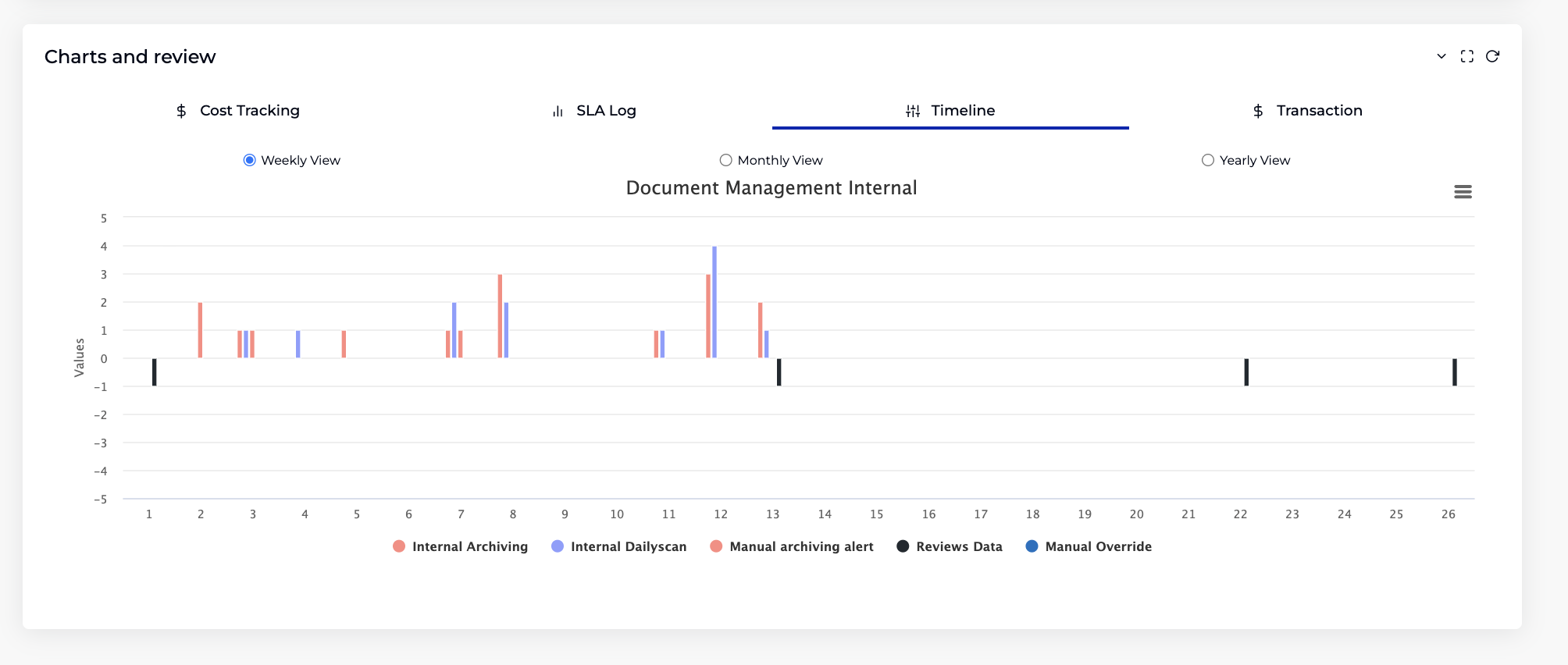
Toggle between Weekly View, Monthly View, and Yearly View.
8.4 Cost Tracking Tab
Displays cost data from the Cost Tracker linked to this contract. The data is populated through a pipeline: Cost Center items are configured in the Customer Billing tab with costs and a Data Connector, and the Cost Tracker links the contract to this billing setup and fetches usage data on schedule.
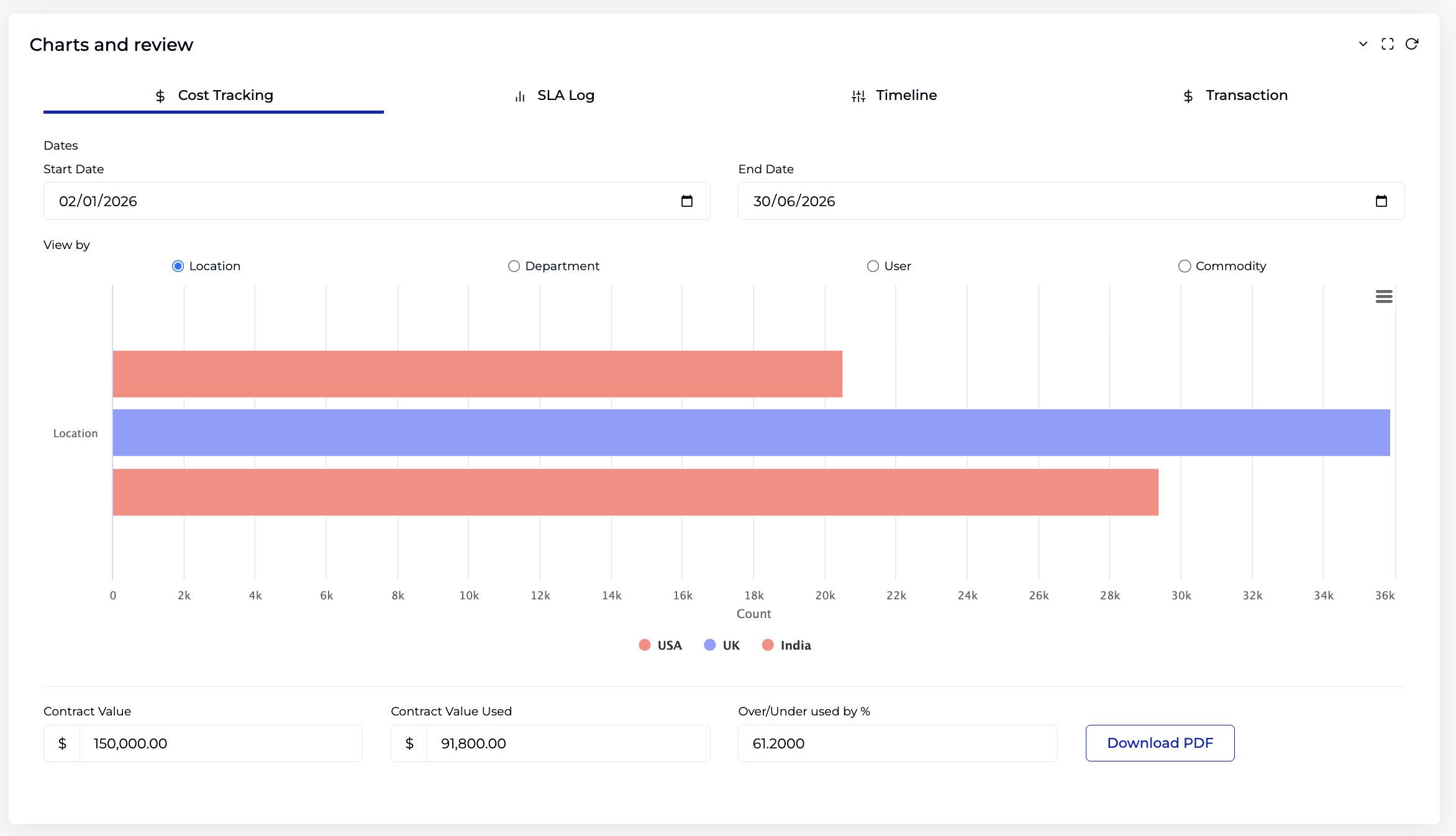
Date Filter:
Set the Start Date and End Date to define the reporting period.
View By:
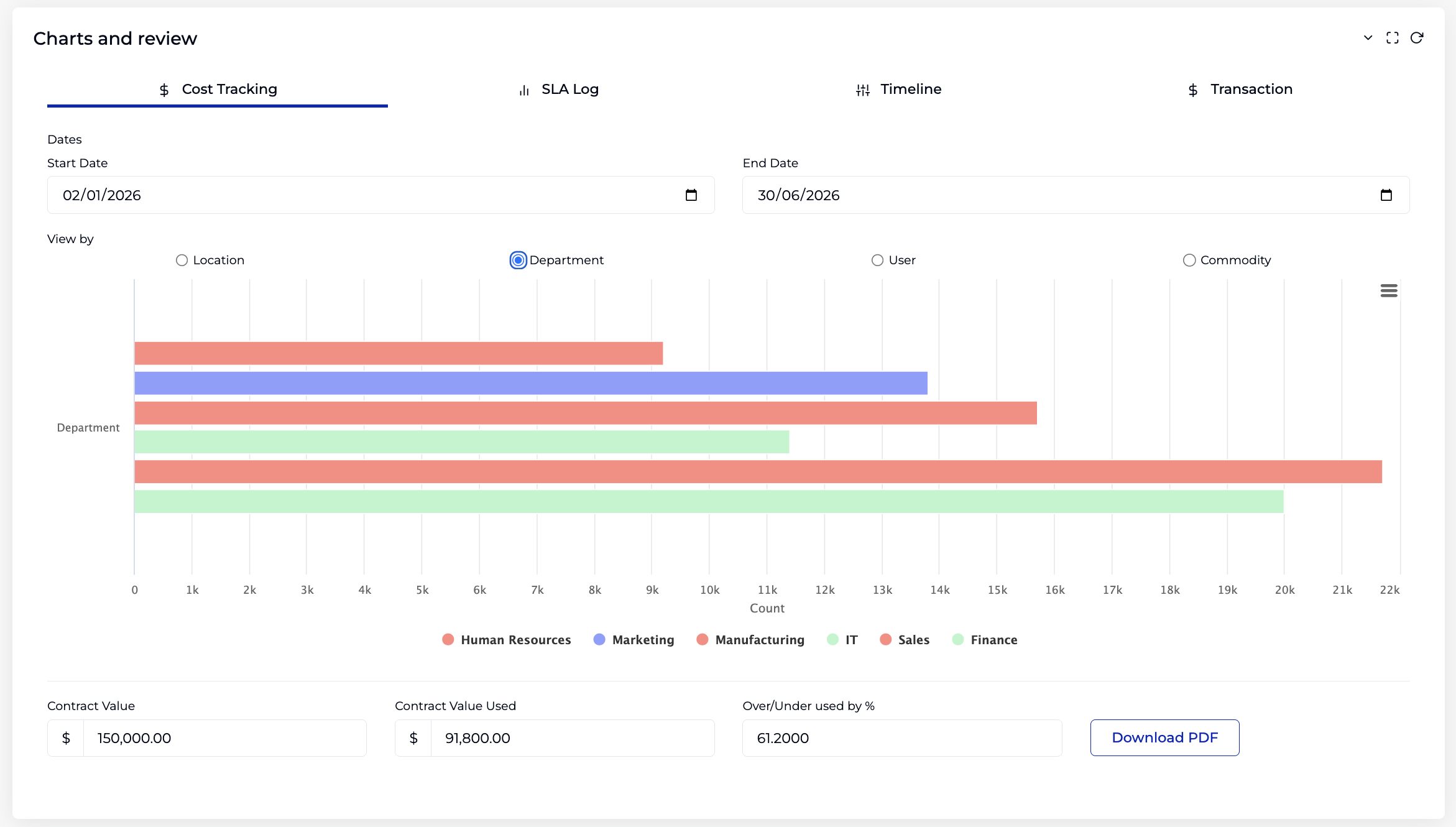
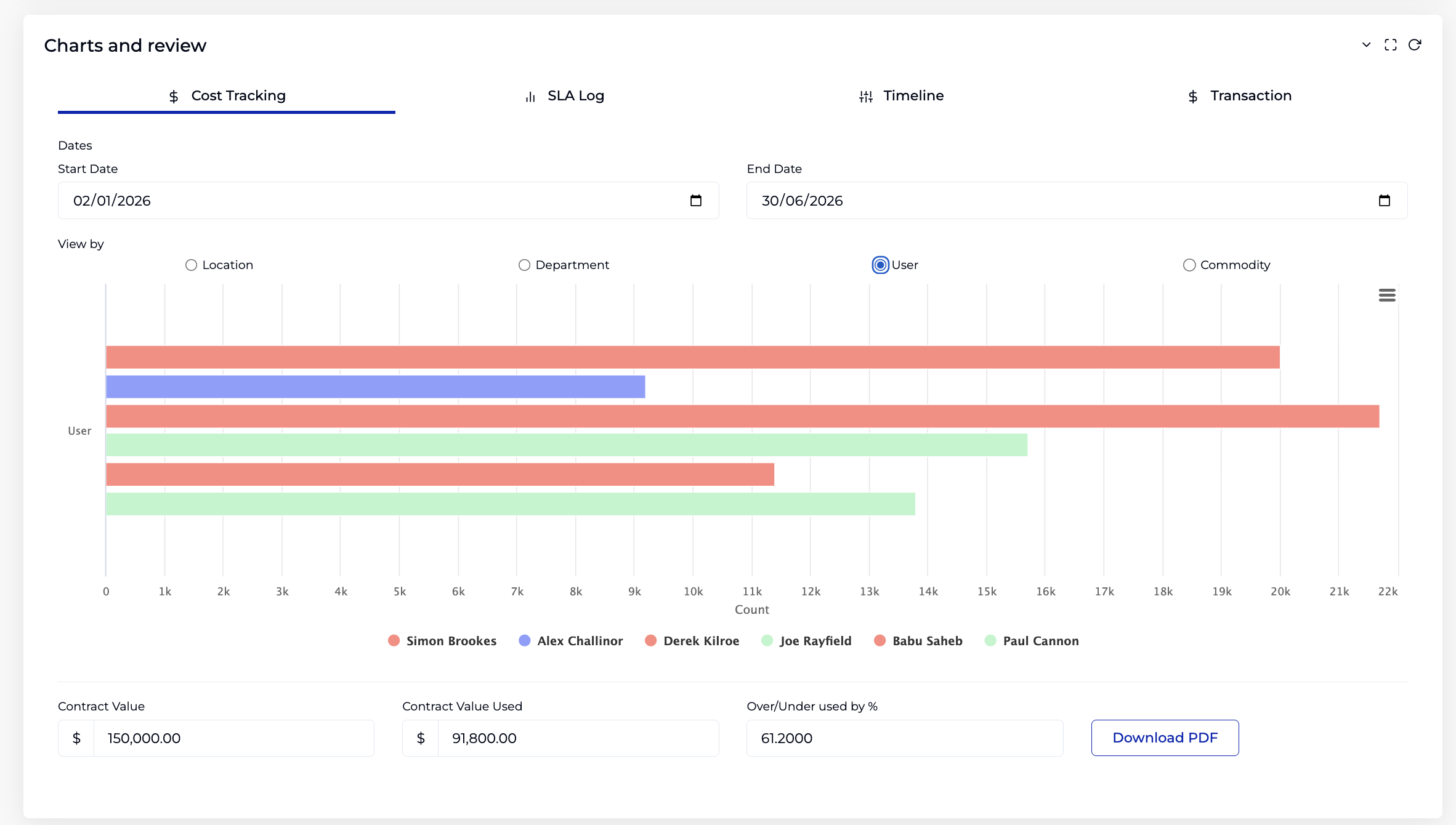
The Data Connector fetches usage records from the external database. Each record contains not just the commodity used, but also which Location it was consumed in, which Department it belongs to, and which User used it. The View By radio buttons slice this same dataset by different dimensions:
Location — groups usage by location (e.g. USA, UK, India), showing how costs are distributed across physical/regional sites.
Department — groups usage by department (e.g. Human Resources, Marketing, Manufacturing, IT, Sales, Finance), showing which departments are driving costs.
User — groups usage by user to bill (e.g. Simon Brookes, Alex Challinor, Derek Kilroe), showing individual cost attribution.
Commodity — groups usage by commodity type (e.g. CV, Certificates, Invoices, Agreements, Receipts, Contracts), showing which items are driving costs.
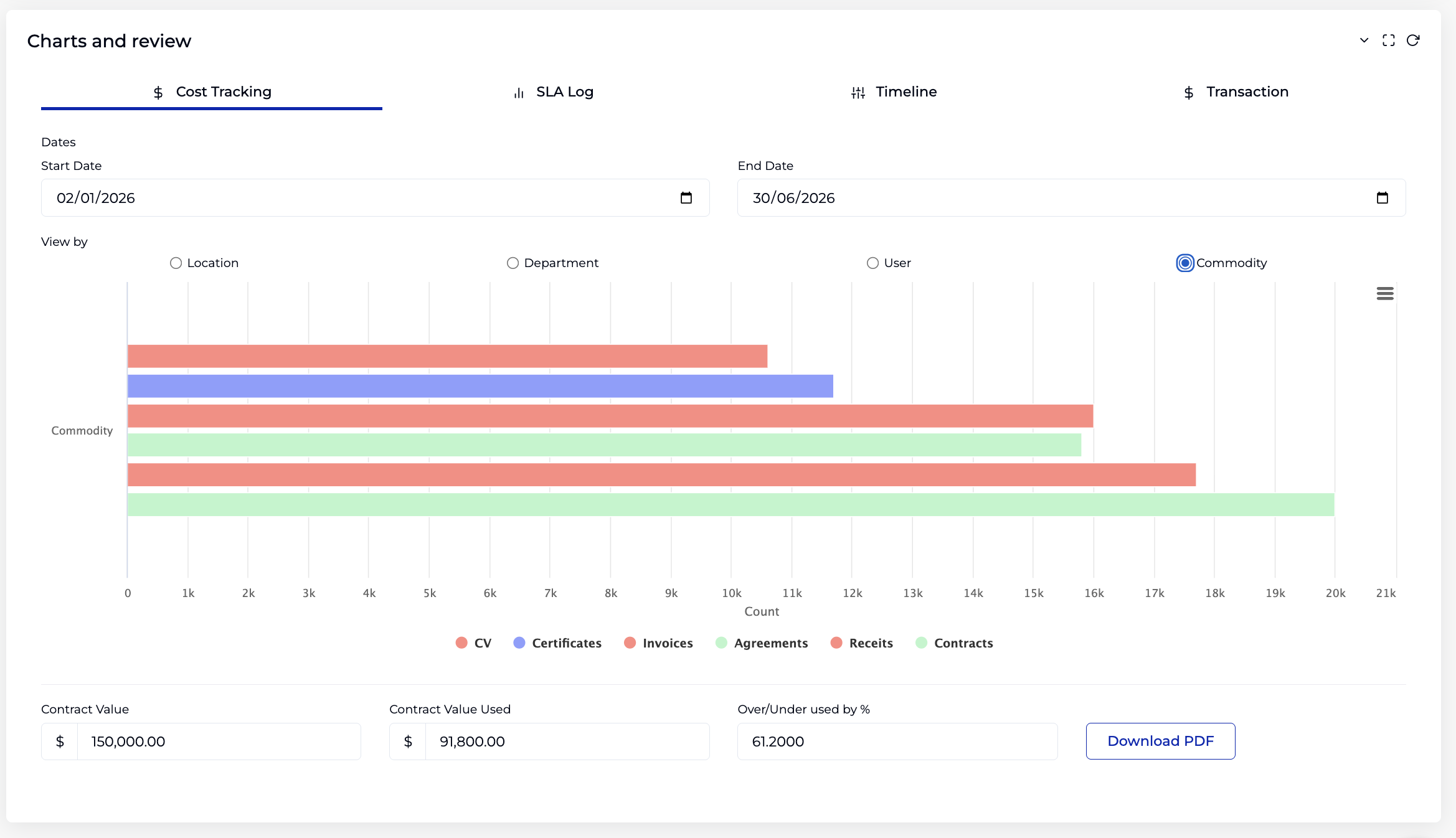
Summary Fields and Calculation:
The cost calculation works as follows: the Data Connector fetches usage counts from the external database for each commodity. The system then calculates the cost for each commodity using the formula:
Commodity Cost = (Usage Count × Cost Per Unit) + Minimum Cost
If Variable Pricing events are configured for a commodity, the variable cost applies during the event period instead of the standard Cost Per Unit. The totals are then aggregated across all commodities:
| Field | Description |
|---|---|
| Contract Value | The total contract value. |
| Contract Value Used | Sum of all commodity costs — total usage cost consumed, calculated from usage counts fetched by the Data Connector multiplied by Cost Per Unit (or variable cost), plus Minimum Cost for each commodity. |
| Over/Under used by % | Percentage of contract value consumed: (Contract Value Used ÷ Contract Value) × 100. |
Click Download PDF to export the cost tracking report as a PDF document.
9. Bulk Import
Contract intELIEgence allows you to import multiple contracts at once using a pre-formatted Excel template. This is useful when migrating data from another system or when you need to create many contracts in a single operation.
9.1 How to Import
- On the Contract List page, click the grid icon in the top-right corner to reveal a dropdown menu with + Add and Import options.
- Click Import to open the Import Contract dialog.
- Select an Organisation from the dropdown.
- Click Import Template to download the pre-formatted Excel template for contracts.
- Fill in the Excel template with the contract data you wish to import (see the template columns below).
- Click Choose File to select the completed Excel file.
- Click Submit to import the records.
9.2 Import Template Columns
The Excel template contains the following columns, grouped by category:
Core
| Column | Description |
|---|---|
| name | Contract name. |
| contractNumber | Unique contract number. |
| startDate | Contract start date. |
| endDate | Contract end date. |
| contractRisk | Contract risk rating (Low, Medium, High). |
| businessRisk | Business risk rating (Low, Medium, High). |
| owner | Contract owner email address. |
| value | Contract value. |
Entities
| Column | Description |
|---|---|
| customer | Customer name (Sell-side contracts). |
| department | Department name. |
| supplier | Supplier name (Buy-side contracts). |
Review
| Column | Description |
|---|---|
| reviewDate | Review start date. |
| reviewFrequency | Review frequency (e.g. 1 Month, 3 Months). |
| reviewerEmails | Reviewer email address(es). |
| reviewNotification | Notification message template for reviews. |
Procurement / Clauses
| Column | Description |
|---|---|
| description | Contract description. |
| breakdownClause | Breakdown clause text. |
| revisionClause | Revision clause text. |
| terminationClause | Termination (exit) clause text. |
| terminationPeriod | Exit period in months. |
| terminationTriggerPeriod | Exit trigger period in months. |
| terminationNotificationEmails | Exit notification email address(es). |
| terminationNotificationMessage | Exit notification message template. |
| renewalClause | Renewal clause text. |
| renewalPeriod | Renewal period in months. |
| renewalTriggerPeriod | Renewal trigger period in months. |
| renewalNotificationEmails | Renewal notification email address(es). |
| renewalNotificationMessage | Renewal notification message template. |
Financial
| Column | Description |
|---|---|
| liquidationDamage | Liquidation damages value. |
| minimumSpend | Minimum spend value. |
| addressableSpend | Addressable spend value. |
| IndemnityAllowed | Whether indemnity is enabled. |
| policyNumber | Indemnity policy number. |
| unlimitedLiabilityAllowed | Whether unlimited liability is allowed. |
| liabilityValue | Liability value. |
Other
| Column | Description |
|---|---|
| contractCategory | Contract category (from Catalogs). |
| poNumbers | Purchase order number(s). |
| rateablecontract | Whether the contract is rateable. |
| invoiceProfileEmail | Invoice profile email (Sell-side). |
10. Editing a Contract
- Click a contract name from the Contract List to open the Edit Contract screen.
- All core details, files, and tab data can be updated.
- The Charts and Review section (Transaction, SLA Log, Timeline, Cost Tracking) is only available in edit mode.
- For expired contracts, the Contract Concluded checkbox becomes available alongside the existing record-keeping flags.
- In the Procurement tab, the Manual Renew button is available to instantly renew the contract.
11. Deleting a Contract
- On the Contract List page, tick the checkbox next to one or more contracts.
- A Delete button appears.
- Click Delete and confirm.
12. Tips
- Select a Contract Type to pre-fill the Procurement tab — this saves time and ensures consistent clause language across contracts of the same type.
- Switch between Buy-side and Sell-side in your profile settings before creating a contract. The entity linking fields in the Contract tab change accordingly.
- For actively managed contracts, assign SLAs using RAG blocks: group related SLAs in the same block for shared escalation, or create separate blocks for different severity levels and recipients.
- Use Milestones to reset the RAG colour on a schedule — this ensures each reporting period starts clean.
- Set up Review escalation with a reasonable timeframe and ensure reviewers know they must add a note in the Notes tab to satisfy the review.
- Link sub-contracts to a Master Contract to consolidate reporting. Use "Add Value" when sub-contracts draw from the master's value pool, "Include Value" when they contribute separately.
- For rateable contracts, the contract value builds from transactions — set "Is Rateable Contract" to Yes before saving.
- Use the Expiry Interval filter on the listing to proactively identify contracts nearing expiry.
- Import transactions via Excel or set up a Connector schedule to automate transaction data entry.
13. Troubleshooting
| Issue | Resolution |
|---|---|
| Contract Type dropdown is empty | Add Contract Type entries in Organisation → Catalogs. |
| Contract Approved By dropdown is empty | Select a Governance Scheme first. If still empty, configure approvers in the Governance module. |
| Supplier/Customer dropdown is empty | Create Suppliers (Buy-side) or Customers (Sell-side) in the respective modules first. |
| Invoice To dropdown is empty (Sell-side) | Select a Customer first. If still empty, create Invoice Profiles under that Customer. |
| Procurement tab fields are disabled | Tick the checkbox next to each clause to enable editing. |
| Contract status is "Incomplete" | Actively Managed is ticked but no SLAs are assigned. Add SLAs in the Operational tab. |
| Contract status is "Approval Pending" | The contract was created by a Super User. The Department Admin must approve or reject it. |
| Review escalation fired unexpectedly | The reviewer did not add a note in the Notes tab within the Escalate After (hours) timeframe. |
| RAG not updating | Ensure SLAs are assigned and actively running. Check the SLA Log for status transitions. Milestones may have reset the colour. |
| Manual Renew button not visible | This button is only available in edit mode (open an existing contract). |
| Charts and Review section not visible | This section only appears in edit mode. Open an existing contract to see it. |
| Transaction balance not calculating | Ensure Expected Amount and Actual Amount are entered. Balance is auto-calculated. |