User Guide › Tracking › Performance Tracker
Performance Tracker
Tracking — Scheduled KPI data fetches for contract performance monitoring
1. Overview
The Performance Tracker module defines scheduled data fetches that pull KPI metric values from external databases and store the results for viewing in the contract's Performance Tracking tab. Each Performance Tracker links a KPI to a computation method and a schedule, creating a recurring data pipeline that feeds performance data into contracts.
How It Works
- Admin creates a Performance Tracker by selecting a KPI and a Compute method.
- A Schedule is configured to define how often data is fetched.
- On each scheduled run, the system reads data from the KPI's Data Connector, applies the Compute method, and stores the result.
- The results appear in the contract's Performance Tracking tab for monitoring and trend analysis.
Prerequisites
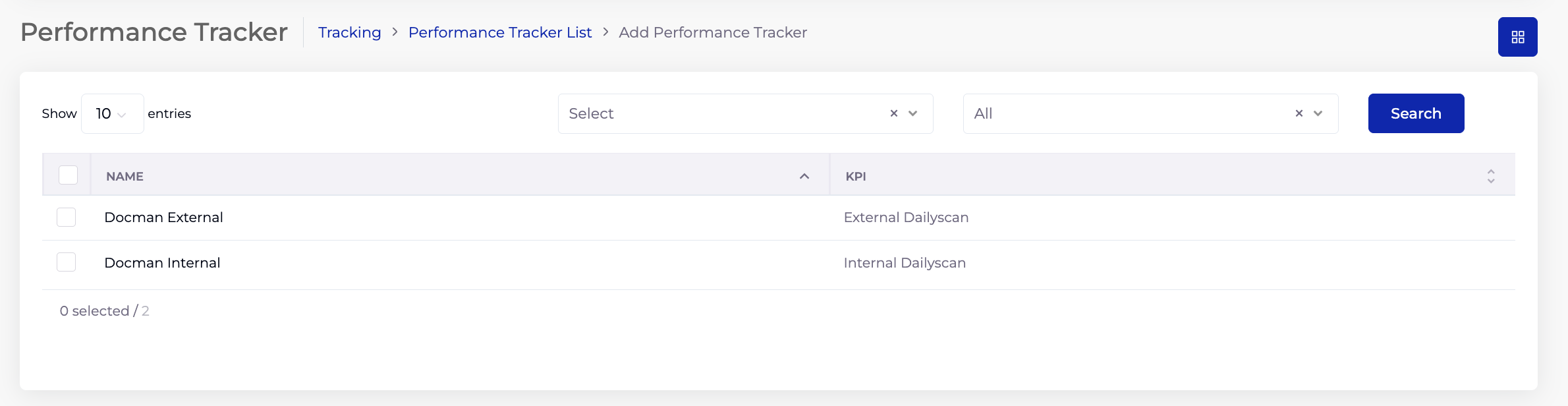
- In the left navigation, under Tracking, click Performance Tracker.
- The listing shows all Performance Trackers with their Name and linked KPI.
- Use the filter dropdowns and Search button to locate a tracker.
- Click Add Performance Tracker to create a new one.
2.1 Listing Columns
| Column | Description |
|---|
| Name | The Performance Tracker name. |
| KPI | The KPI this tracker is linked to. |
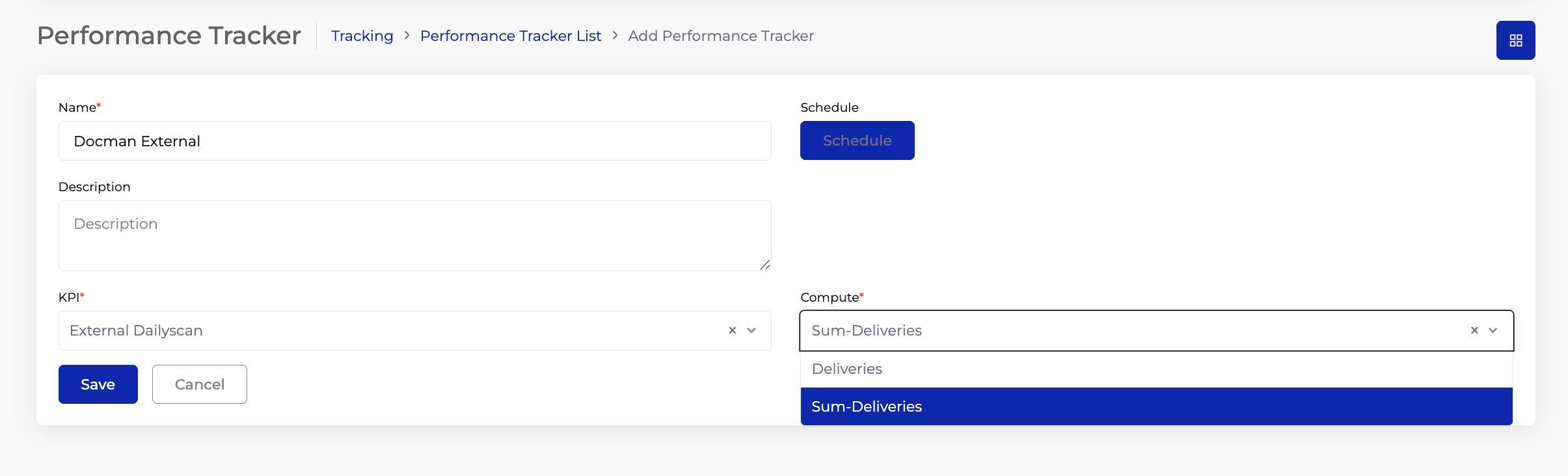
- On the Performance Tracker listing, click Add Performance Tracker.
- Enter a Name (required) — a descriptive name for this tracker (e.g. "Docman External", "Daily Delivery Count").
- Click the Schedule button to configure how often the system fetches and computes data. See the Schedule Configuration section for full details on scheduling options (interval, daily, weekly, monthly, yearly).
- Enter a Description — optional notes about the tracker.
- Select a KPI (required) — the KPI whose data source this tracker reads from. The KPI determines which Data Connector and metric field are used.
- Select a Compute method (required) — the computation to apply to the KPI's data. The dropdown lists the columns available from the KPI's Data Connector table in two forms:
- Column name (e.g. "Deliveries") — fetches individual/raw values from the column. Each scheduled run records the current value as a data point.
- Sum-Column name (e.g. "Sum-Deliveries") — aggregates (sums) all values in the column. Each scheduled run records the cumulative total, producing a growing trend line over time.
- Click Save.
| Field | Required | Description |
|---|
| Name | Yes | A descriptive name for the Performance Tracker. |
| Schedule | — | Button to configure the data fetch frequency. Uses the same Schedule popup as SLA and other modules. |
| Description | No | Free text description. |
| KPI | Yes | The KPI to track. Dropdown lists all KPIs created in the KPI module. |
| Compute | Yes | The computation method. Lists each column from the KPI's Data Connector table in two forms: raw (individual values per fetch) and Sum (cumulative aggregation). For example, "Deliveries" tracks each fetch as a separate value, while "Sum-Deliveries" tracks a running total. |
The Performance Tracker sits in a data pipeline that flows from external databases to contract-level performance views:
| Step | Module | What Happens |
|---|
| 1 | Data Connector | Defines the external database, database instance, and table to read from. |
| 2 | KPI | Defines which column (metric field) to measure and optional filters. |
| 3 | Performance Tracker | Applies a Compute method and runs on a schedule to fetch and store data. |
| 4 | Contract → Performance Tracking tab | Displays the tracked results for monitoring and trend analysis. |
5. Tips
- Create the full pipeline first: Data Connector → KPI → Performance Tracker. Each depends on the previous step.
- Use descriptive names that include the metric and frequency (e.g. "External Archiving — Daily Sum" rather than "Tracker 1").
- Configure the Schedule before saving — without a schedule, the tracker will not fetch data automatically.
- The Compute dropdown options come from the KPI's Data Connector table columns. If you don't see the expected option, check the KPI's Data Connector configuration.
- Multiple Performance Trackers can use the same KPI with different Compute methods — for example, one tracking raw count and another tracking sum.
6. Troubleshooting
| Issue | Resolution |
|---|
| KPI dropdown is empty | No KPIs have been created. Navigate to Tracking → KPI and create at least one. |
| Compute dropdown is empty | Select a KPI first — the Compute options are derived from the KPI's Data Connector table columns. |
| No data appearing in contract PT tab | Check the Schedule is configured and the tracker is within its active period. Verify the KPI's Data Connector is connected and the table has data. |
| Tracker not running on schedule | Ensure the Schedule is configured (click the Schedule button and submit). Check with the system administrator if the scheduler service is running. |