1. Overview
The Connectors module allows administrators to configure external integrations that Contract intELIEgence uses to exchange data with other systems. Connectors are the bridge between the platform and external email servers, databases, and ERP systems.
There are three connector types, each serving a different purpose within the platform:
| Connector Type | Purpose | Used In |
|---|---|---|
| Email Connector | Connects to an email server for email-based SLA monitoring. | SLA module (Email type SLAs). |
| Data Connector | Connects to an external database to read data for reporting, tracking, and transaction imports. | KPI (Data type SLAs), Performance Tracker, Cost Tracker (via Customer), Contract Transactions (import). |
| Sage Connector | Integrates with Sage ERP to synchronise suppliers, transactions, contracts, and push data back to Sage. | Organisation Settings (default supplier and transaction connectors), Supplier sync, Transaction sync, Contract and Supplier push to Sage. |
Prerequisites
- Organisation must be set up.
- For Email Connectors — email server credentials (host, port, username, password) or OAuth credentials (Client ID, Tenant ID, Client Secret).
- For Data Connectors — database server address, port, credentials, and the target database/table details.
- For Sage Connectors — Sage API endpoint URL and API key pairs for GET (pull) and PUSH (send) operations.
2. Connector Listing
- In the left navigation, under Platform Config, click Connectors.
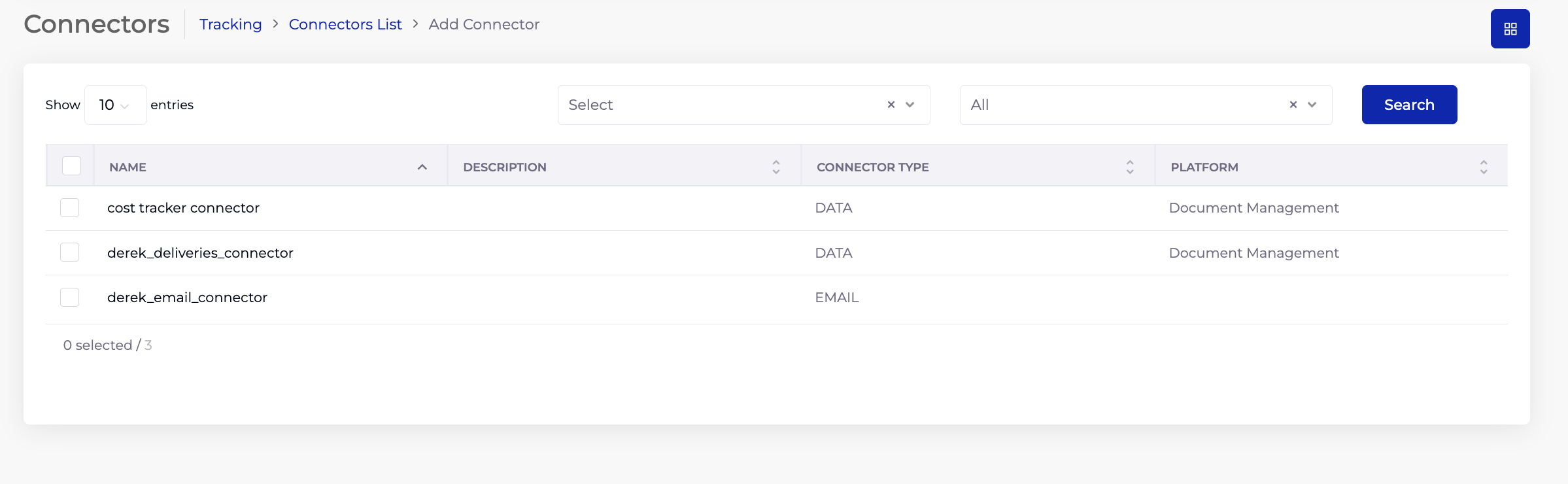
- The Connectors List shows all configured connectors with their Name, Description, Connector Type (DATA or EMAIL), and Platform.
- Use the filter dropdowns and Search button to locate a connector.
- Click Add Connector to create a new connector.
2.1 Listing Columns
| Column | Description |
|---|---|
| Name | The connector name. |
| Description | A brief description of the connector's purpose. |
| Connector Type | DATA, EMAIL, or SAGE. |
| Platform | The platform type (from Catalogs → Platform Type). Applicable to Data Connectors. |
3. Email Connector
The Email Connector connects Contract intELIEgence to an email server. It is used in the SLA module for Email type SLAs, where the system monitors an inbox to track email-based service level performance.
3.1 Auth Type: App Password
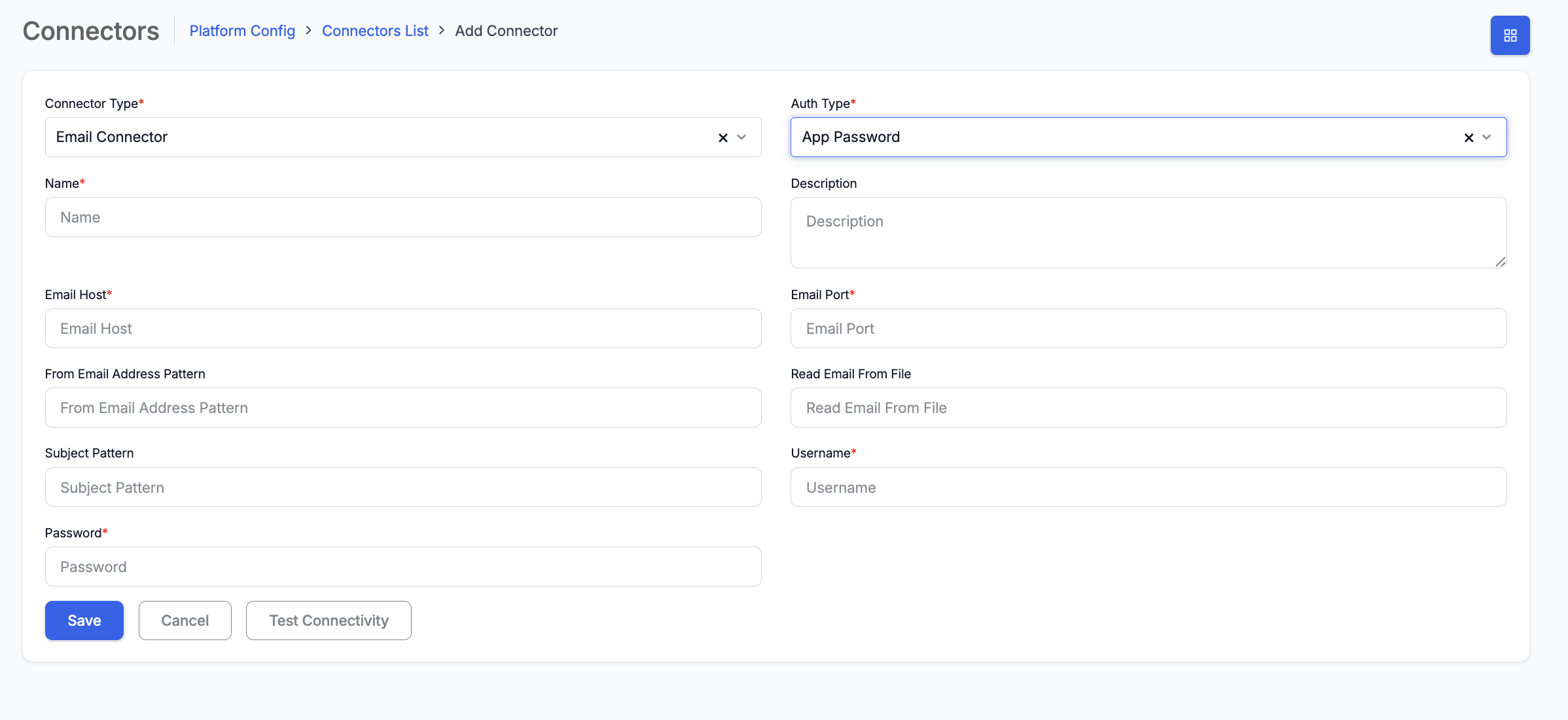
Use this authentication method when connecting with traditional email server credentials (SMTP/IMAP).
- Click Add Connector.
- Select Connector Type: Email Connector.
- Select Auth Type: App Password.
- Enter a Name (required) — a descriptive name for this connector.
- Enter a Description — optional notes about the connector's purpose.
- Enter the Email Host (required) — the mail server address (e.g. imap.gmail.com, outlook.office365.com).
- Enter the Email Port (required) — the server port (e.g. 993 for IMAP SSL, 587 for SMTP TLS).
- Enter the From Email Address Pattern — filter to process only emails from addresses matching this pattern.
- Enter the Read Email From File — specify a file path to read emails from, if applicable.
- Enter the Subject Pattern — filter to process only emails with subjects matching this pattern.
- Enter the Username (required) — the email account username.
- Enter the Password (required) — the email account password or app-specific password.
- Click Test Connectivity to verify the connection before saving.
- Click Save.
3.2 Auth Type: Graph API (OAuth)
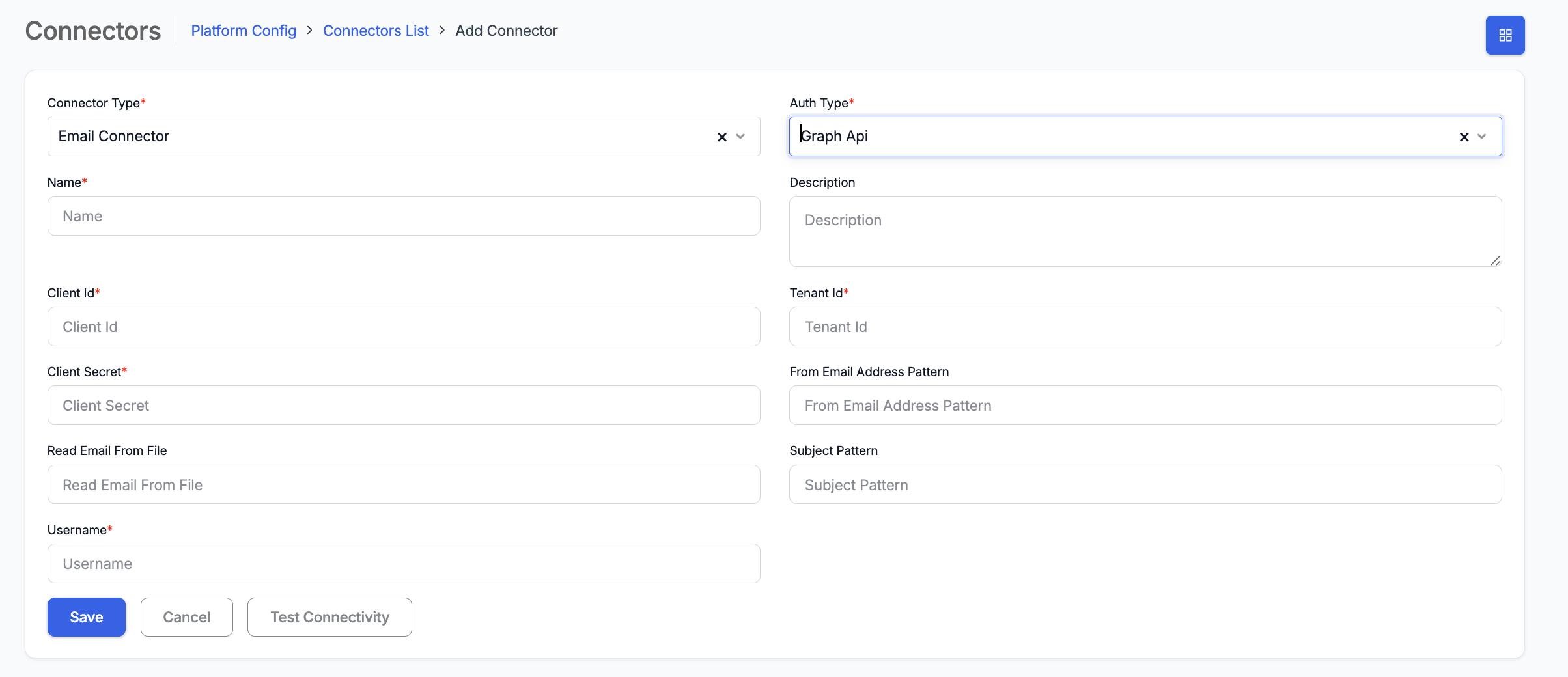
Use this authentication method when connecting via Microsoft Graph API with OAuth credentials. This is the recommended approach for Microsoft 365 / Outlook environments.
- Click Add Connector.
- Select Connector Type: Email Connector.
- Select Auth Type: Graph Api.
- Enter a Name (required) — a descriptive name for this connector.
- Enter a Description — optional notes.
- Enter the Client Id (required) — the OAuth application (client) ID from Azure AD.
- Enter the Tenant Id (required) — the Azure AD tenant ID.
- Enter the Client Secret (required) — the OAuth client secret.
- Enter the From Email Address Pattern — filter for sender addresses.
- Enter the Read Email From File — specify a file path if applicable.
- Enter the Subject Pattern — filter for email subjects.
- Enter the Username (required) — the mailbox to monitor.
- Click Test Connectivity to verify the connection before saving.
- Click Save.
4. Data Connector
The Data Connector connects Contract intELIEgence to an external database. It is used across multiple modules: KPI tracking (Data type SLAs), Performance Tracker, Cost Tracker (via Customer), and Contract Transaction imports.
4.1 Creating a Data Connector
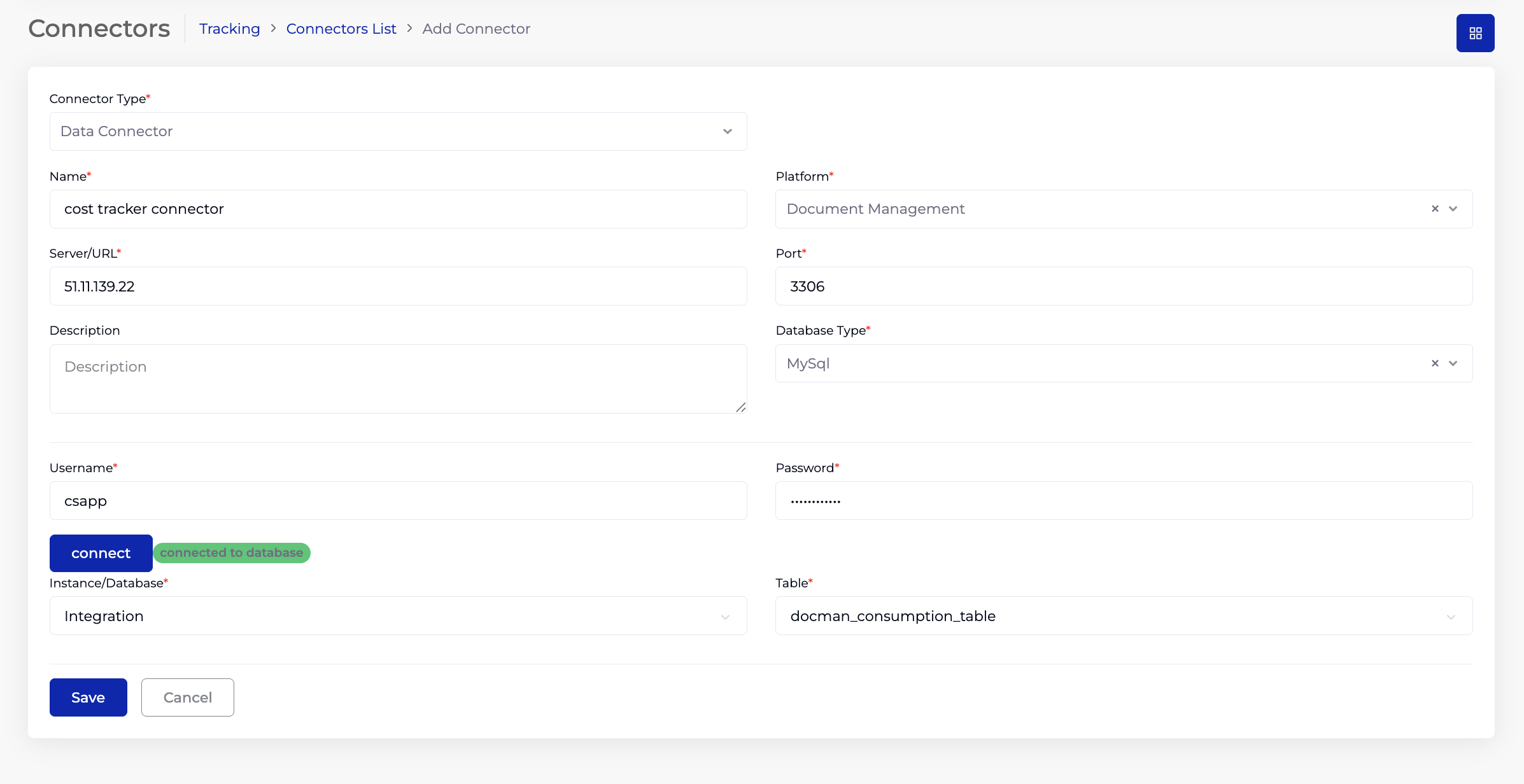
The Data Connector uses a two-step process — first connect to the database server, then select the specific database and table.
Step 1 — Enter Connection Details:
- Click Add Connector.
- Select Connector Type: Data Connector.
- Enter a Name (required) — a descriptive name for this connector.
- Select a Platform (required) — the platform type, sourced from Catalogs → Platform Type (e.g. Document Management).
- Enter the Server/URL (required) — the database server address (e.g. IP address or hostname).
- Enter the Port (required) — the database server port (e.g. 3306 for MySQL, 1433 for MSSQL, 1521 for Oracle).
- Enter a Description — optional notes.
- Select the Database Type (required) — MySql, MSSql, or Oracle.
- Enter the Username (required) — database login username.
- Enter the Password (required) — database login password.
- Click Connect.
Step 2 — Select Database and Table:
Once the connection is established successfully (indicated by a green "connected to database" message), two additional dropdowns appear:
- Select the Instance/Database (required) — the specific database on the server.
- Select the Table (required) — the specific table to read data from.
- Click Save.
4.2 Supported Database Types
| Database Type | Default Port |
|---|---|
| MySql | 3306 |
| MSSql | 1433 |
| Oracle | 1521 |
5. Sage Connector
The Sage Connector integrates Contract intELIEgence with Sage ERP systems. It supports two-way data exchange: pulling (GET) suppliers and transactions from Sage into Contract intELIEgence, and pushing (PUSH) contract and supplier information back to Sage.
The default Sage connectors for supplier sync and transaction sync are configured in Organisation → Settings (Default Supplier Connector and Default Transaction Connector fields).
5.1 Sage Versions
Two Sage versions are supported, each with a slightly different form:
| Field | Sage 200 | Sage X3 |
|---|---|---|
| Server/URL* | Yes | Yes |
| Port | Yes | No |
| GET API Key Name* / Value* | Yes | Yes |
| PUSH API Key Name* / Value* | Yes | Yes |
| Identifier* | Yes | No |
| Error Notification Email | Yes | Yes |
| Error Notification Message | Yes | Yes |
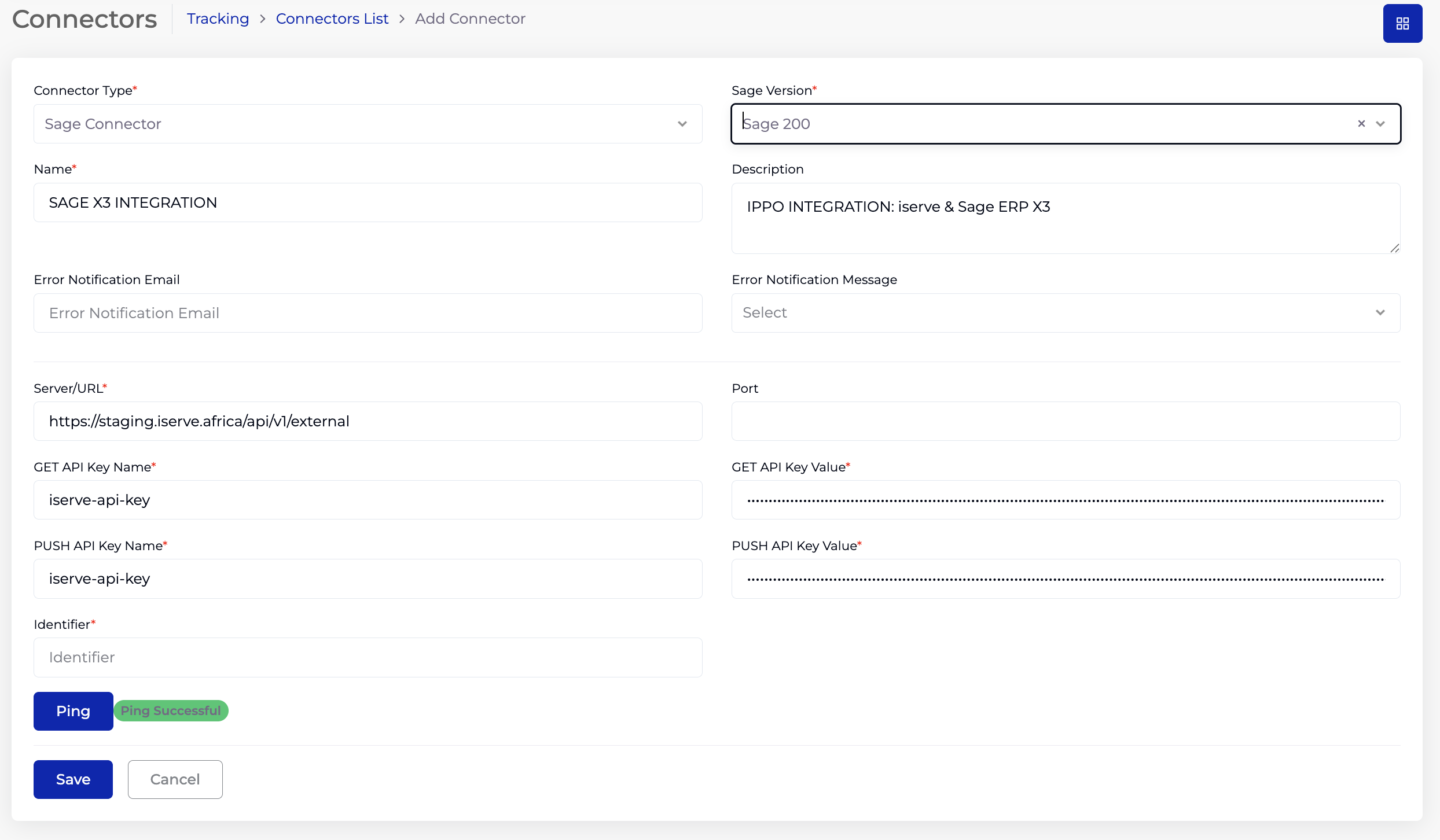
5.2 Creating a Sage 200 Connector
- Click Add Connector.
- Select Connector Type: Sage Connector.
- Select Sage Version: Sage 200.
- Enter a Name (required) — a descriptive name for this integration.
- Enter a Description — notes about the integration (e.g. "IPPO INTEGRATION: iserve & Sage ERP 200").
- Enter the Error Notification Email — email address to receive alerts when the integration encounters errors.
- Select the Error Notification Message — the notification template to use for error alerts (from Notification module).
- Enter the Server/URL (required) — the Sage API endpoint URL.
- Enter the Port — the API port if applicable.
- Enter the GET API Key Name (required) and GET API Key Value (required) — the API key pair for pulling data from Sage into Contract intELIEgence.
- Enter the PUSH API Key Name (required) and PUSH API Key Value (required) — the API key pair for sending data from Contract intELIEgence to Sage.
- Enter the Identifier (required) — a unique identifier for this Sage instance.
- Click Ping to verify the connection. A green "Ping Successful" message confirms connectivity.
- Click Save.
5.3 Creating a Sage X3 Connector
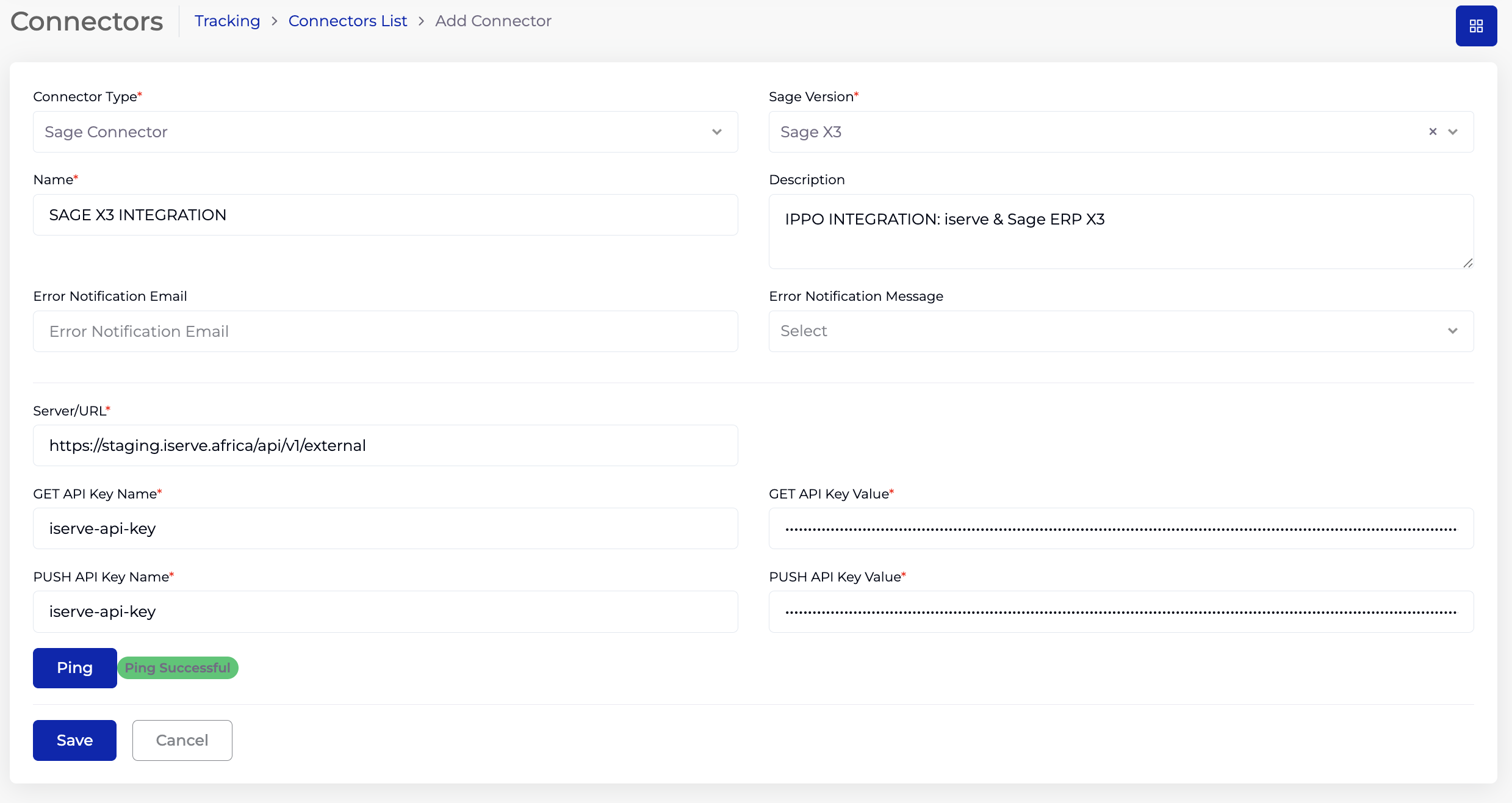
The Sage X3 form is similar to Sage 200 but does not include the Port and Identifier fields.
- Click Add Connector.
- Select Connector Type: Sage Connector.
- Select Sage Version: Sage X3.
- Enter a Name (required).
- Enter a Description.
- Enter the Error Notification Email and select the Error Notification Message.
- Enter the Server/URL (required).
- Enter the GET API Key Name (required) and GET API Key Value (required).
- Enter the PUSH API Key Name (required) and PUSH API Key Value (required).
- Click Ping to verify the connection.
- Click Save.
6. Connection Testing
Each connector type has a built-in connectivity test to verify the configuration before saving:
| Connector Type | Test Button | Success Indicator |
|---|---|---|
| Email Connector | Test Connectivity | Successful connection message. |
| Data Connector | Connect | Green "connected to database" badge + Instance/Database and Table dropdowns appear. |
| Sage Connector | Ping | Green "Ping Successful" badge. |
7. Tips
- Always test connectivity (Test Connectivity / Connect / Ping) before saving to catch configuration errors early.
- Use descriptive names for connectors — especially when multiple connectors of the same type exist (e.g. "Sales DB - Transaction Import" vs "Support DB - Cost Tracker").
- For Email Connectors, use the From Email Address Pattern and Subject Pattern to limit which emails are processed — this avoids irrelevant emails triggering SLA updates.
- For Data Connectors, ensure the database user has read permissions on the target table. Write permissions are not required.
- For Sage Connectors, configure the default supplier and transaction connectors in Organisation → Settings after creating the Sage connector.
- Use the Error Notification Email on Sage Connectors to proactively monitor integration health — this sends alerts when sync operations fail.
- Platform Type for Data Connectors comes from Catalogs — ensure the required platform types are configured before creating connectors.
8. Troubleshooting
| Issue | Resolution |
|---|---|
| Email — Test Connectivity fails | Verify the Email Host, Port, Username, and Password. For App Password auth, ensure the email provider allows app passwords (e.g. Gmail requires an App Password when 2FA is enabled). For Graph API, verify Client ID, Tenant ID, and Client Secret in Azure AD. |
| Data — Connect button fails | Check Server/URL, Port, Database Type, Username, and Password. Ensure the database server is accessible from the Contract intELIEgence server (check firewall rules). Verify the database user has login permissions. |
| Data — Instance/Database dropdown empty | The connected user may not have permission to list databases. Grant the necessary permissions in the database server. |
| Data — Table dropdown empty | The selected database may have no tables, or the user may not have read permission on the tables. |
| Sage — Ping fails | Verify the Server/URL and API key pairs. Ensure the Sage API endpoint is accessible and the API keys are valid and not expired. |
| Sage — Sync not working after save | Ensure the connector is set as the default in Organisation → Settings (Default Supplier Connector / Default Transaction Connector). |
| Connector not appearing in other modules | Ensure the connector is saved successfully. Check that the connector type matches what the module expects (e.g. SLA expects Email Connector, KPI expects Data Connector). |