1. Overview
The Governance module defines governance schemes that provide structured oversight for contracts. Each scheme specifies a valid date range, a contract value band, and an assigned approver. Governance is not an approval workflow — it is a selection mechanism that ensures contracts have the appropriate governance oversight assigned.
When creating a contract, the user optionally selects a Governance Scheme and a corresponding Approved By person. The system filters the available schemes based on matching rules (value range, date range, and current status). If a Governance Scheme is selected without an Approved By, the contract status is set to Incomplete until both are provided.
Governance and the department-based approval workflow are two separate mechanisms:
- Governance — optional selection of a scheme and approver on the contract. No approval workflow is triggered — it is a record-keeping and compliance requirement.
- Department-based approval — when a Super User creates a contract, it is automatically routed to the Department Admin for approval. This is a workflow that changes the contract status (Approval Pending → Approved/Rejected).
Prerequisites
- Organisation must be set up.
- Governance Approvers must be configured in Organisation → Catalogs (Type = Governance Approvers). These populate the Approval By dropdown.
2. Governance Listing
- In the left navigation, under Platform Config (or Configuration), click Governance.
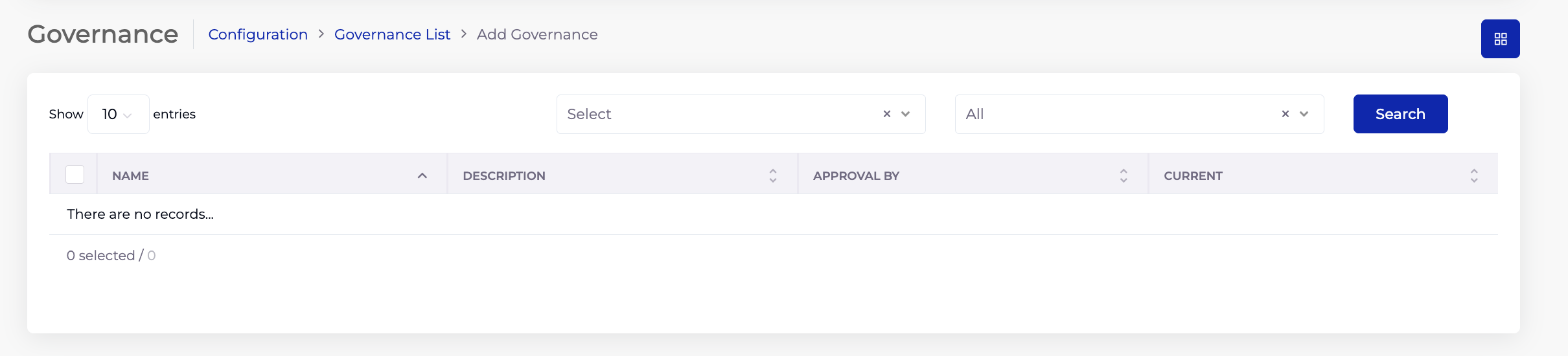
- The Governance List shows all governance schemes with their Name, Description, Approval By, and Current status.
- Use the filter dropdowns and Search button to locate a scheme.
- Click Add Governance to create a new scheme.
2.1 Listing Columns
| Column | Description |
|---|---|
| Name | The governance scheme name. |
| Description | Description of the scheme. |
| Approval By | The assigned approver (from Catalogs → Governance Approvers). |
| Current | Whether the scheme is currently active/live. |
3. Adding a Governance Scheme
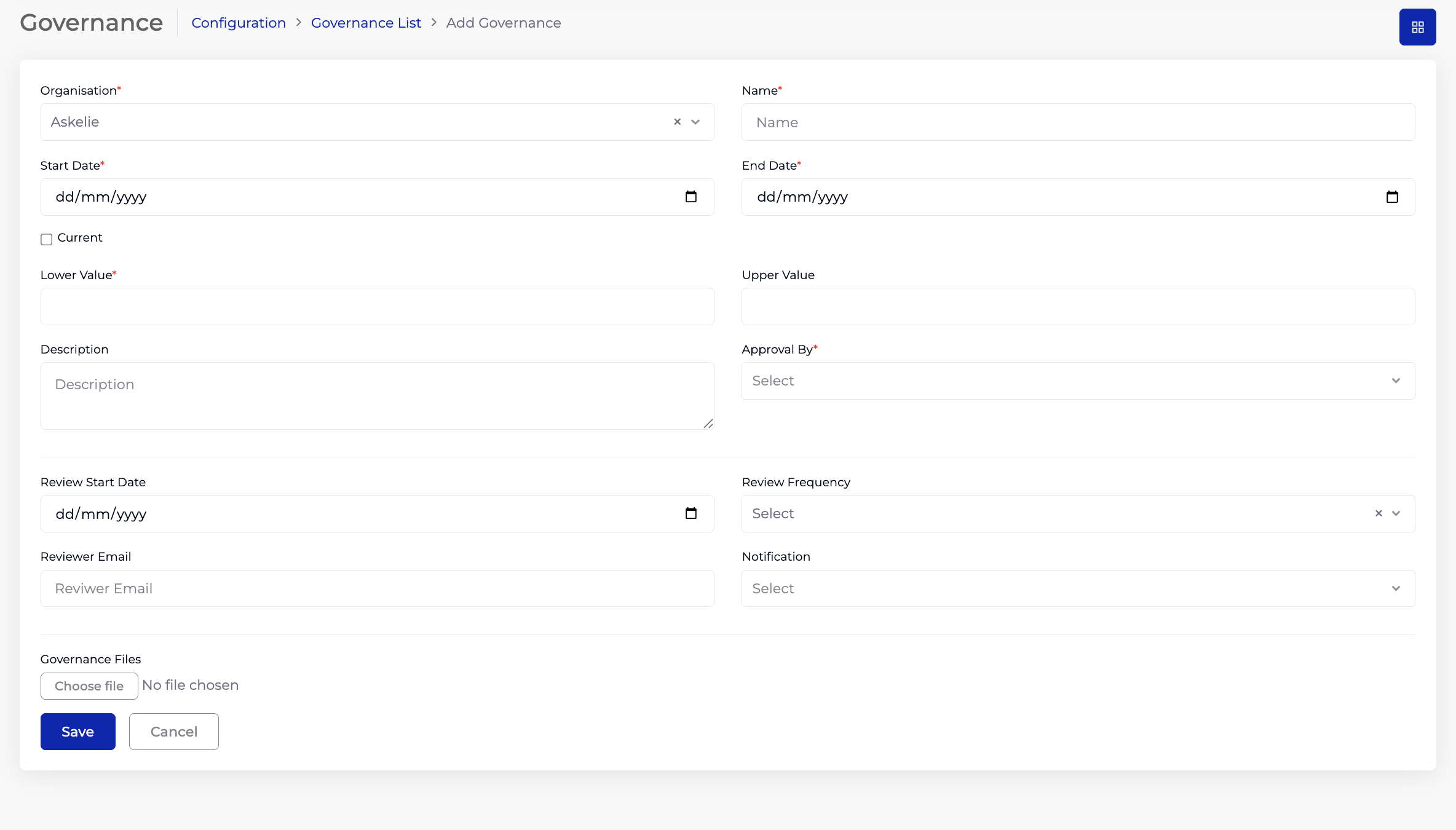
- On the Governance listing, click Add Governance.
- Select the Organisation (required).
- Enter a Name (required) — a descriptive name for the governance scheme.
- Select a Start Date (required) and End Date (required) — the period during which this scheme is valid. Only contracts whose start and end dates fall within this range can use this scheme.
- Tick Current if this scheme is active/live. Only current schemes appear in the contract's Governance Scheme dropdown.
- Enter a Lower Value (required) and Upper Value — the contract value band this scheme covers. Only contracts whose value falls between the Lower and Upper Value can use this scheme.
- Enter a Description — optional notes about the scheme.
- Select Approval By (required) — the approver for this governance scheme, from Organisation → Catalogs (Type = Governance Approvers).
- Click Save.
3.1 Form Fields
| Field | Required | Description |
|---|---|---|
| Organisation | Yes | The organisation this scheme belongs to. |
| Name | Yes | A descriptive name for the governance scheme (e.g. "Standard Approval — Up to $50K", "Executive Approval — $50K+"). |
| Start Date | Yes | The date from which this scheme is valid. |
| End Date | Yes | The date until which this scheme is valid. |
| Current | No | Checkbox — tick to mark the scheme as active/live. Only current schemes appear in the contract form. |
| Lower Value | Yes | The minimum contract value this scheme applies to. |
| Upper Value | No | The maximum contract value this scheme applies to. |
| Description | No | Free text description of the scheme. |
| Approval By | Yes | The assigned approver. From Organisation → Catalogs (Type = Governance Approvers). |
3.2 Review Configuration
The bottom section configures periodic reviews of the governance scheme itself to ensure it remains valid and up to date:
| Field | Description |
|---|---|
| Review Start Date | When reviews of this governance scheme begin. |
| Review Frequency | How often the scheme should be reviewed (dropdown). |
| Reviewer Email | Email address of the person reviewing the scheme. |
| Notification | Notification template for review alerts (from the Notification module). |
| Governance Files | Upload supporting documents (e.g. governance policy documents, approval matrices). |
4. How Governance Connects to Contracts
When creating or editing a Contract, two governance-related fields appear in the contract form:
Step 1 — Governance Scheme Selection:
The Governance Scheme dropdown on the contract form is filtered to show only schemes that match all three conditions:
- Current checkbox is ticked (scheme is active).
- Contract Value falls between the scheme's Lower Value and Upper Value.
- Contract Start Date and End Date fall within the scheme's Start Date and End Date.
Step 2 — Approved By Selection:
After selecting a Governance Scheme, the Contract Approved By field is populated with the approver(s) from the selected scheme. The user selects the appropriate approver.
Impact on Contract Status:
- If a Governance Scheme is selected but Approved By is not selected → the contract status is Incomplete.
- If both are selected (or Governance Scheme is not used at all) → the contract status is determined by the normal rules (dates, Actively Managed, SLA assignment).
5. Tips
- Create governance schemes that cover your organisation's value bands — for example, one scheme for contracts under $50,000 and another for $50,000+, each with different approvers.
- Always tick Current for active schemes — schemes without this checkbox will not appear in the contract form.
- Set appropriate Start and End Dates to align with your governance policy periods (e.g. financial year).
- Create Governance Approvers in Organisation → Catalogs before setting up governance schemes — the Approval By dropdown depends on these values.
- Use the Review configuration to schedule periodic reviews of governance schemes — this ensures schemes are updated when policies change.
- Upload governance policy documents using the Governance Files field for reference and audit purposes.
- If a contract shows status Incomplete and you've selected a Governance Scheme, check that the Approved By field is also selected.
6. Troubleshooting
| Issue | Resolution |
|---|---|
| Governance Scheme dropdown empty in contract | No matching schemes exist. Check that at least one governance scheme is: (1) marked as Current, (2) has a value range covering the contract value, and (3) has a date range covering the contract dates. |
| Approval By dropdown empty in contract | Select a Governance Scheme first — the Approved By list is populated based on the selected scheme. |
| Approval By dropdown empty in governance form | No Governance Approvers exist in Catalogs. Add them in Organisation → Catalogs (Type = Governance Approvers). |
| Contract stuck on Incomplete | A Governance Scheme is selected but Approved By is not. Select an approver from the Approved By dropdown. |
| Scheme not appearing despite matching value | Check the Current checkbox is ticked and the contract's dates fall within the scheme's Start/End Date range. |